Microsoft 365 Log Management (5): Connecting Sentinel Logs to Excel — and Extending Analysis with Copilot
Previously, I covered how to export a Power BI M Query from Microsoft Sentinel and connect it to Power BI Desktop.
While doing a self-study to compare Endpoint DLP logs against Microsoft Defender for Endpoint (MDE) logs, I ran into a practical issue: in Power BI, reorganizing column order can be surprisingly annoying when you just want to quickly compare a few fields side by side.
After digging in, I found a very handy trick:
✅ You can take the M Query exported from Sentinel/Log Analytics and paste it directly into Excel Power Query—and it works.
If you do analysis primarily in Excel (filters, quick comparisons, pivot tables), this approach is super practical.
So here’s the clean workflow:
“M Query export → Excel connection → analysis”
Youtube: https://youtu.be/iuyK1sINfzw
TL;DR
- In Sentinel / Log Analytics, export your query using Export to Power BI (as an M query).
- In Excel, open Power Query (Blank Query) and paste the M Query into the Advanced Editor.
- Authenticate using Organizational account, then Close & Load to load it into a worksheet table.
- From then on, just hit Refresh to update logs—no more re-running the same query in the portal.
Step 1) Export the M Query from Sentinel / Log Analytics
In the Azure Portal, navigate to either:
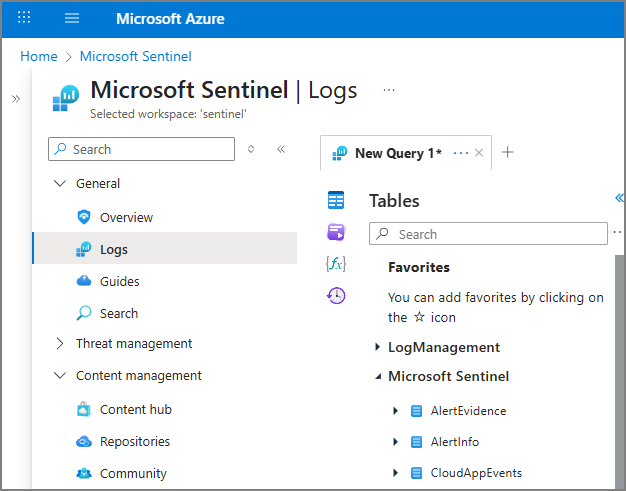
- Microsoft Sentinel > Logs
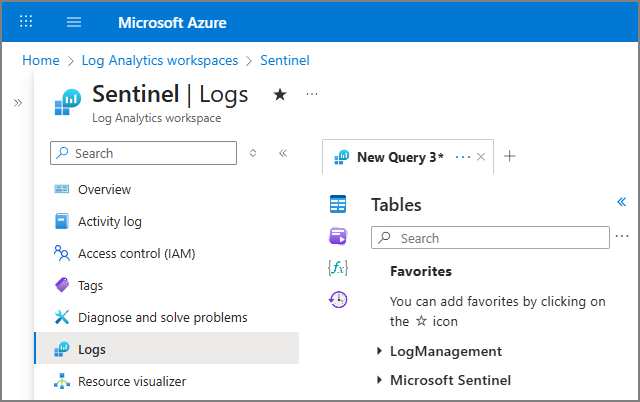
- Log Analytics Workspace > Logs
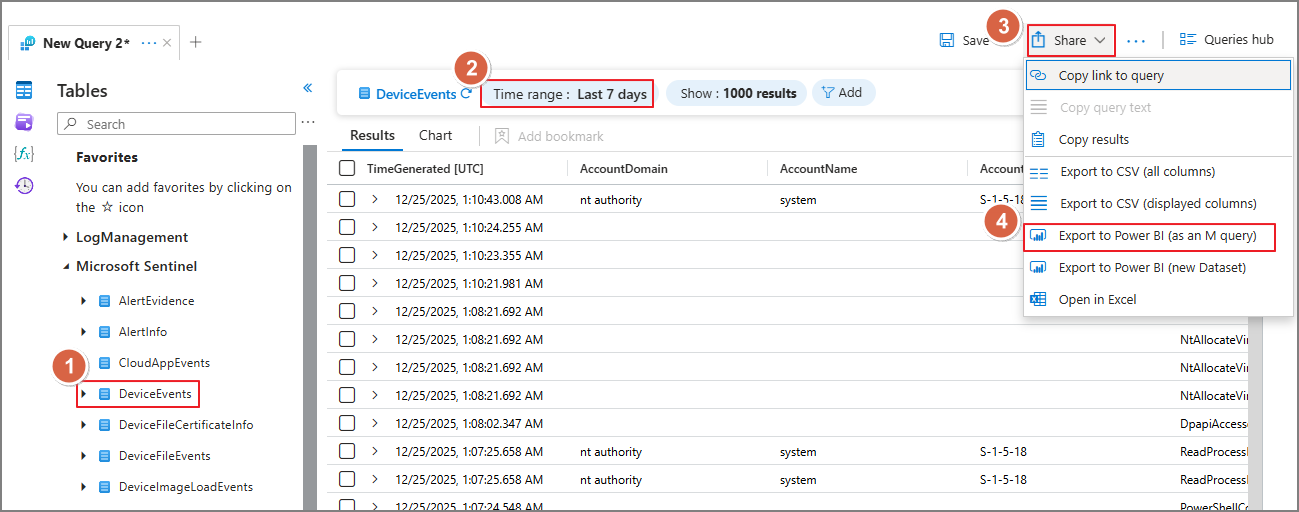
Write or select the query for the table > Setting Time range > Share > Export to Power BI (as an M query)
Step 2) Connect to Log Analytics Using M Query in Excel
2-1) Create a Blank Query
In Excel:
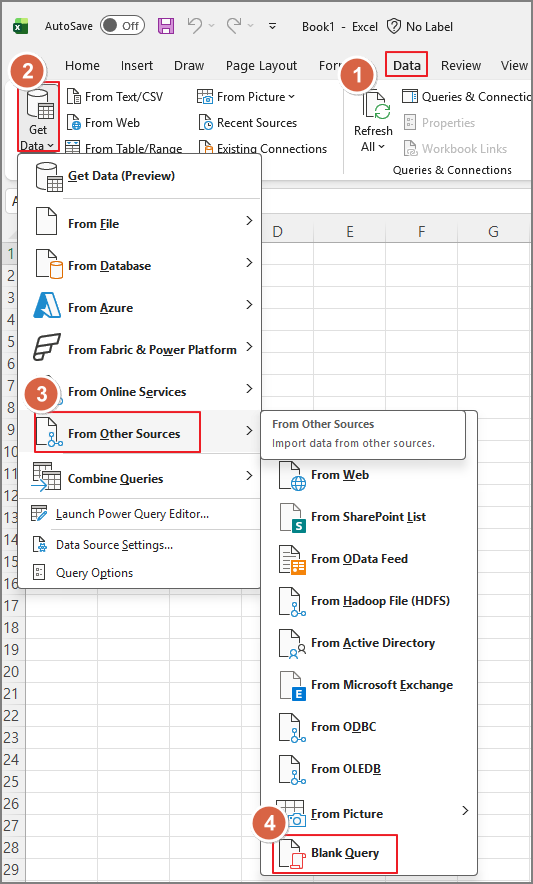
- Data > Get Data > From Other Sources > Blank Query
2-2) Paste the M Query into Advanced Editor
In the Power Query Editor:
Open Advanced Editor

Paste the entire M Query you downloaded in Step 1 as-is
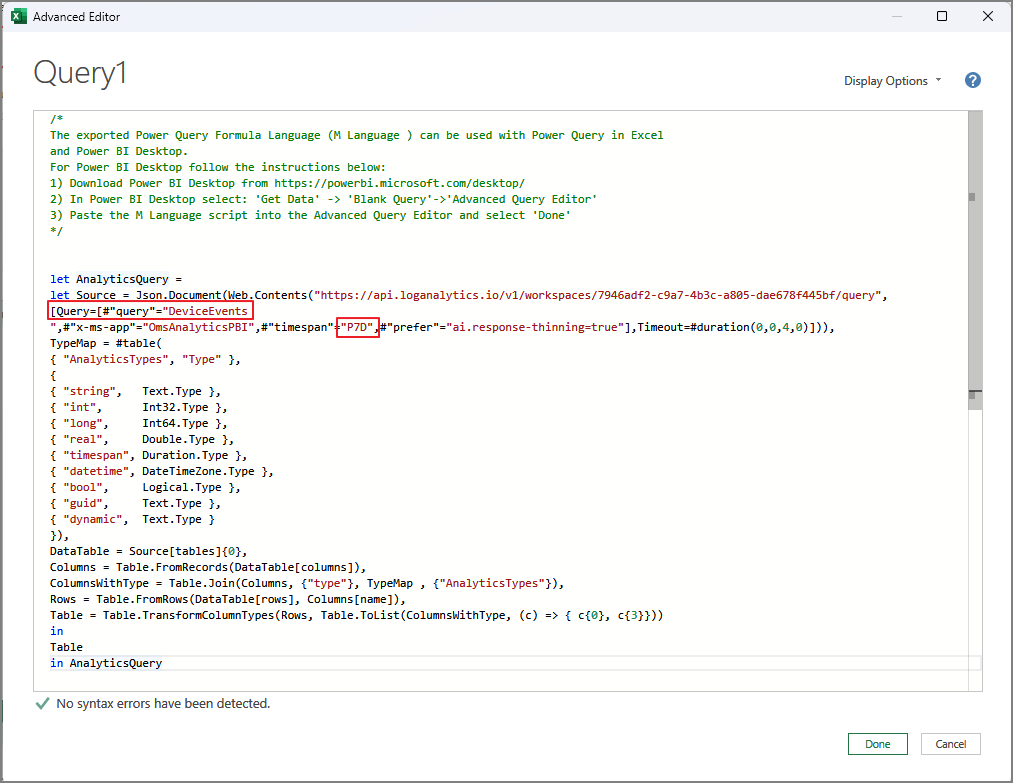
A typical exported M Query includes things like:
- The target table
- The query time range
✅ Pro tip: If you need to connect multiple tables, just duplicate the query and update only the table name and time span section. It’s the fastest way to scale your workbook.
2-3) Configure Credentials (Authentication)
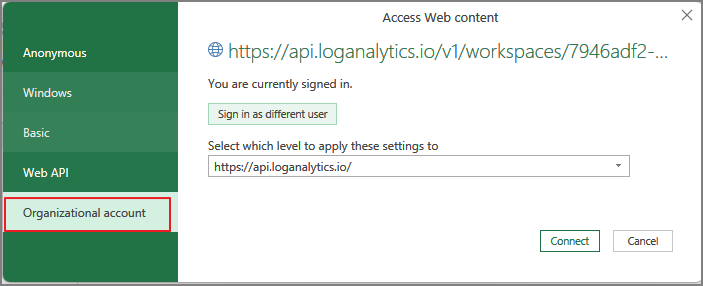
On first connection, you may see Edit Credentials.
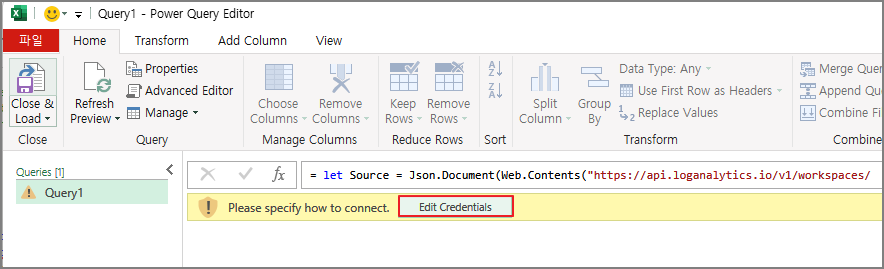
Organizational account → sign in → Connect
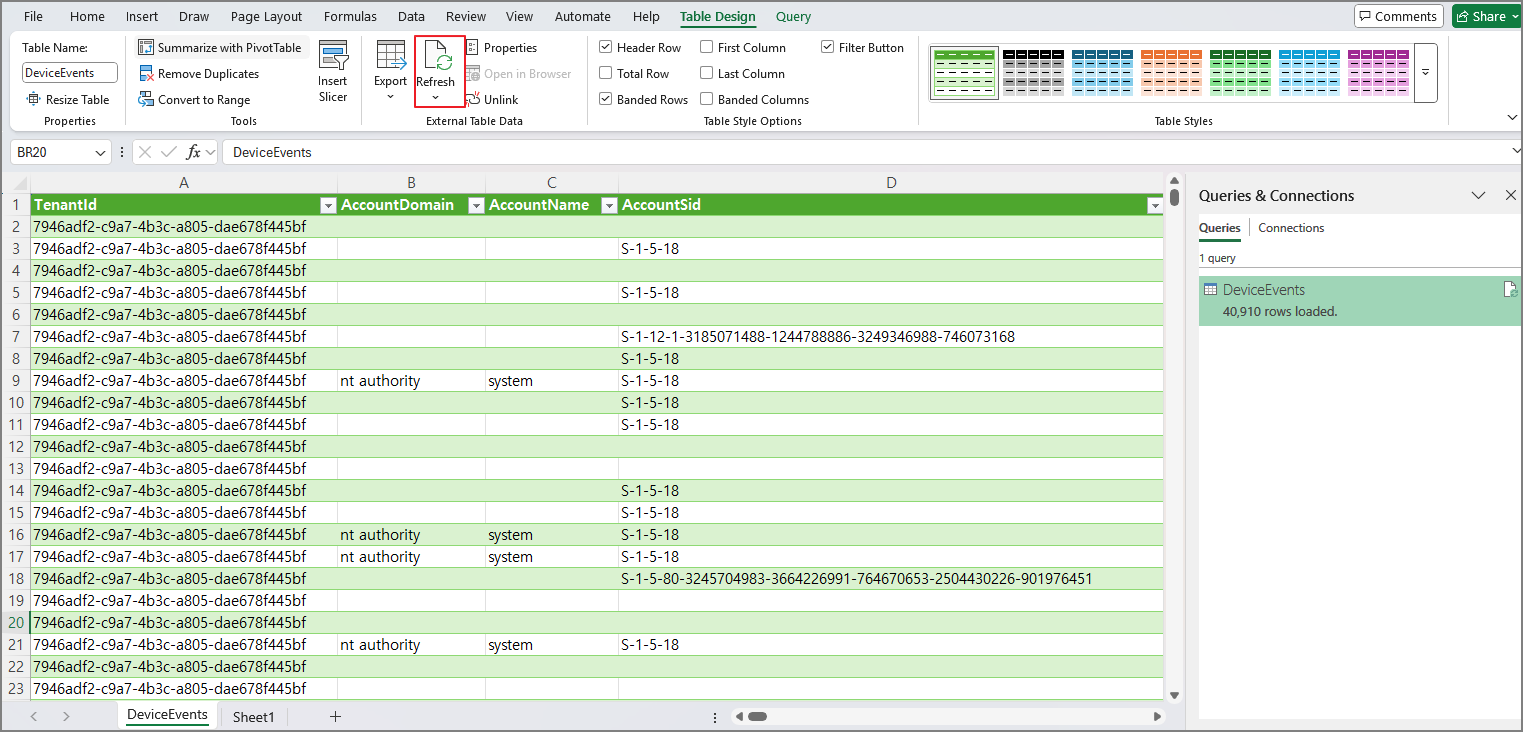
2-4) Load to Excel and Refresh Anytime
Before loading:
- Rename the query to something meaningful
- Then choose Close & Load to load into an Excel worksheet table
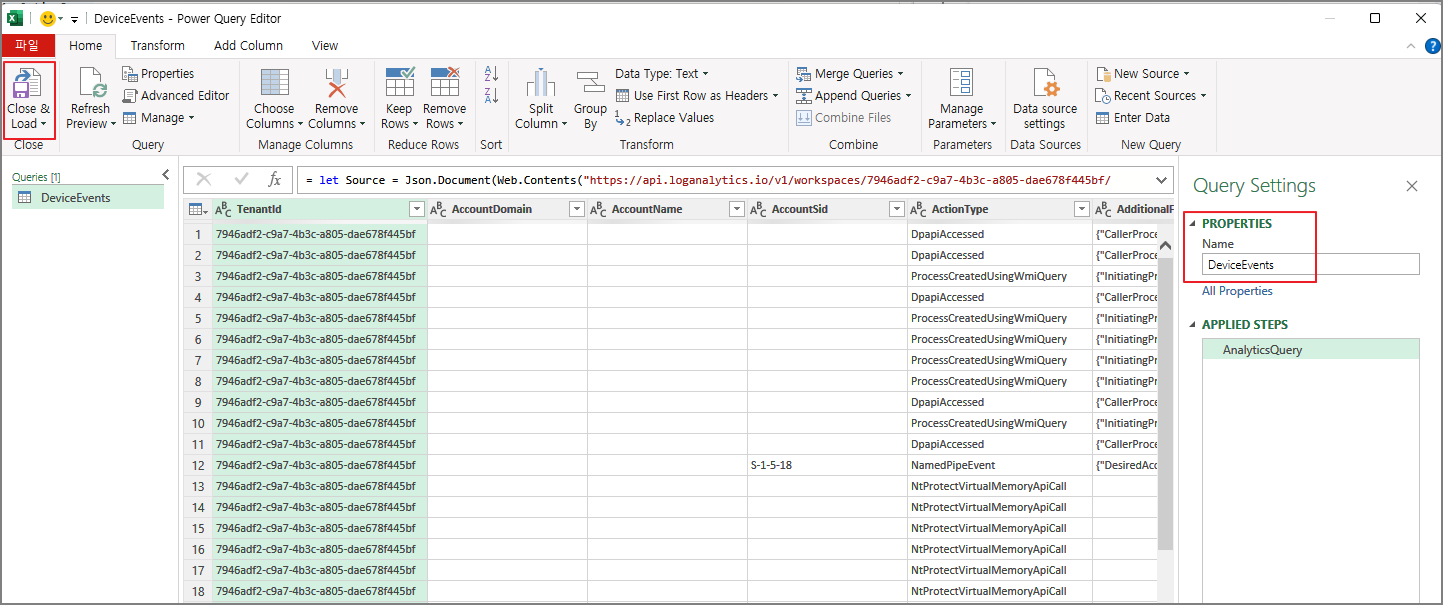
- Use filters, sorting, pivots, conditional formatting, side-by-side comparisons… all the Excel stuff that’s great for fast investigation.
And the best part:
✅ Refresh updates the dataset without re-running the whole process in the portal.
Step 3) Bonus: Analyze Logs with Copilot (Excel + OneDrive/SharePoint)
After loading logs into Excel:
- Save the workbook to OneDrive or SharePoint
- Ask Copilot to analyze the data

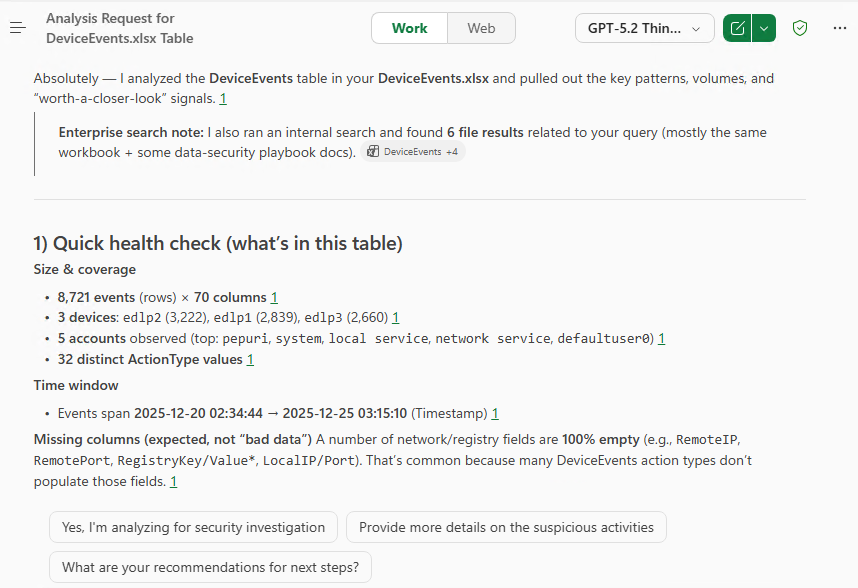
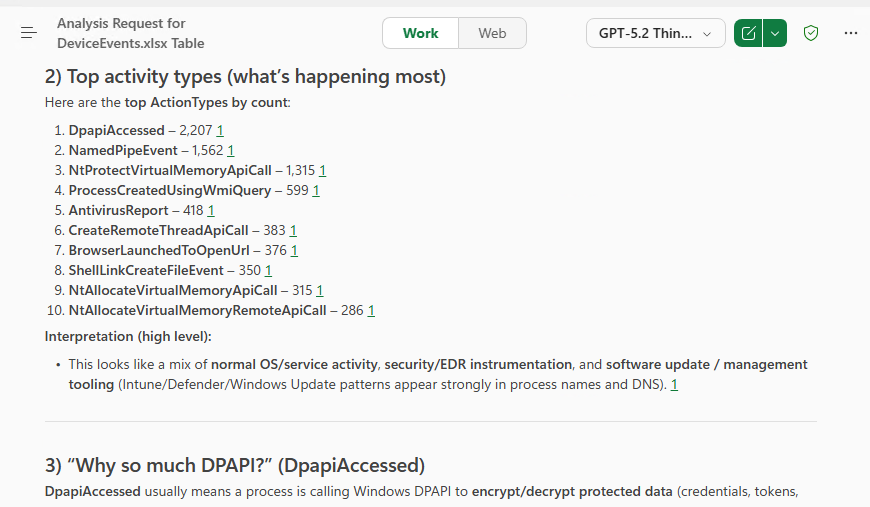
If Copilot recognizes your tables (for example, MDE-related tables), it can quickly do things like:
- Summaries
- Trend analysis
- Outlier/anomaly detection
- Quick insights and narrative explanations
Wrap-up
Using M Query Export from Sentinel/Log Analytics isn’t just for Power BI—you can connect it directly to Excel and build a refreshable log analysis workbook.
If your workflow is centered on:
- Fast comparison
- Column reordering
- Filtering
- Pivot-based analysis
…then Excel can be the more efficient tool. And once the dataset is in OneDrive/SharePoint, Copilot becomes an extra boost for rapid investigation.