Deploying App Control for Business (WDAC) via Intune
Before We Start
Third-party device control and DLP solutions often provide features to block program execution.
These days, asking an AI about how each feature works usually gives you a decent understanding of the underlying logic.
When I looked into this, the three native Windows options most commonly recommended were:
- IFEO (Image File Execution Options)
- AppLocker
- WDAC (Windows Defender Application Control)
Among these, WDAC has been rebranded as App Control for Business and is now used under that name.
In this post, I'll walk through how to deploy an App Control for Business policy through Intune.

Youtube: https://youtu.be/aY4hwoPoWR0
1. What Is App Control for Business (WDAC)?
App Control for Business is still commonly referred to as WDAC in the field. It's frequently compared with AppLocker. Here's how they differ:
App Control for Business vs. AppLocker
Item App Control for Business (WDAC) AppLocker
| App Control for Business (WDAC) | AppLocker | |
| Introduced | Windows 10+ | Windows 7+ |
| Enforcement layer | Kernel / boot stage | User mode |
| Bypass difficulty | Very high | Relatively low |
| Controlled objects | EXE, DLL, scripts, drivers, etc. | EXE, DLL, scripts |
| Trust criteria | Signature, hash, path, ISG | Signature, hash, path |
| Managed Installer | Supported | Not supported |
| ISG | Supported | Not supported |
| Management tools | Intune, SCCM, PowerShell, etc. | GPO-centric |
| Microsoft recommendation | Preferred for new deployments | Secondary use |
Key Difference
While AppLocker operates as a user-mode policy, WDAC supports kernel-level enforcement based on Code Integrity. That's the most significant distinction.
2. Creating a Policy
WDAC requires you to create policies in XML format. Microsoft provides a dedicated tool for this.
Installing the App Control Policy Wizard
You can download the Microsoft App Control Wizard
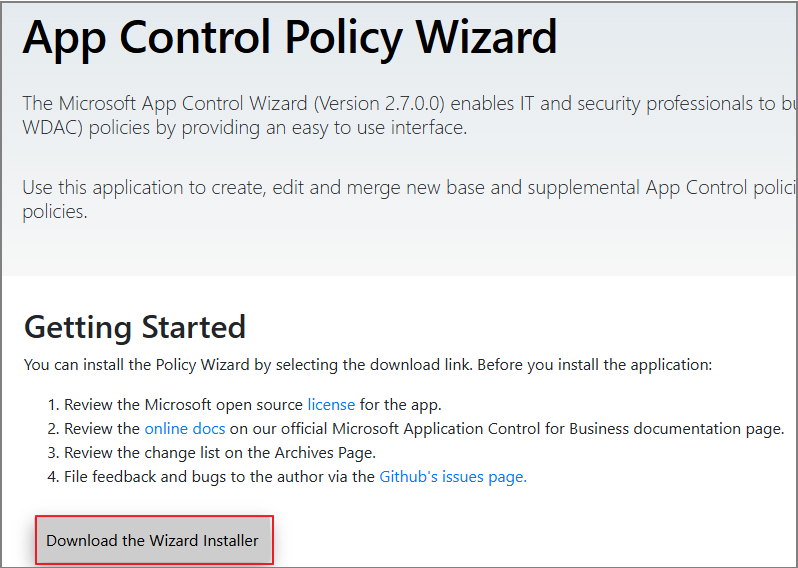
and use the Policy Creator to build XML-based policies.
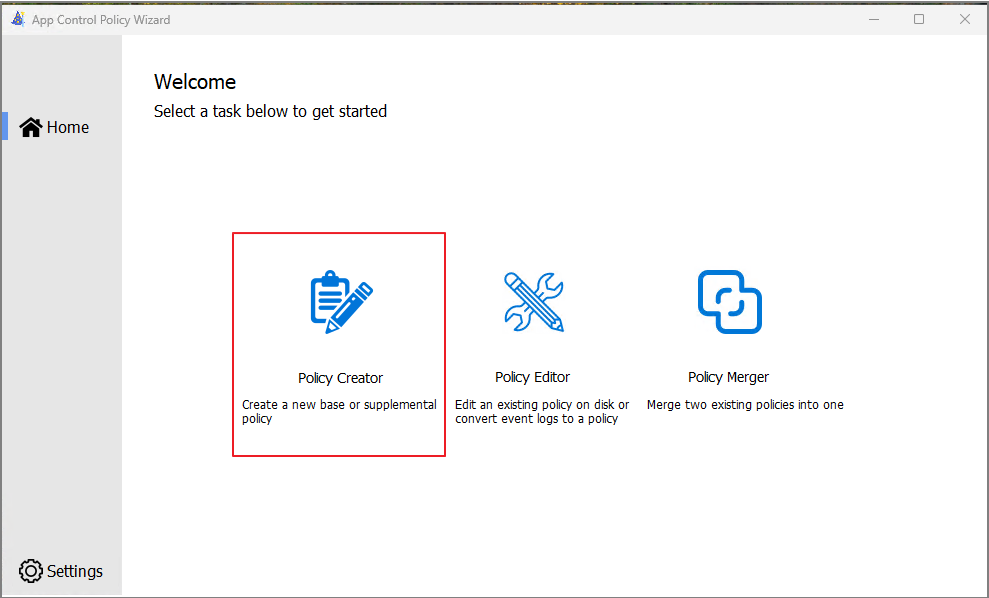
Operationally, the workflow is: deploy a Base Policy → supplement it with Supplemental Policies.
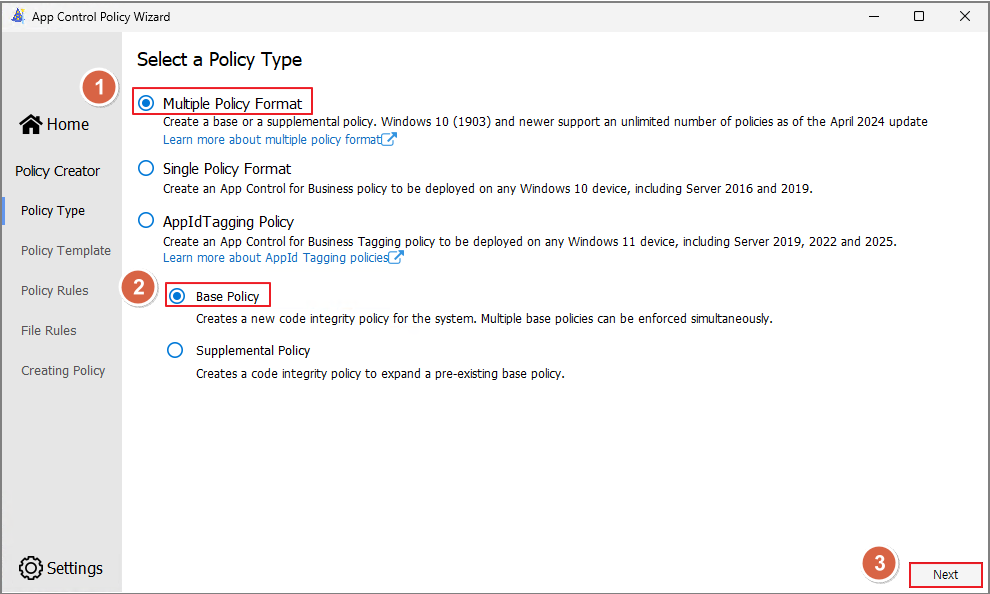
Note that Supplemental Policies can only add Allow rules — they cannot lift blocks defined in the Base Policy, nor can they add new deny rules.
Operational Structure
The typical flow is:
Deploy Base Policy
↓ Add exceptions via Supplemental Policy
Notes on Supplemental Policies
- Can add Allow rules
- Cannot remove existing Block rules
- Cannot add new Deny rules
In other words, all blocking (Deny) must be designed at the Base Policy level.
This post does not cover Supplemental Policy deployment.
2.1 The Three Base Templates
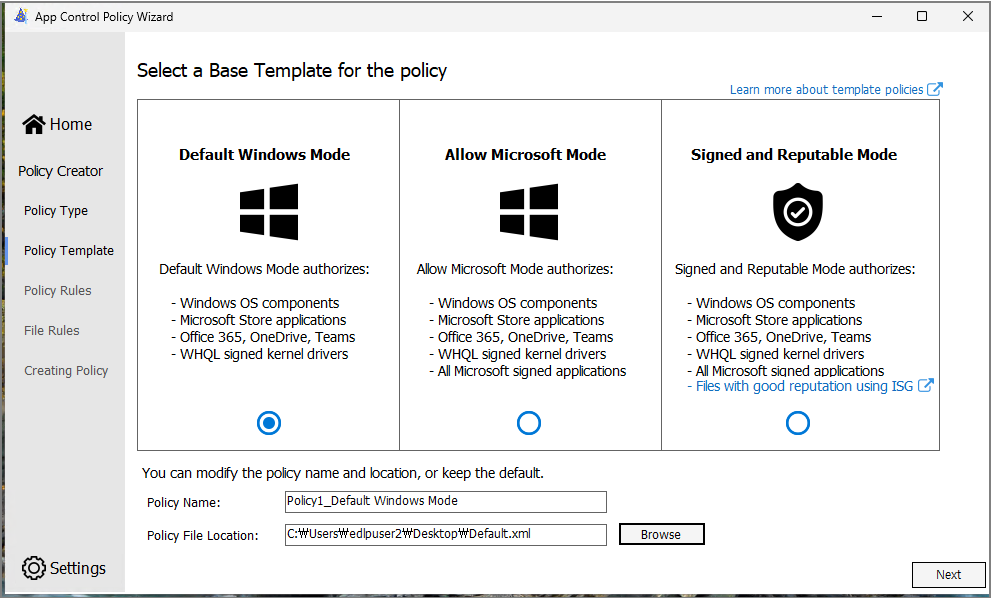
The wizard provides three templates out of the box:
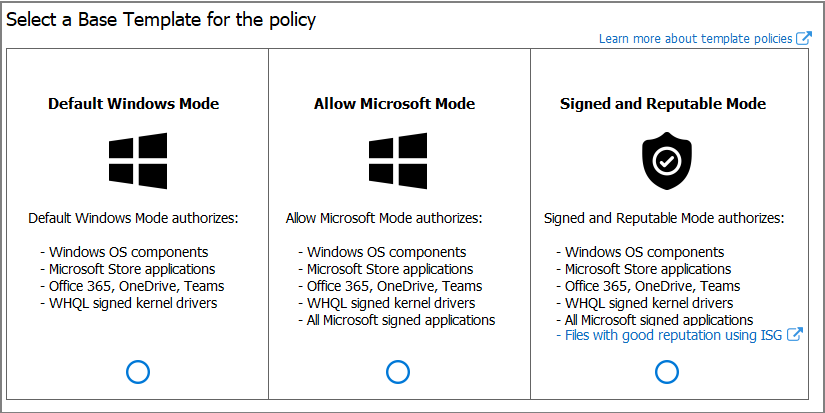
Template Allowed scope Security Flexibility
| Templates | Boundaries | Security | Flexible |
| DefaultWindows | Only essential Windows binaries | High | Low |
| AllowMicrosoft | + All Microsoft-signed apps | Medium | Medium |
| SignedAndReputable (ISG) | + Reputable third-party apps | Lower | High |
Think of these three as a spectrum — stricter on the left (DefaultWindows), more flexible on the right (SignedAndReputable). Pick the balance that fits your organization's security requirements and operational flexibility.
Strict
DefaultWindows
↓ AllowMicrosoft
↓ SignedAndReputable
Flexible
3. Testing Default Windows Mode
Applying Default Windows Mode
Select Default Windows Mode in the wizard.
Disabling Audit Mode
To verify actual enforcement behavior, disable Audit Mode.
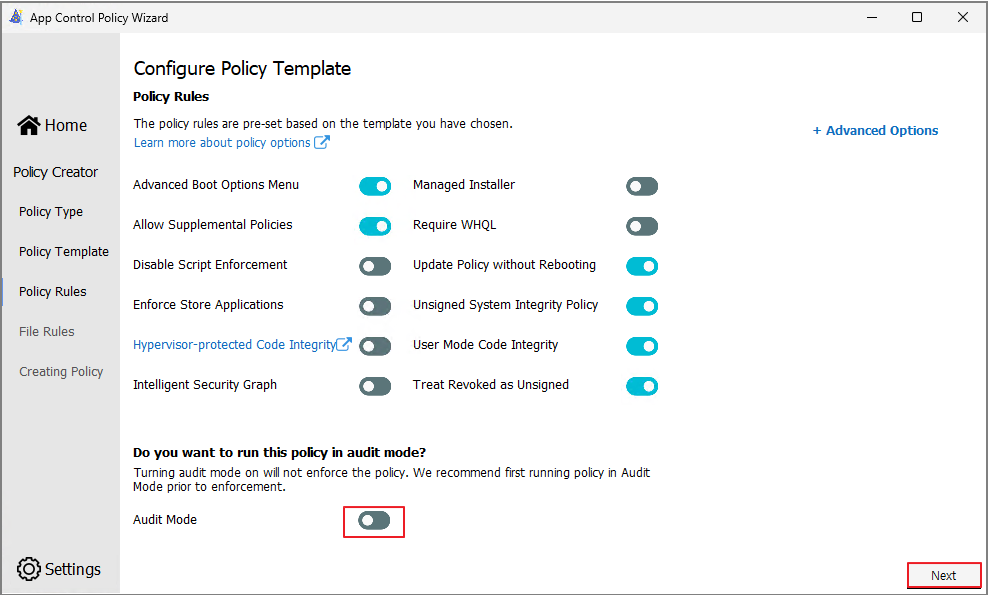
Proceed with Next.

Generating the Policy
Complete the wizard to generate the XML.
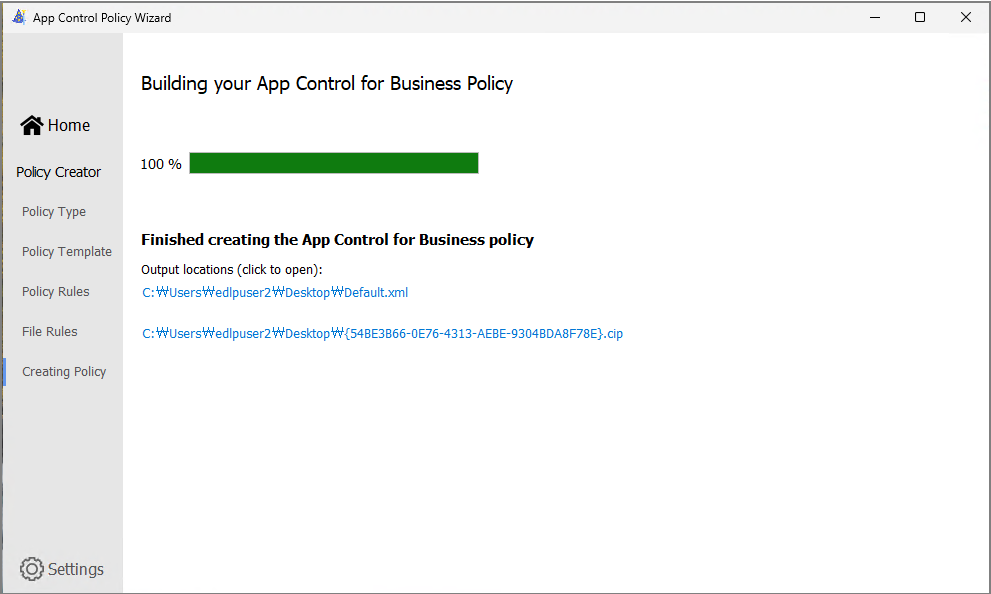
4. Deploying the Policy
Intune Admin Center
Navigate to Endpoint Security → App Control for Business.

After creating a policy:
- Name the policy
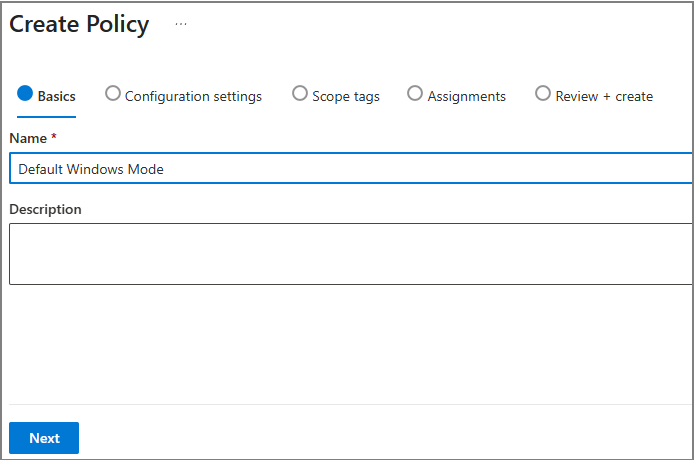
- Upload the XML

- Assign targets and create the policy
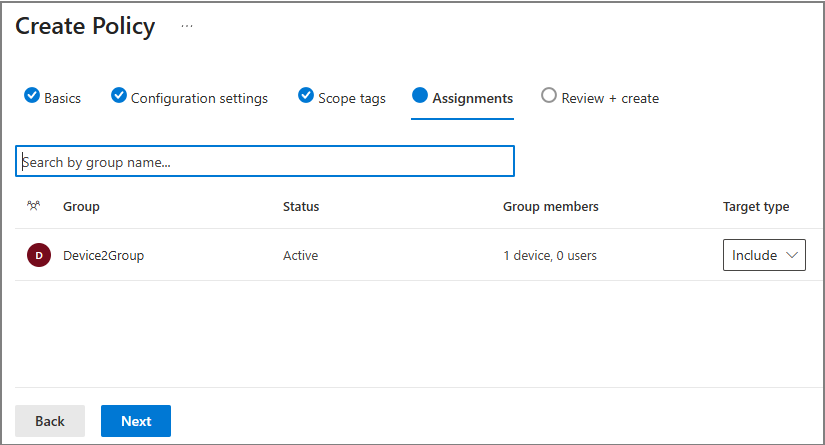
Verifying Policy Application
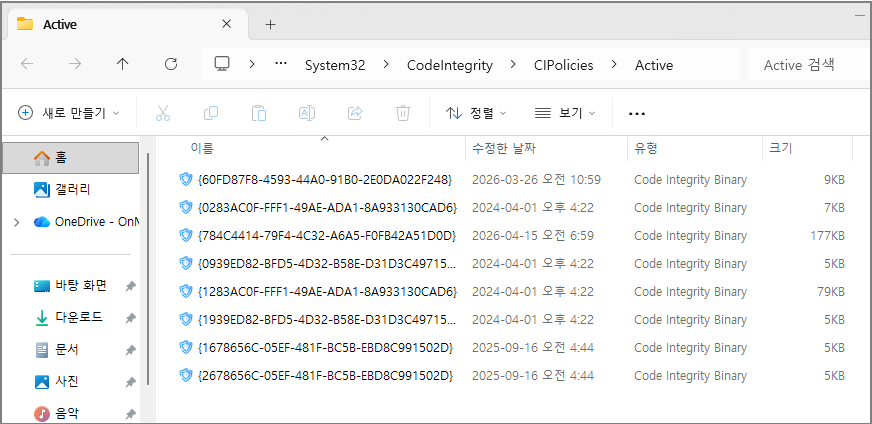
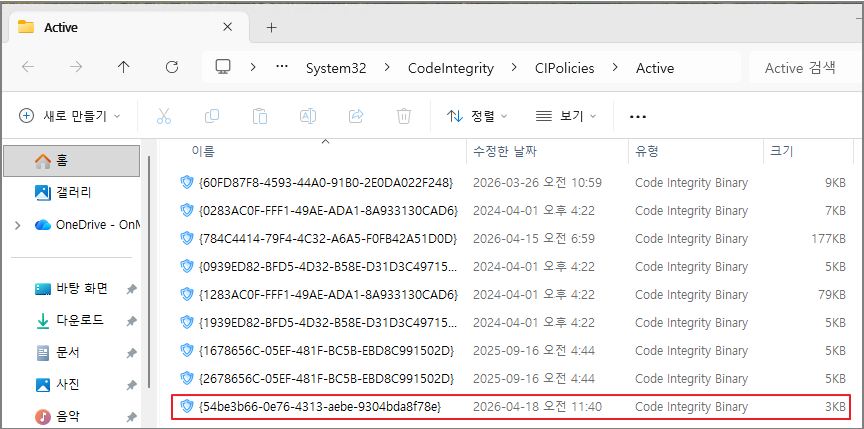
Check the applied policy files at:
C:\Windows\System32\CodeIntegrity\CIPolicies\ActiveYou can compare the folder contents before and after application.
Testing
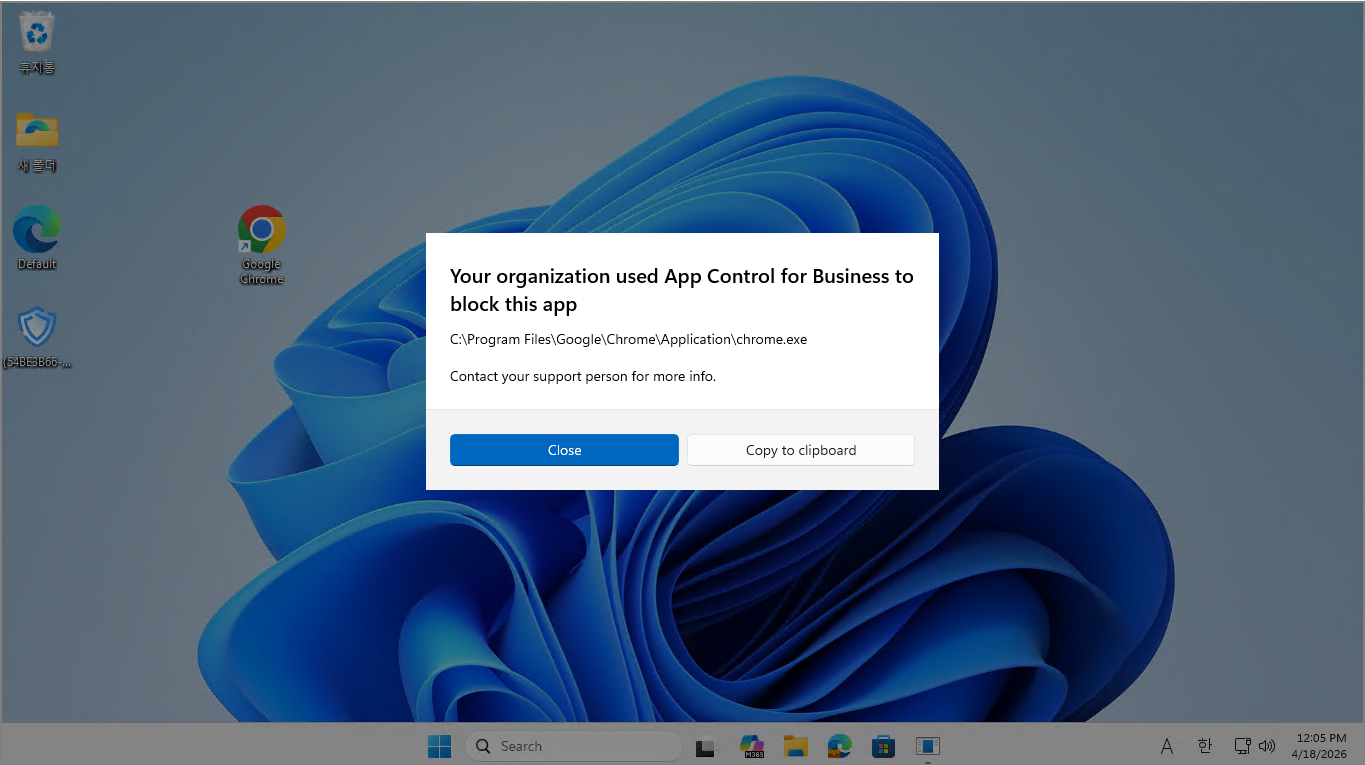
Try launching Chrome.

Result: Blocked.
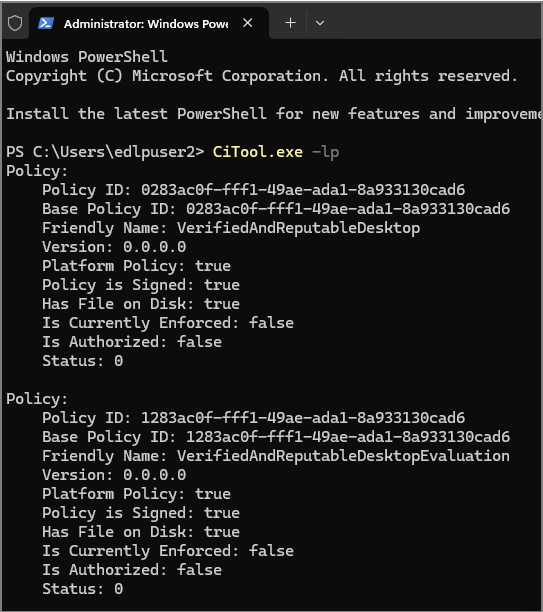
Checking Policies via PowerShell
CiTool.exe -lp
You can also verify the applied policies using this PowerShell command.

5. Designing a Real-World Policy
In practice, most enterprise environments start with AllowMicrosoft or SignedAndReputable as the Base Policy, then layer in Allow rules for LOB applications and Deny rules for risky binaries as needed.
DefaultWindows is theoretically the most secure, but the exception-management overhead is usually too high for general office environments. It tends to be reserved for regulated industries or fixed-function devices.
5.1 Designing an AllowMicrosoft Policy
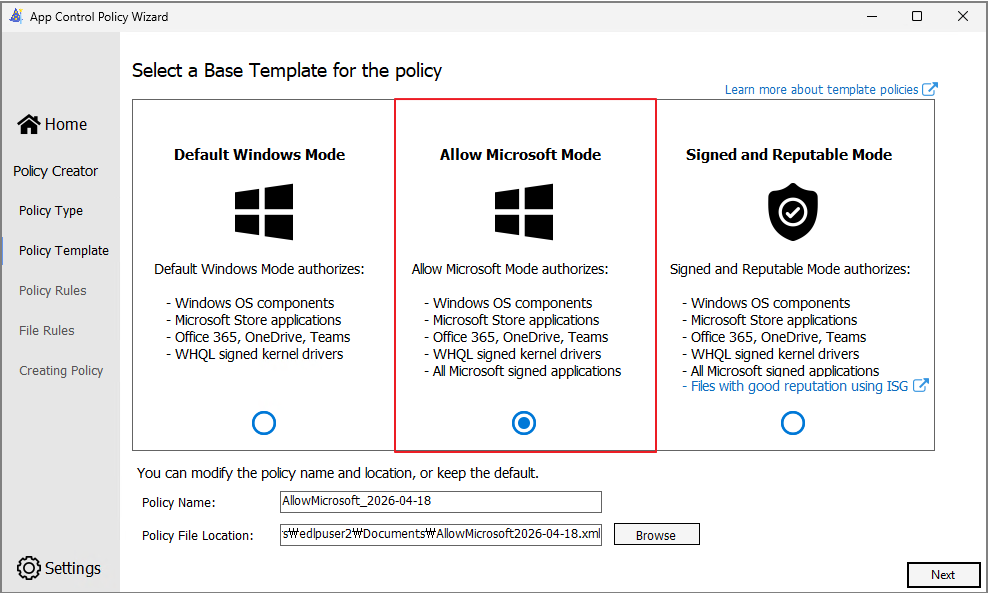
Template Creation
Select Allow Microsoft Mode.
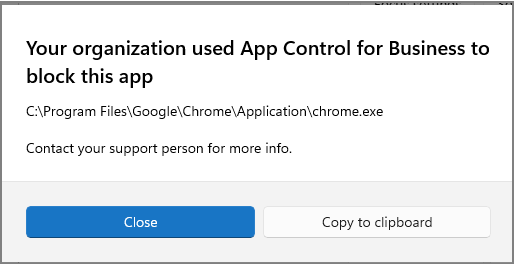
Confirming Chrome Is Blocked
Out of the box, Chrome execution is blocked.
Checking the Event Log
You can review enforcement events at:
Applications and Services Logs → Microsoft → Windows → CodeIntegrity → Operational

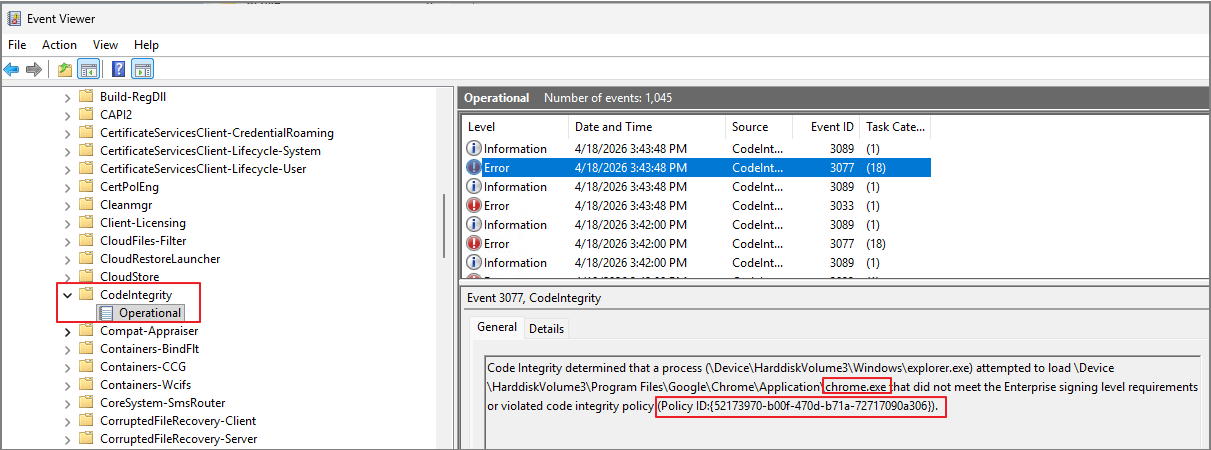
The log will show that chrome.exe failed to meet the conditions required by the applied Policy ID and was therefore blocked.
For whitelist operation, I chose not to modify the template itself — instead, I added only the necessary exception paths. Below is an example of how I configured those exceptions.
Adding Whitelisted Path Exceptions
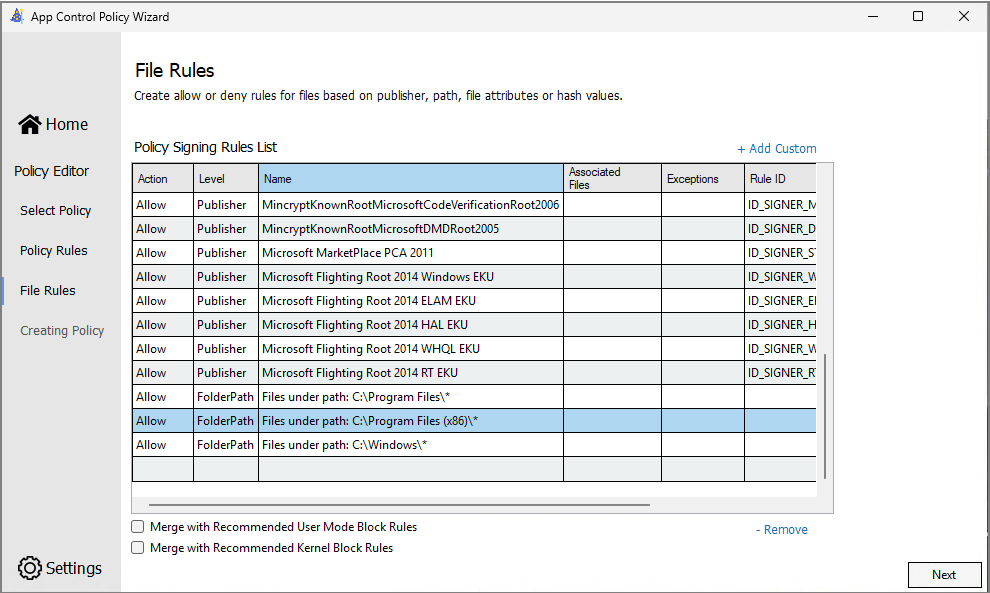
Use Add Custom.
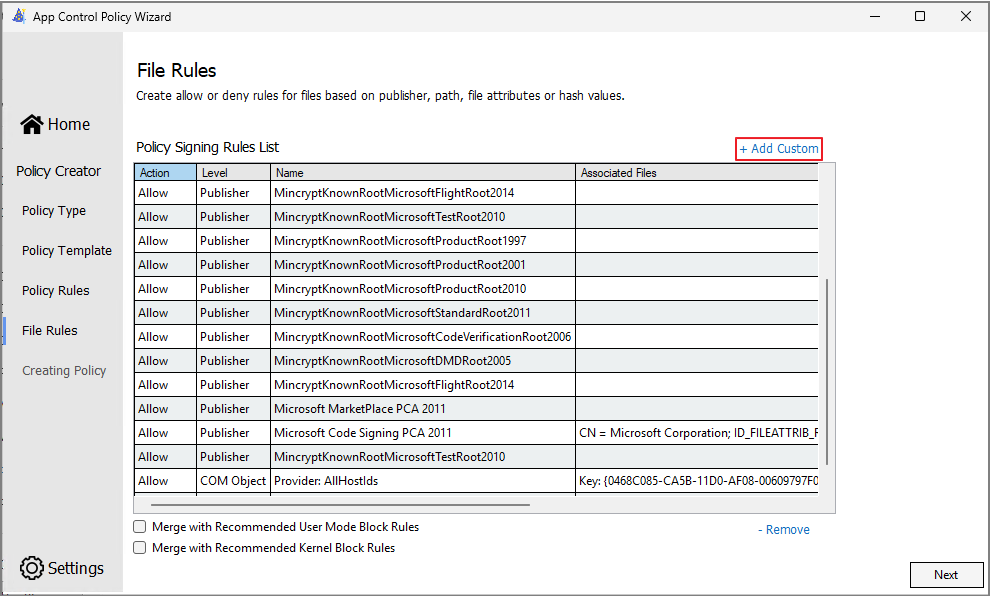
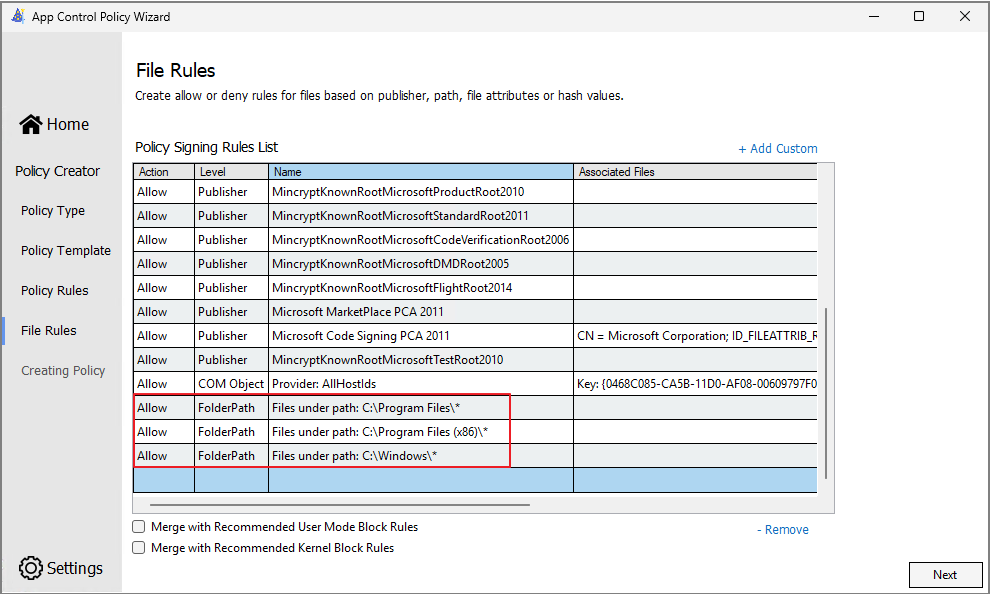
Rather than creating rules path-by-path, I registered the main exception paths using wildcards (*) for broader coverage. This dramatically reduces maintenance overhead — you don't need to update the policy every time a subfolder or new file is added.
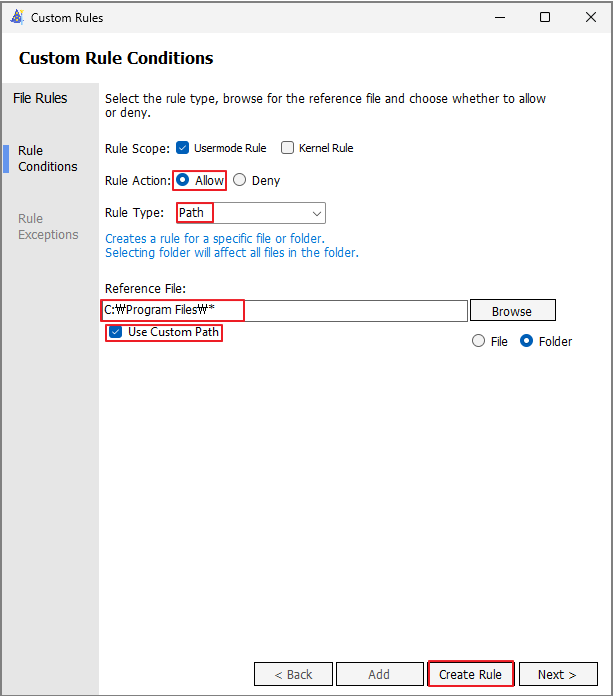
That said, overly permissive wildcards can become bypass points for malware, so it's essential to limit wildcards to the narrowest scope actually needed.
Once the Allow rules are complete, deploy the policy.
Result
Chrome now launches successfully.
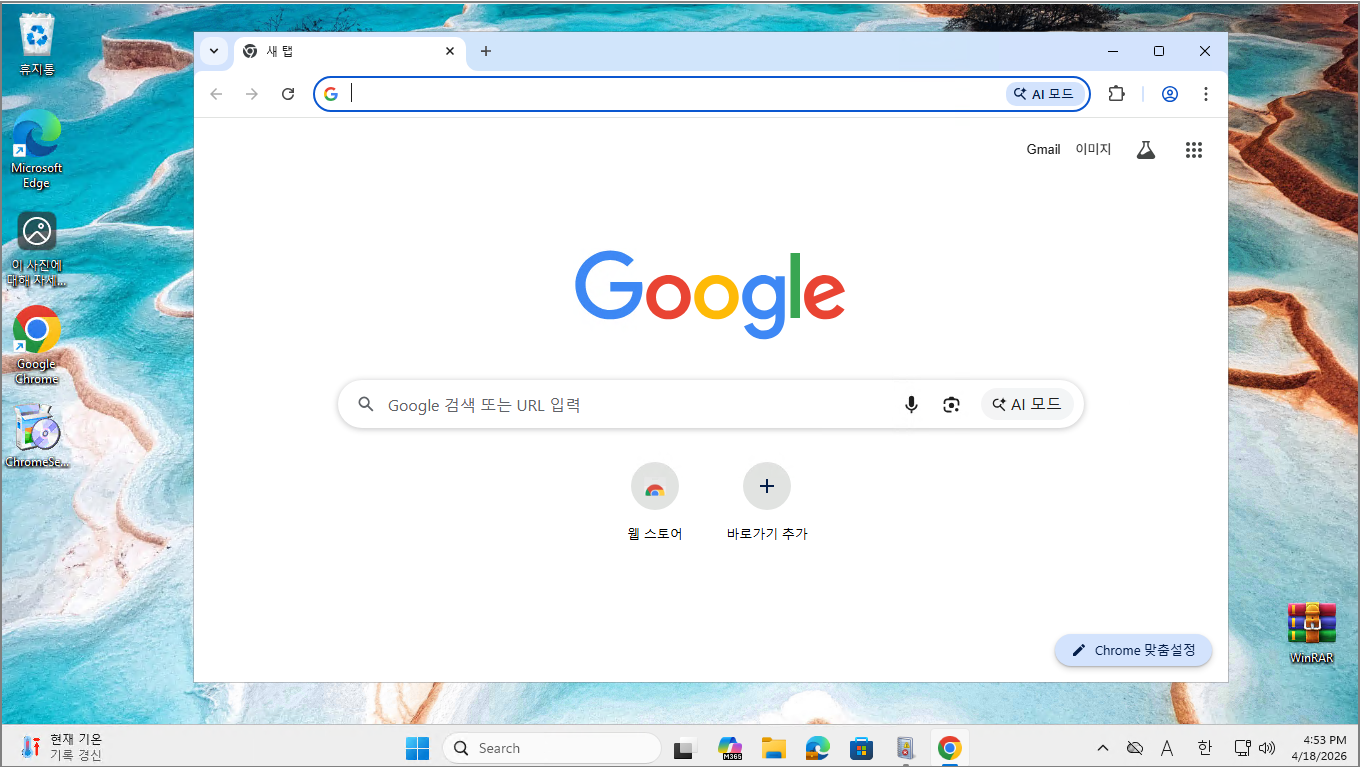
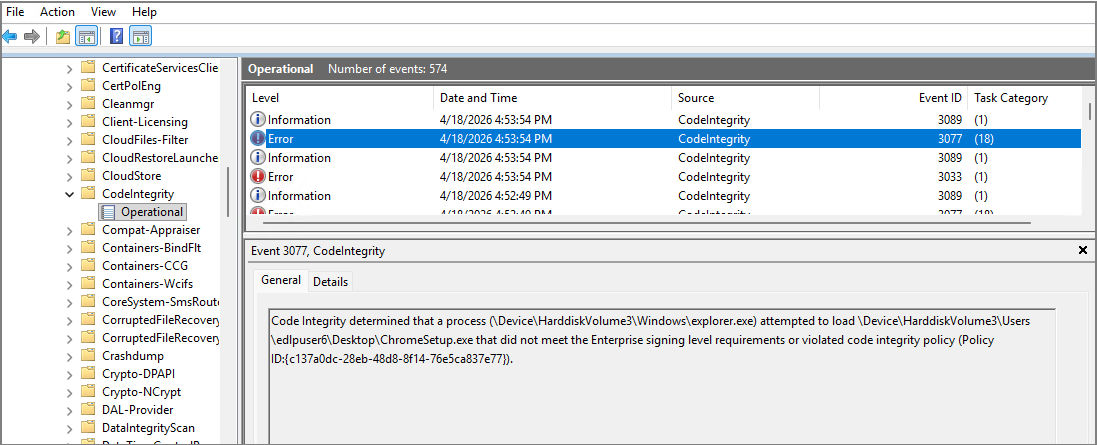
Any files outside the allowed paths are still blocked. For example, running a Chrome installer from the desktop will be blocked. This effectively prevents users from installing arbitrary applications. If needed, you can add paths like Downloads to the Allow rules to permit installation.

You can confirm in the event log that execution was blocked by policy.
What This Achieves
This structure delivers:
- Prevention of arbitrary application installation
- Execution limited to approved paths only
5.2 Designing a SignedAndReputable Policy
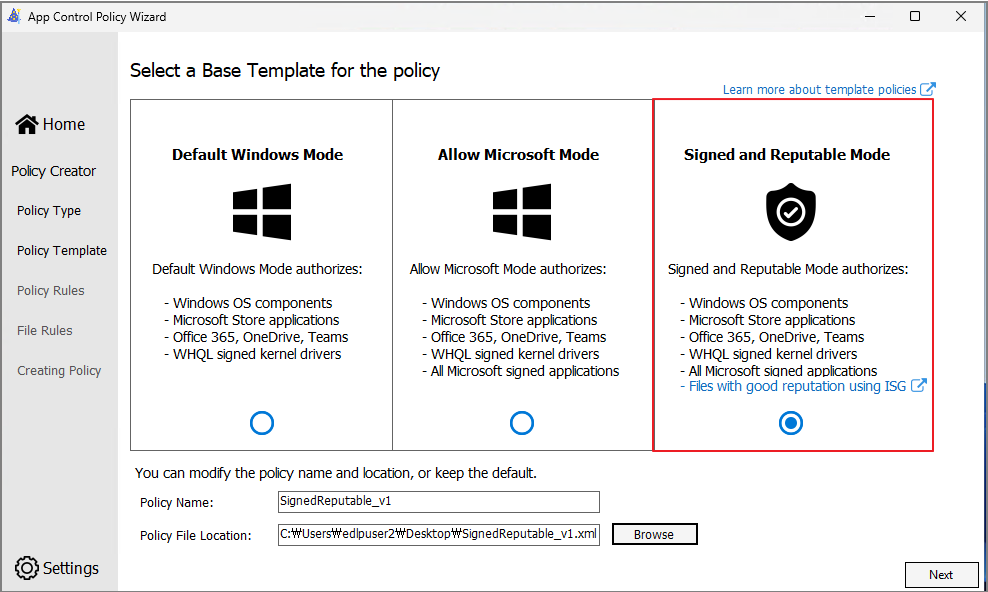
Finally, let's look at Signed and Reputable Mode.
Template Selection
Select Signed and Reputable Mode.

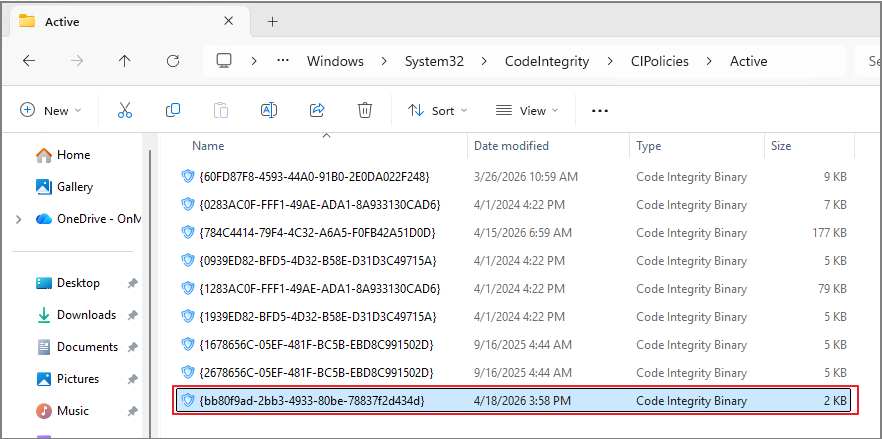
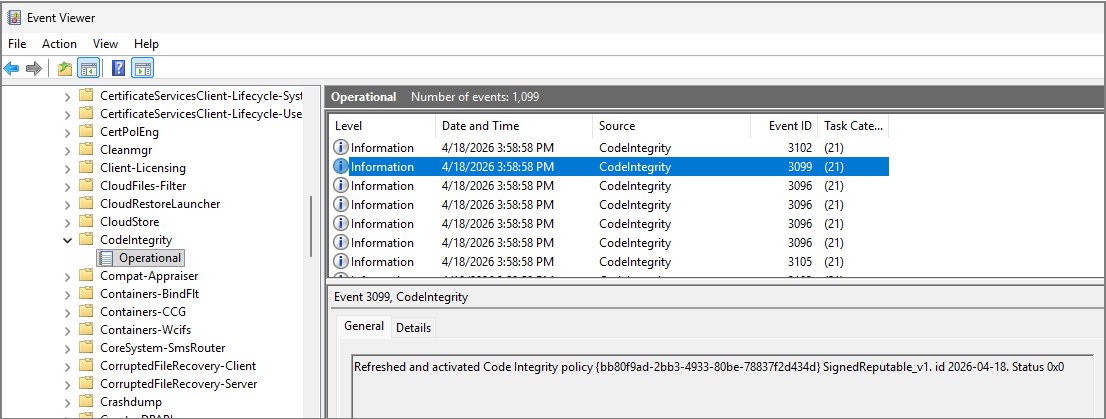
Confirming Policy Application
Check the applied policy files and review the event log.
Testing Chrome Execution
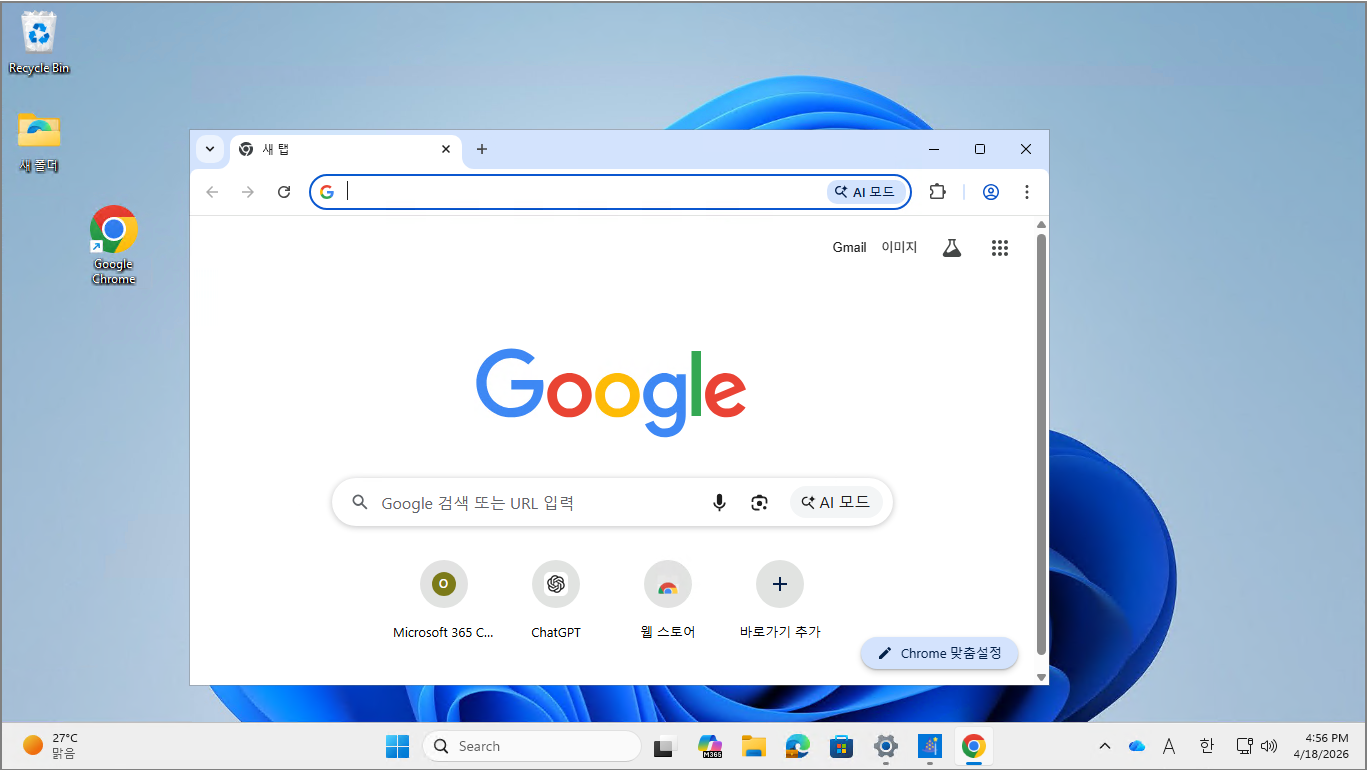
Chrome runs successfully — allowed based on ISG reputation.

6. ISG (Intelligent Security Graph)
ISG is a reputation-based allow mechanism that leverages Microsoft's global security signals to determine whether an application can be trusted.
For organizations with no prior experience running whitelist-based policies, starting with this template is usually the most realistic option.
Most IT environments operate on the principle of "allow broadly by default, block only specific problematic applications" — and the SignedAndReputable mode fits this pattern best.
7. SignedAndReputable Operational Design Flow
Step 1
Deploy the SignedAndReputable Base Policy.
Step 2
Enable Managed Installer — this automatically trusts applications deployed via Intune.

Step 3
Add Allow rules for key execution paths.
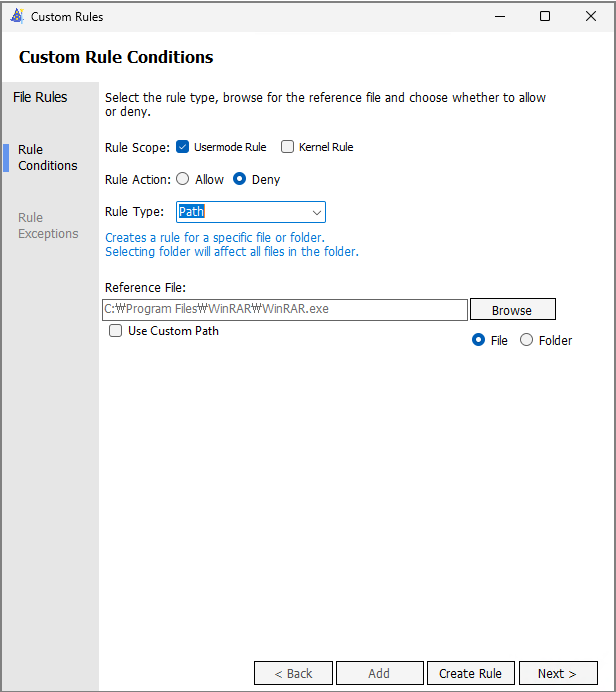
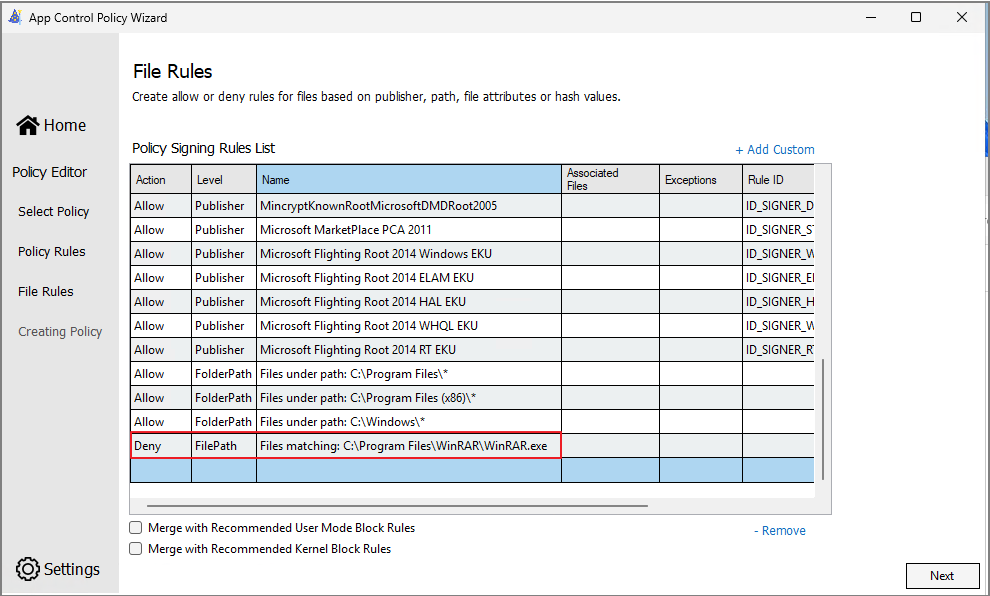
Step 4
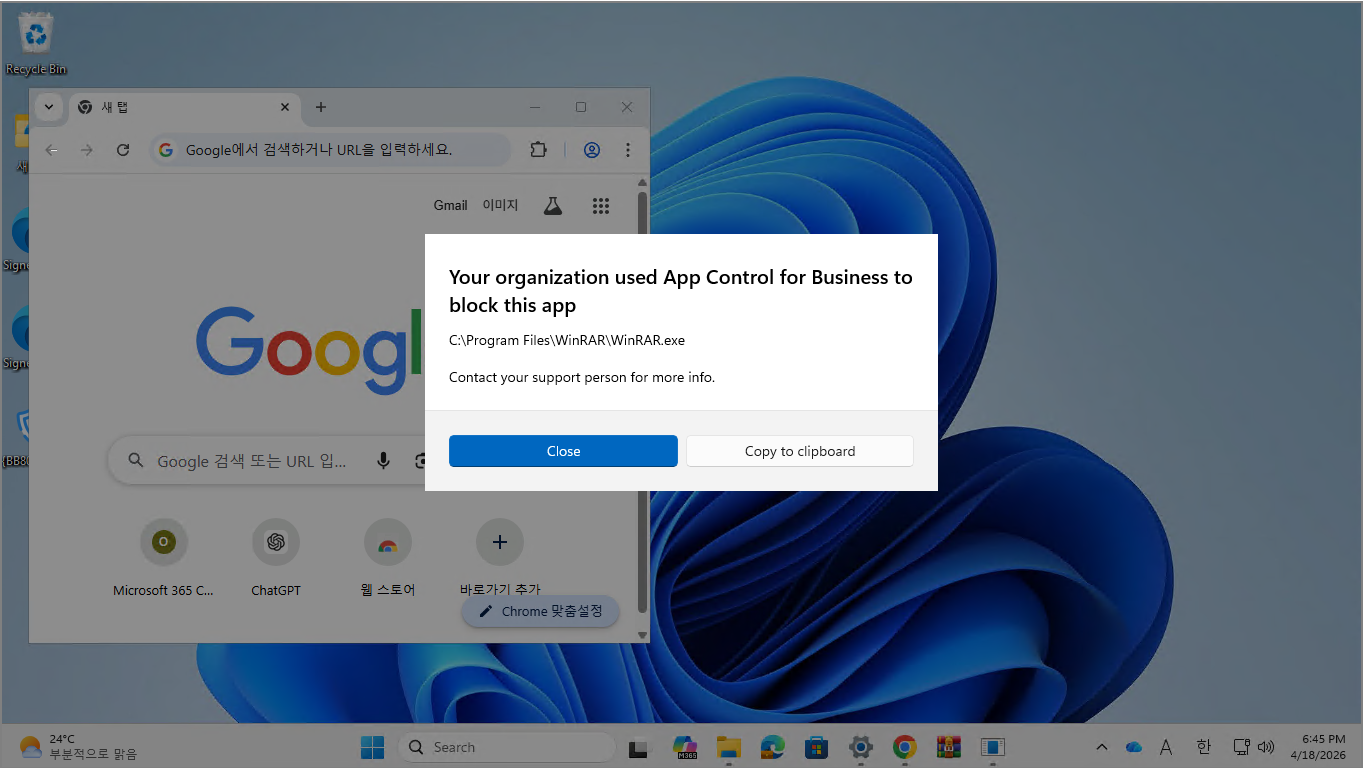
Add Deny rules for specific risky applications (for example, WinRAR).
Result
- Chrome → Allowed
- WinRAR → Denied
Important
Deny rules take precedence over Allow rules.
Monitoring via Advanced Hunting
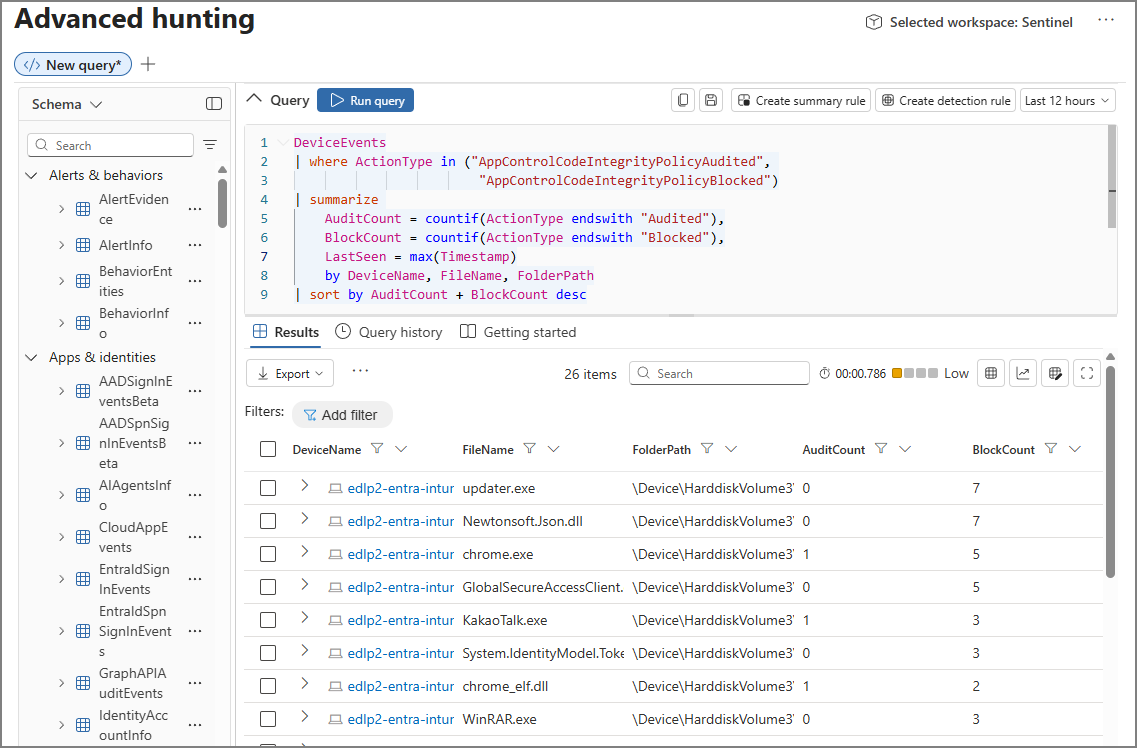
If your devices are onboarded, you can monitor enforcement events through Advanced Hunting:
DeviceEvents
| where ActionType in ("AppControlCodeIntegrityPolicyAudited",
                       "AppControlCodeIntegrityPolicyBlocked")
| summarize
    AuditCount = countif(ActionType endswith "Audited"),
    BlockCount = countif(ActionType endswith "Blocked"),
    LastSeen = max(Timestamp)
    by DeviceName, FileName, FolderPath
| sort by AuditCount + BlockCount desc
Final Thoughts
In my opinion, the most practical starting point is the combination:
SignedAndReputable + Allow rules for key execution paths + Deny rules for specific risky applications
This strikes the best balance between security and operational feasibility for most enterprise environments.