반응형

Many IT engineers and managers are unaware that if your Hyper-V host server is running Windows Server Datacenter Edition, you can use AVMA (Automatic Virtual Machine Activation) keys to automatically activate guest VMs. Leveraging this feature simplifies the activation process and makes management much easier.

In this post, I’ll walk you through how AVMA works, how to use it, and some practical tips for automating Windows Server VM activation on Hyper-V.


Youtube: https://youtu.be/deyWNdW6S-U


What is AVMA?

AVMA (Automatic Virtual Machine Activation) allows you to activate Windows Server virtual machines running on a Datacenter edition Hyper-V host without needing to enter a product key for each VM. This is especially useful for environments where you frequently deploy or redeploy VMs.

Reference:
Automatic Virtual Machine Activation in Windows Server | Microsoft Learn

  • Guest VM: The version of Windows Server you can activate depends on the host OS version.

Supported Host and Guest Combinations
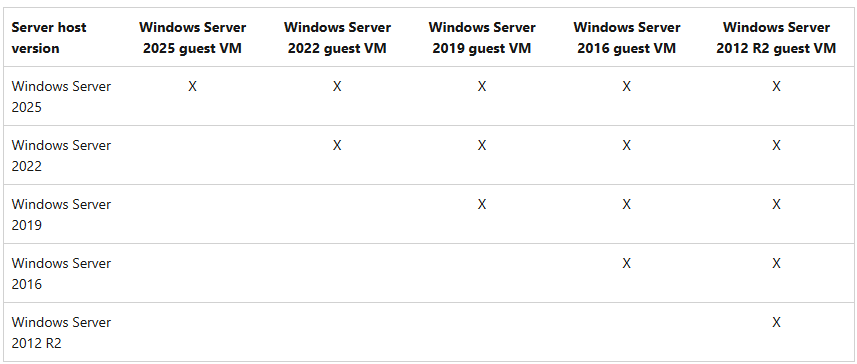
For example, if your host is Windows Server 2025, you can activate guest VMs from 2012 R2 up to 2025 using AVMA keys.


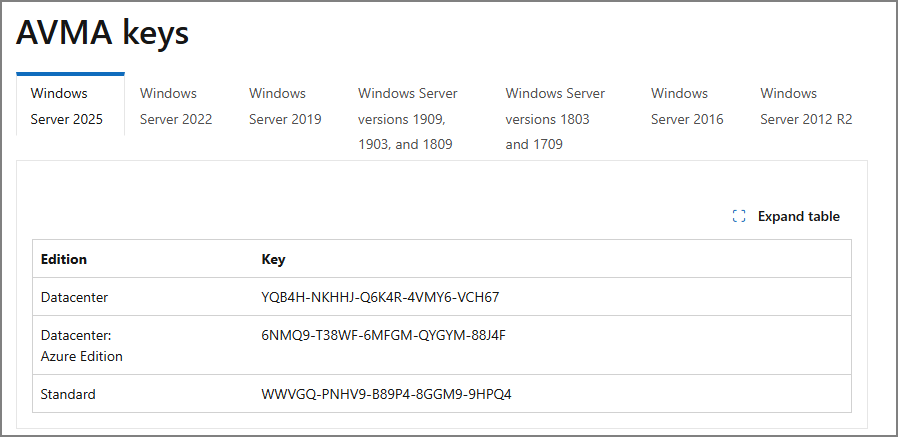
AVMA Keys for Each Windows Server Version

You can find the official AVMA keys in Microsoft’s documentation. Here are some examples:

How to Use AVMA Keys During Installation

When installing Windows Server as a VM on your Hyper-V Datacenter host, you can enter the AVMA key during setup:

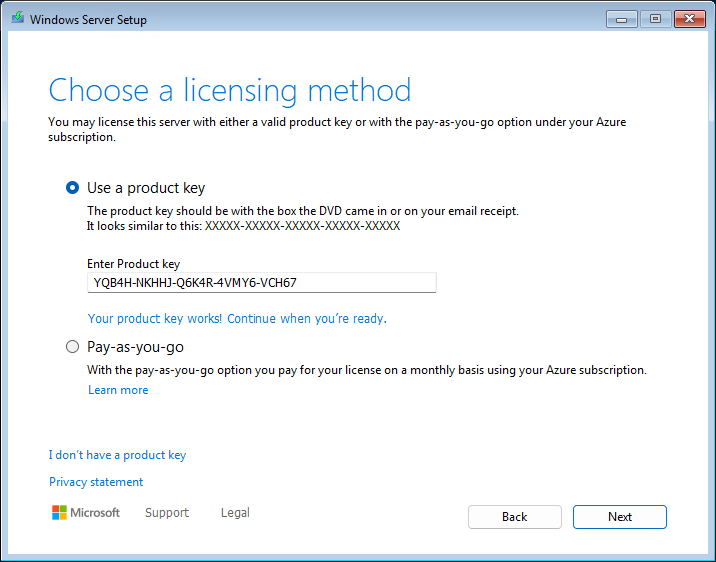
Choose a licensing method:
Select “Use a product key” and enter the AVMA key for your OS version.
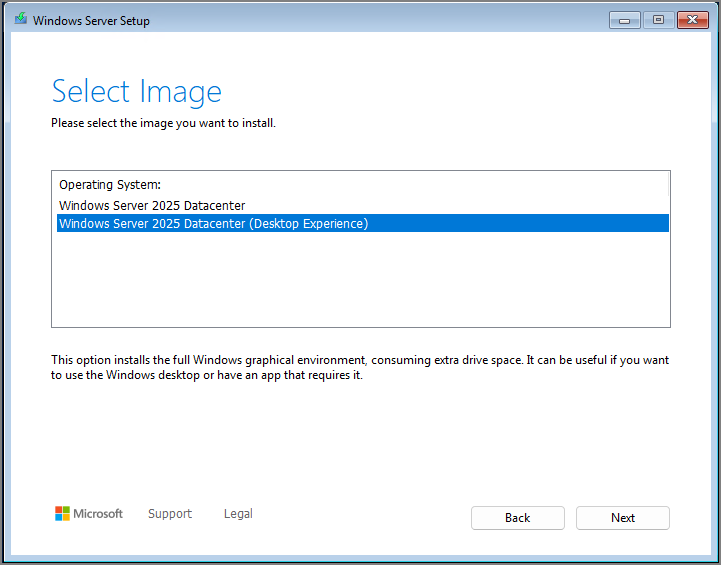
Select the image:
The installer will recognize the OS version that matches the AVMA key.

Post-Installation Activation

After installation, you might notice that Windows is not yet activated. Here’s how to proceed:

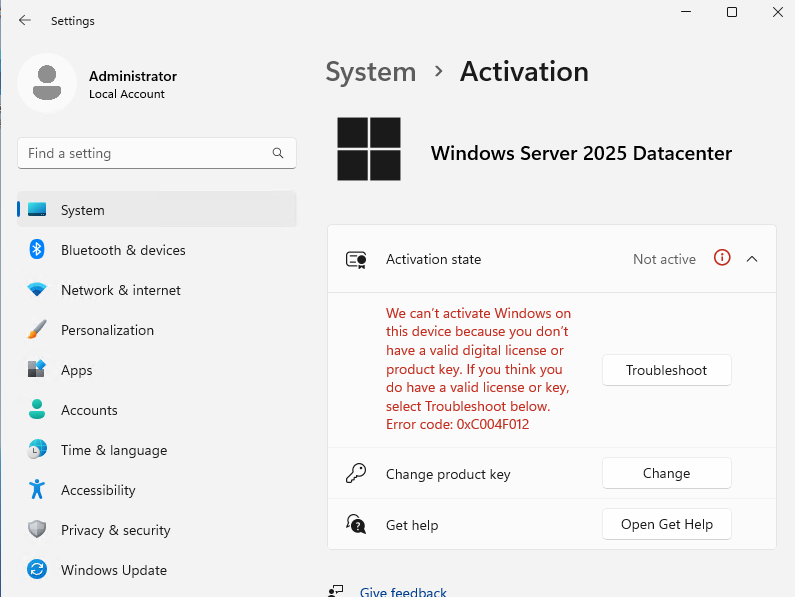
Check Activation Status:
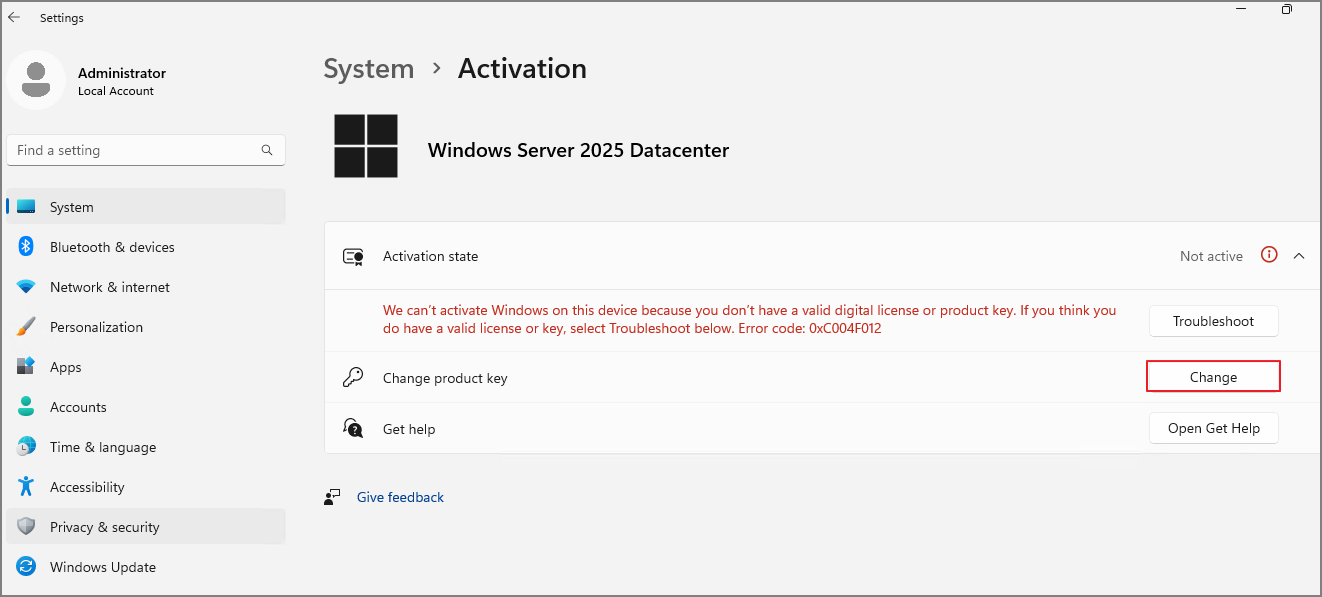
Go to Start > Settings > System > Activation. If not activated, you may see an error (e.g., 0xC004F012).
 

Activate via Command Line:
Open PowerShell or Command Prompt as Administrator and run:
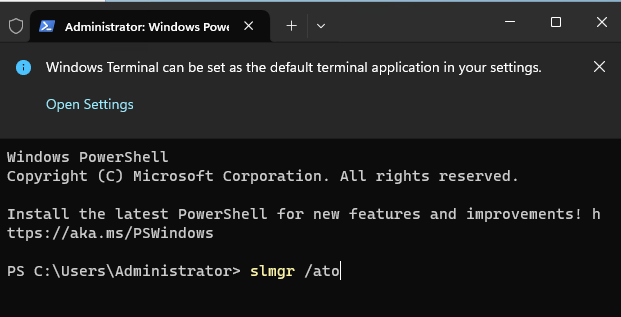
 

This will trigger activation using the AVMA key.


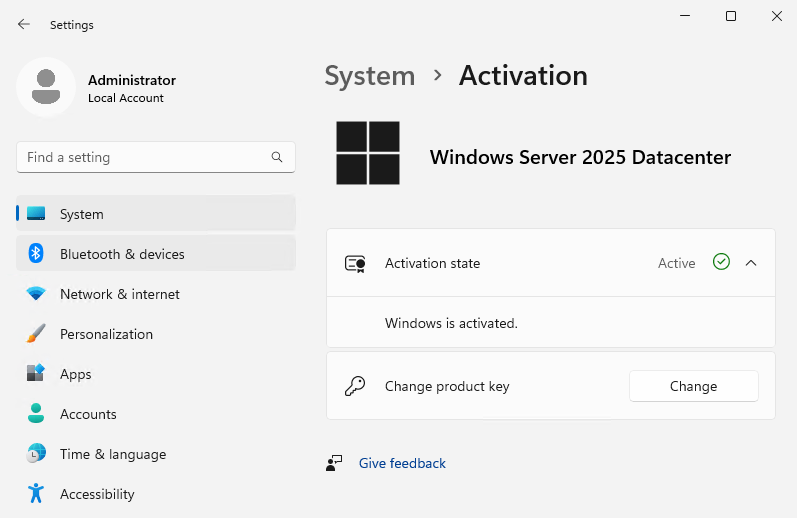
Verify Activation:
The activation state should now show as “Active”.

Activating an Already Installed VM

If you’ve already installed the OS without entering a key, you can still activate:


Go to System Settings:
Start > System > About > Product key and activation.
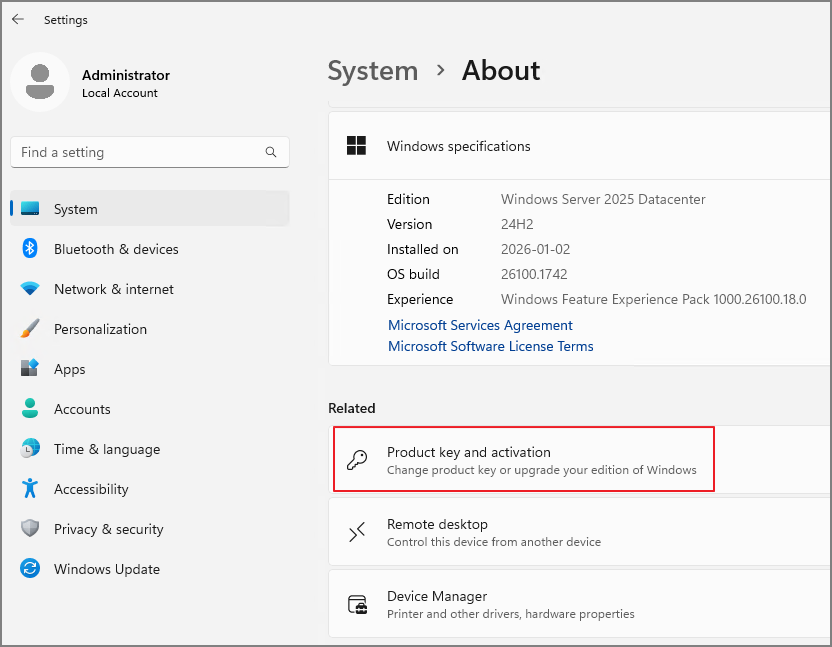


Change Product Key:
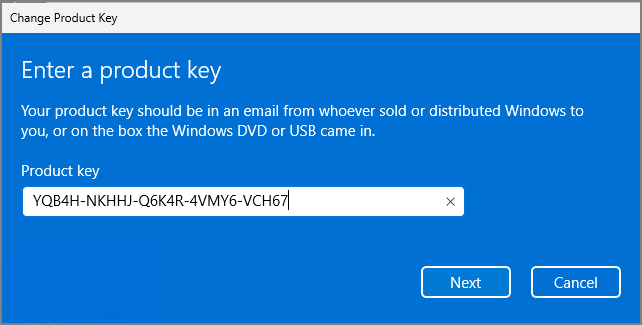
Enter the appropriate AVMA key and proceed with activation.
 

Next
 

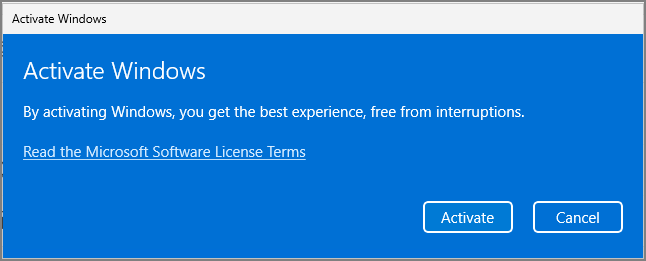
Activate

Pro Tip: Using Sysprep

After completing activation, running Sysprep is highly recommended for managing test environments efficiently. This avoids repetitive product key entry and ensures your template VMs are ready for rapid deployment.


Conclusion

AVMA is a powerful feature for anyone managing Windows Server VMs on Hyper-V Datacenter hosts. It streamlines activation, reduces manual work, and helps maintain compliance. Make sure to use the correct AVMA key for your guest OS version, and enjoy hassle-free VM deployments!


반응형
반응형

This time, we will cover the topic of ADFS & WAP Upgrade & Migration.

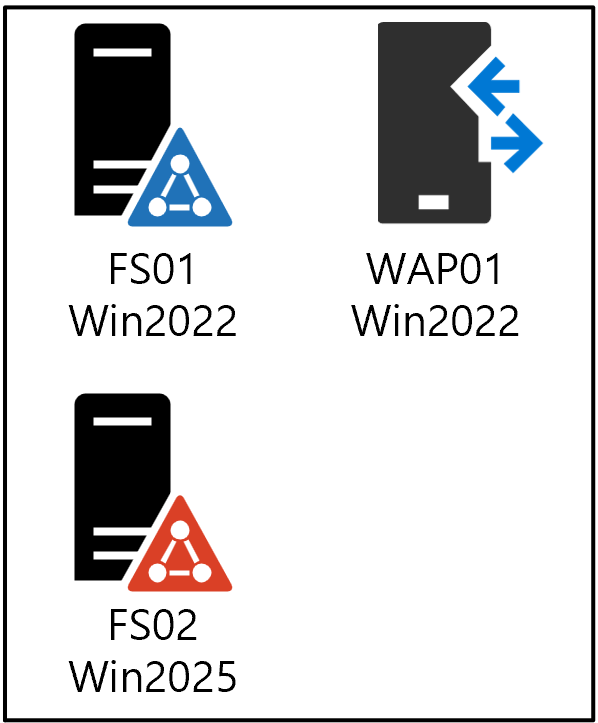
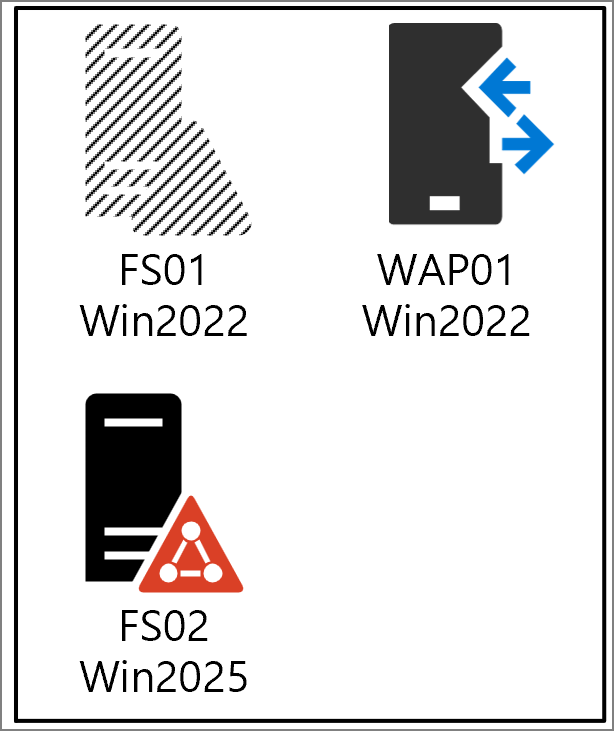
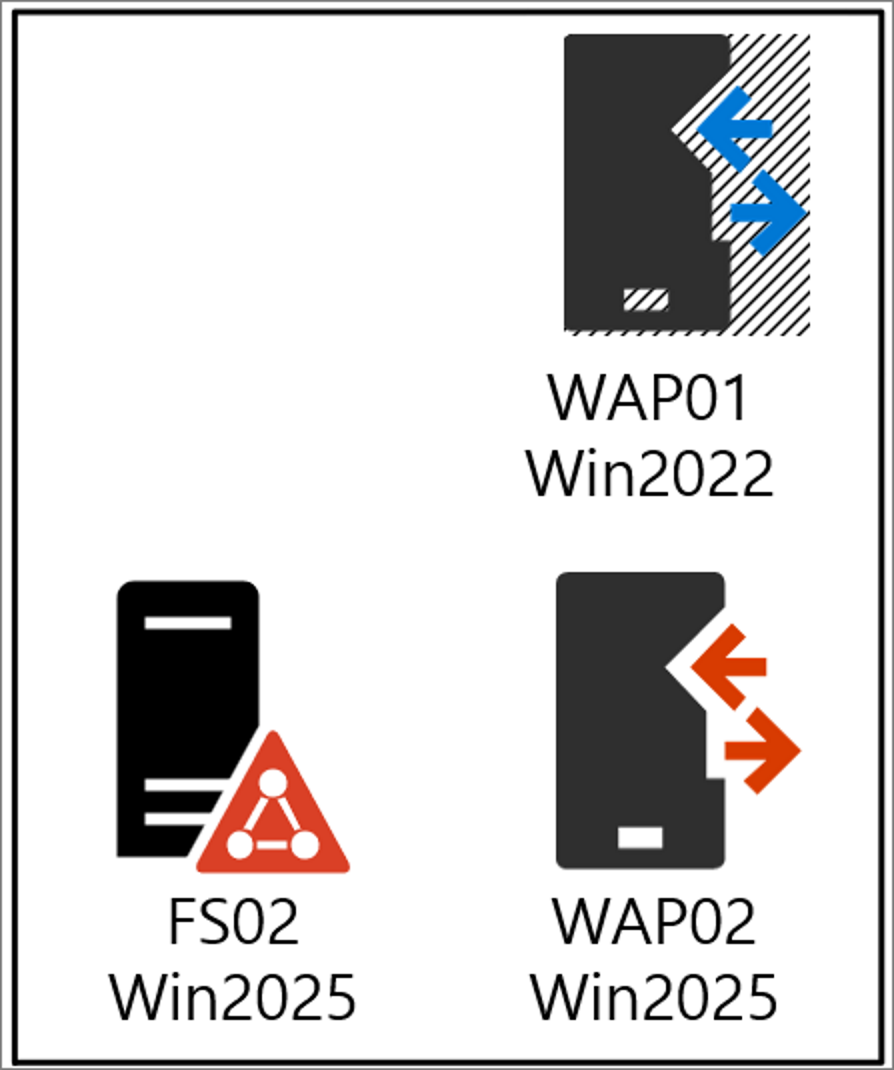
As indicated in the title, the upgrade and migration will be performed from Windows Server 2022 to 2025.

For reference, the ADFS configured on Windows Server 2022 will be referred to as ADFS2022, and the WAP configured on Windows Server 2025 will be called WAP2025.


Youtube: https://youtu.be/BYR4fl7o29o


Step 1. Installing ADFS 2025


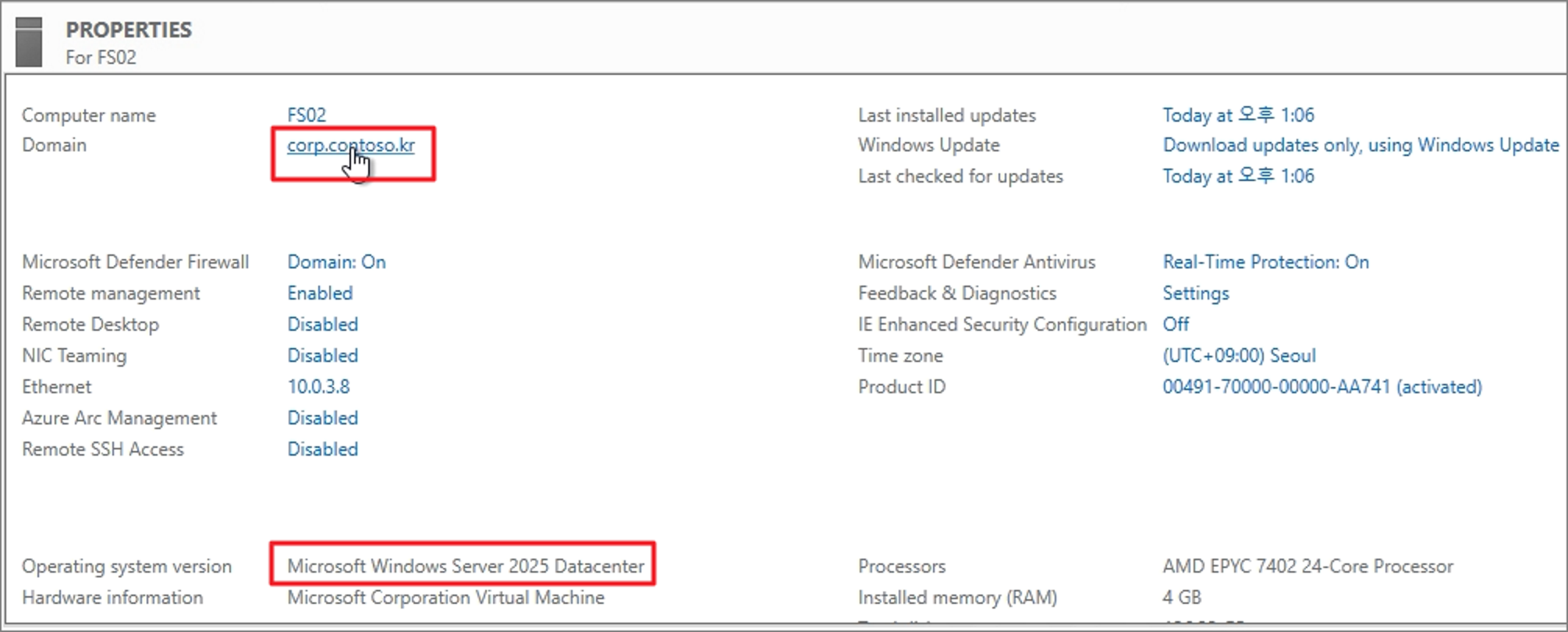
First, join the server where you will install ADFS to the Active Directory.


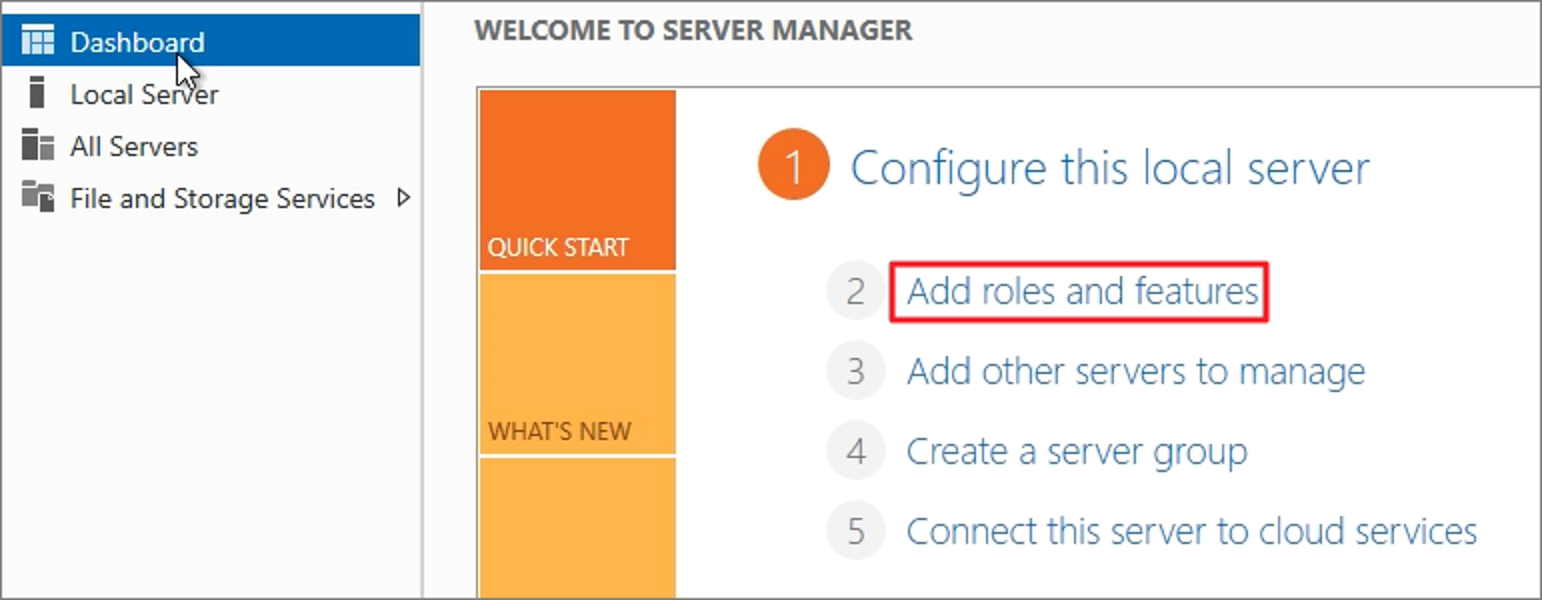
Go to Server Manager -> Add Roles and Features.


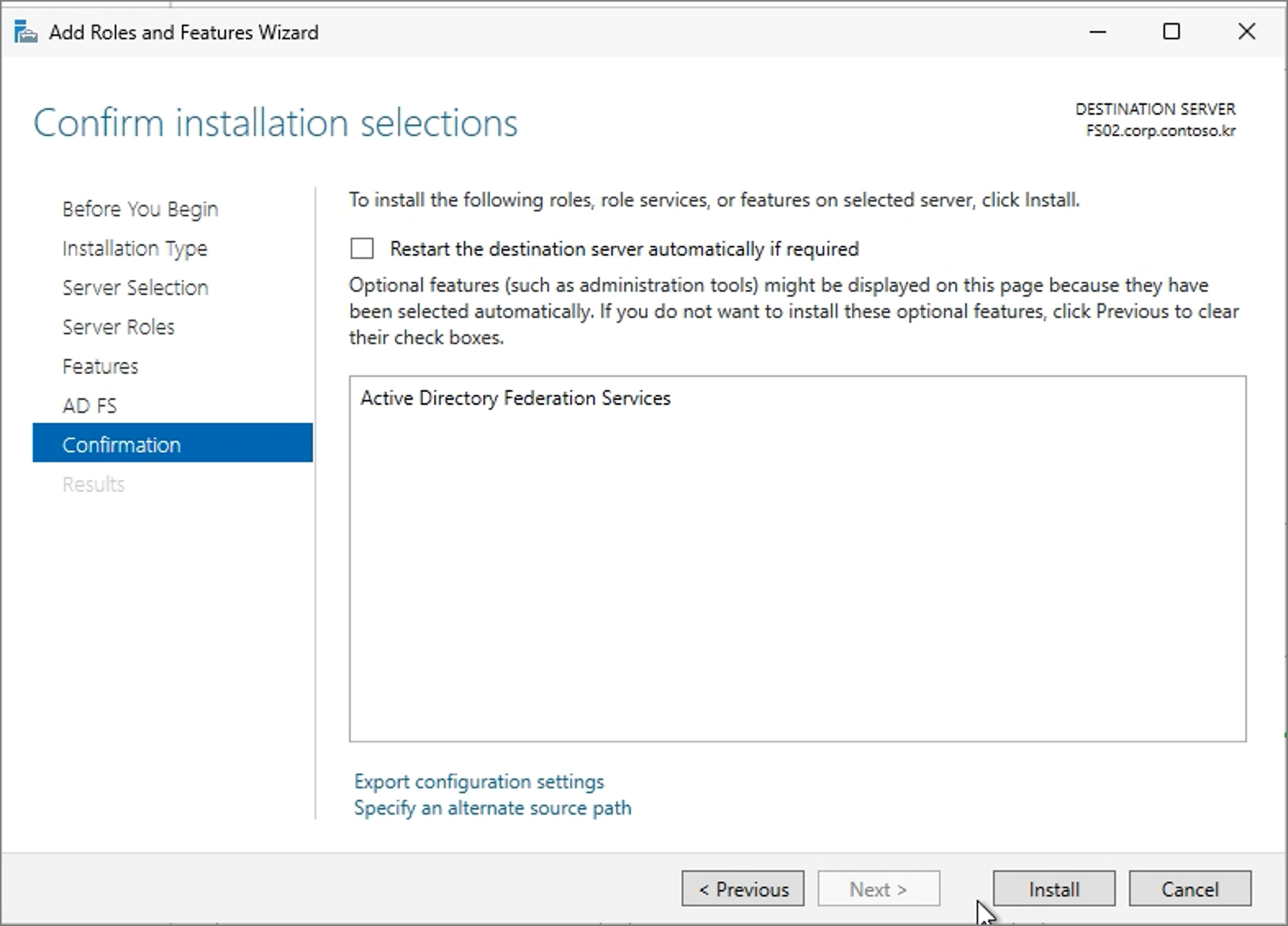
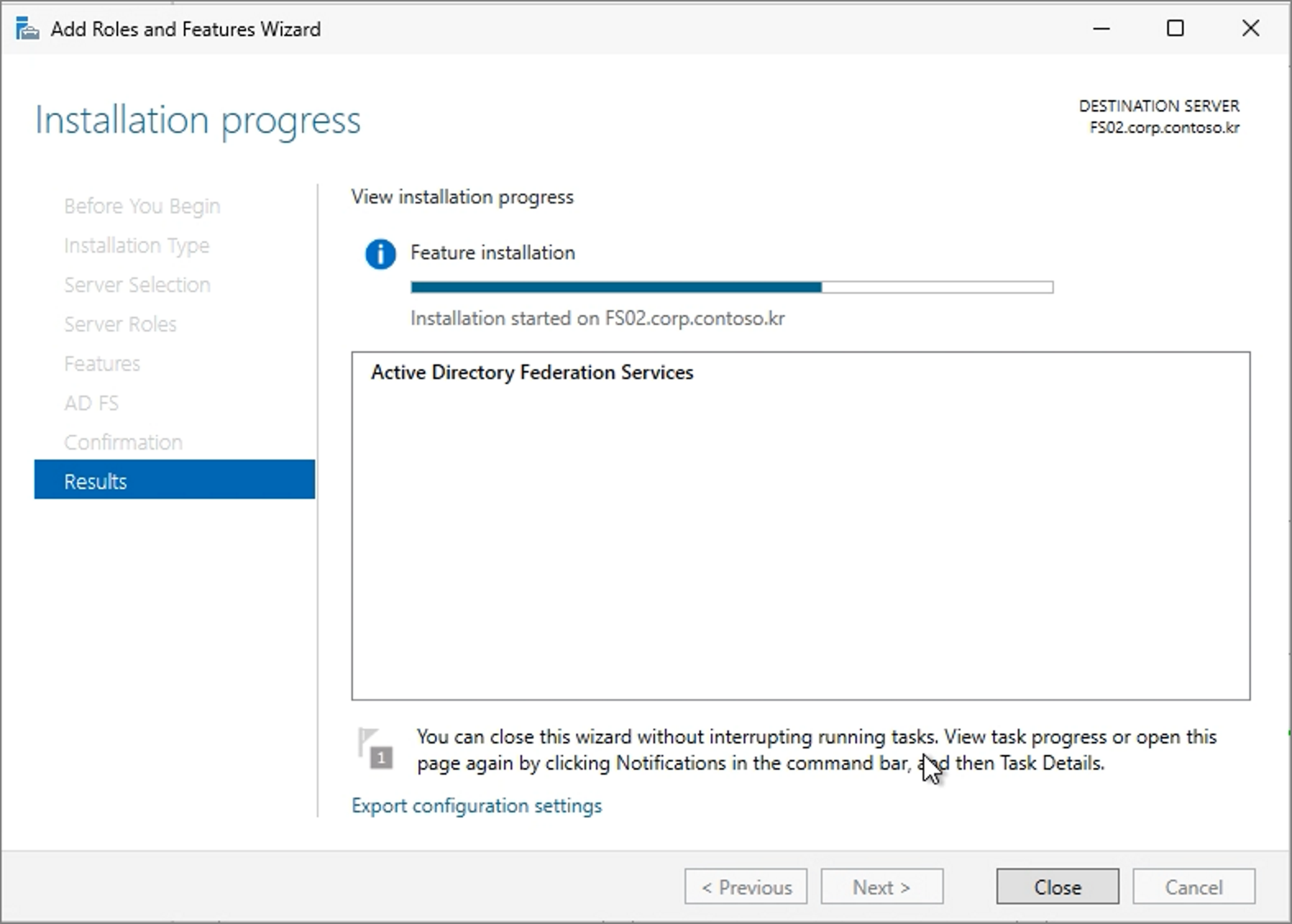
Proceed with installing the Active Directory Federation Services role.


Click Install.


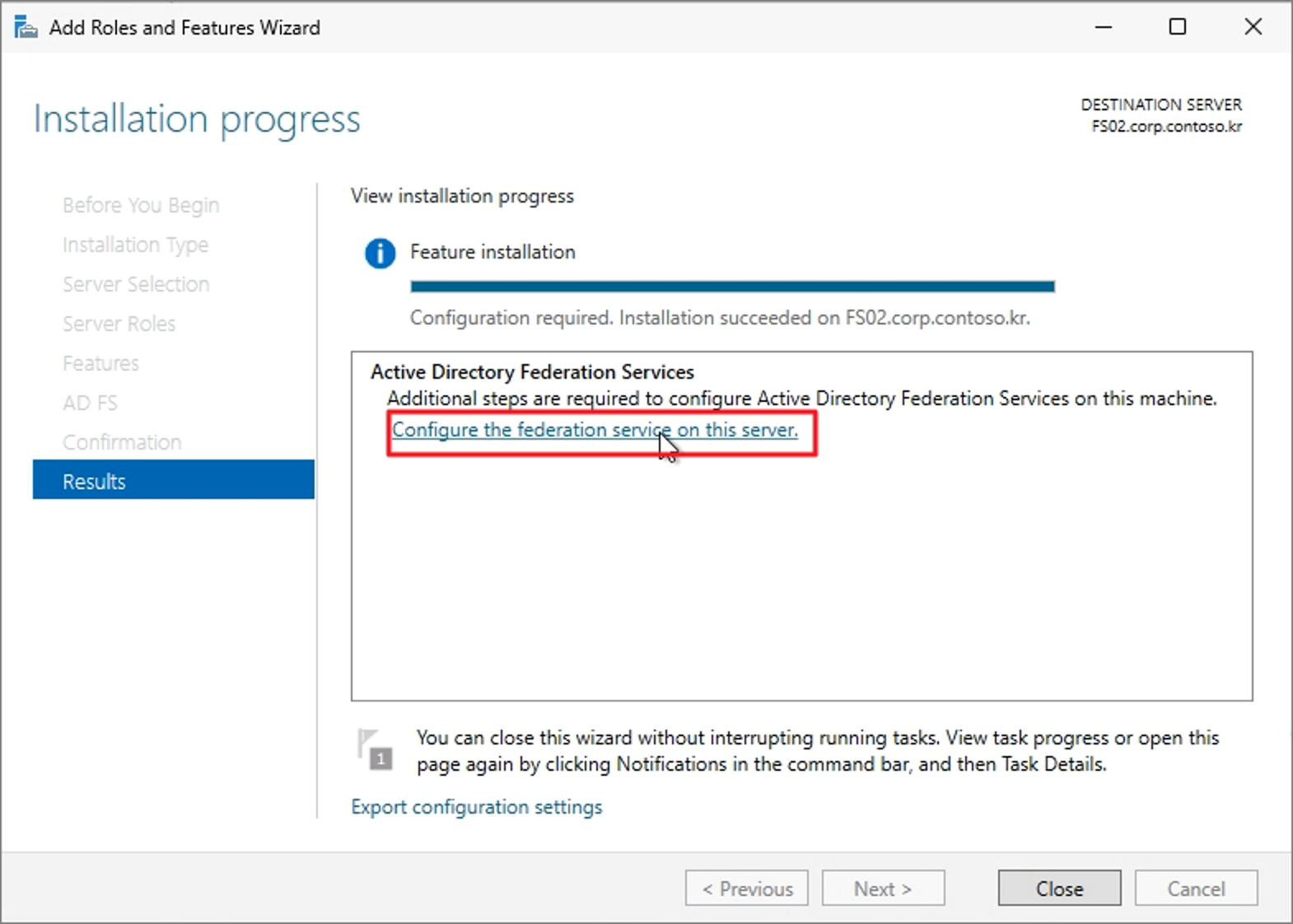
Next, select Configure the federation service on this server.


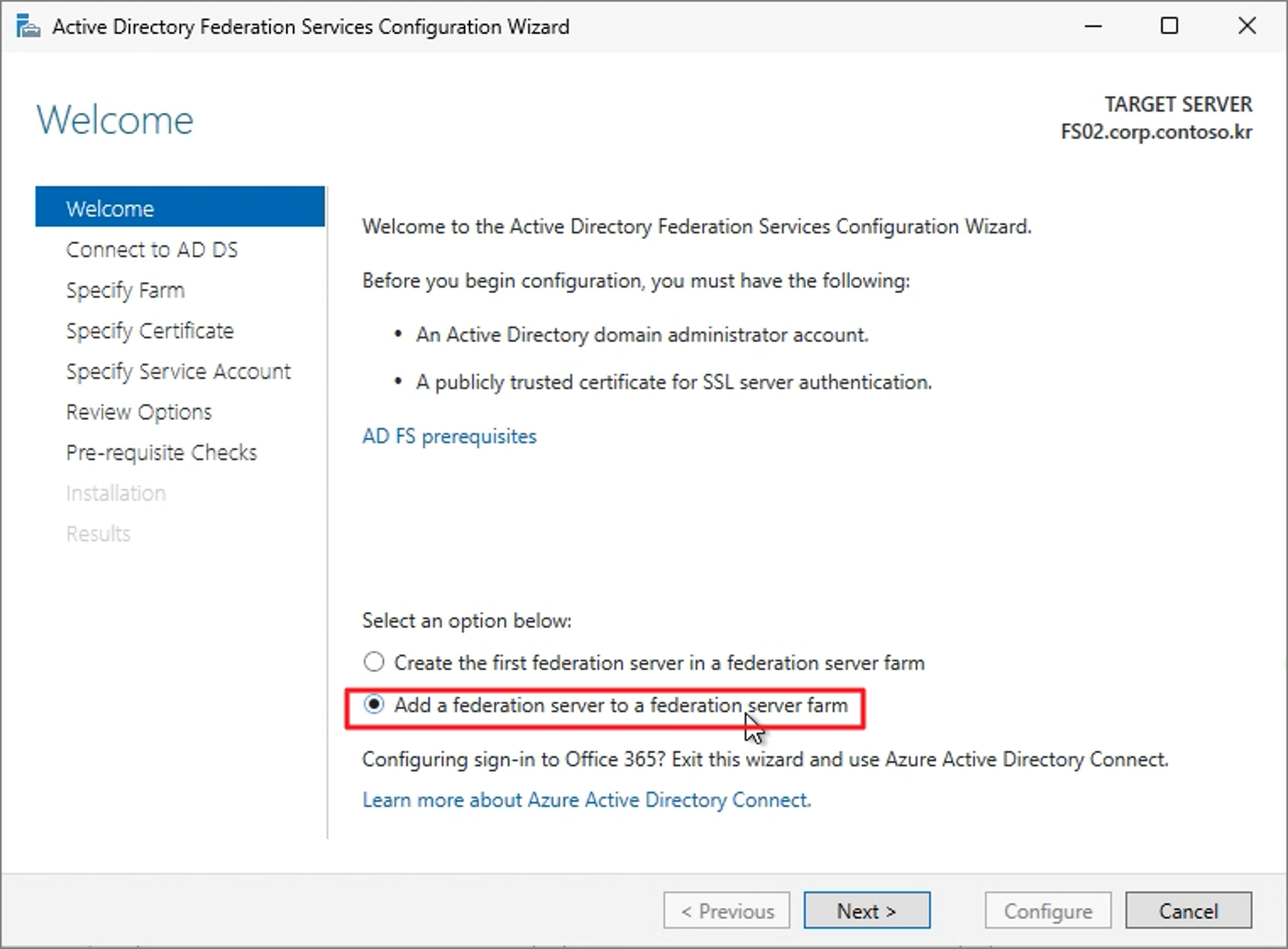
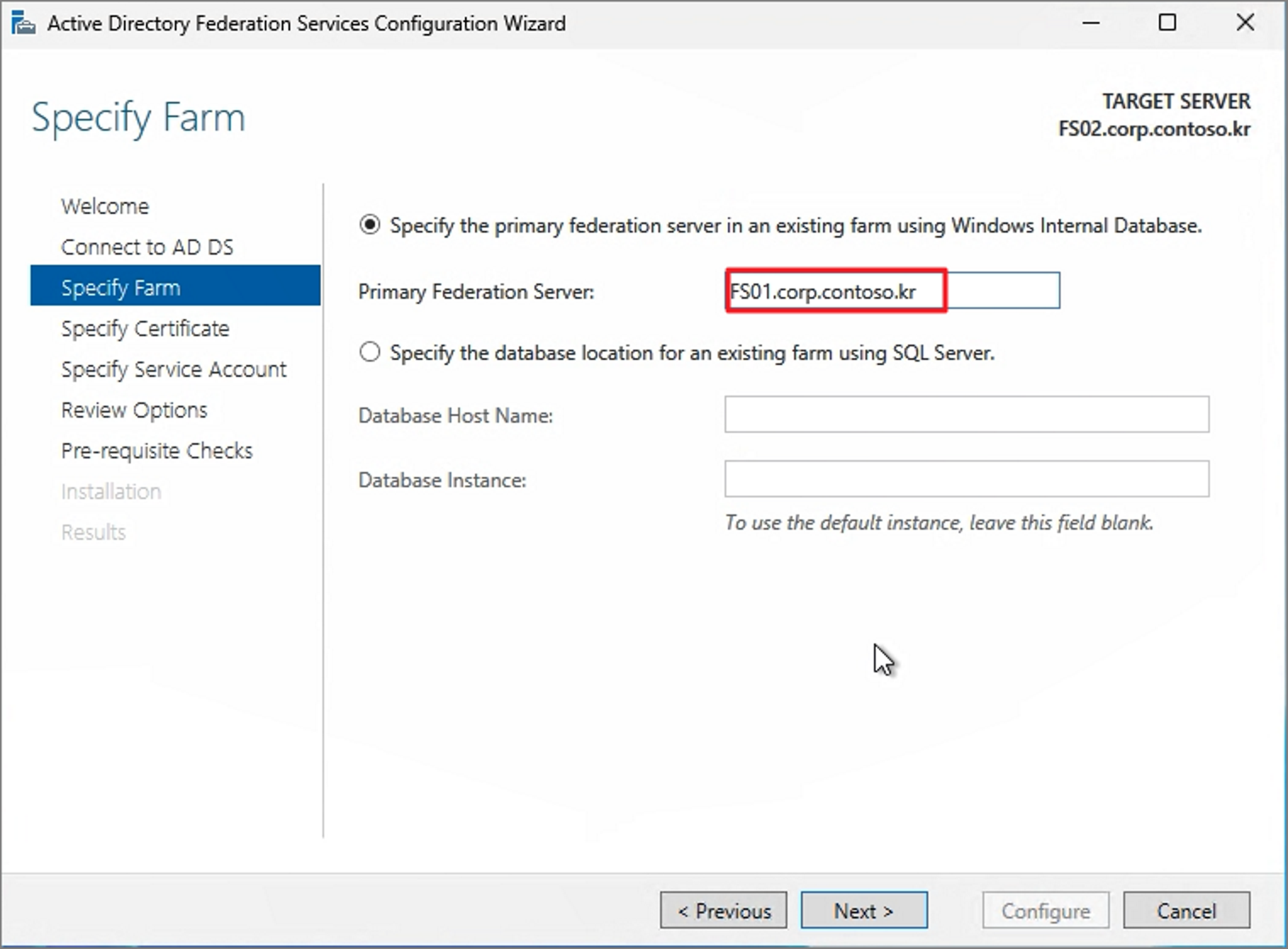
Choose Add a federation server to a federation server farm.


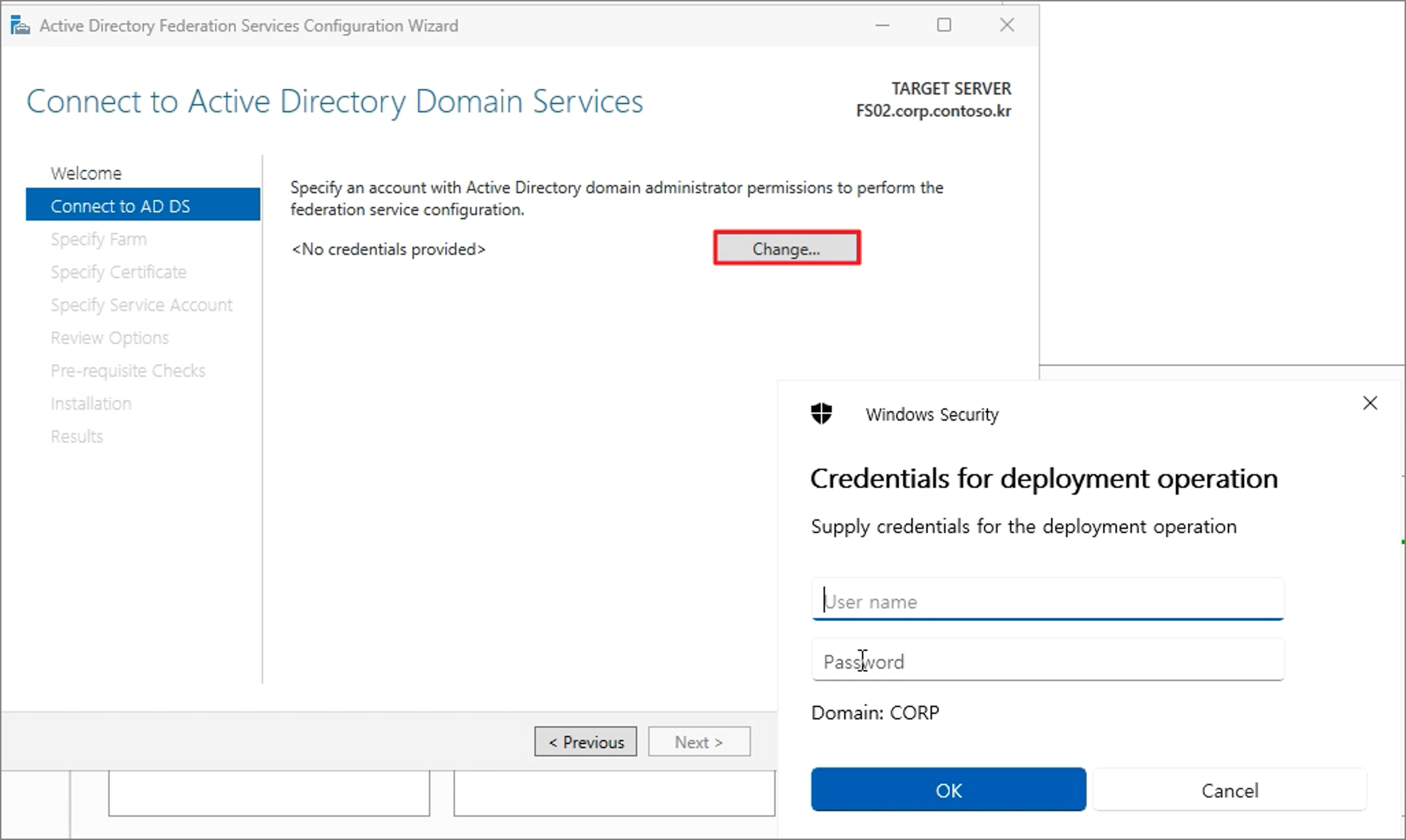
Click Change and enter the credentials of a Domain Admin account.


Enter the information of the existing ADFS server.


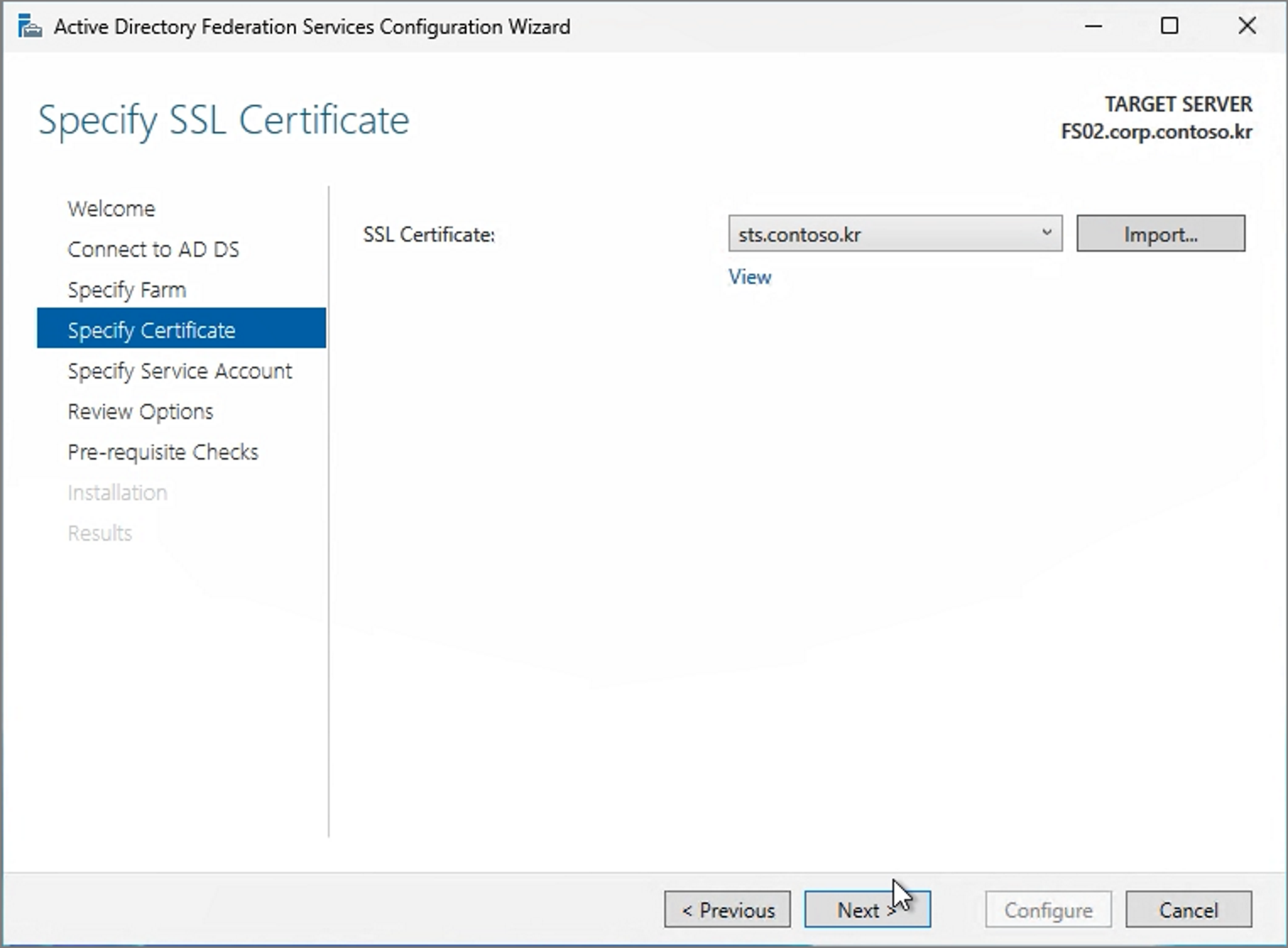
Specify the certificate (ensure the certificate installation has been completed beforehand).


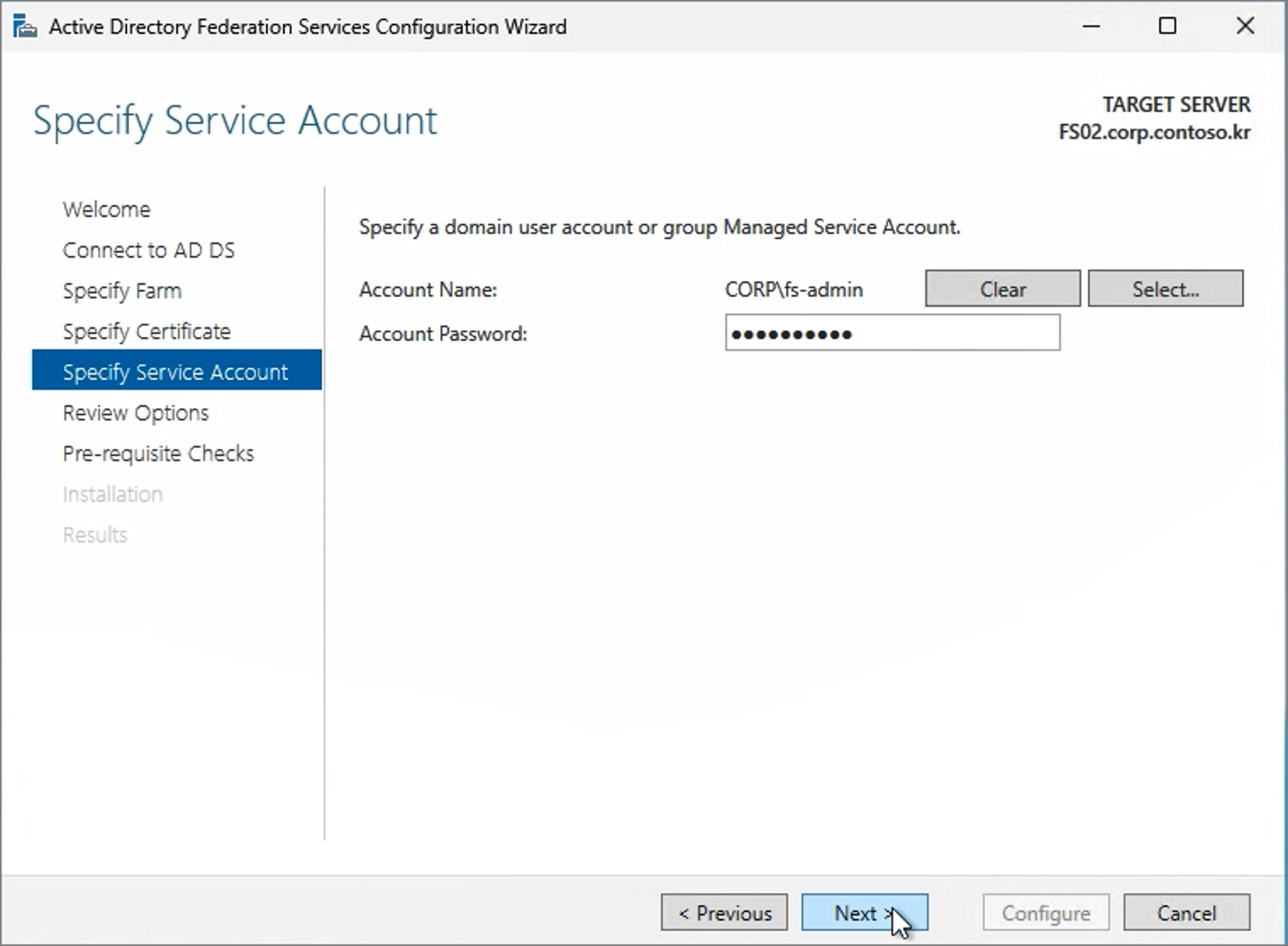
Provide the ADFS service account details.


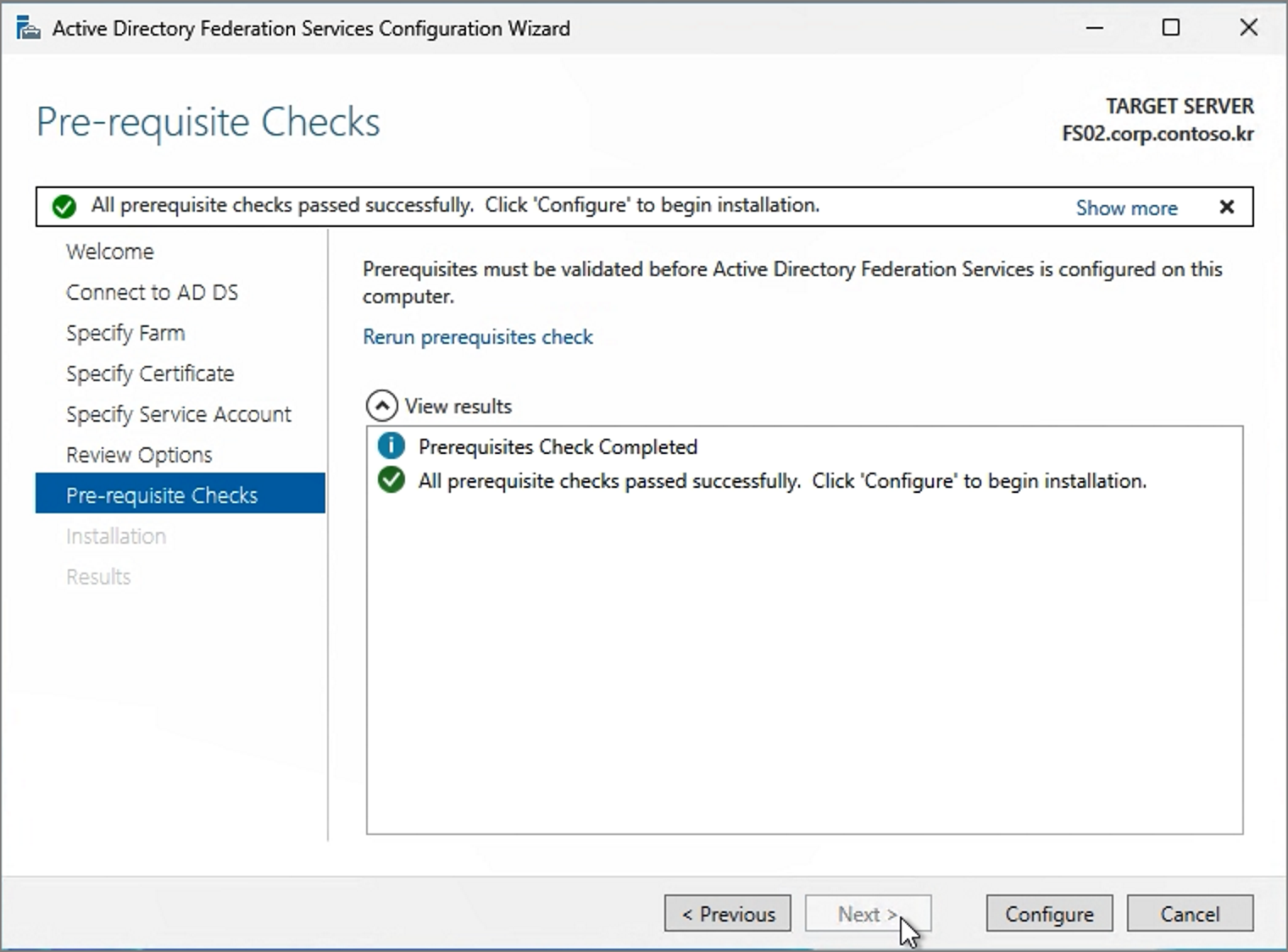
Proceed with the installation process.


Close


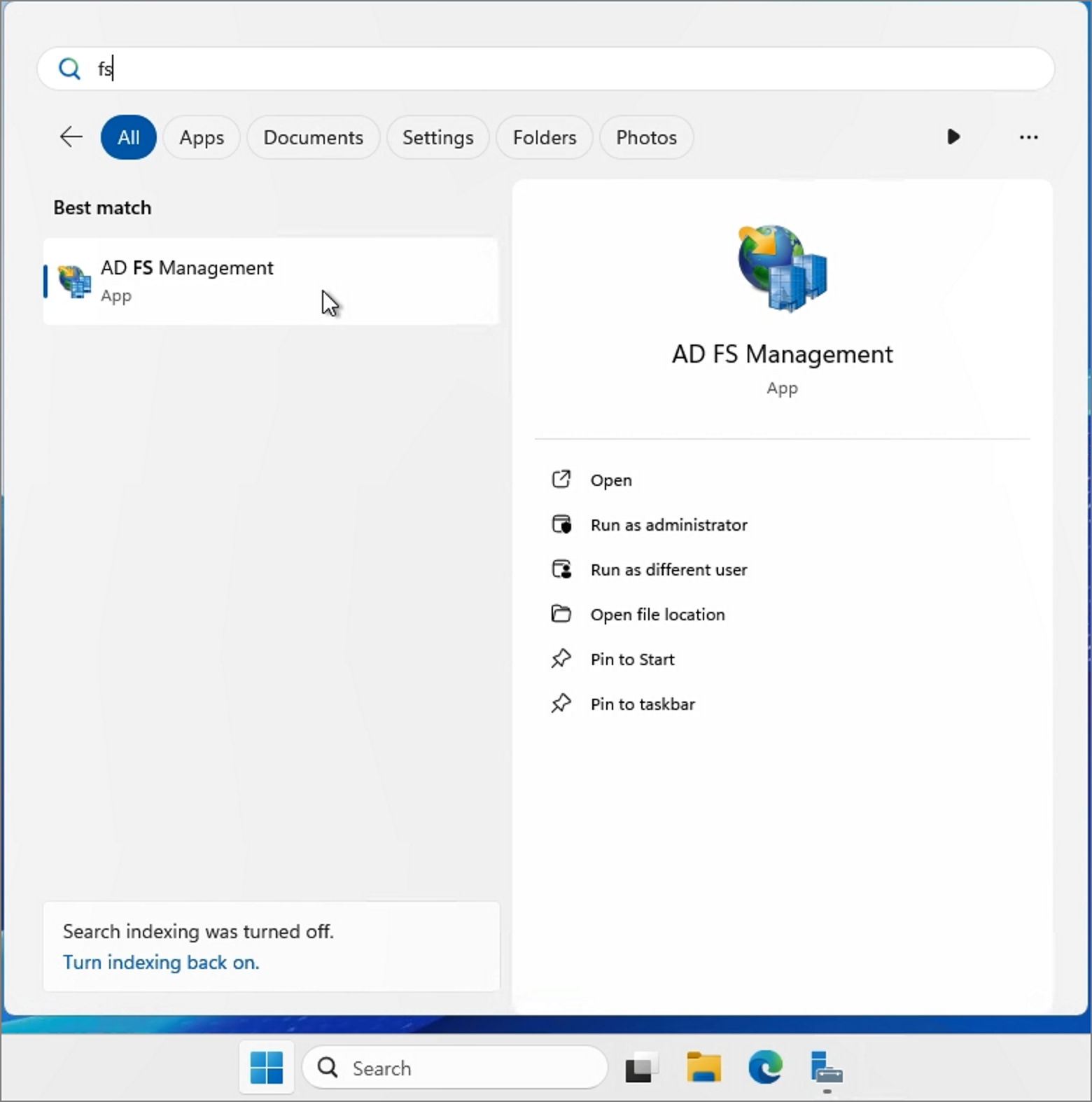
Once the installation is complete, launch AD FS Management.


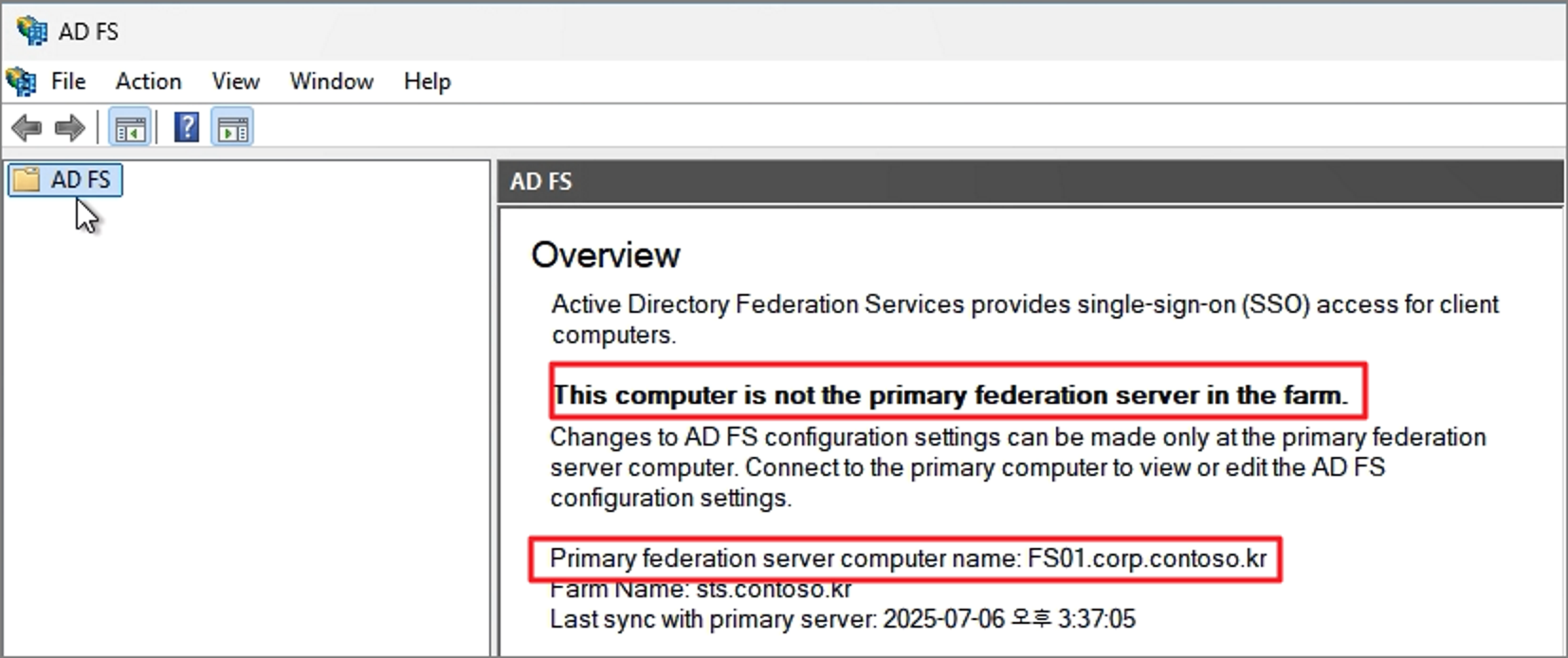
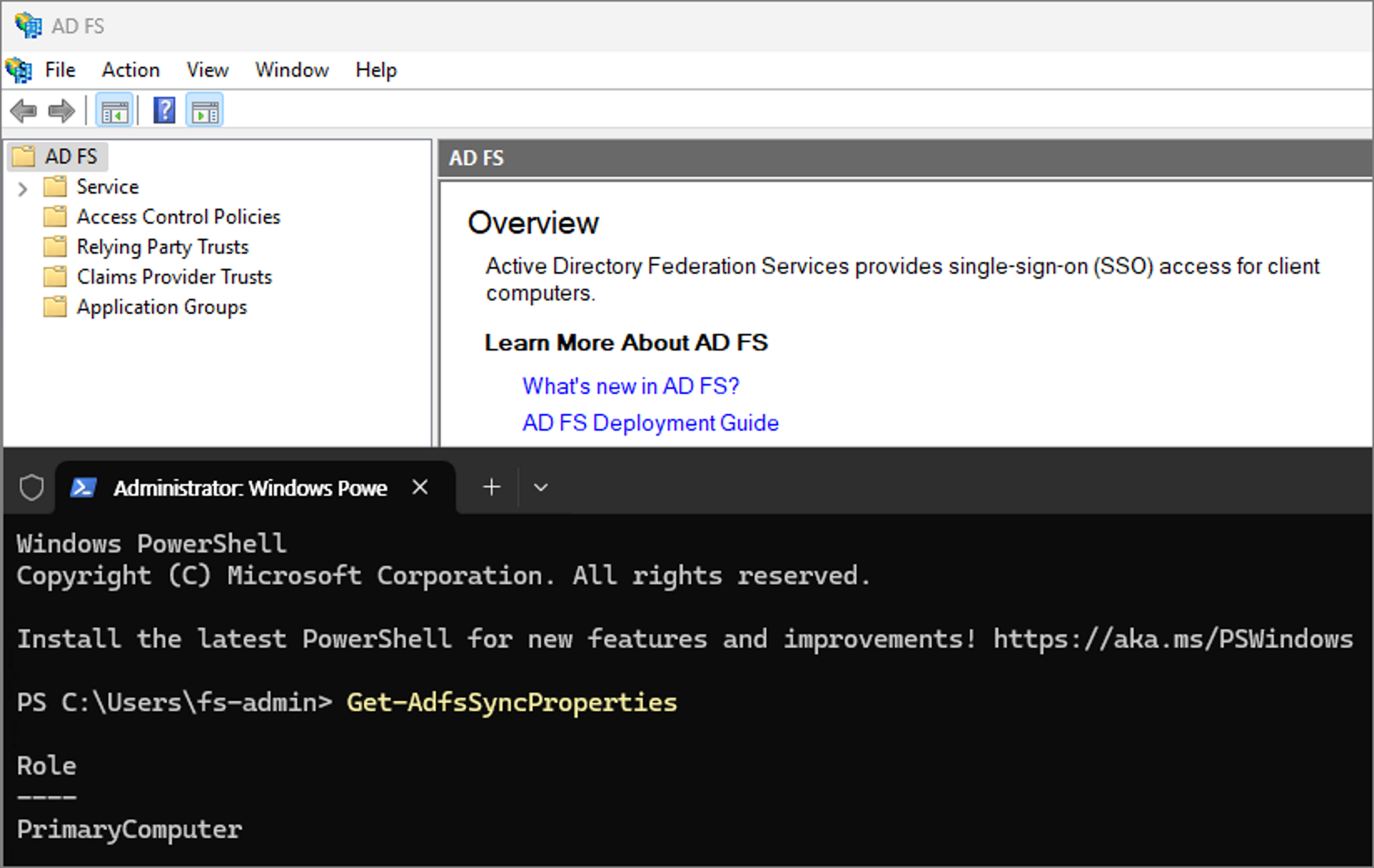
You will see that the current server is set as Secondary. A switch between Primary and Secondary needs to be performed.


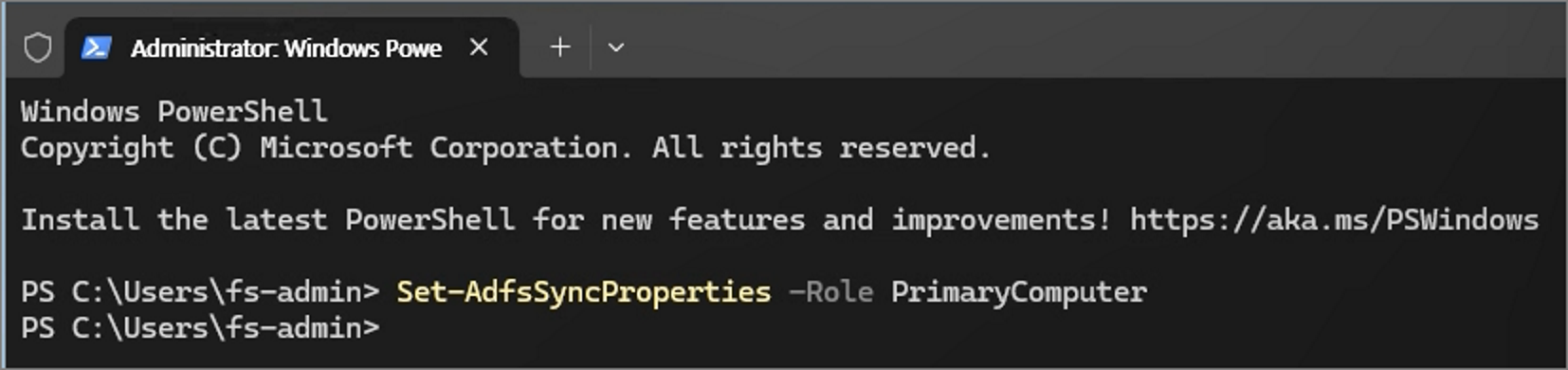
On the newly installed 2025 server, run the following command to switch it to Primary:

Set-AdfsSyncProperties -Role PrimaryComputer


To change the existing ADFS 2022 server to Secondary, run this command on the 2022 server:

Set-AdfsSyncProperties -Role SecondaryComputer -PrimaryComputerName <2025서버>


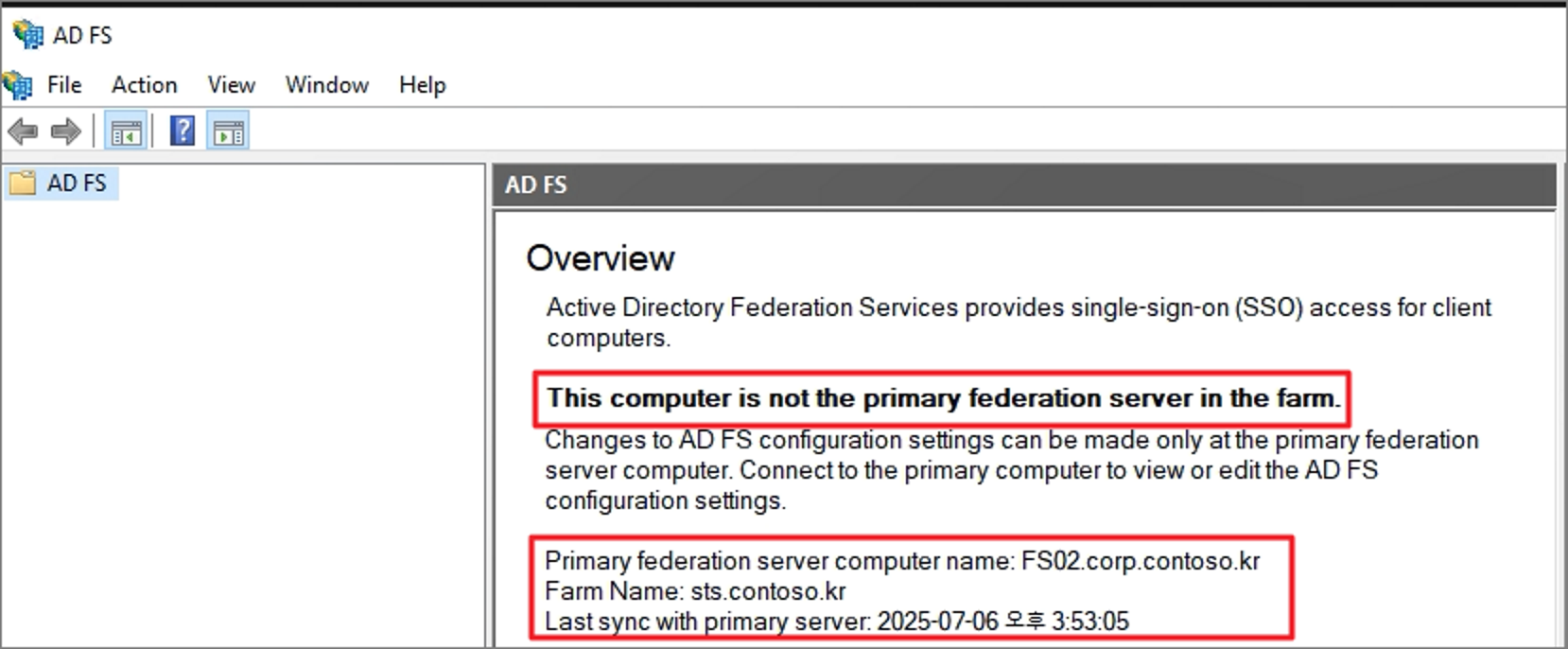
When you open the management console on ADFS 2022, you will see it is now set as Secondary.


On ADFS 2025, confirm that it has switched to Primary.


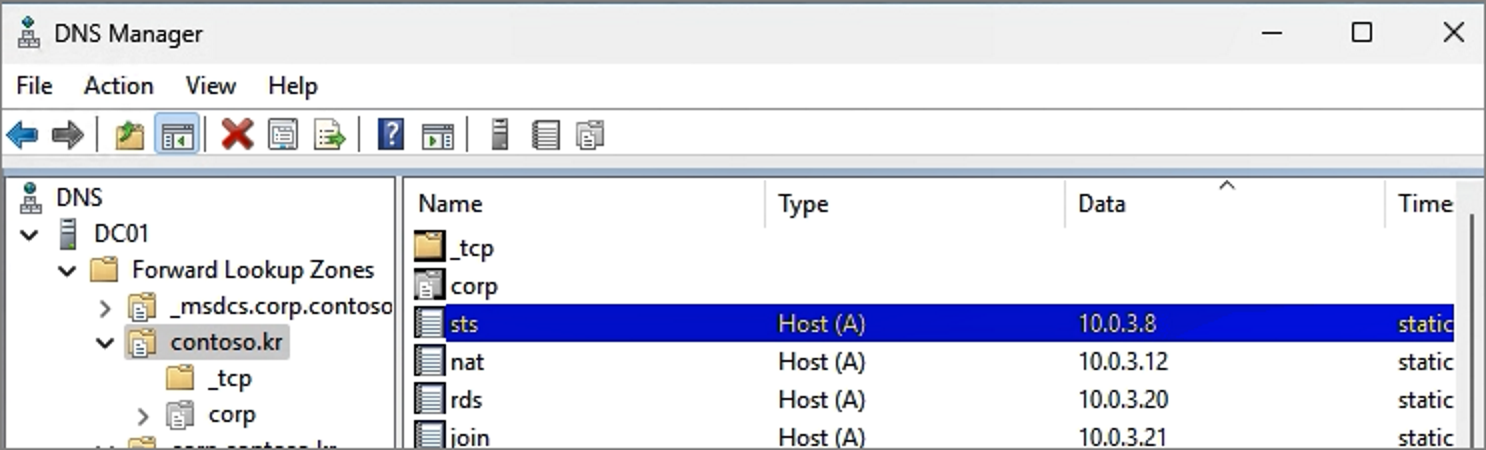
Finally, update the internal DNS to point the ADFS address to the new server’s IP.


Step 2. Remove the Existing ADFS 2022


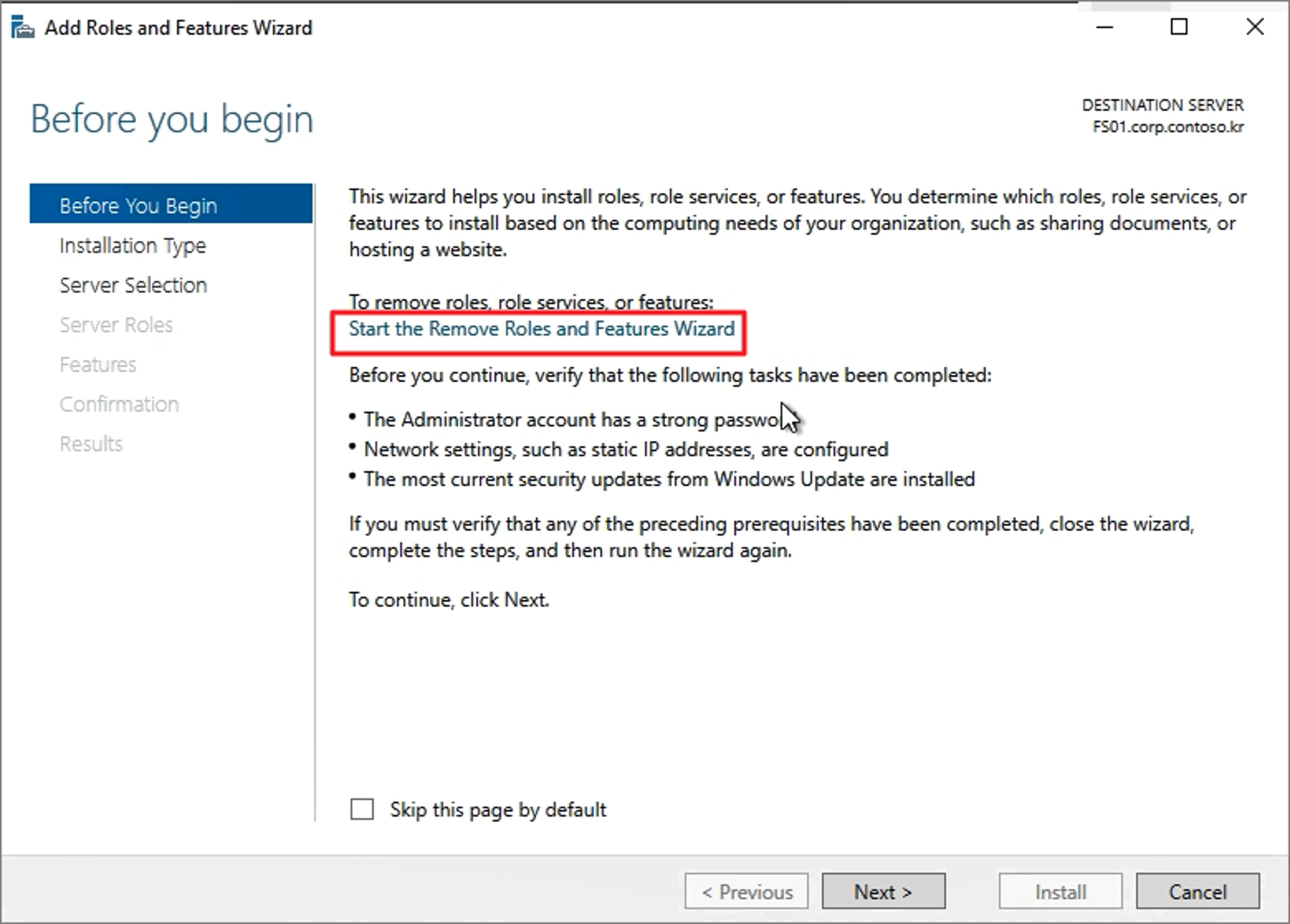
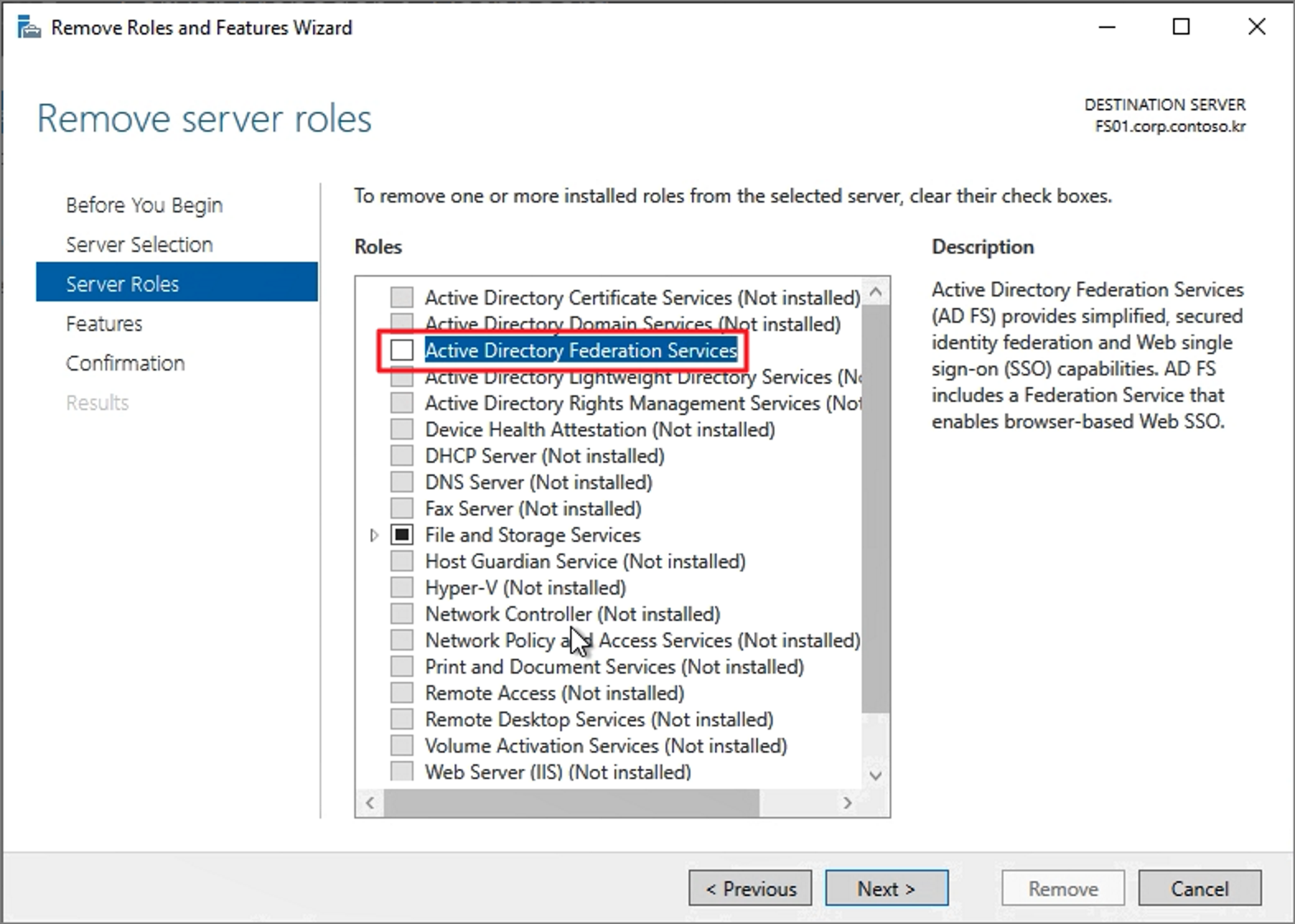
From the Roles installation menu, start the Remove Roles and Features Wizard.


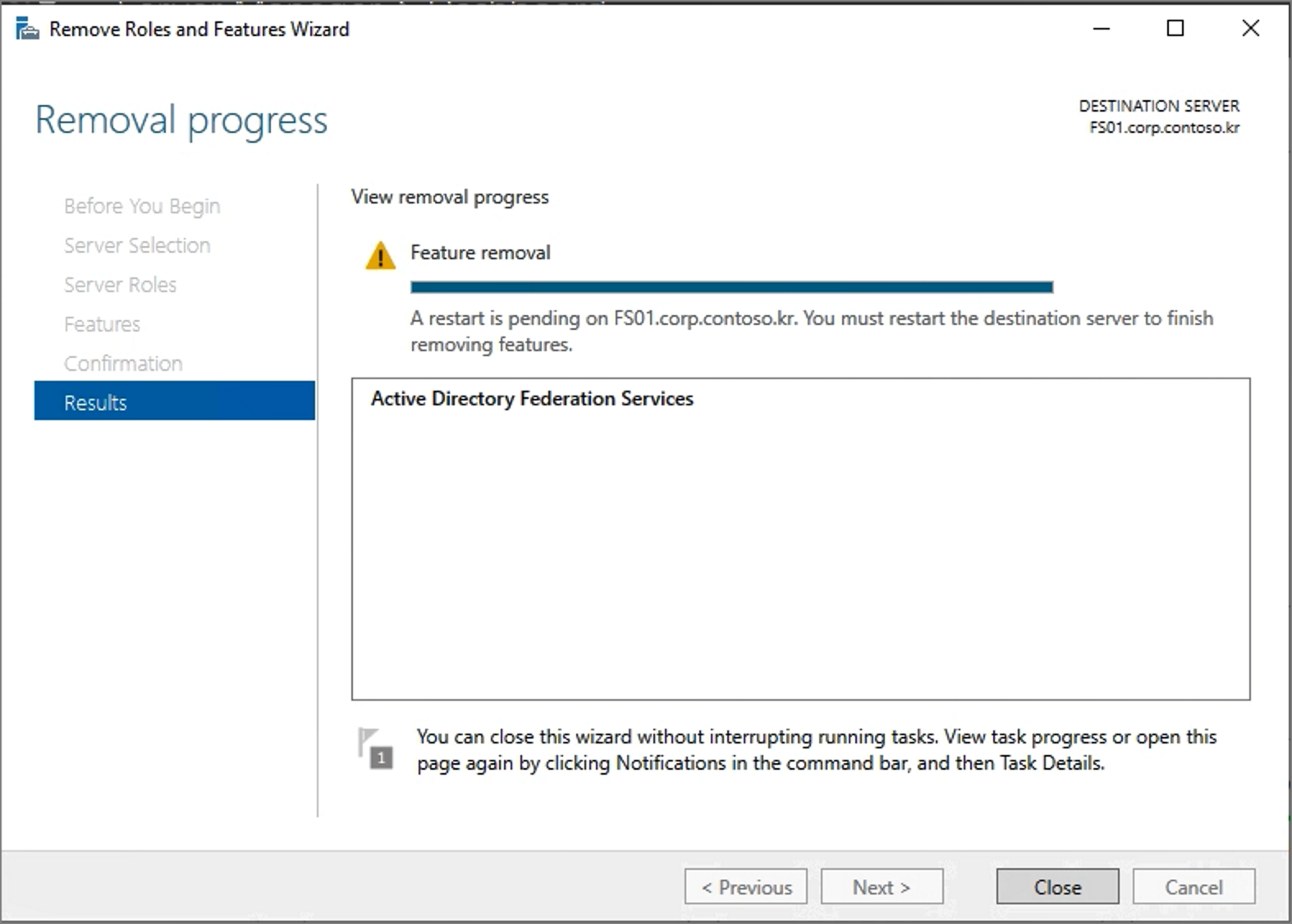
Uncheck the Active Directory Federation Services role and proceed with the removal.


Close


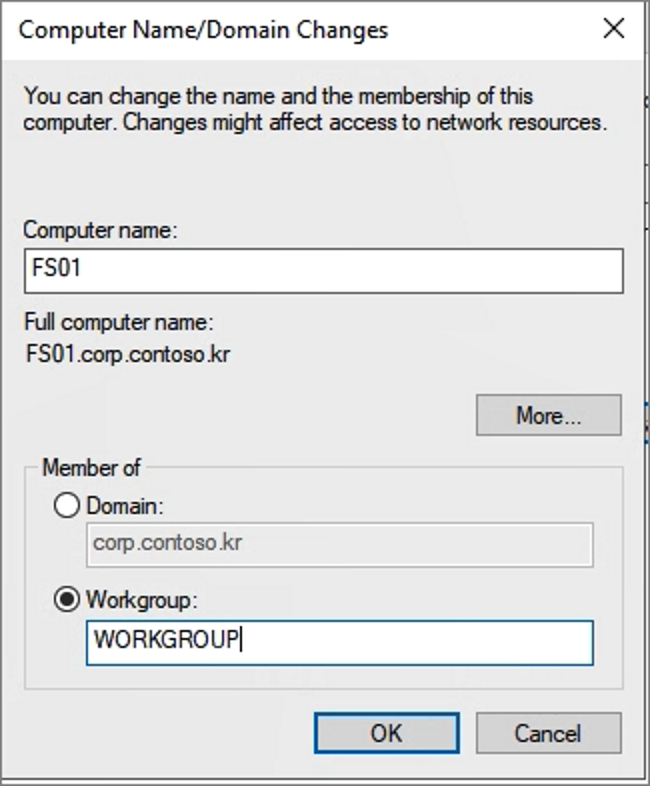
Once the removal is complete, change the server’s membership from the domain to a Workgroup.


Step 3. Install WAP2025


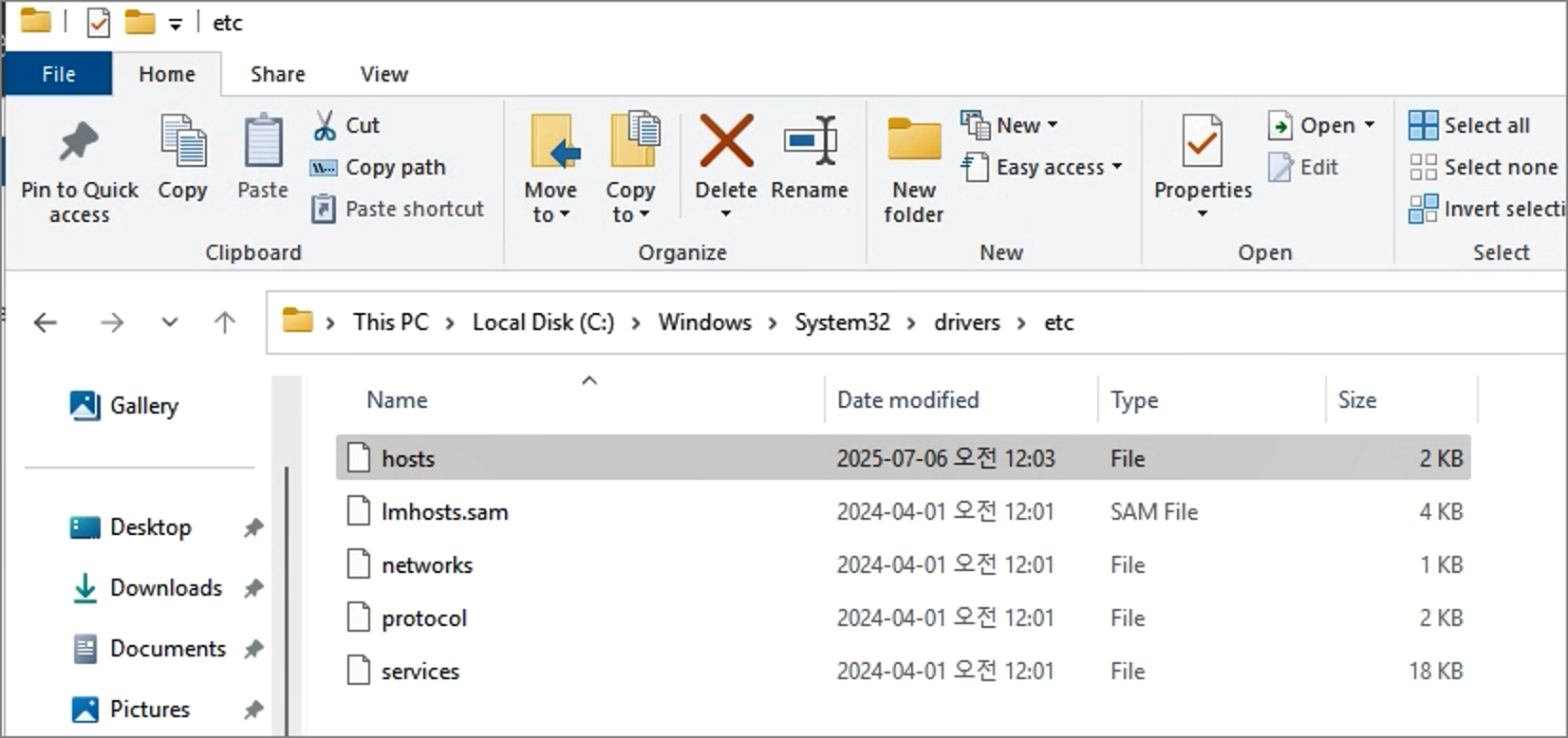
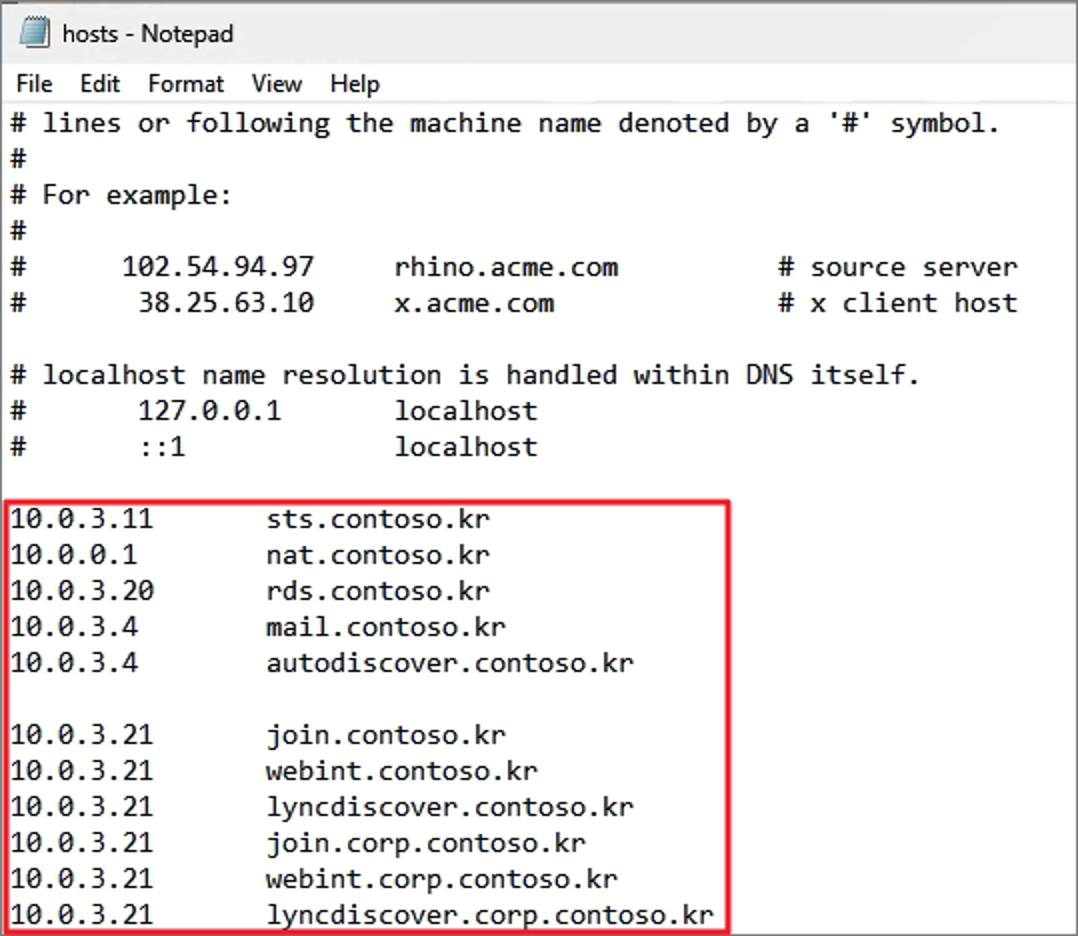
Open the hosts file on the existing WAP2022 server with Notepad, copy its contents, and save it to the WAP2025 server.


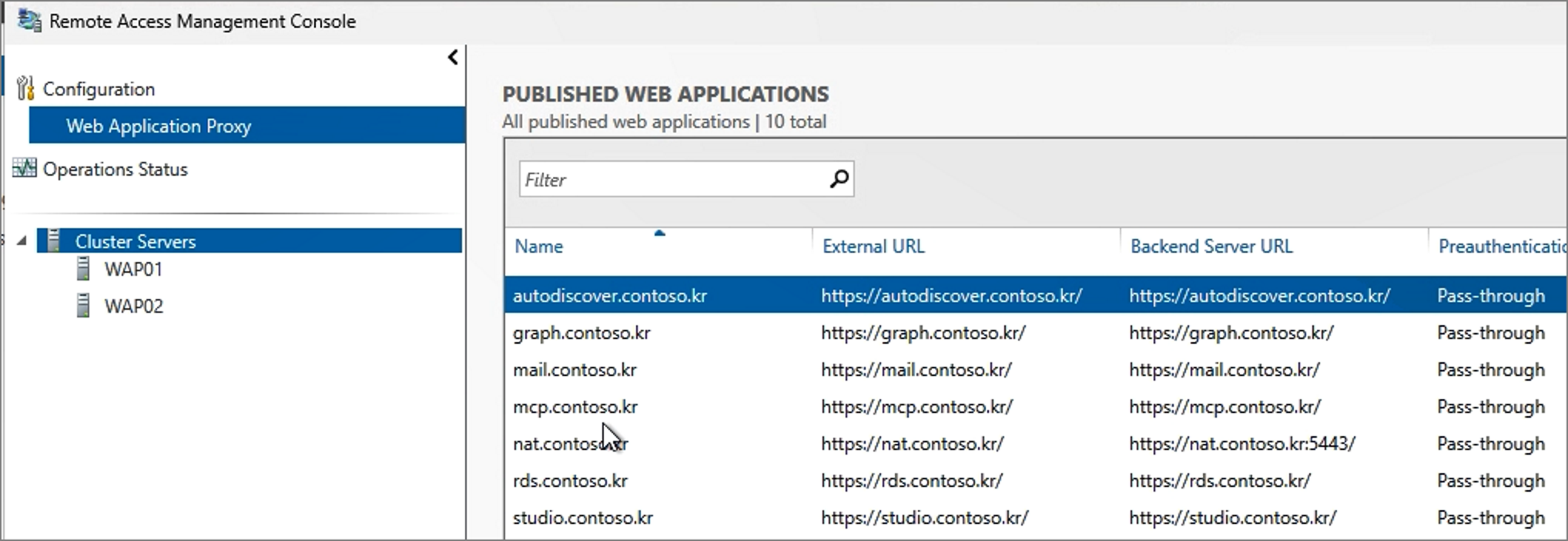
Note that while published configurations are migrated, certificates are not included, so make sure to back up and import each certificate separately.


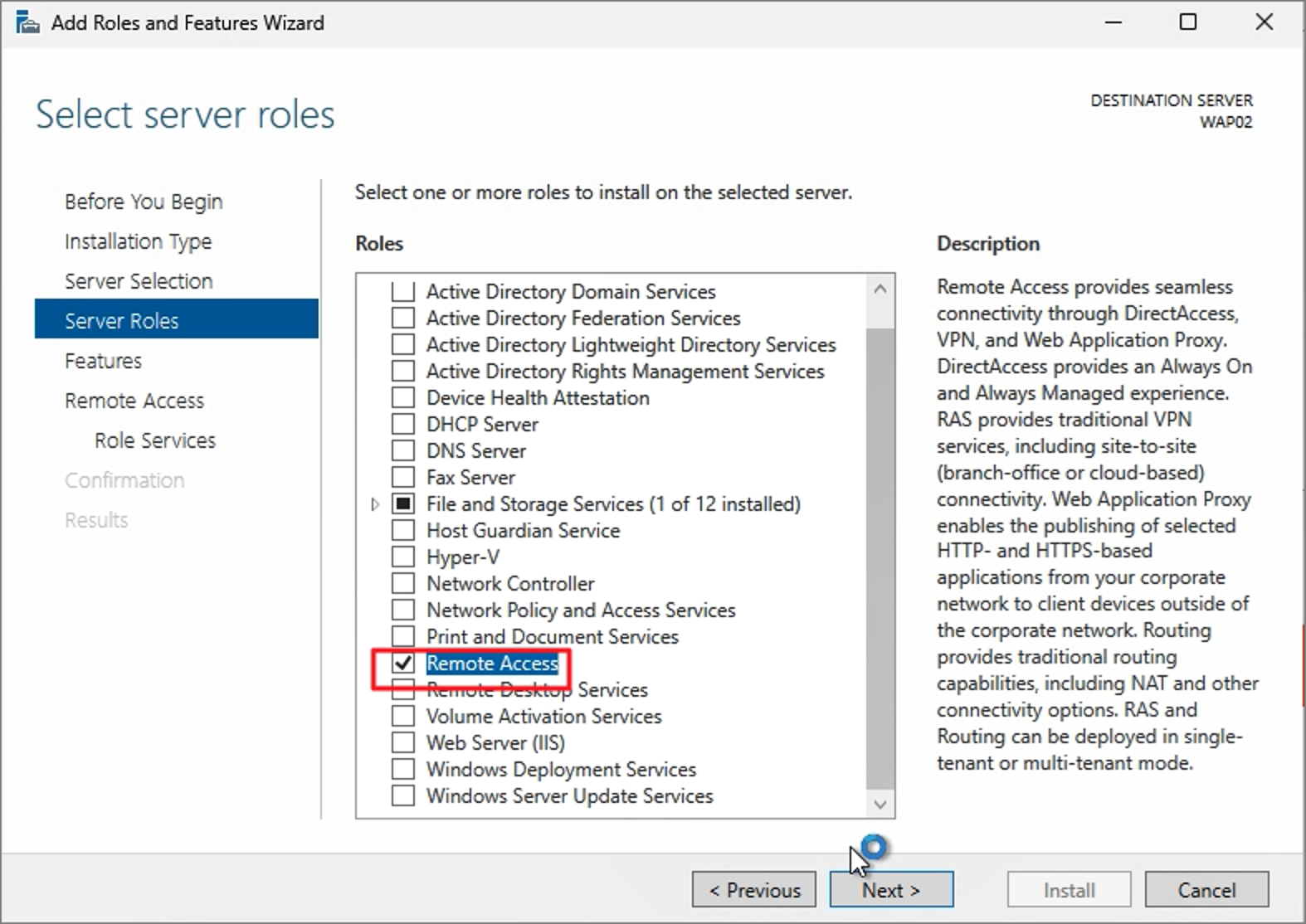
On WAP2025, proceed to install the Remote Access Role.


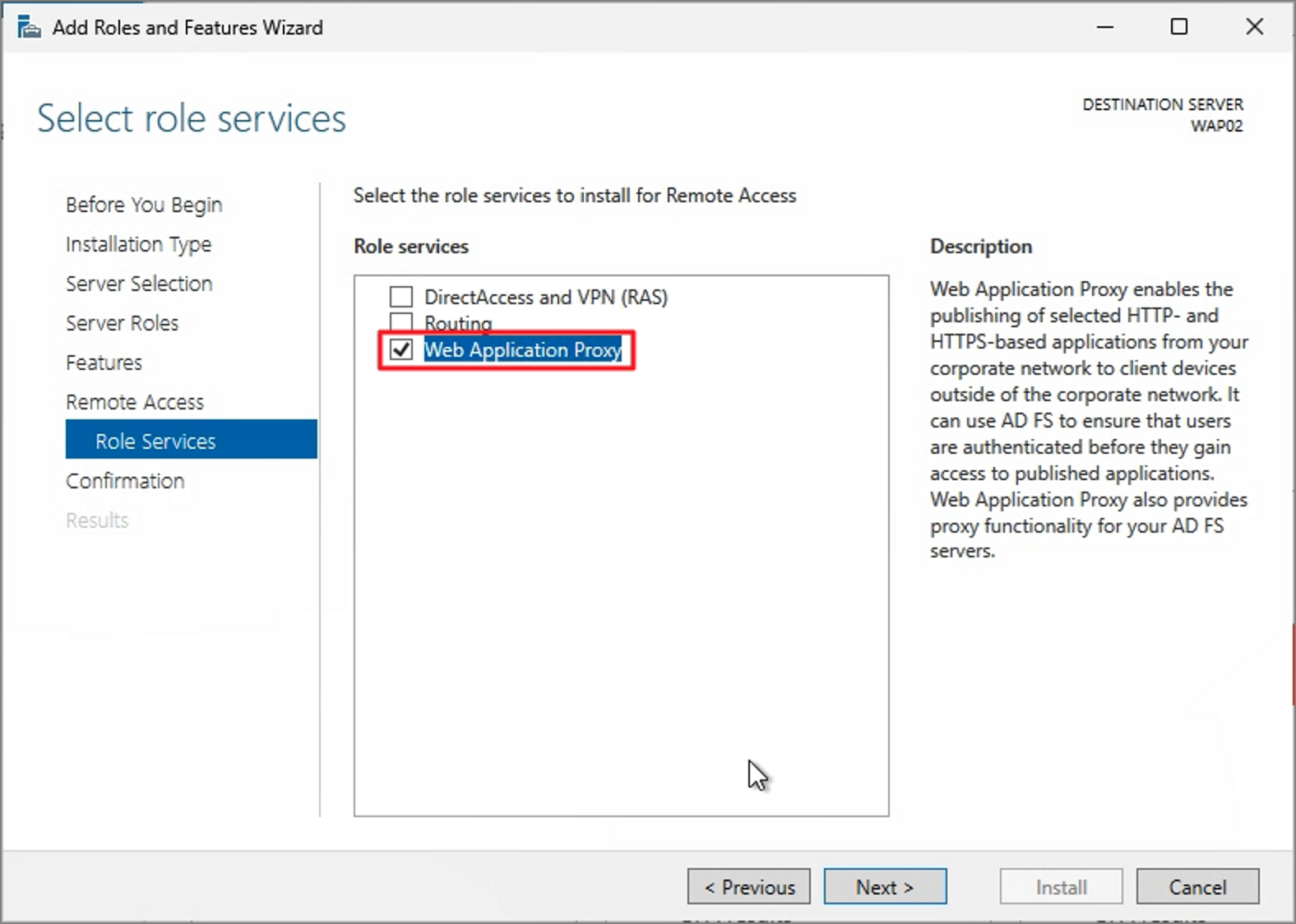
Check Web Application Proxy and continue with the installation.


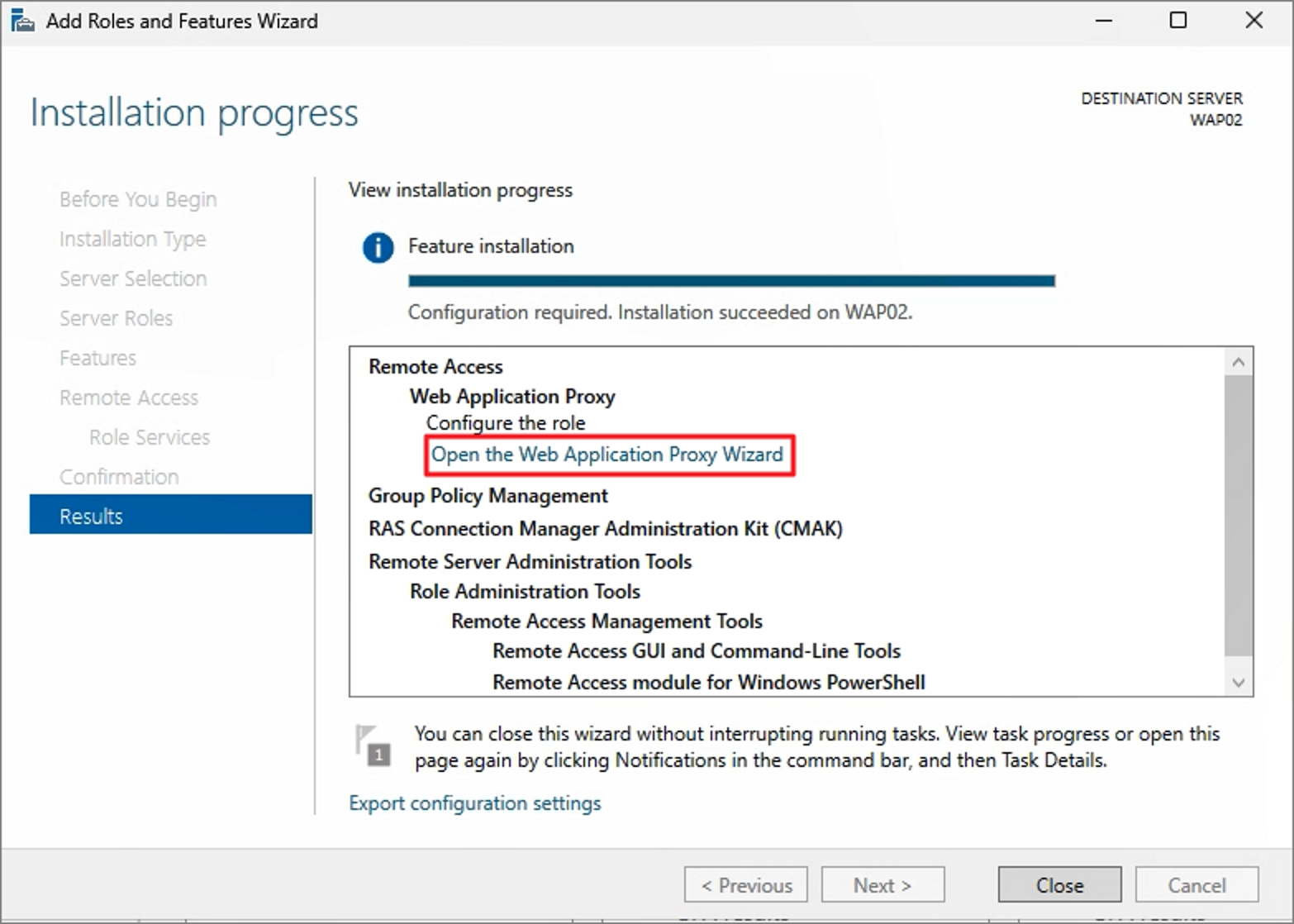
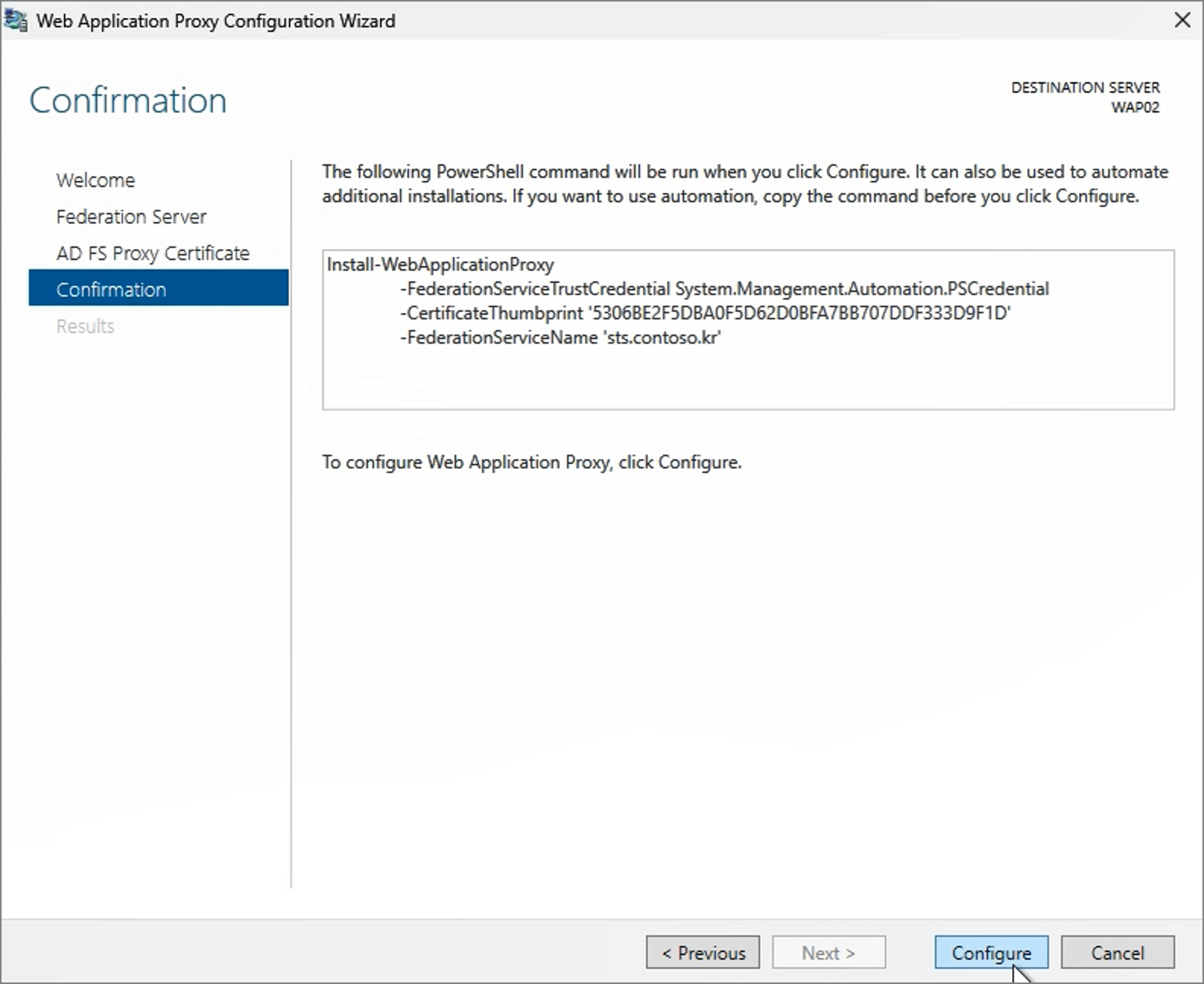
Open the Web Application Proxy Wizard


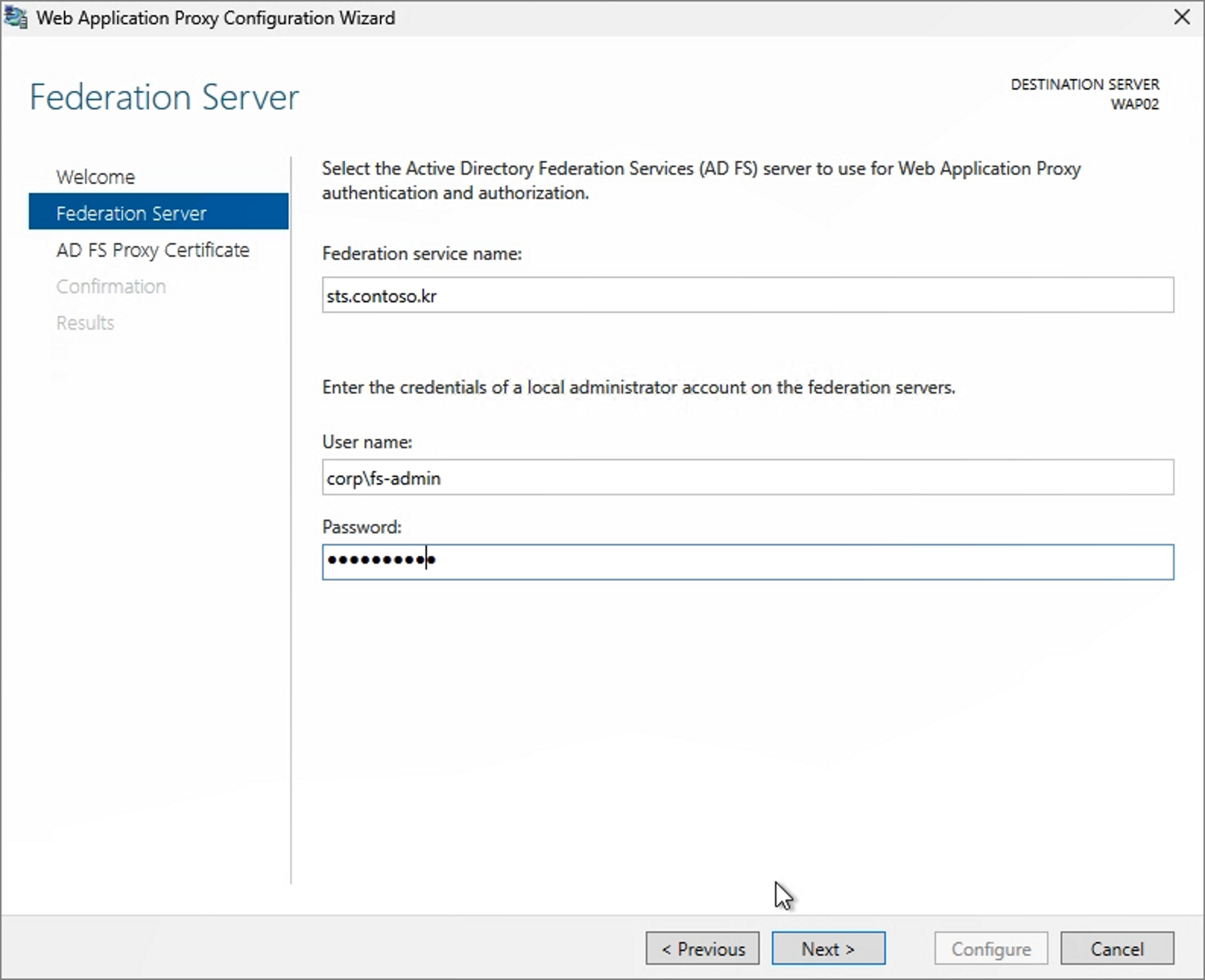
Enter the ADFS service URL and credentials.


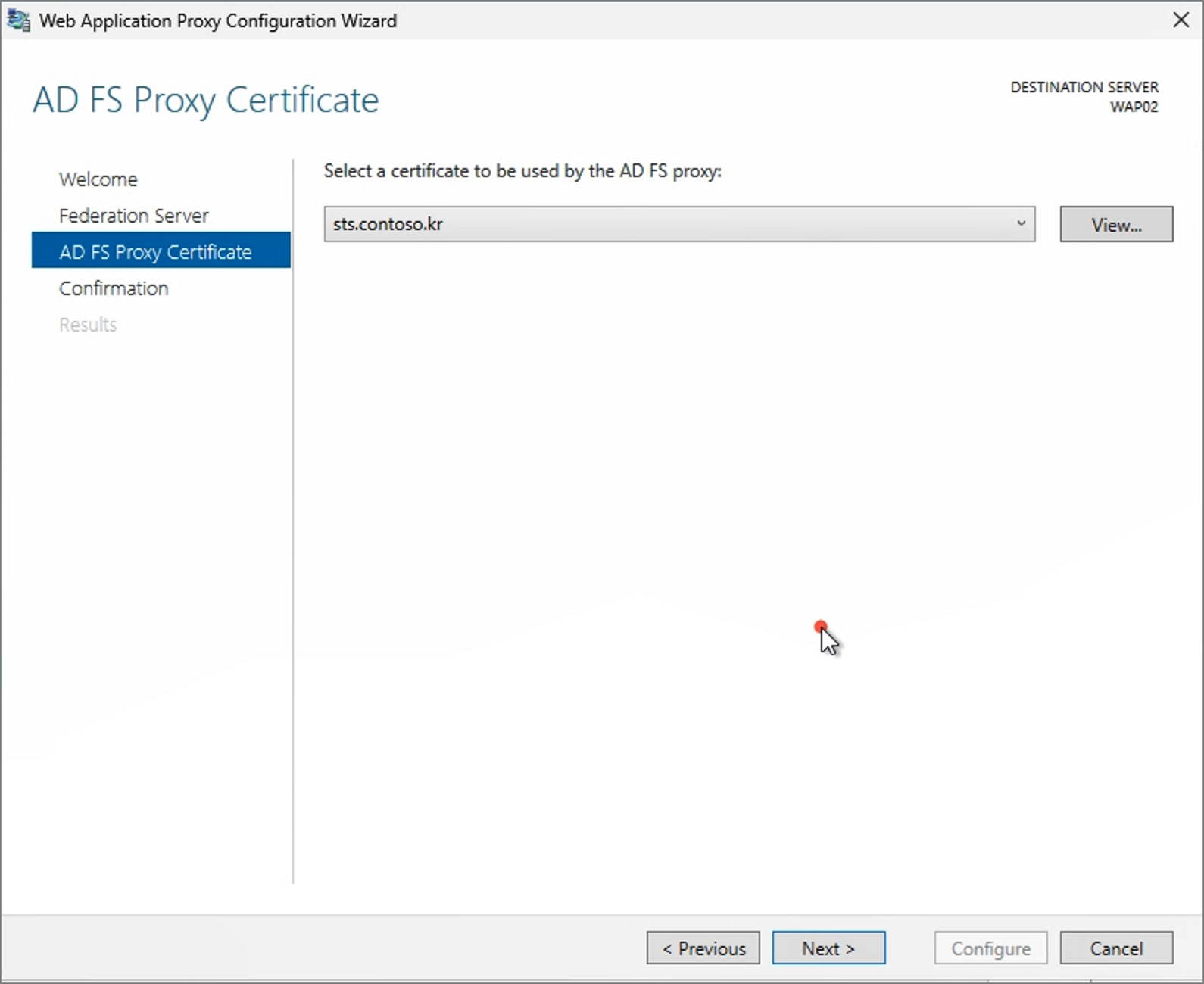
Select the pre-installed certificate.


Configure


Close


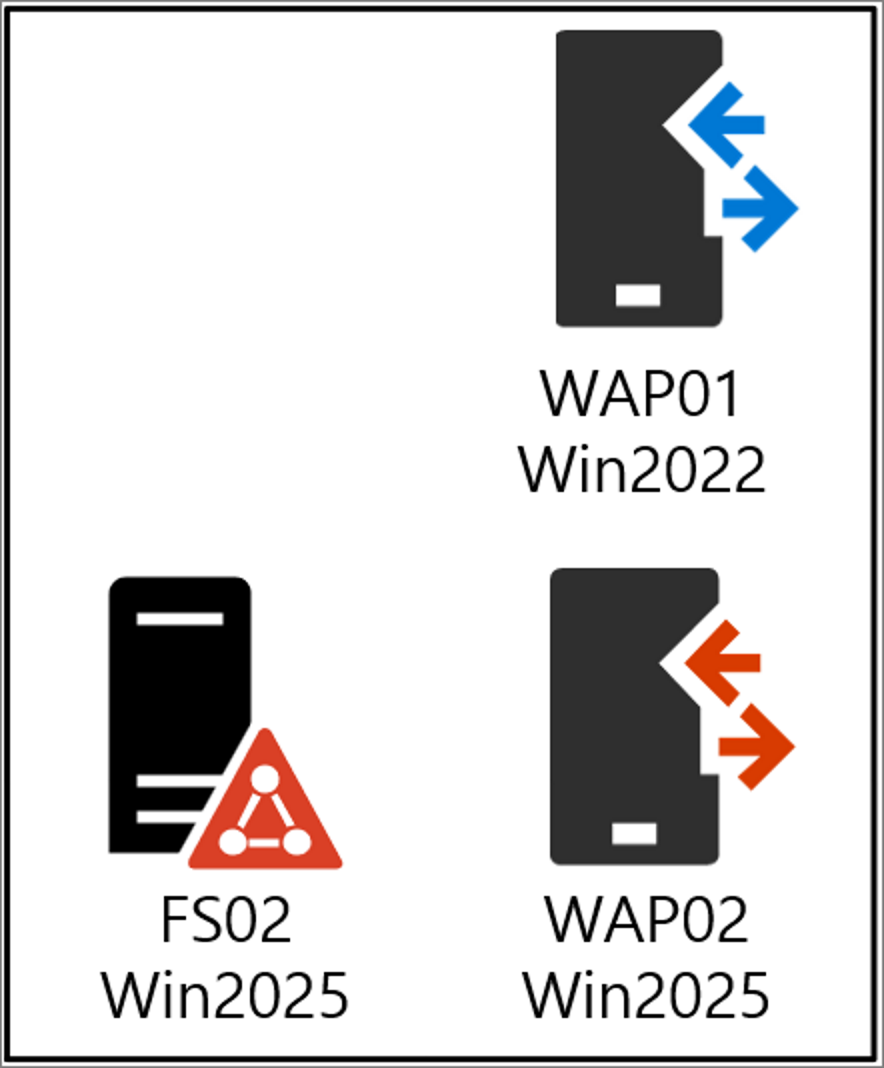
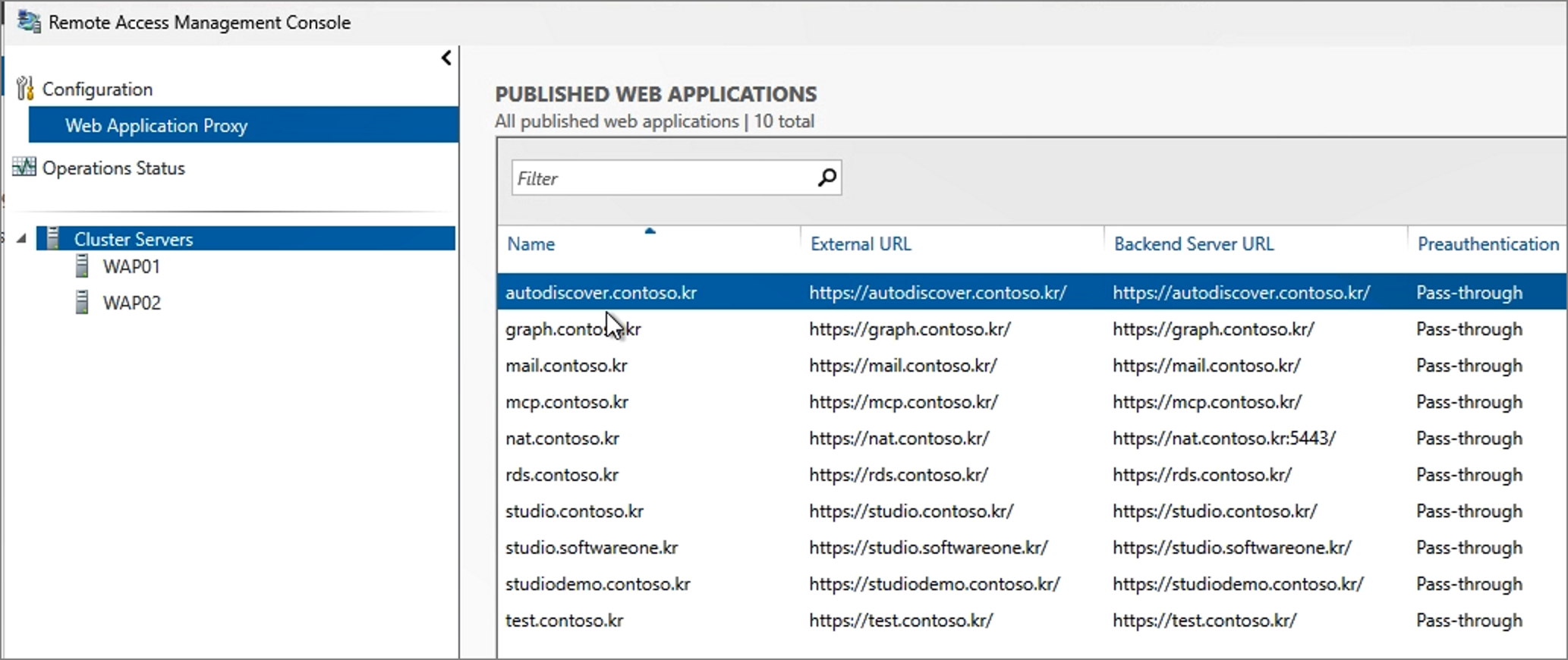
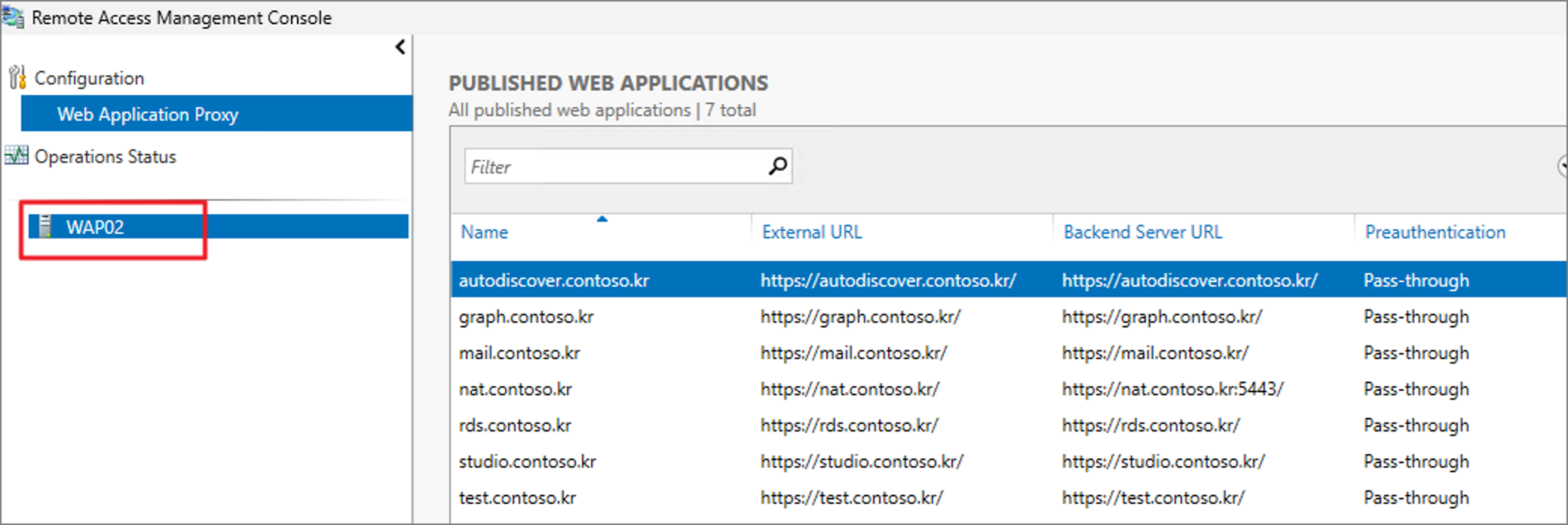
The interface will display as if a cluster is configured.


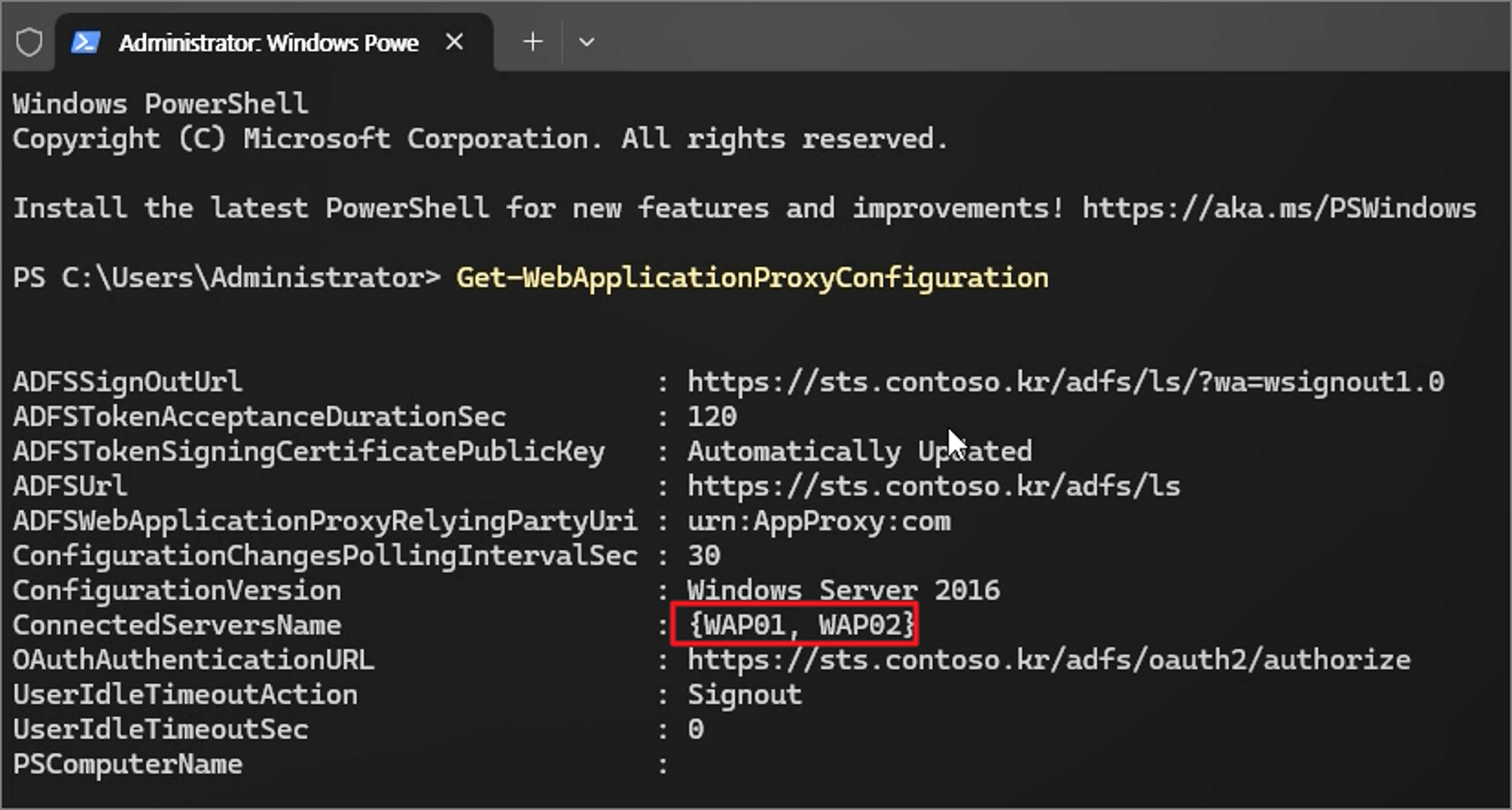
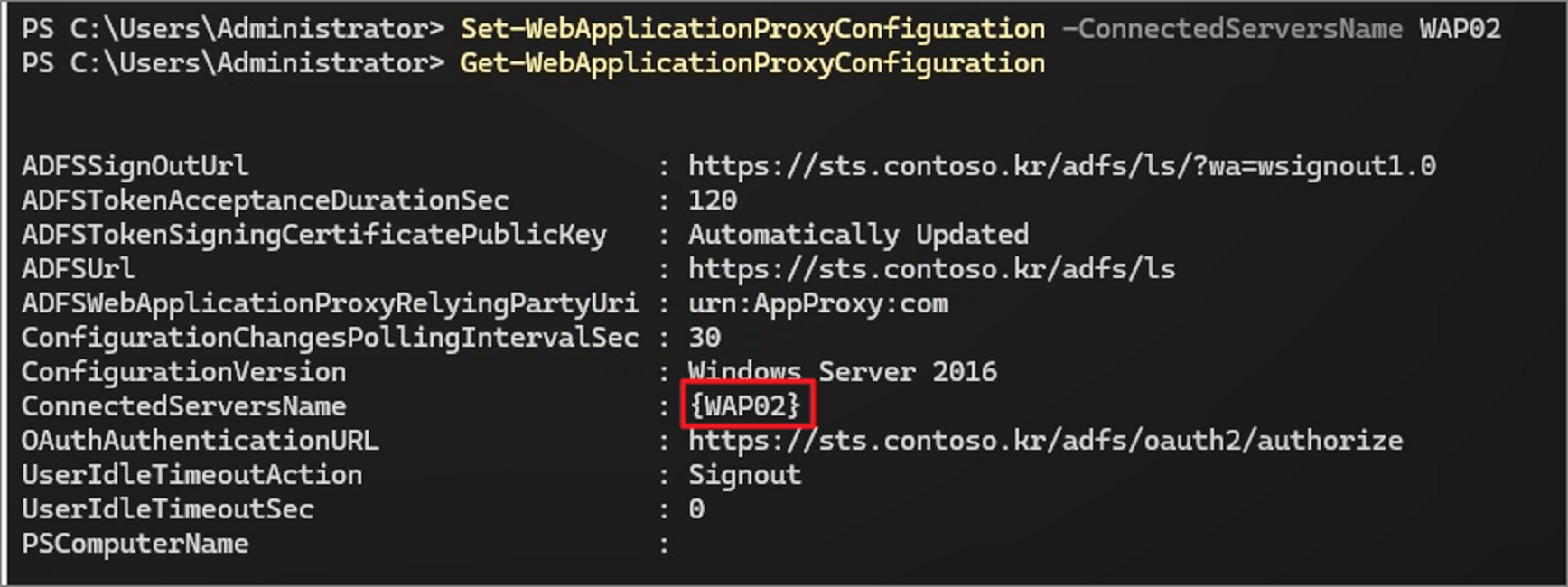
You can verify the current connected servers with the command:


Similar to 2019 and 2022 versions, the Configuration Version remains as Windows Server 2016.


Step 4. Remove WAP2022


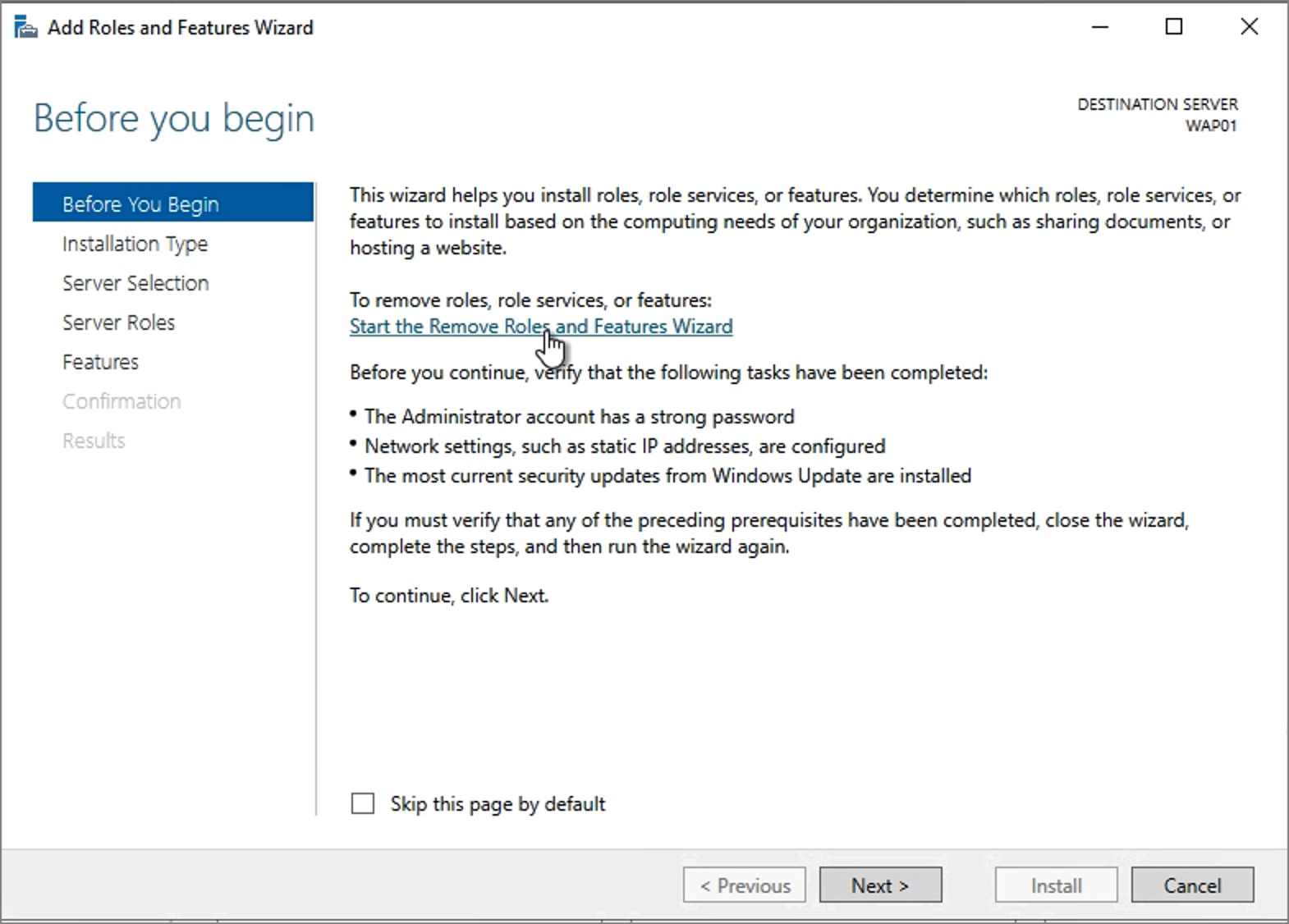
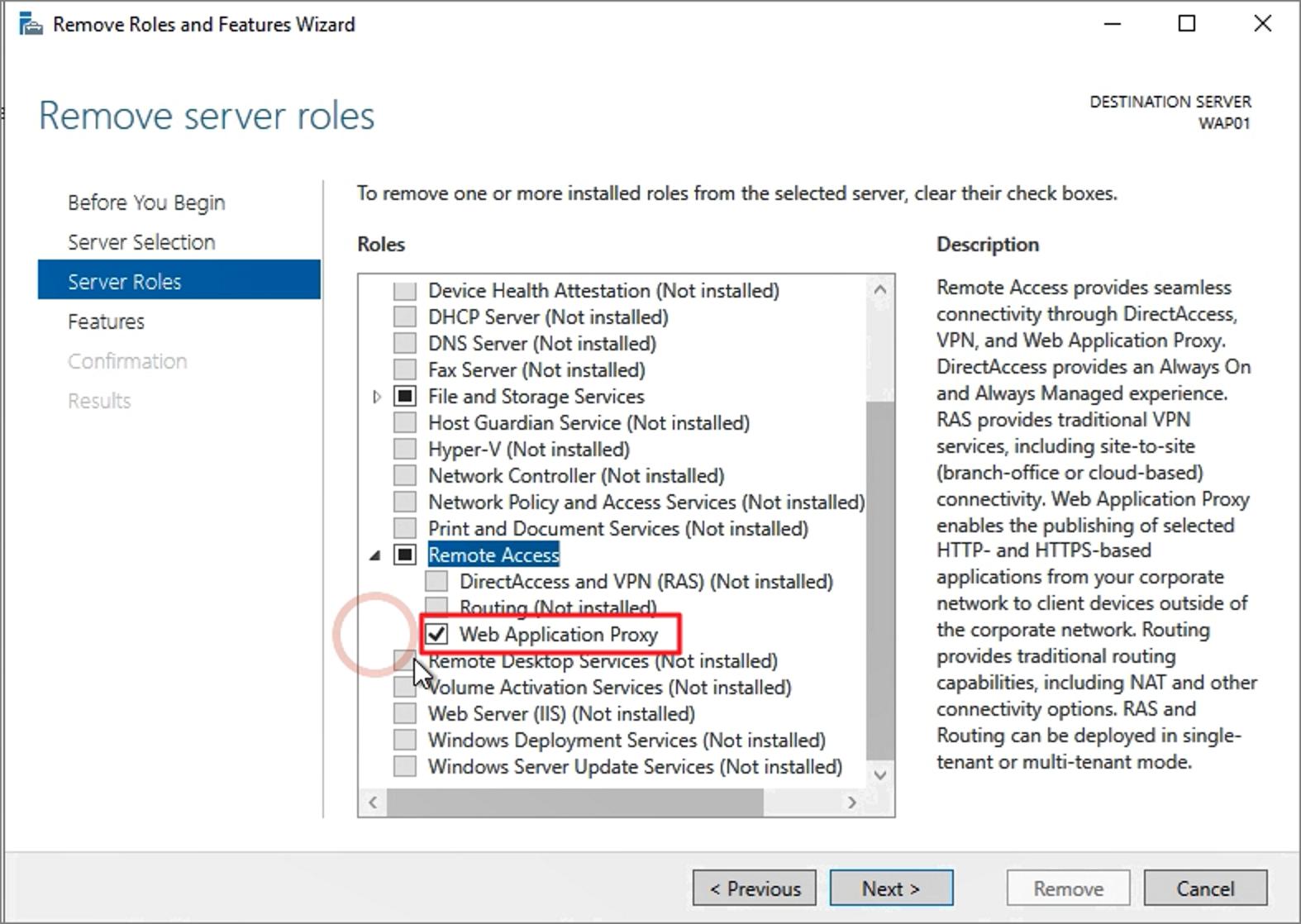
On WAP2022, start the Remove Roles and Features Wizard.


Uncheck the Remote Access – Web Application Proxy role and proceed with removal.


Update the currently connected server information using the following command on WAP2025:

Set-WebApplicationProxyConfiguration -ConnectedServersName <WAP2025>


Confirm that the connection information has been updated correctly.


Successful login was also confirmed via Office.com, indicating that no additional action is required in Entra ID Connect and no major issues are expected.

반응형

+ Recent posts