반응형

In this post, we will focus on Microsoft Traffic within Global Secure Access (GSA).

Previously, I wrote a post about Tenant Restriction.

2024.07.07 - [Microsoft 365/Entra] - Microsoft Entra ID. Set up tenant restrictions v2 by GSA (English)


Since both the article and the video required updates, and several new features have recently been added, I decided to rewrite this guide as the 2026 edition.

GSA functionality is broadly divided into three profiles:

  • Microsoft Traffic
  • Internet Access
  • Private Access

Among them, Microsoft Traffic is designed to manage Microsoft service traffic. One of its core capabilities is Tenant Restriction, which helps prevent data leakage through personal accounts or unauthorized external tenants.


Even by using only Microsoft Traffic, organizations can block personal accounts and control access paths to external tenants at the network layer.
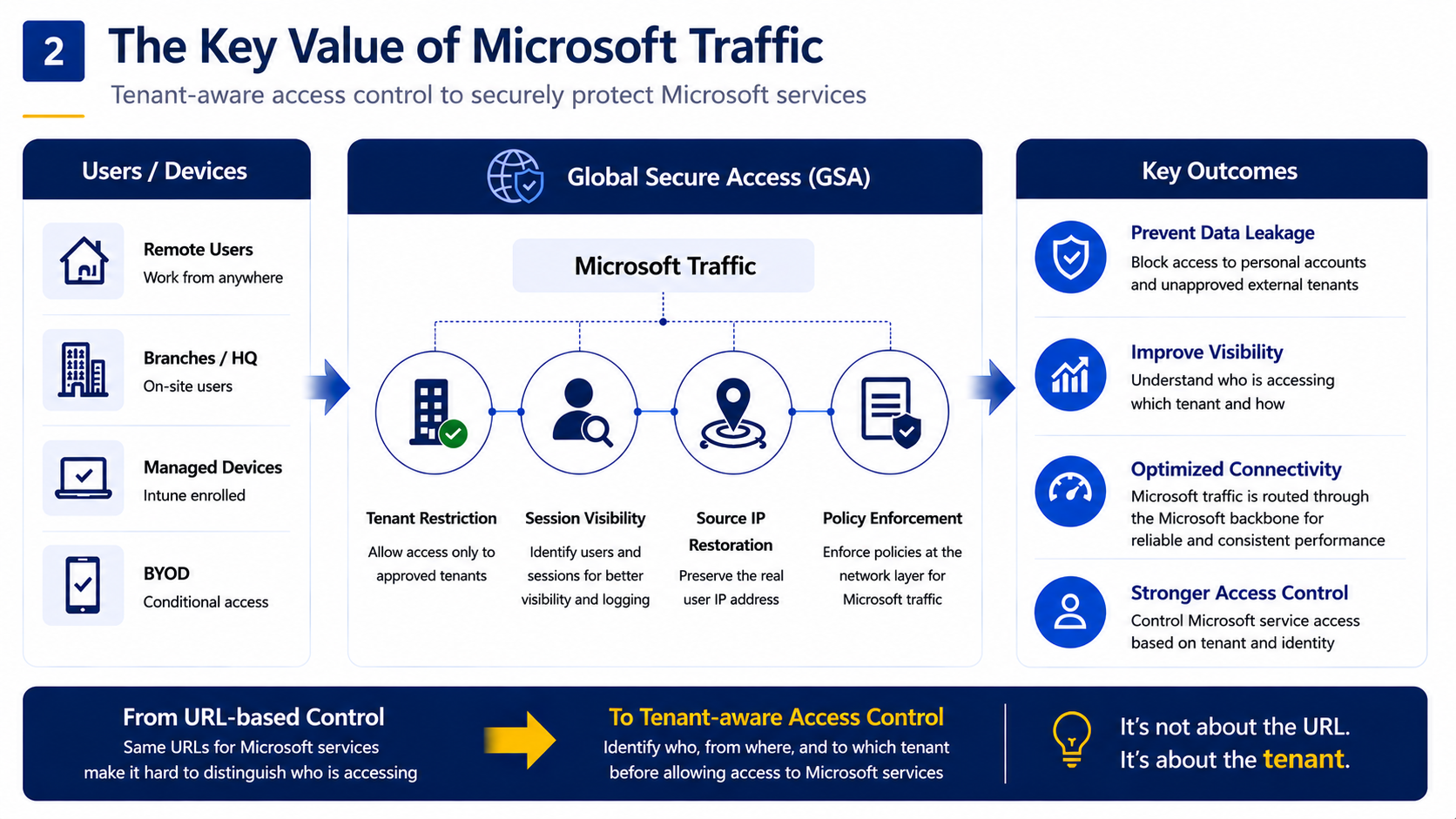


The following Microsoft documents were referenced during this configuration:

Global Secure Access and Universal Tenant Restrictions - Global Secure Access | Microsoft Learn

Configure Tenant Restrictions - Microsoft Entra ID - Microsoft Entra External ID | Microsoft Learn


Youtube: https://youtu.be/4FzfVHB-rdM


Step 1. Activate GSA

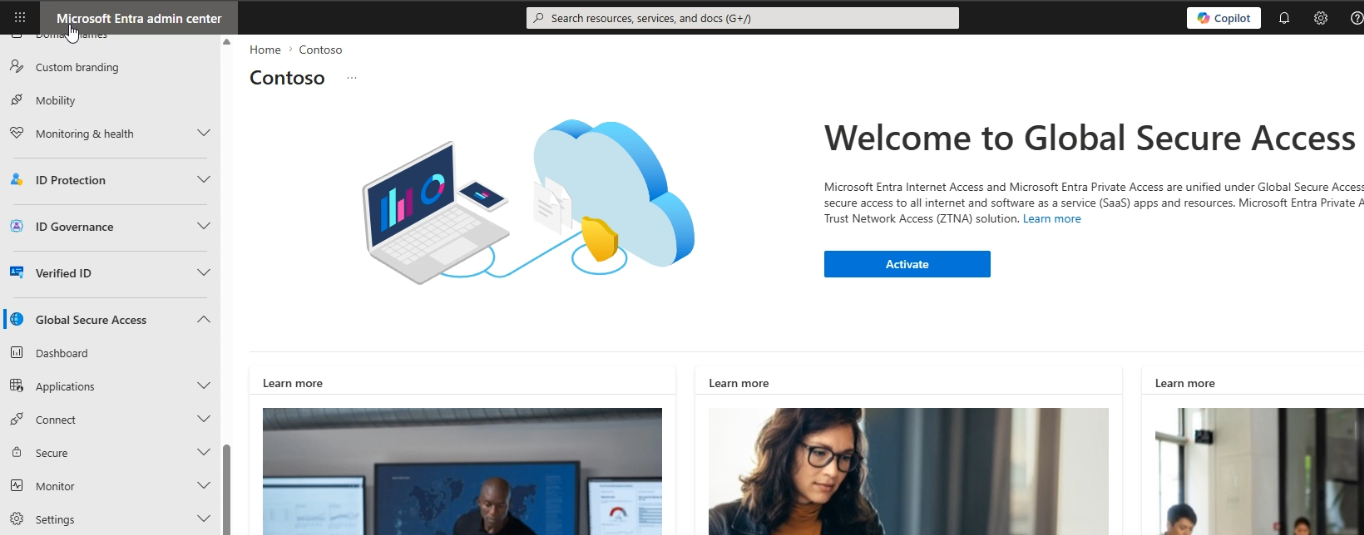
Entra Admin Center -> Global Secure Access -> Activate


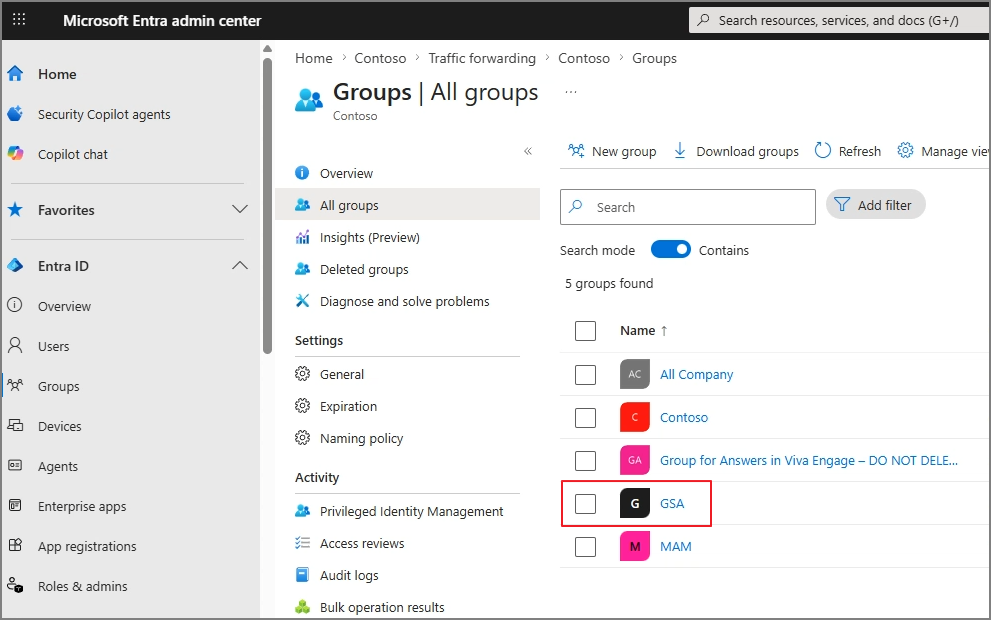
Create a group that will be assigned to the policy.


Global Secure Access -> Connect -> Traffic forwarding -> Microsoft traffic profile -> Enable
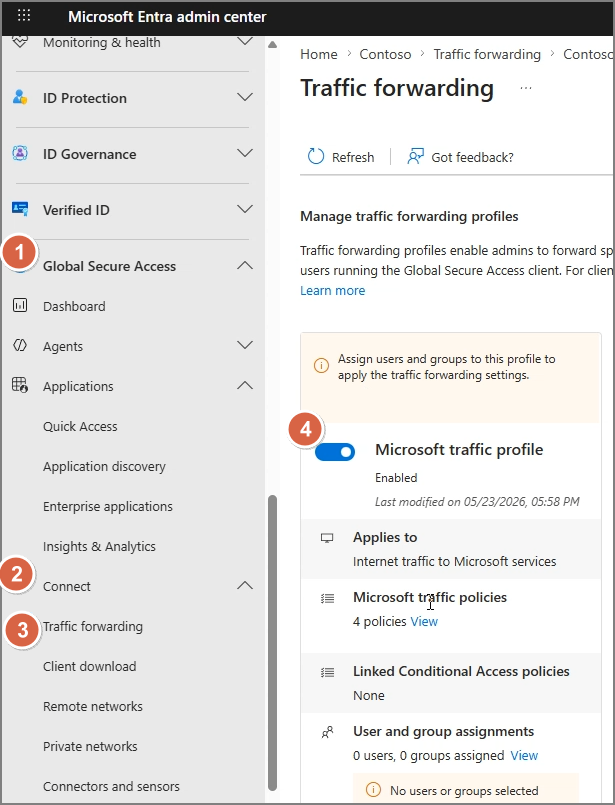


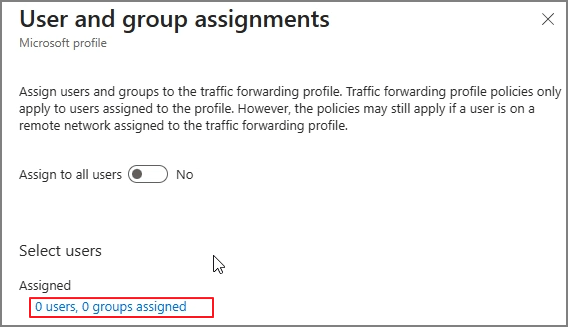
User and group assignments -> View
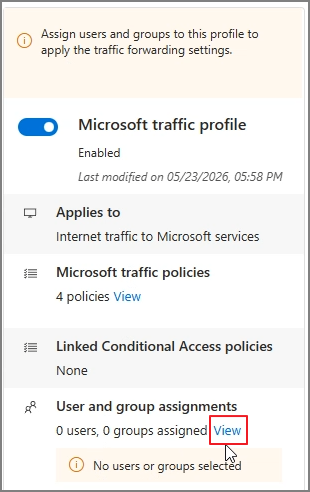


Assigned -> Select items


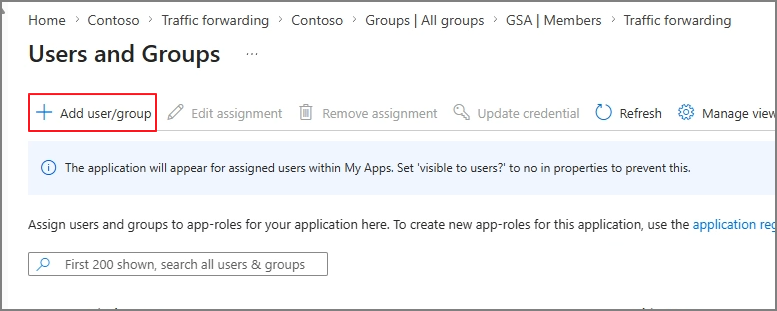
Add user/group


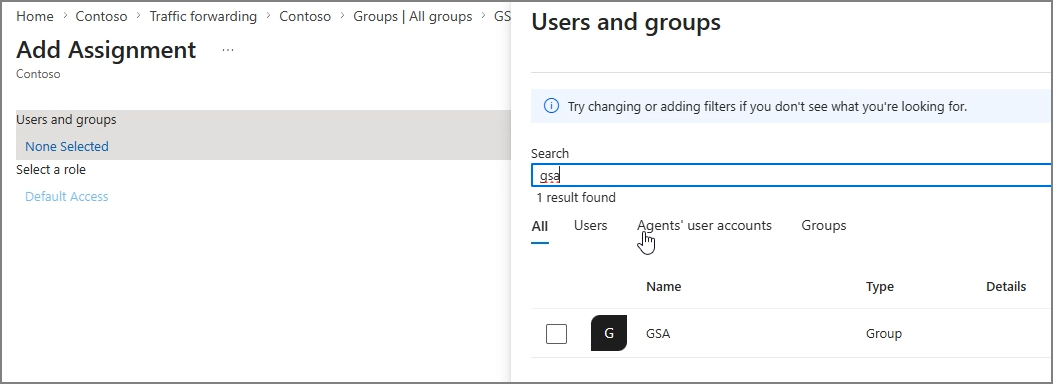
Assign the target group.


Step 2. Enable Tenant Restriction

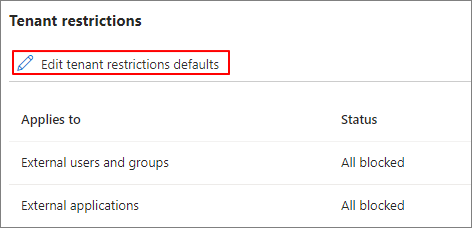
Entra Admin Center -> Cross-tenant access settings -> Default settings


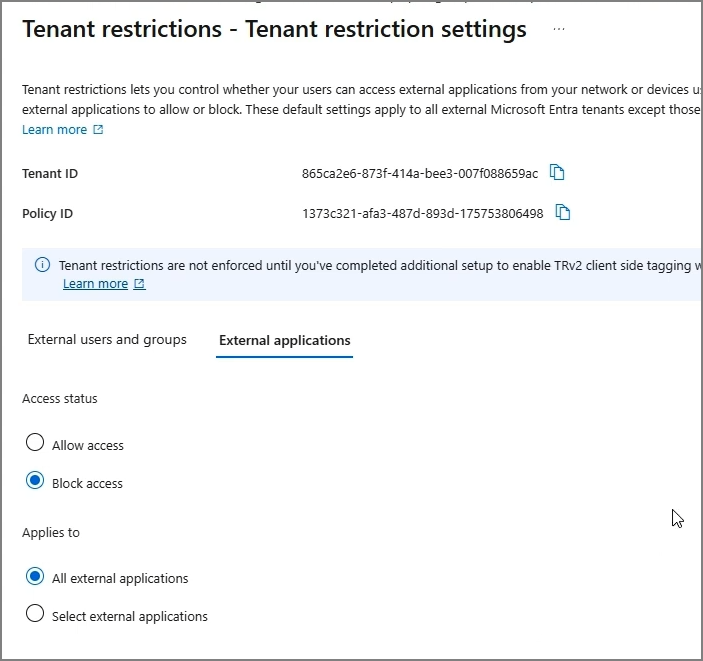
Edit tenant restriction defaults


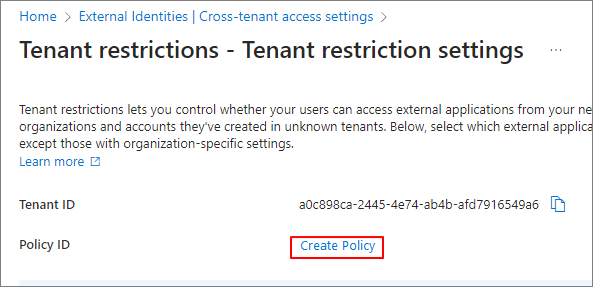
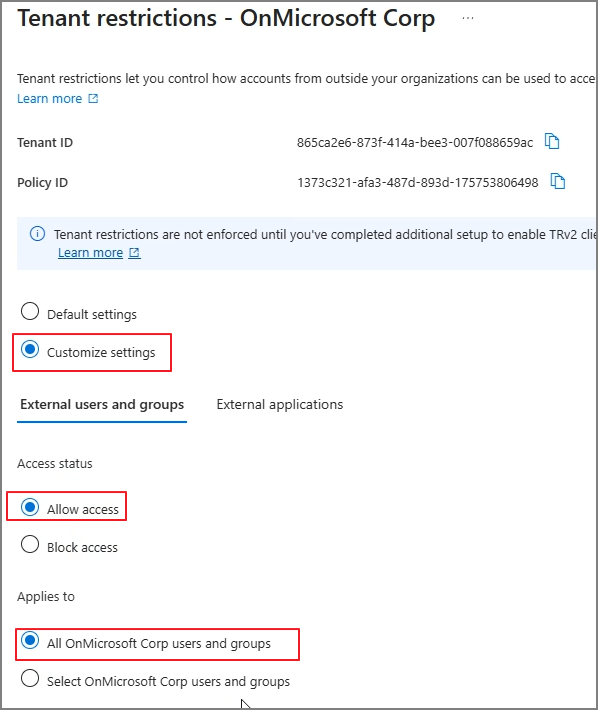
Create Policy


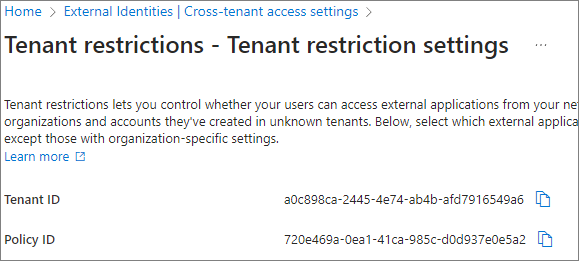
A Policy ID will be generated.


Configure the Allow settings.


Global Secure Access -> Settings -> Session management -> Universal Tenant Restriction -> Enable
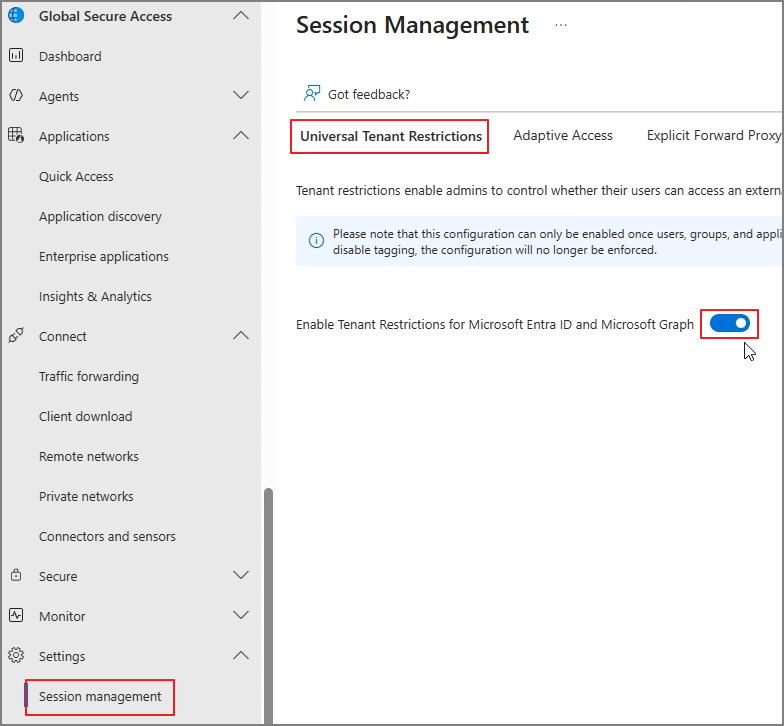


Step 3. Install the Client and Verify Policy Application

Connect -> Client download -> Download Client
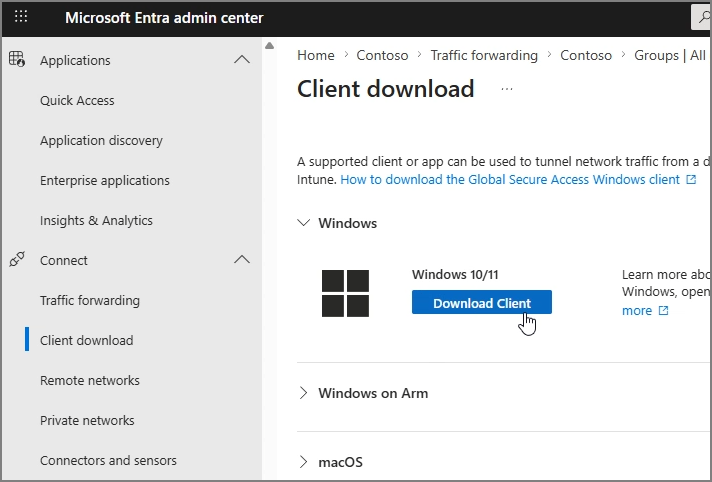


Proceed with the installation.
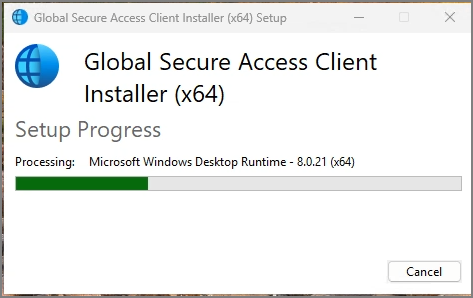


Verify the GSA installation status.
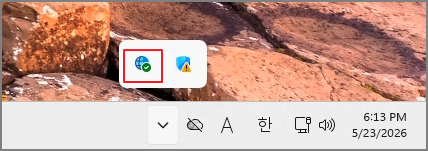


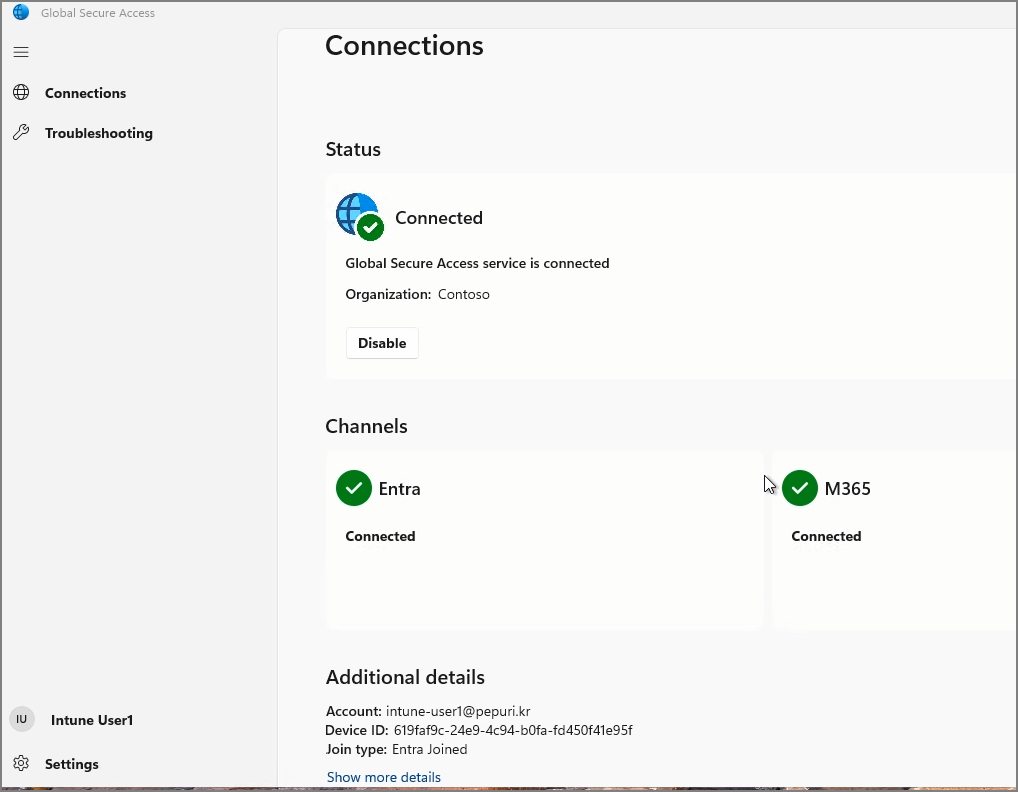
Confirm that the client is successfully connected.


Verify that access to external tenants is blocked.
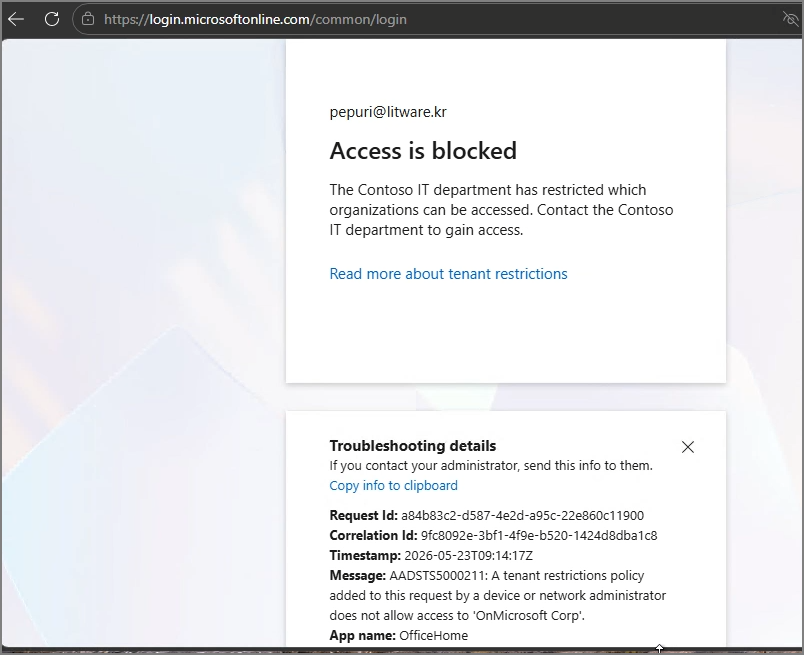

Step 4. Allow Specific External Tenants

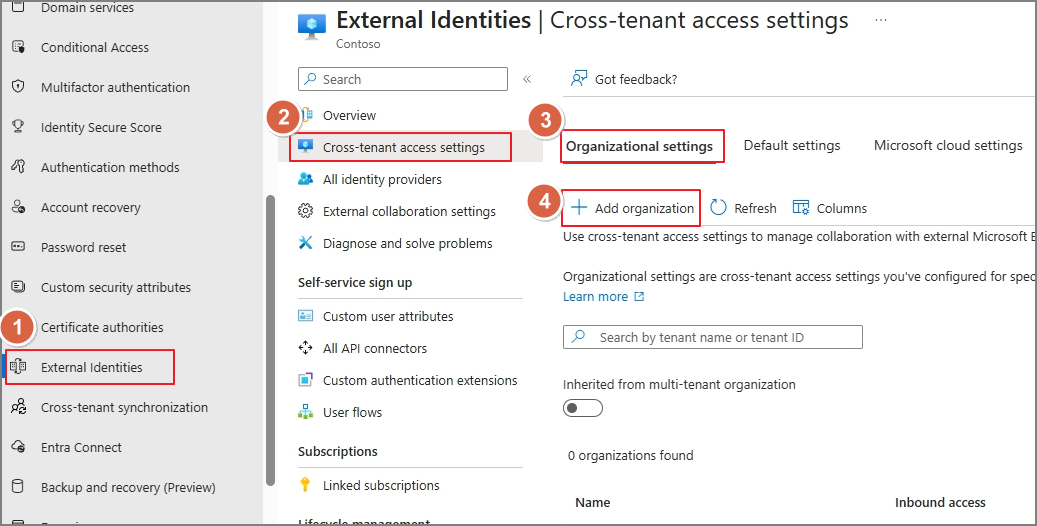
If you need to allow access to a specific external tenant:

External Identities -> Cross-tenant access settings -> Organizational settings -> Add organization


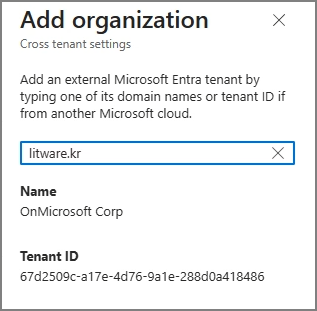
Search by Domain or Tenant ID and add the organization.


Select the Tenant restriction option.
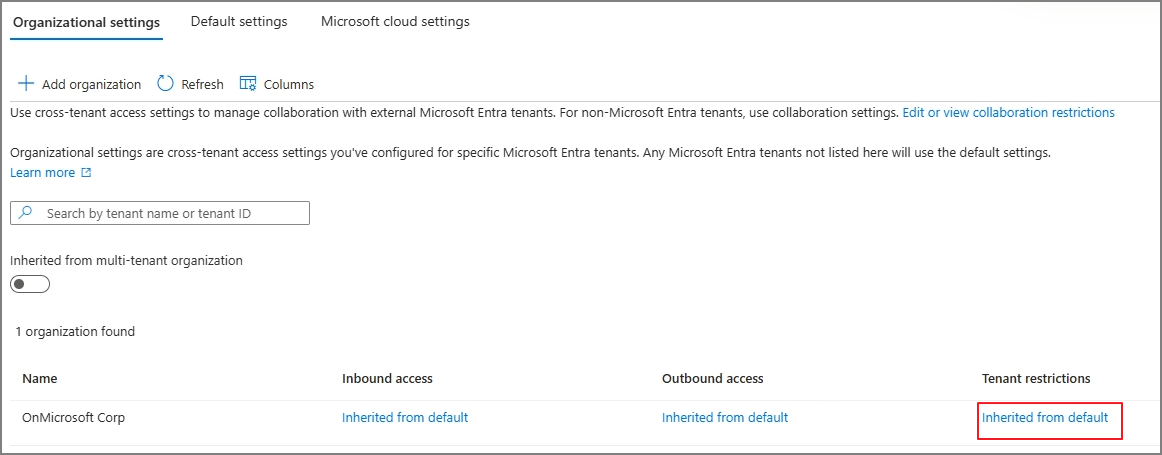


Configure the Allow settings.


In future posts, I may also cover additional topics such as client deployment, Internet Access, and Private Access features in more detail.

반응형
반응형

In this post, we will proceed with enabling and testing the Verified ID feature provided by Microsoft.


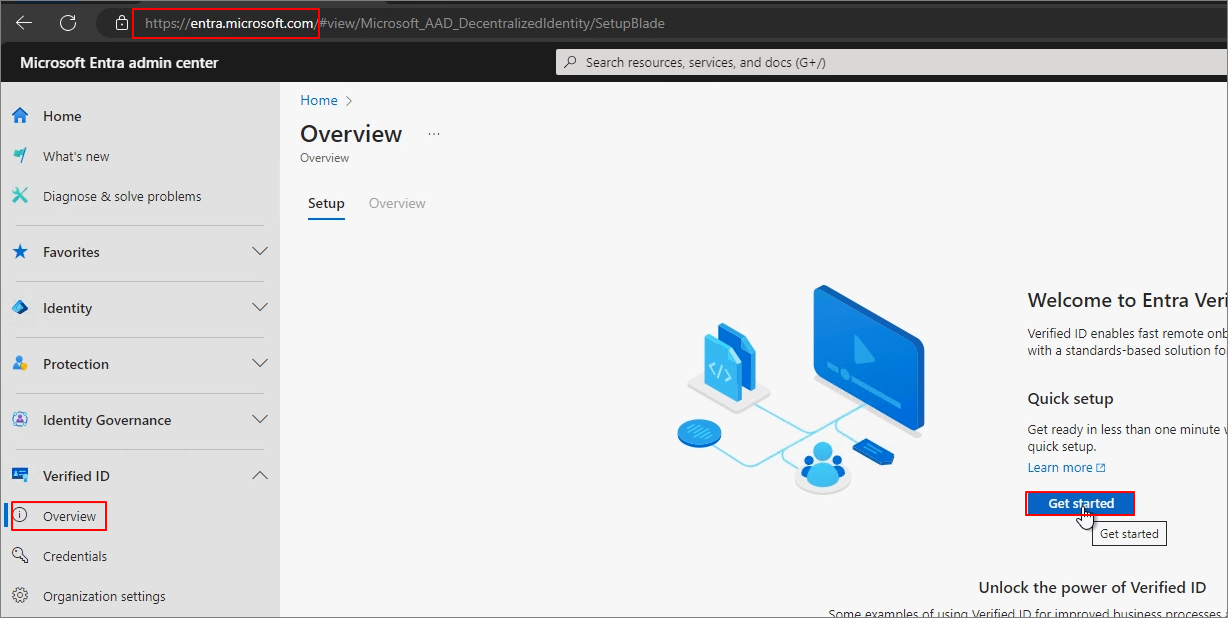
Entra Admin Center - Verified ID -> Overview -> Get Started


Provisioning


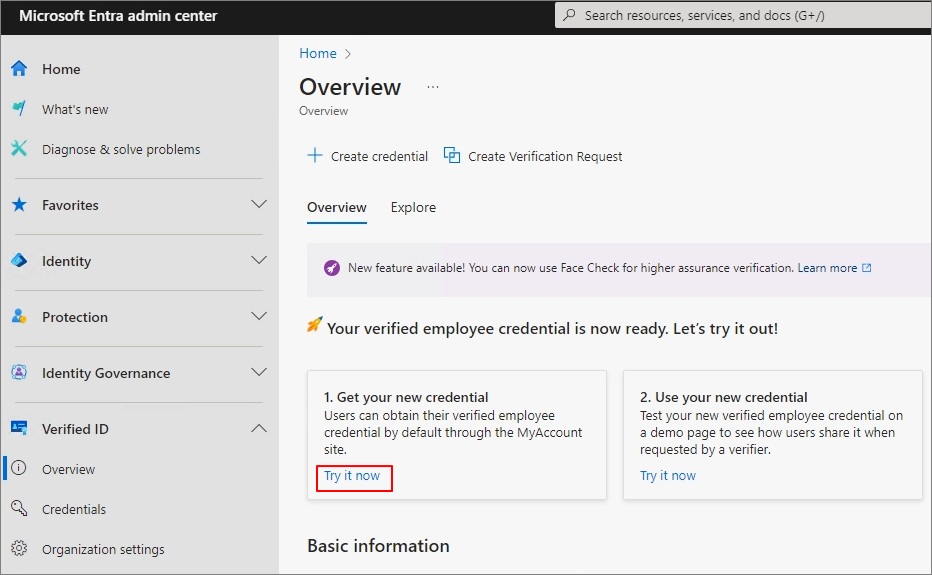
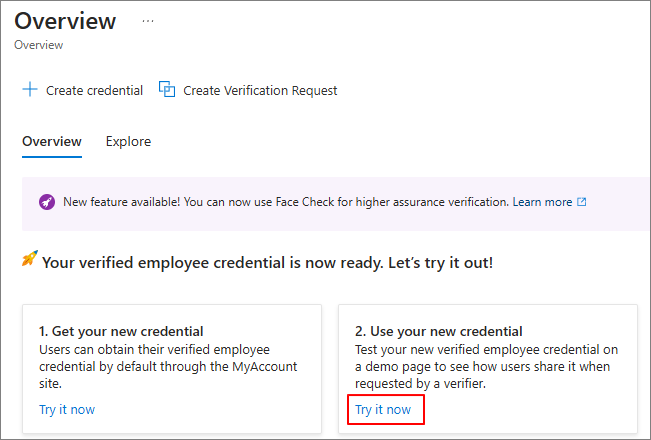
1. Get your new credential -> Try it now


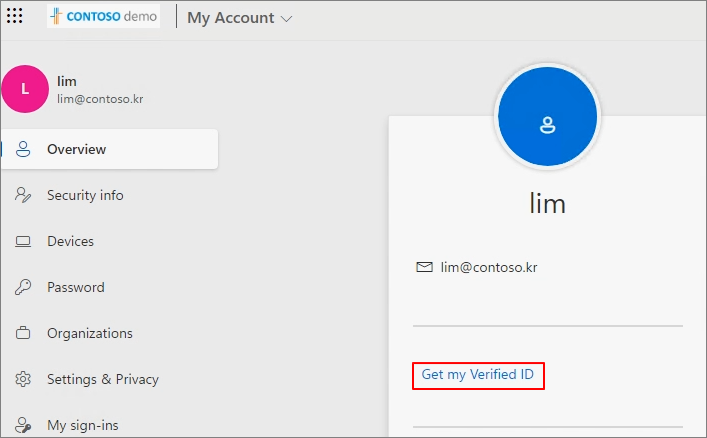
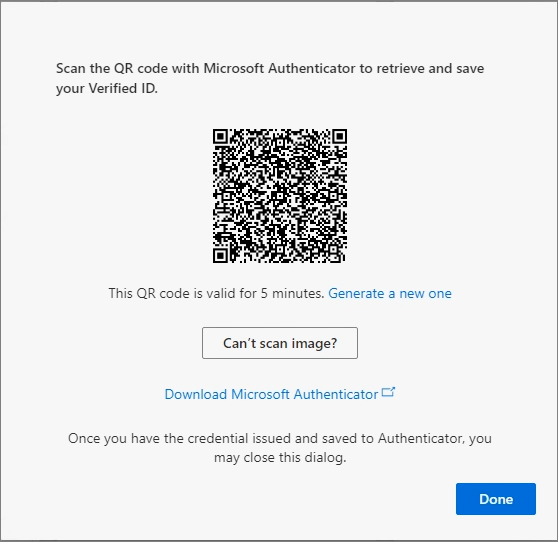
Get my Verified ID


A QR Code is generated.


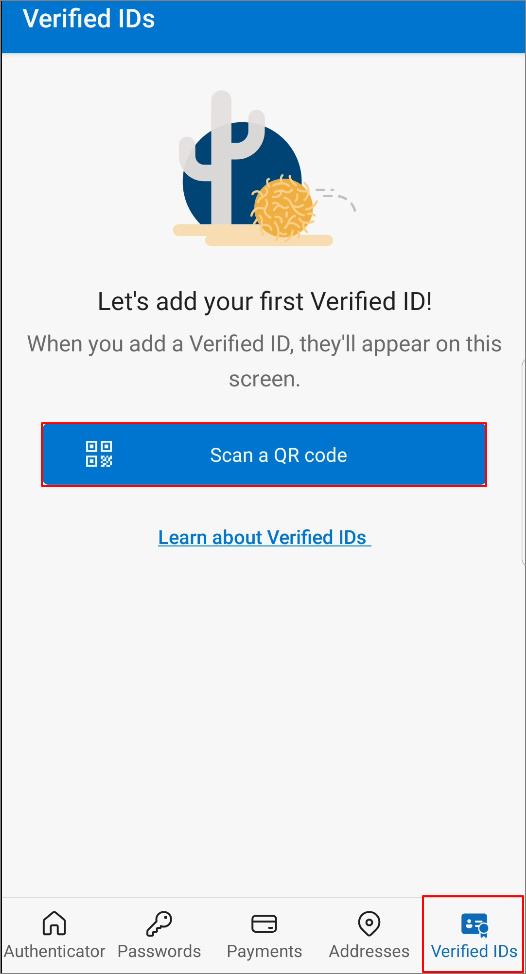
Run the Authenticator on mobile.


Verified ID -> Scan a QR code


Scan the QR code on the screen.


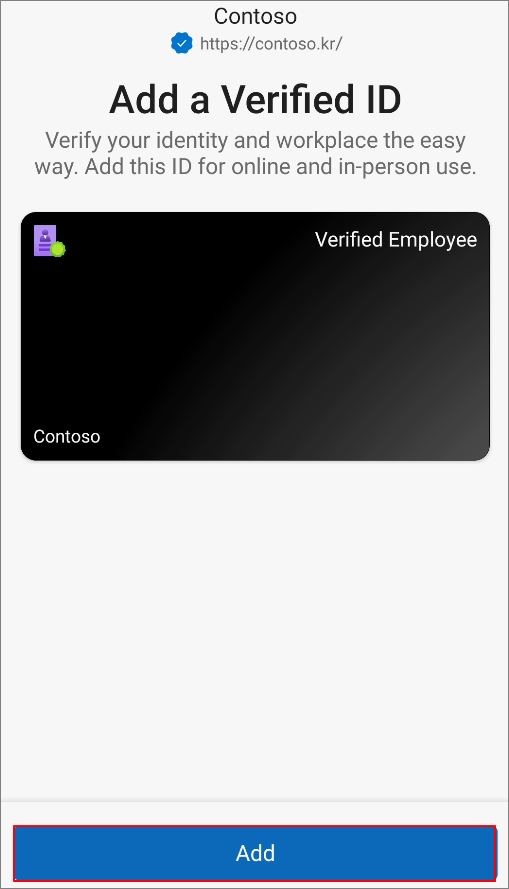
Add


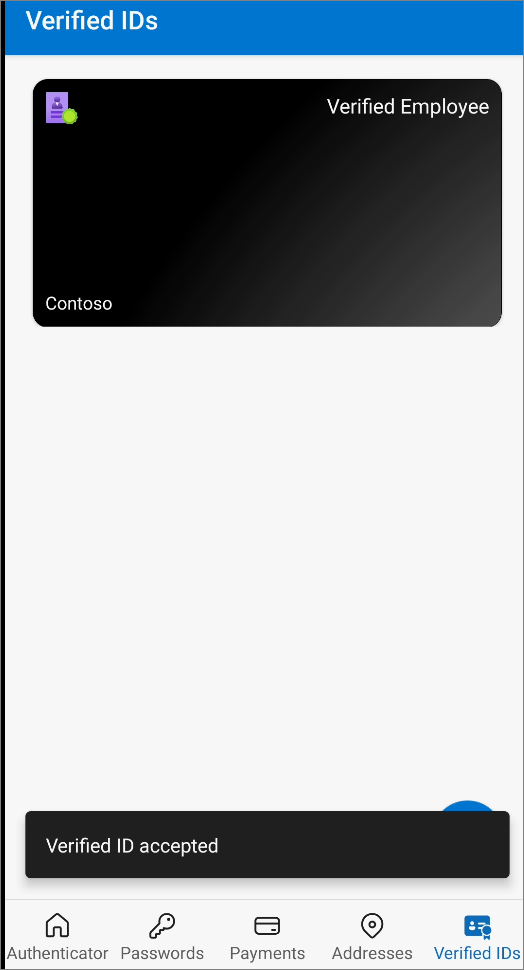
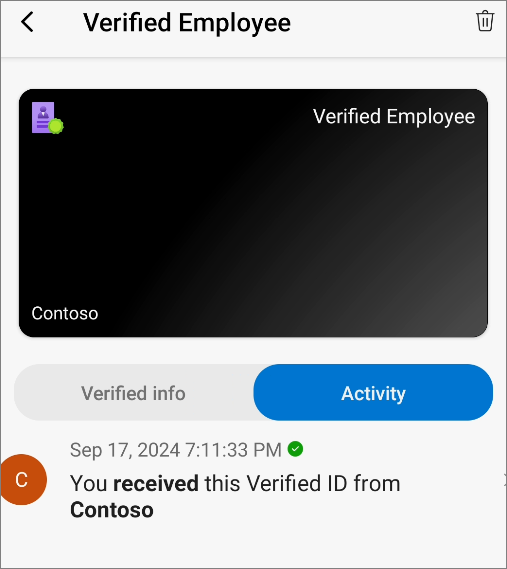
Completed the addition.


You can check the record by clicking the issued ID.


Clicking "2. Use your new credential -> Try it now" will take you to a page where you can test the Verified ID.


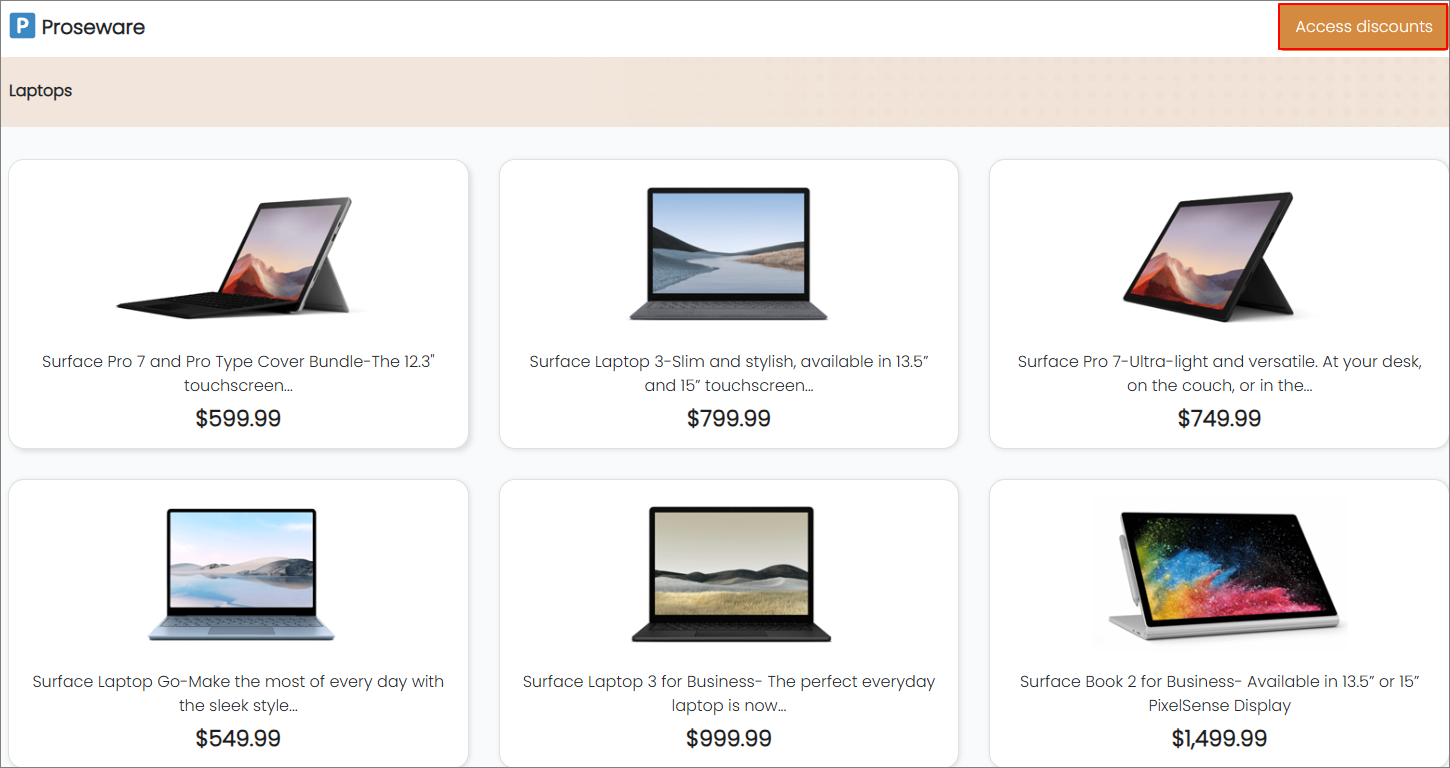
Access discounts


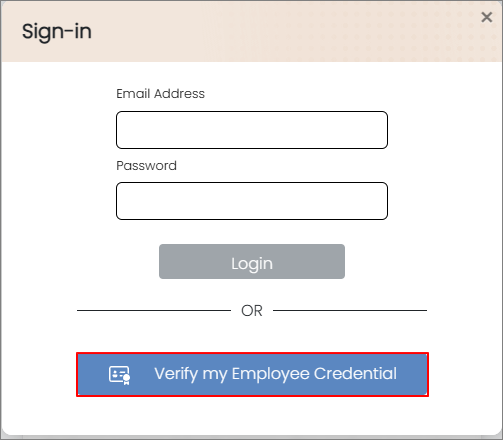
You can log in using a DID instead of account information. Verify my Employee Credential.


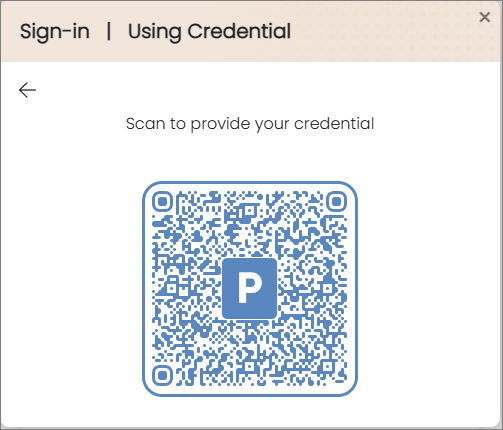
QR Code


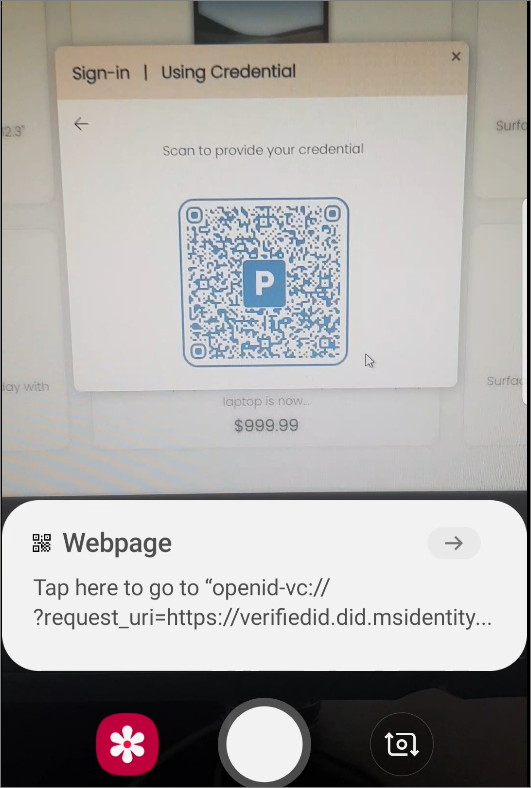
When the camera recognizes the QR code, the Authenticator is launched through the URL.


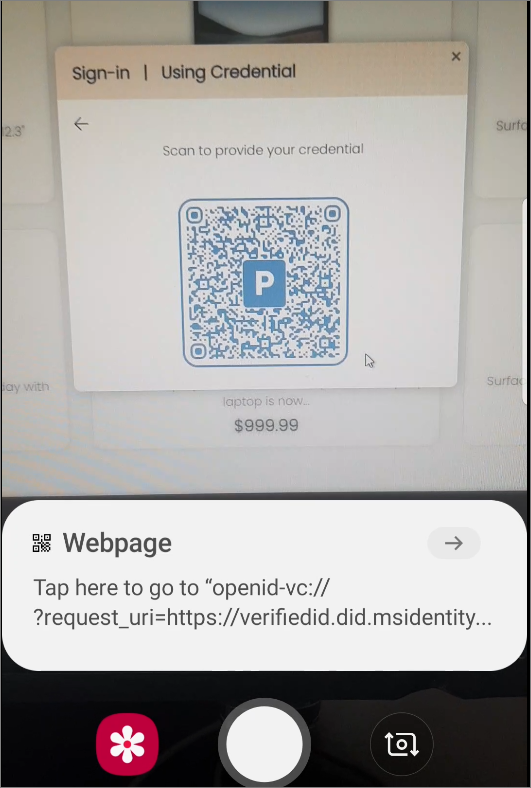
When the camera recognizes the QR code, the Authenticator is launched through the URL.


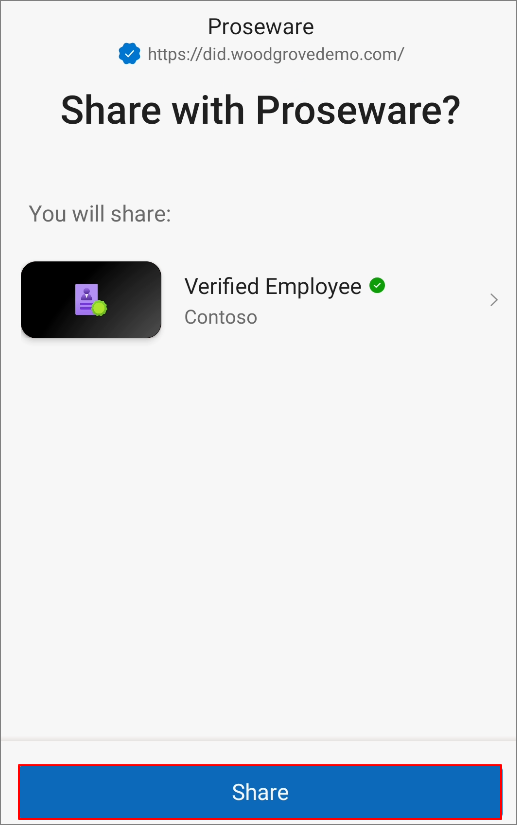
Click "Share" to send the ID information.


Verification completed.


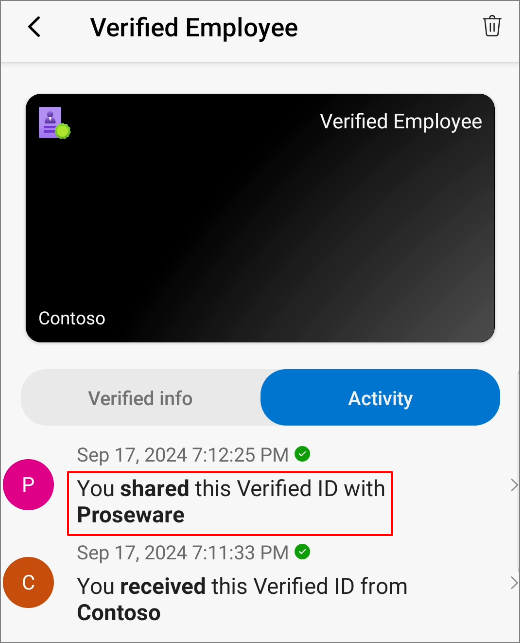
In the Activity section, you can check where your ID has been used.


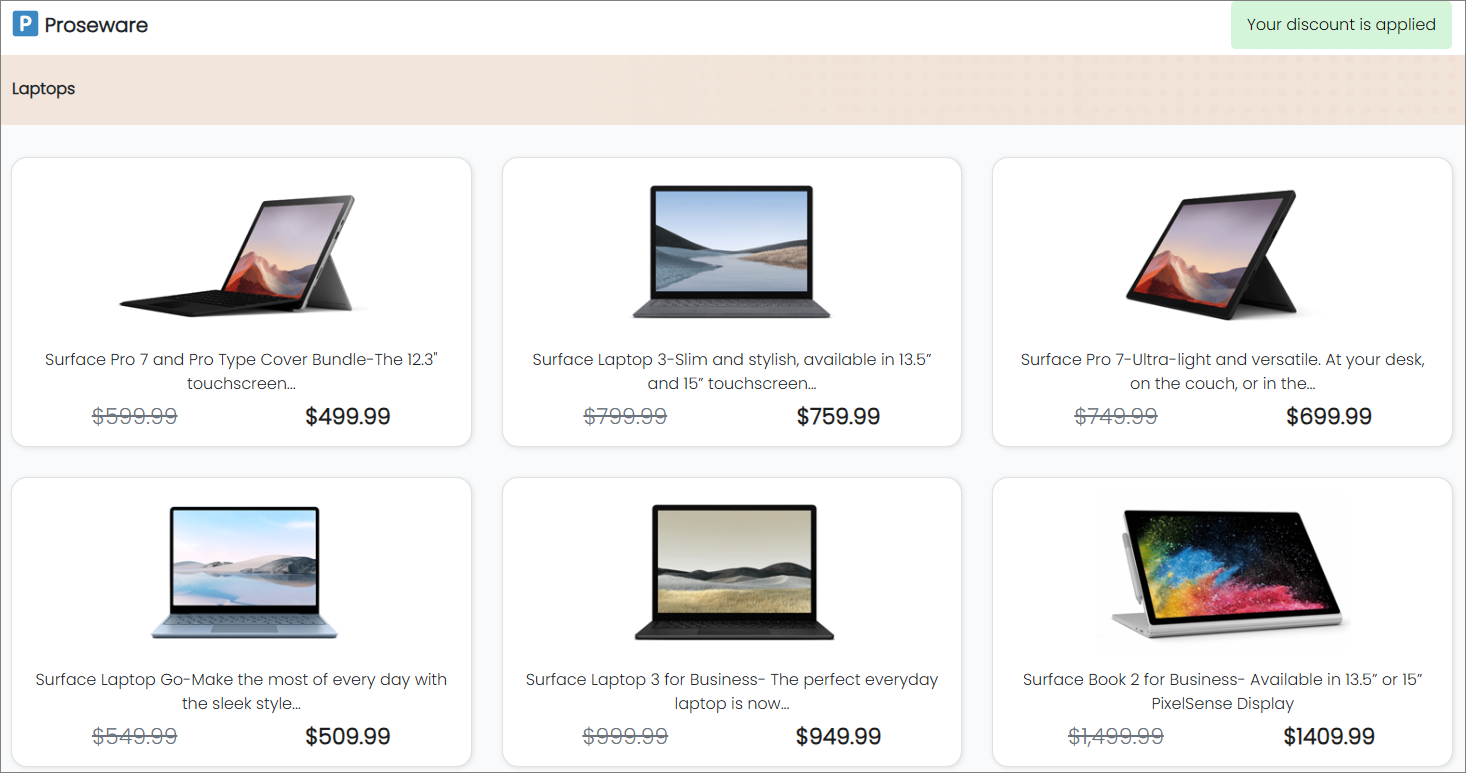
The test page can be verified with a scenario where employee discounts are applied, as shown below.

반응형
반응형

In order to reduce confusion between Azure AD and Windows Server AD, Microsoft changed Azure AD to Entra ID, marking the beginning of the Entra product family.

Microsoft renamed Azure AD (Azure Active Directory) to Microsoft Entra ID to convey the product's multi-cloud, multi-platform capabilities, alleviate confusion with Windows Server Active Directory, and integrate it into the Microsoft Entra product family.

관련자료: New name for Azure Active Directory - Microsoft Entra | Microsoft Learn


This change makes sense because the AD people are familiar with is actually Active Directory Domain Services (AD DS). To put it simply, Azure AD only manages identities, while policies for devices joined to Azure AD are managed by Intune's Configuration Profile. In other words, the cloud version of AD is a combination of Azure AD + Intune. It was difficult to explain this concept to those who have been accustomed to the traditional AD model for a long time.


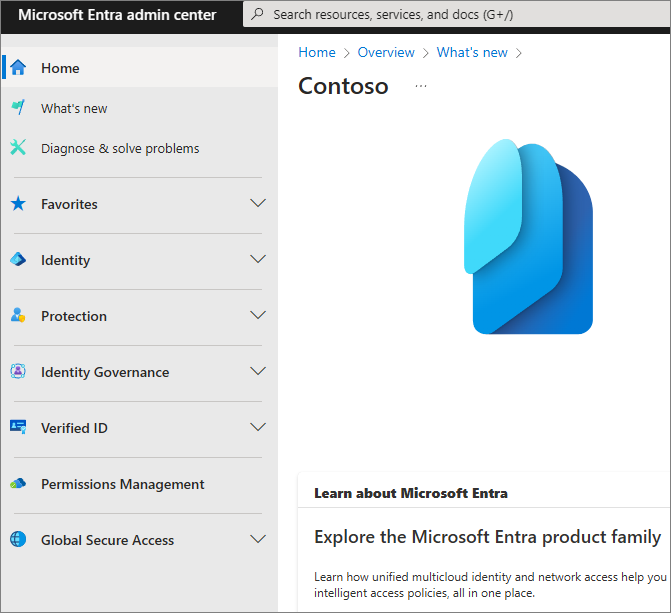
By rebranding it as Entra, Microsoft is positioning it as a comprehensive identity and access management platform. When you access the Entra Management Center, you'll notice that it offers more features than when it was known as Azure AD.


Let's take a closer look at Verified ID. We will start with the following technical resource:

Introduction to Microsoft Entra Verified ID - Microsoft Entra Verified ID | Microsoft Learn


First, the background for the emergence of Verified ID is as follows:

In today’s world, our digital and physical lives are increasingly intertwined with the apps, services, and devices we use. This digital revolution opens up a world of possibilities, allowing us to connect with numerous companies and individuals in ways previously unimaginable.

However, with this increased connectivity comes a greater risk of identity theft and data breaches. These breaches can have significant impacts on both our personal and professional lives. But there is hope. Microsoft, in collaboration with various communities, has developed a decentralized identity solution that enables individuals to control their own digital identity, offering a secure and private way to manage identity data without relying on centralized authorities or intermediaries.

-> The key here is the Decentralized Identity solution. To be honest, the other concepts are a bit difficult for me to explain in more detail at my current level. Looking at this… if I had deep-dived into identity management alone, I probably wouldn’t have any trouble making a living.

I think I need to test how to use this practically and eventually gain a better understanding through hands-on experience.


Lead with open standards

Microsoft has implemented the following standards:

W3C Decentralized Identifier

W3C Verifiable Credentials

DIF Sidetree

DIF Well Known DID Configuration

DIF DID-SIOP

DIF Presentation Exchange

-> This suggests that it's not only something used in M365 but is a concept that can be integrated with other systems, similar to SSO or in a different capacity.


What is DID (Decentralized ID)?

DID is an identity management system where individuals, not central authorities or corporations, have direct control over the ownership and management of their identity information.

It ensures the integrity and security of identity information through a decentralized network rather than relying on central servers or institutions. Distributed ledger technologies, such as blockchain, are typically used, with the goal of giving individuals full control over their identity information.


So, what is Microsoft Verified ID? My understanding is that it plays the role of the issuer, verifier, and intermediary (Role Modeler).

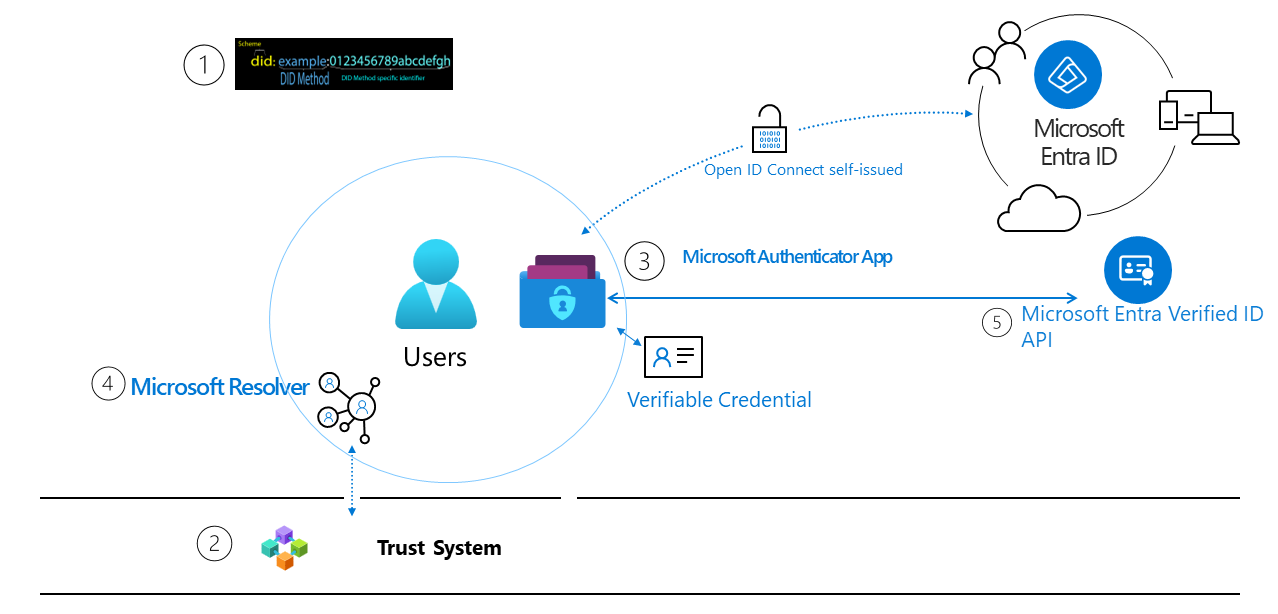
The content explained by each item in the diagram is as follows:

1. W3C DID (Decentralized Identifier) Number

- A unique ID.


2. Trust System

- It verifies and authenticates to check DID documents.


3. MS Authenticate App

- Serves as a digital wallet. You can think of it like a wallet where the user stores their ID cards.


4. Microsoft Resolver

- An API that uses the did:web method to query and verify DIDs, returning the DDO (DID Document Object).


5. Microsoft Entra Verified ID API

- A REST API for issuing and verifying W3C Verifiable Credentials, signed using the did:web method, through Azure’s issuance and verification services.


In order to cover this flow in detail, it seems necessary to build a concrete sample environment to fully understand it.

Once I’ve built a sample, posted about it, and gained a reasonable understanding, I will update this post accordingly.

반응형

+ Recent posts