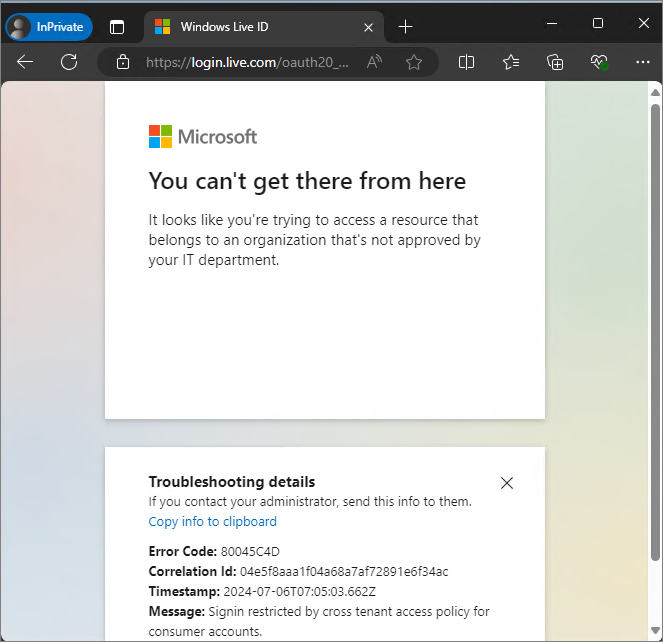
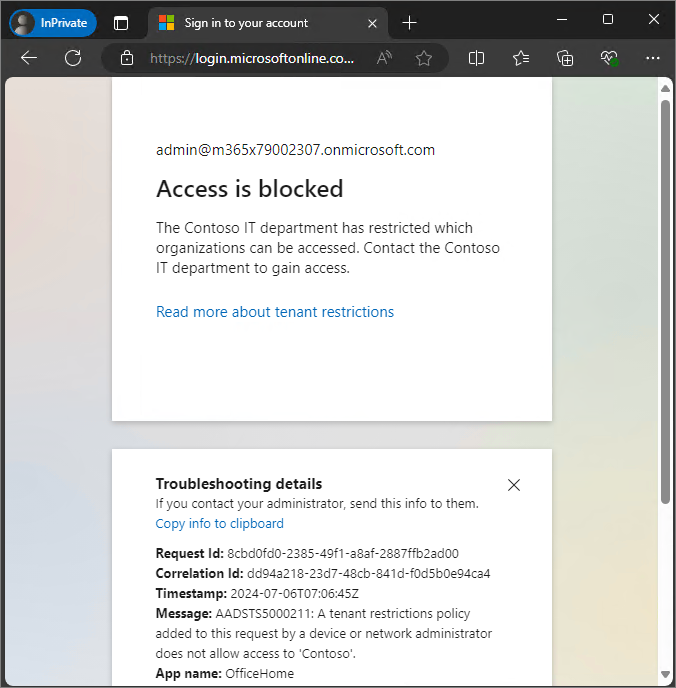
In this post, we will focus on Microsoft Traffic within Global Secure Access (GSA).
Previously, I wrote a post about Tenant Restriction.
Since both the article and the video required updates, and several new features have recently been added, I decided to rewrite this guide as the 2026 edition.
GSA functionality is broadly divided into three profiles:
- Microsoft Traffic
- Internet Access
- Private Access
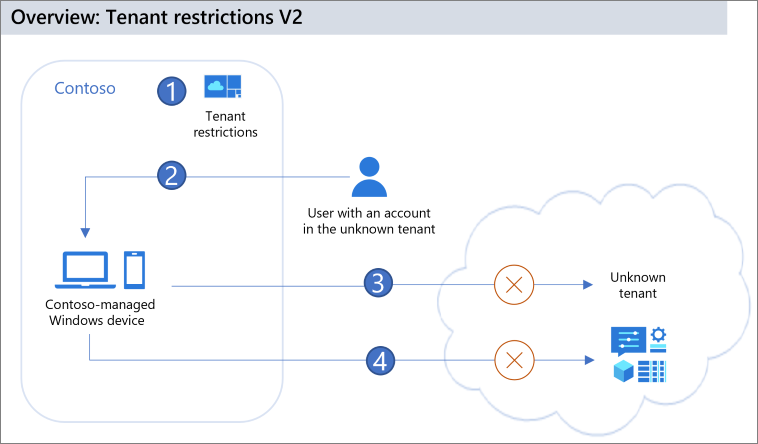
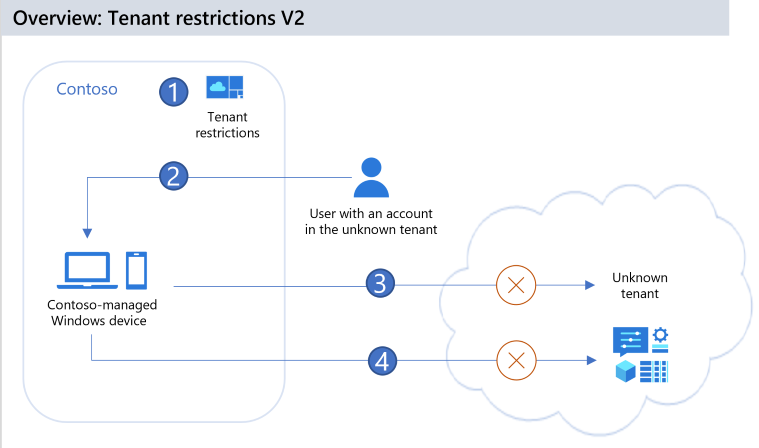
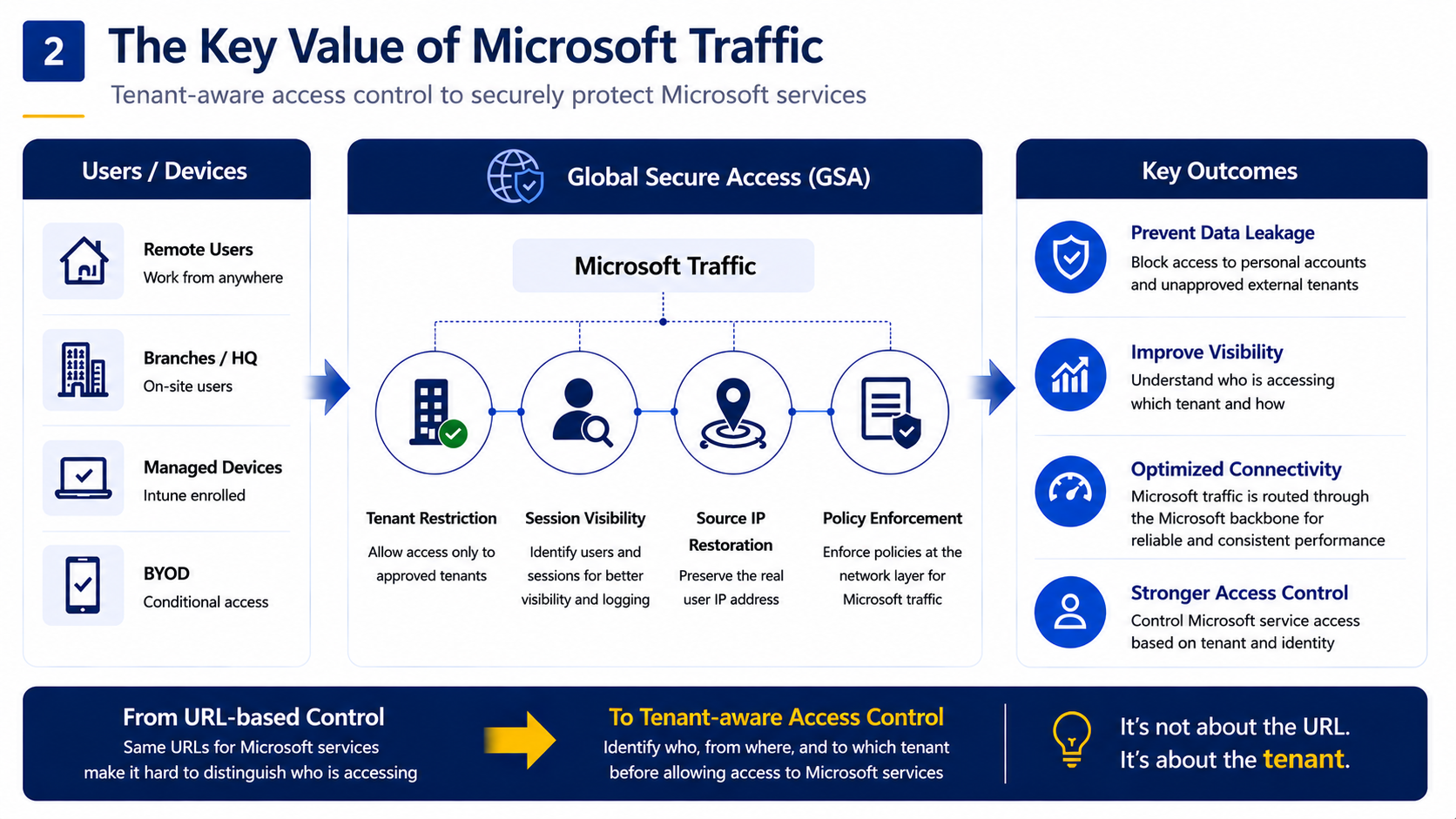
Among them, Microsoft Traffic is designed to manage Microsoft service traffic. One of its core capabilities is Tenant Restriction, which helps prevent data leakage through personal accounts or unauthorized external tenants.

Even by using only Microsoft Traffic, organizations can block personal accounts and control access paths to external tenants at the network layer.
The following Microsoft documents were referenced during this configuration:
Global Secure Access and Universal Tenant Restrictions - Global Secure Access | Microsoft Learn
Configure Tenant Restrictions - Microsoft Entra ID - Microsoft Entra External ID | Microsoft Learn
Youtube: https://youtu.be/4FzfVHB-rdM
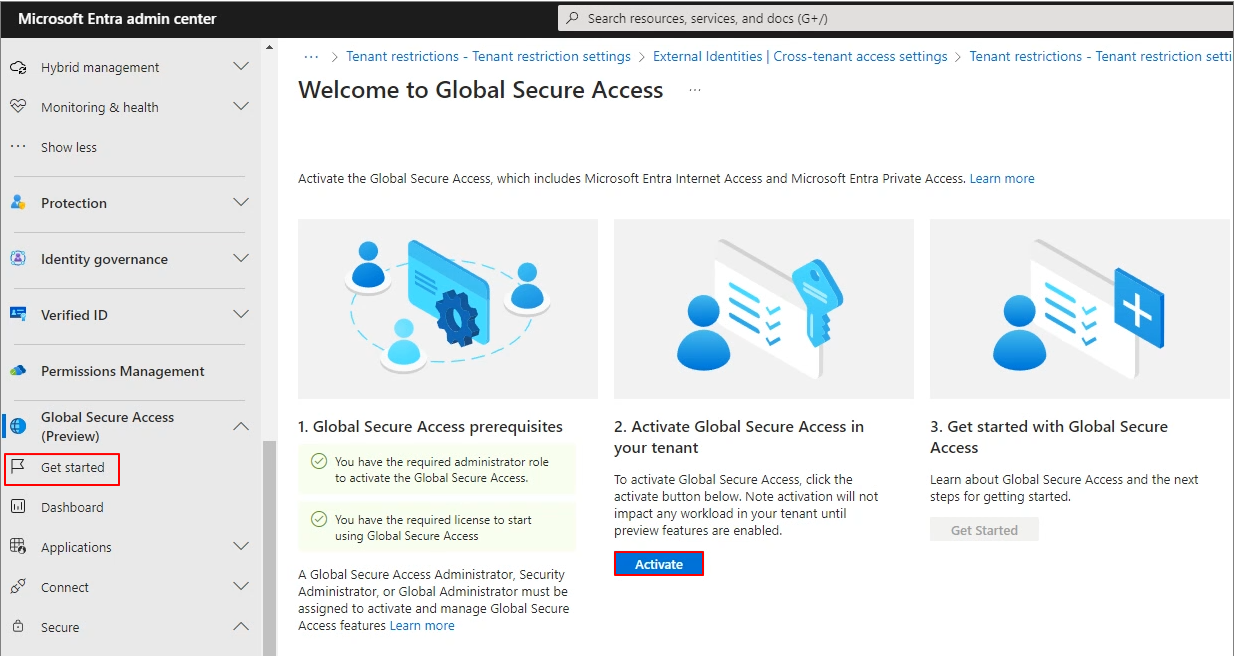
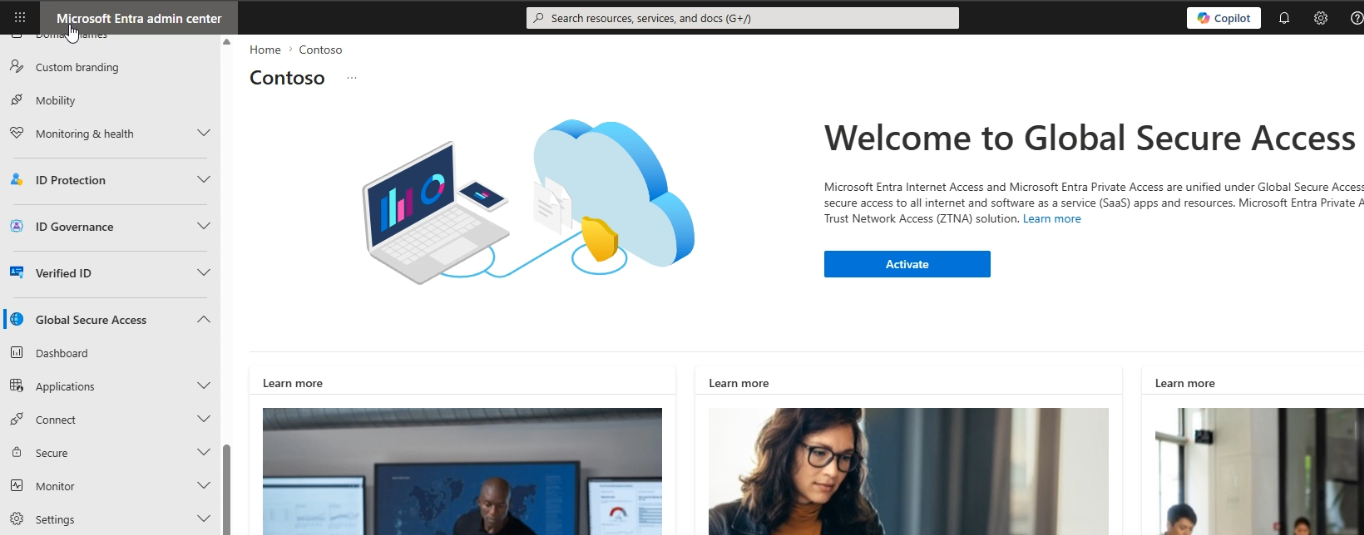
Step 1. Activate GSA
Entra Admin Center -> Global Secure Access -> Activate
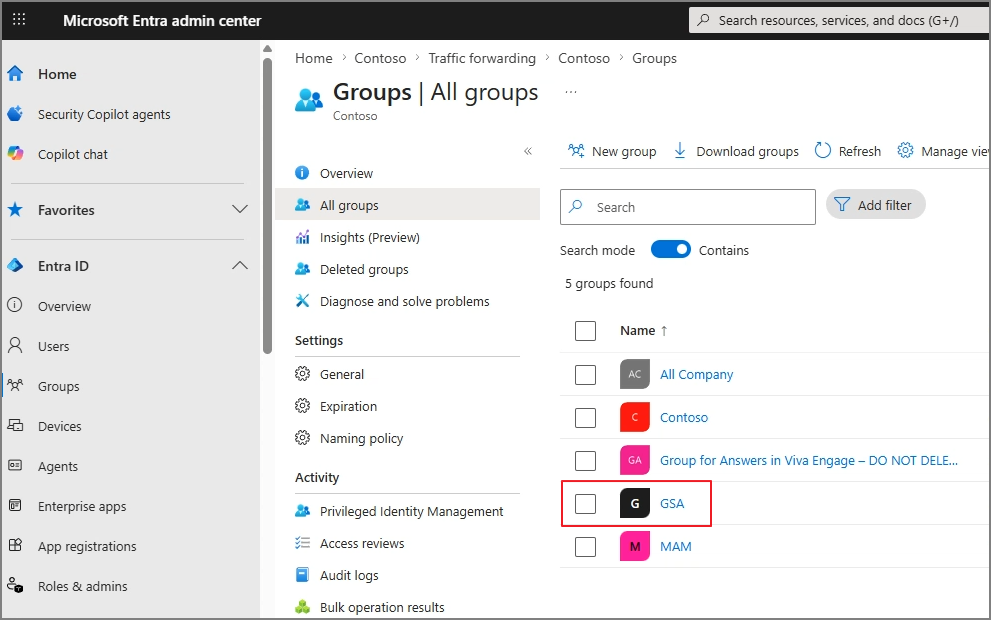
Create a group that will be assigned to the policy.
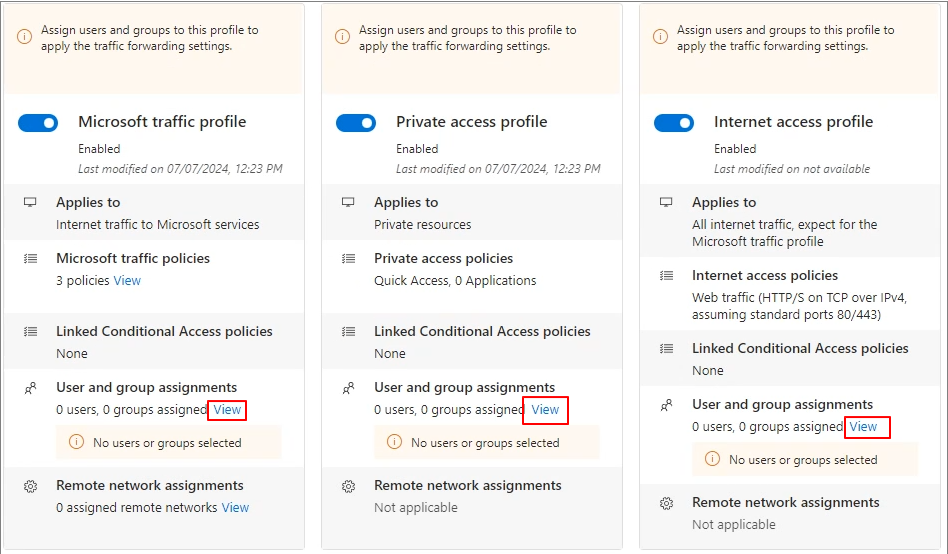
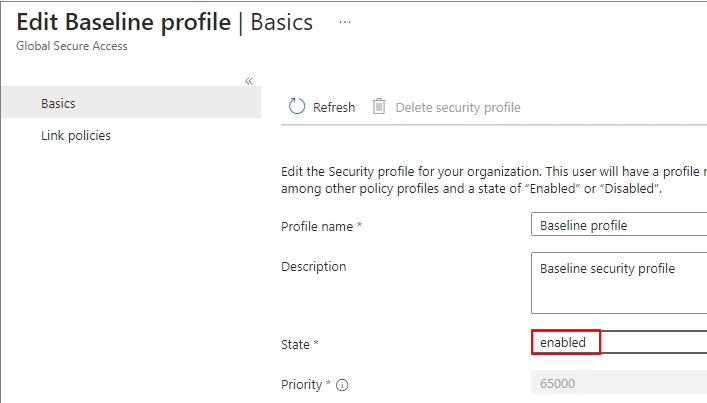
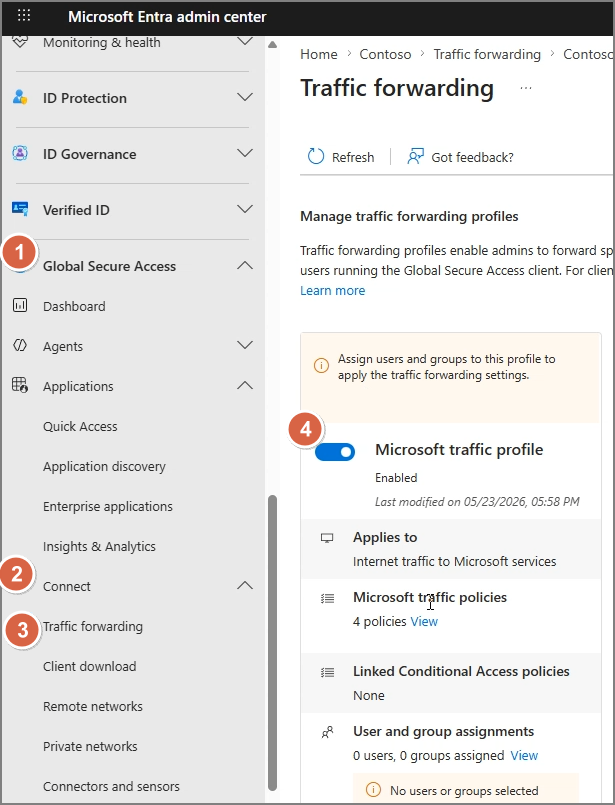
Global Secure Access -> Connect -> Traffic forwarding -> Microsoft traffic profile -> Enable
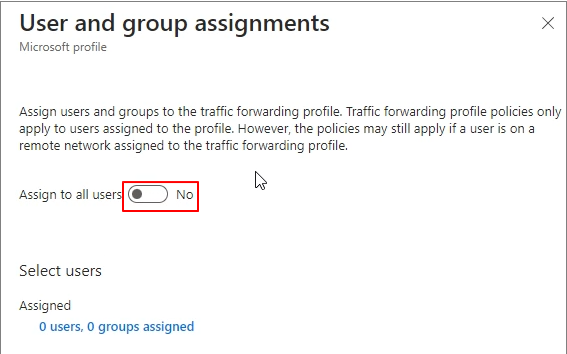
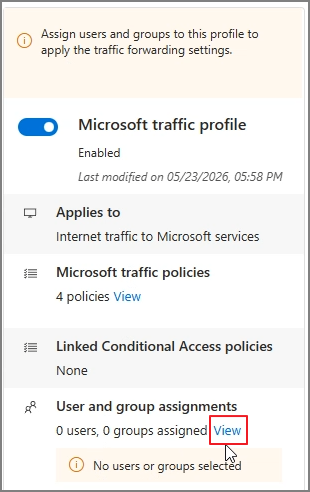
User and group assignments -> View
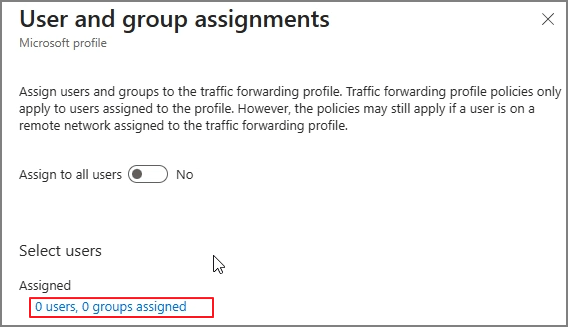
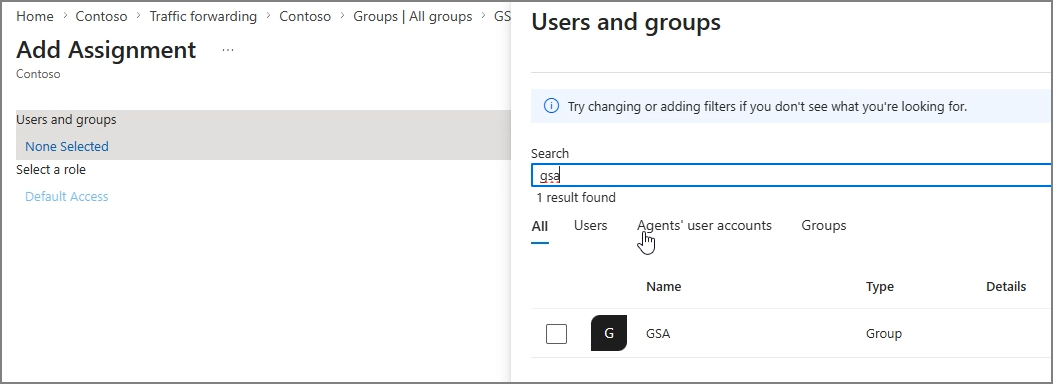
Assigned -> Select items
Add user/group
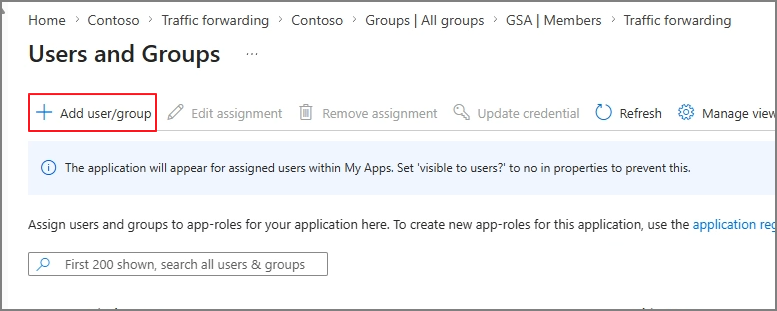
Assign the target group.
Step 2. Enable Tenant Restriction
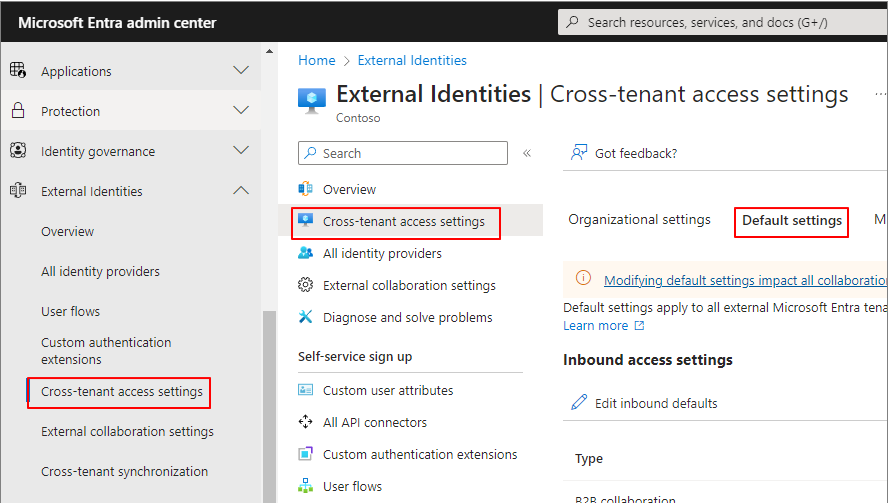
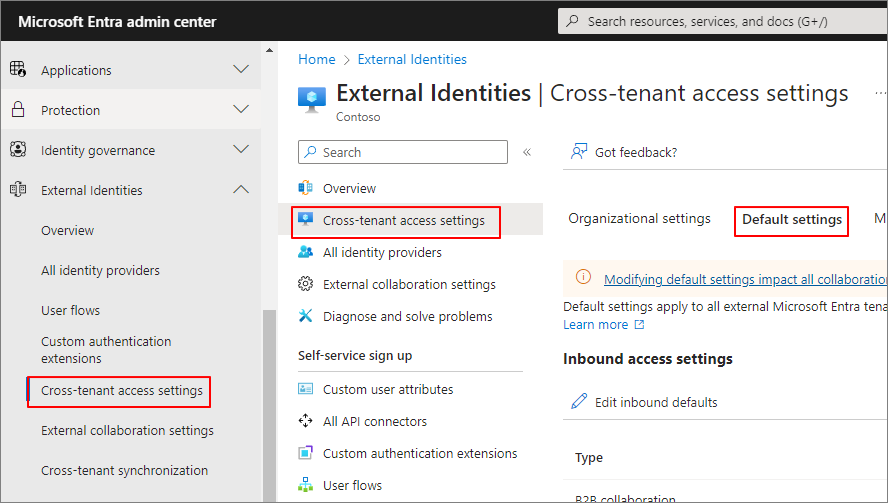
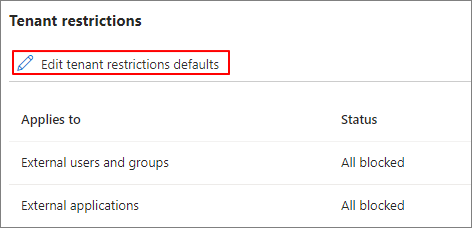
Entra Admin Center -> Cross-tenant access settings -> Default settings

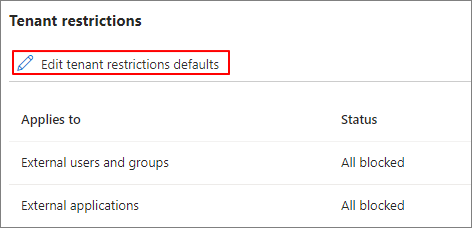
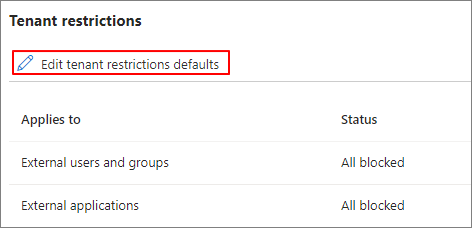
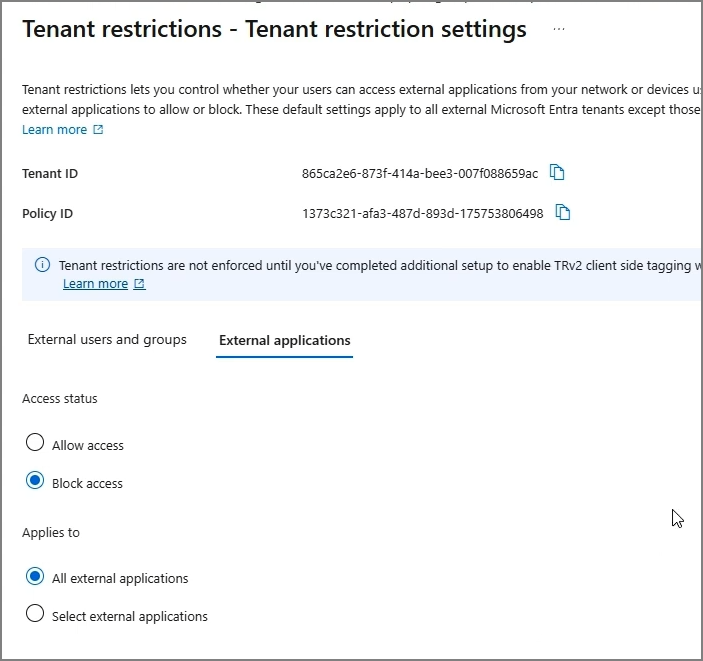
Edit tenant restriction defaults
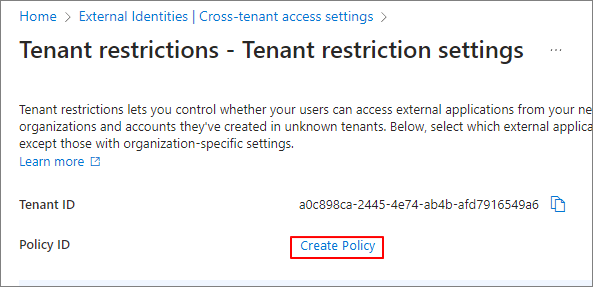
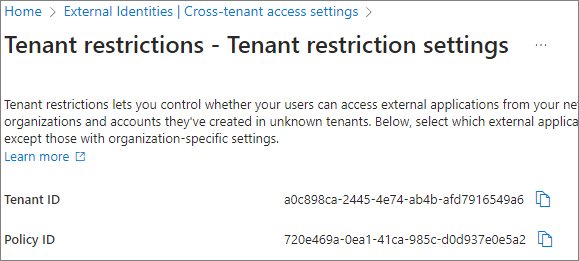
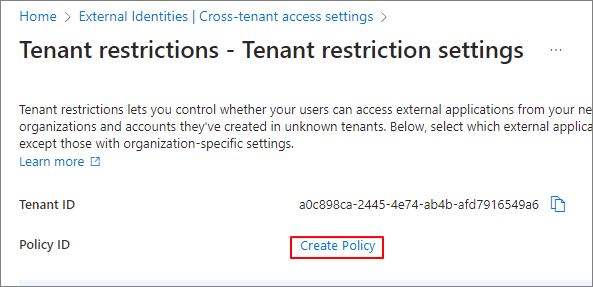
Create Policy
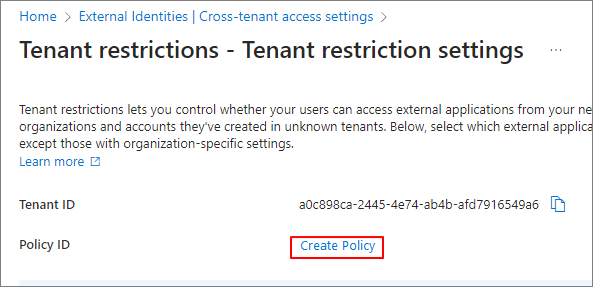
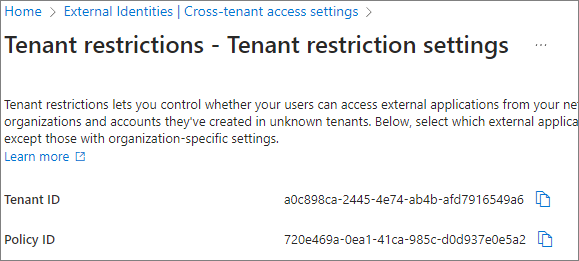
A Policy ID will be generated.
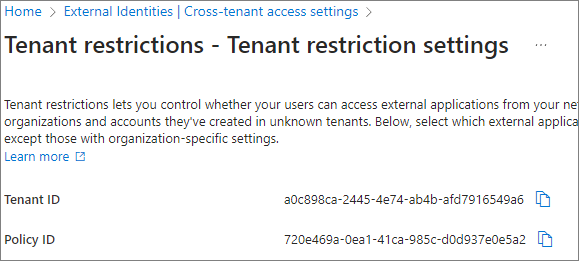
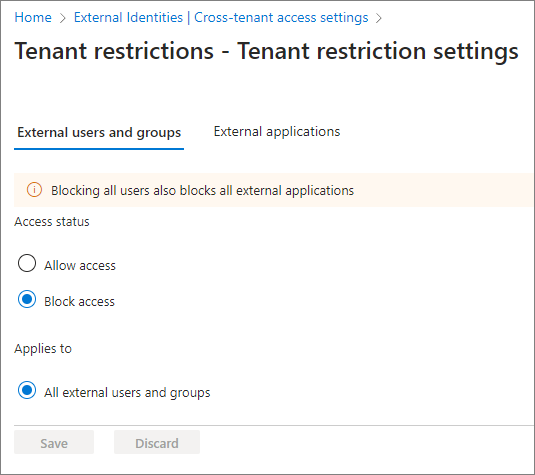
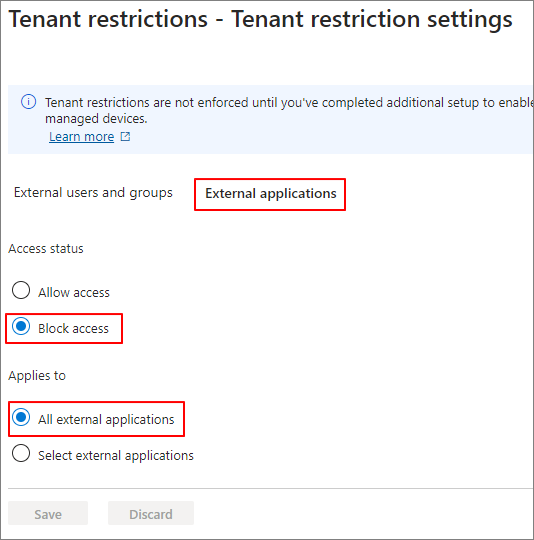
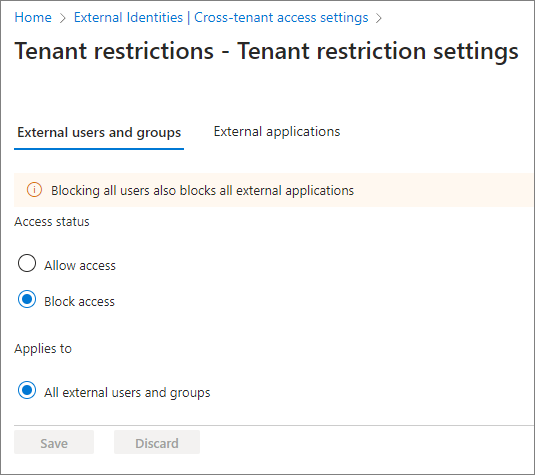
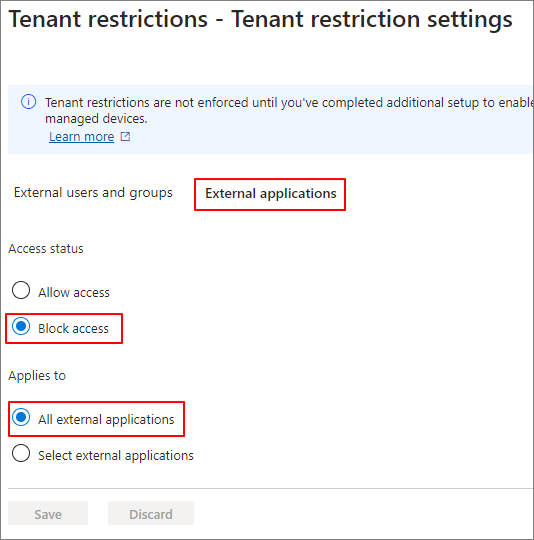
Configure the Block settings.
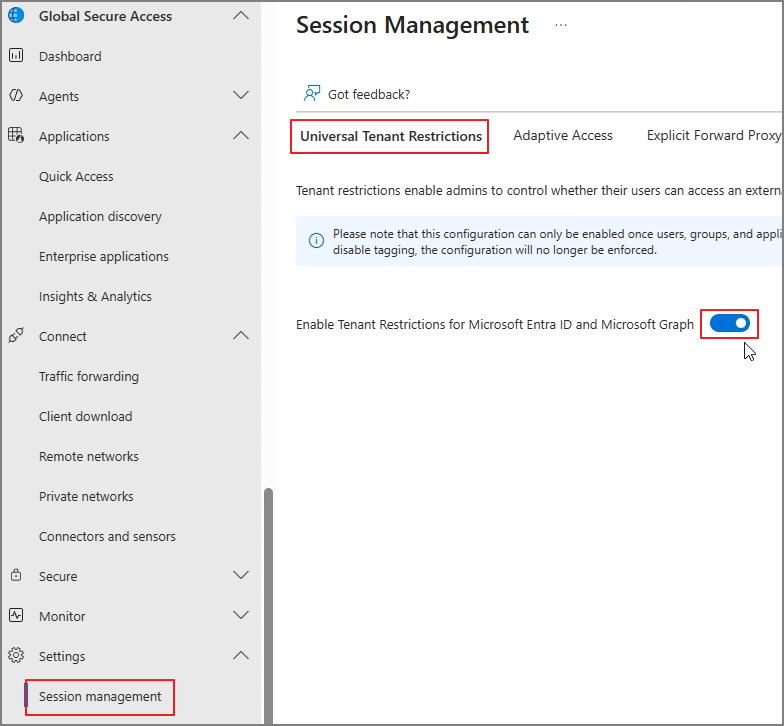
Global Secure Access -> Settings -> Session management -> Universal Tenant Restriction -> Enable
Step 3. Install the Client and Verify Policy Application
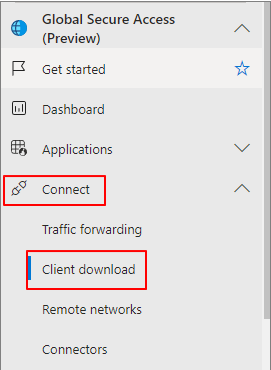
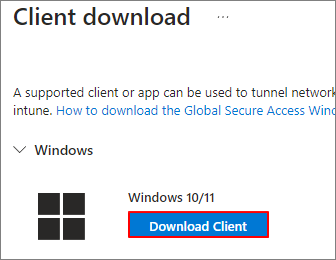
Connect -> Client download -> Download Client
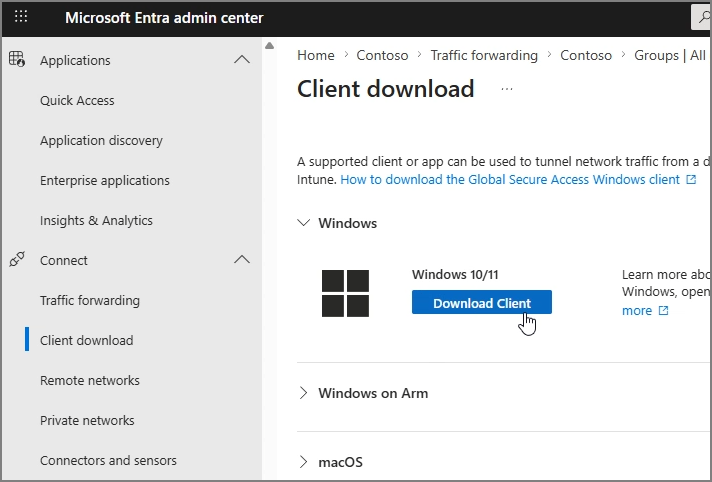
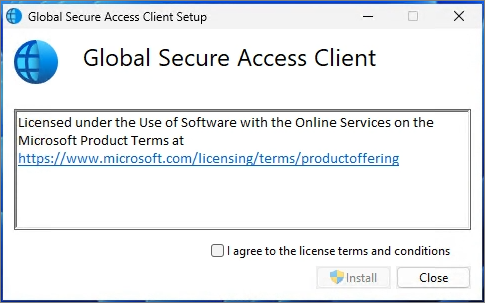
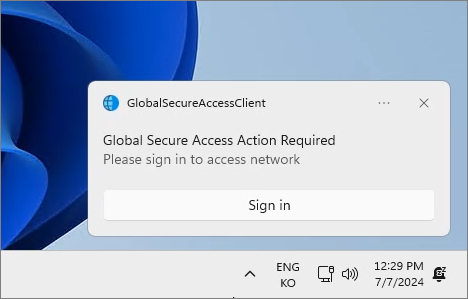
Proceed with the installation.
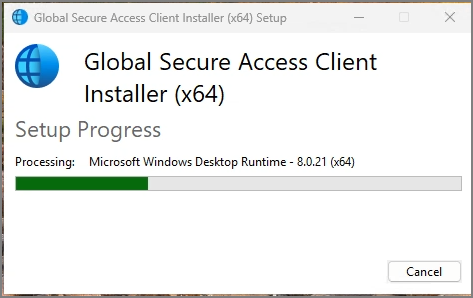
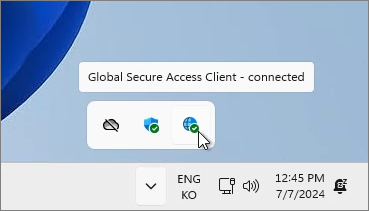
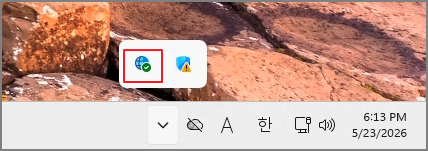
Verify the GSA installation status.
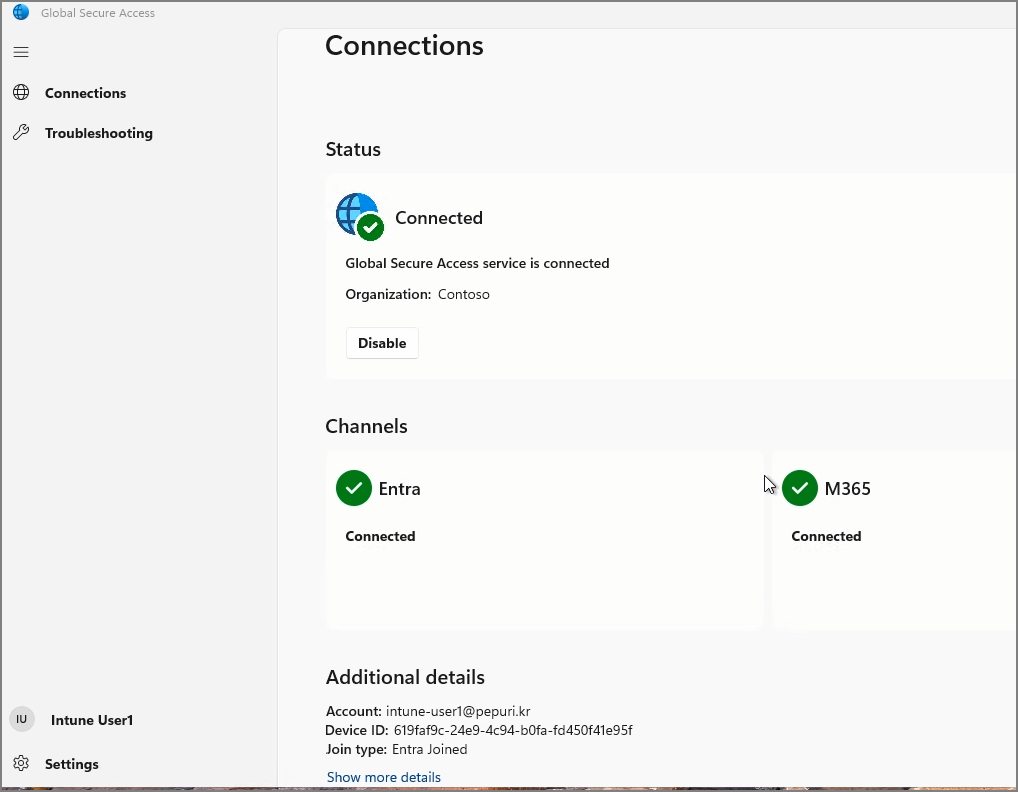
Confirm that the client is successfully connected.
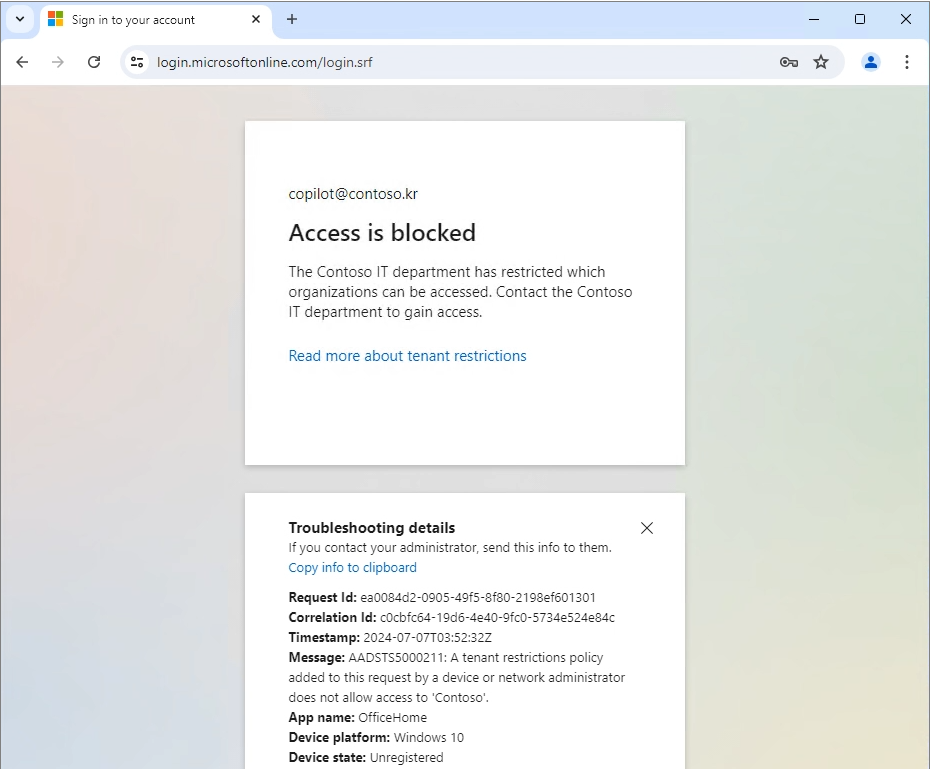
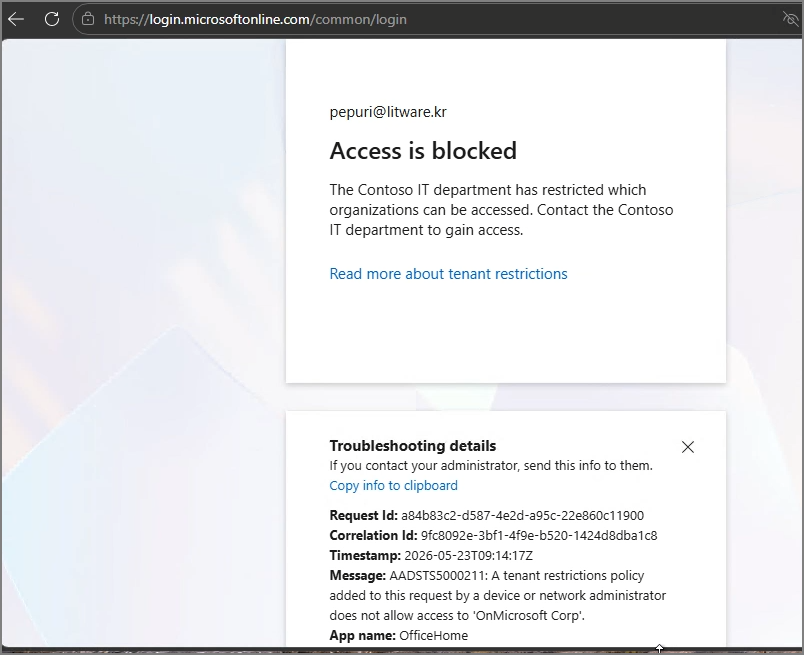
Verify that access to external tenants is blocked.
Step 4. Allow Specific External Tenants
If you need to allow access to a specific external tenant:
External Identities -> Cross-tenant access settings -> Organizational settings -> Add organization
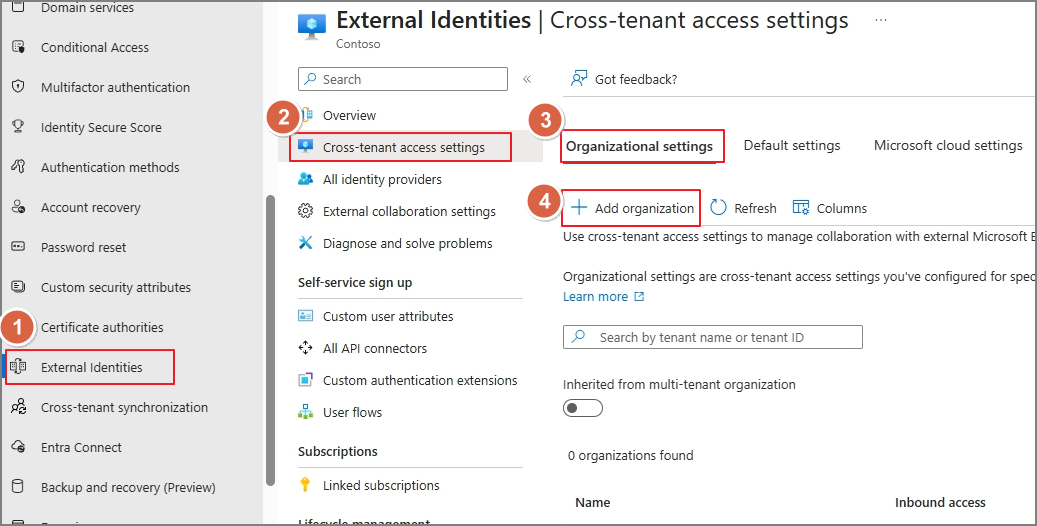
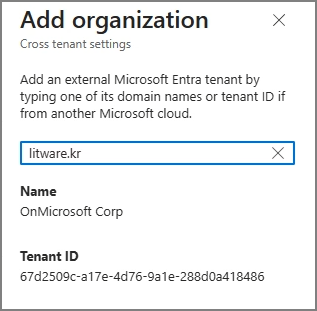
Search by Domain or Tenant ID and add the organization.
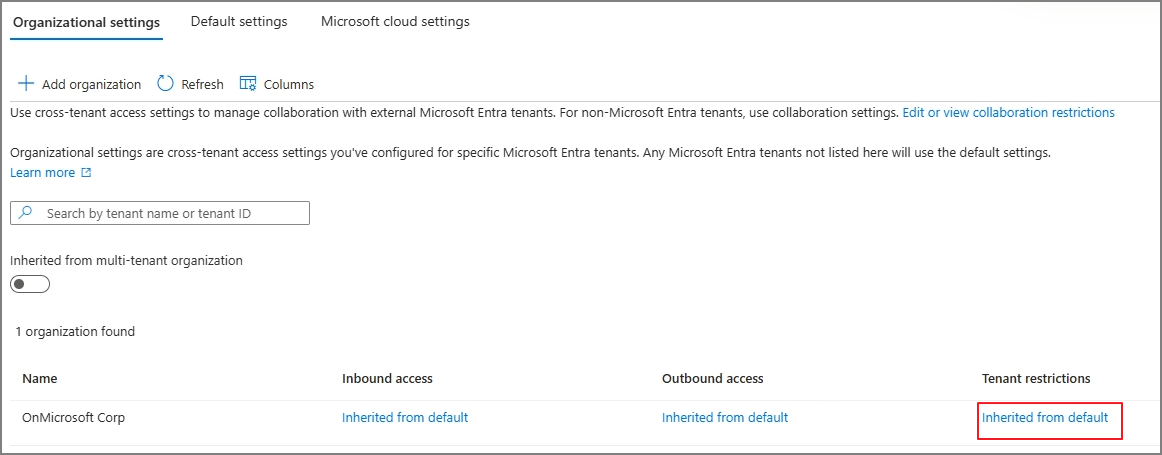
Select the Tenant restriction option.
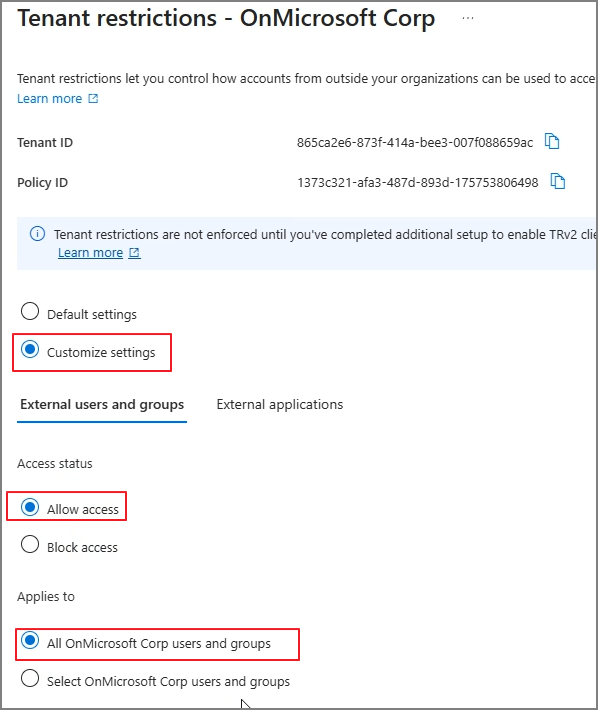
Configure the Allow settings.
In future posts, I may also cover additional topics such as client deployment, Internet Access, and Private Access features in more detail.
'Microsoft 365 > Entra' 카테고리의 다른 글
| GSA. (2) Internet Access Profile (0) | 2026.06.28 |
|---|---|
| Entra. Verified ID (2). Enable & Test (English) (1) | 2024.09.20 |
| Entra. Verified ID (1). Introduction (English) (0) | 2024.09.20 |
| Microsoft Entra ID. Set up tenant restrictions v2 by GSA (English) (0) | 2024.07.07 |
| Microsoft Entra ID. Set up tenant restrictions v2 by GPO (English) (0) | 2024.07.06 |