In this post, we will walk through how to configure a Shared PC (Shared Device) using Microsoft Intune.
Shared PCs are commonly used in environments such as:
- Meeting rooms
- Training centers
- Lobby kiosks
- Factory floor terminals

Because multiple users access the same device, credential management and data persistence prevention are critical.
For example:
- User A finishes work but forgets to sign out.
- User B logs in next and unintentionally gains access to User A’s session or data.
This scenario can create serious risks from a privacy and compliance perspective.
To mitigate this risk, Intune provides the Shared multi-user device policy, which allows you to automatically delete user profiles when users sign out.
Official documentation:
Shared or multi-user Windows device settings in Microsoft Intune - Microsoft Intune | Microsoft Learn
Youtube: https://youtu.be/GNIXtqwN6Ck
Step 1. Enroll the Device into Intune
Before deploying policies, the device must first be enrolled in Intune.
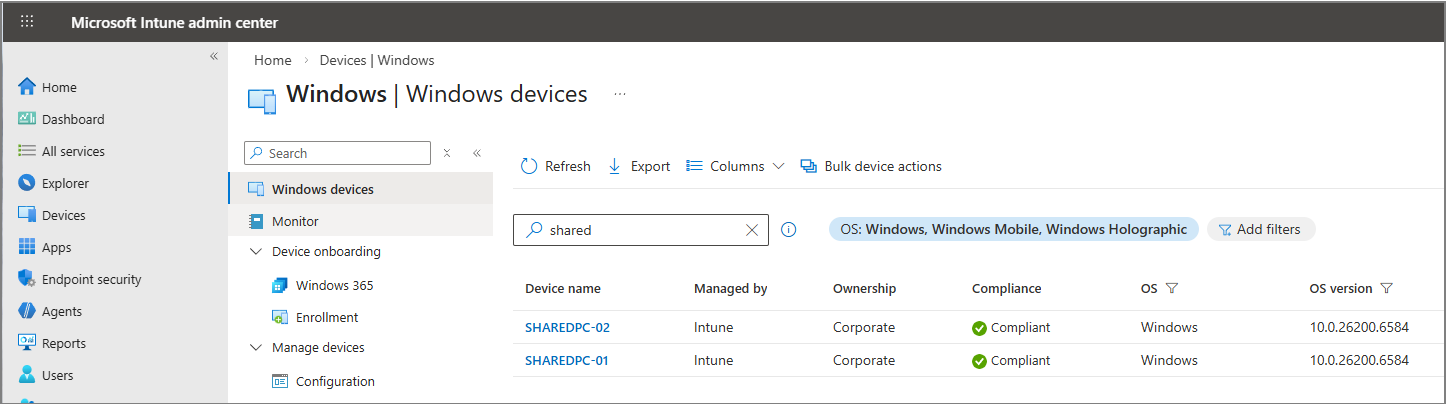
Even if the device is intended for shared usage, enrollment should be performed using an administrator or master account.
After enrollment:
- Create a Security Group for policy deployment
- Add the shared PC to the group
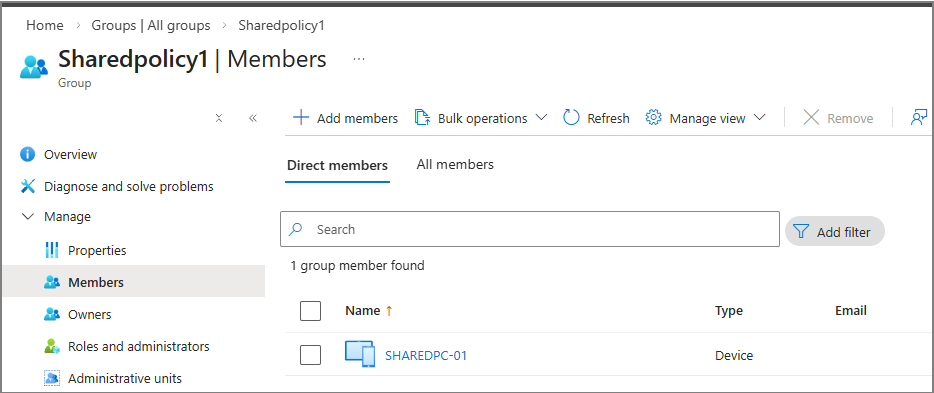
Only after completing these steps can the policy be successfully assigned.
Step 2. Create a Shared Multi-User Device Policy
Navigation Path
Intune Admin Center > Devices > Windows > Manage Devices > Configuration > Create > New Policy
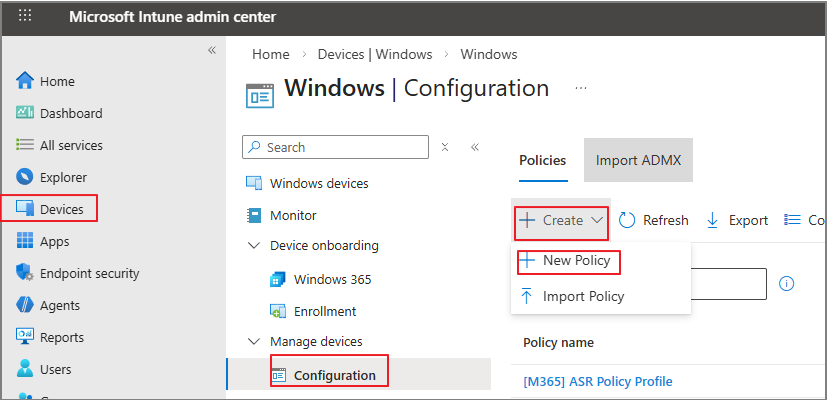
Select the following options:
- Platform: Windows 10 and later
- Profile Type: Templates
- Template: Shared multi-user device
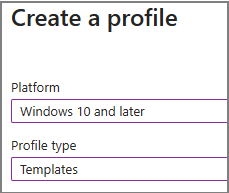
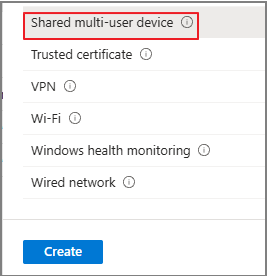
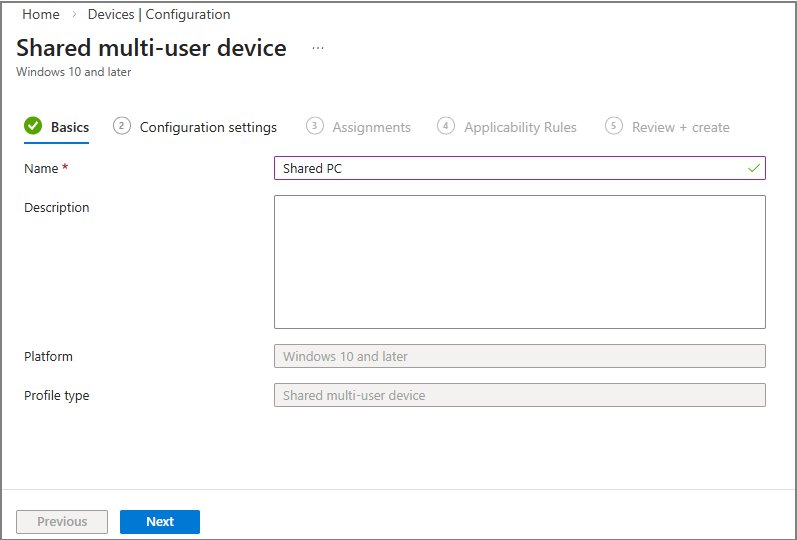
Then assign a policy name.
Policy Configuration Example
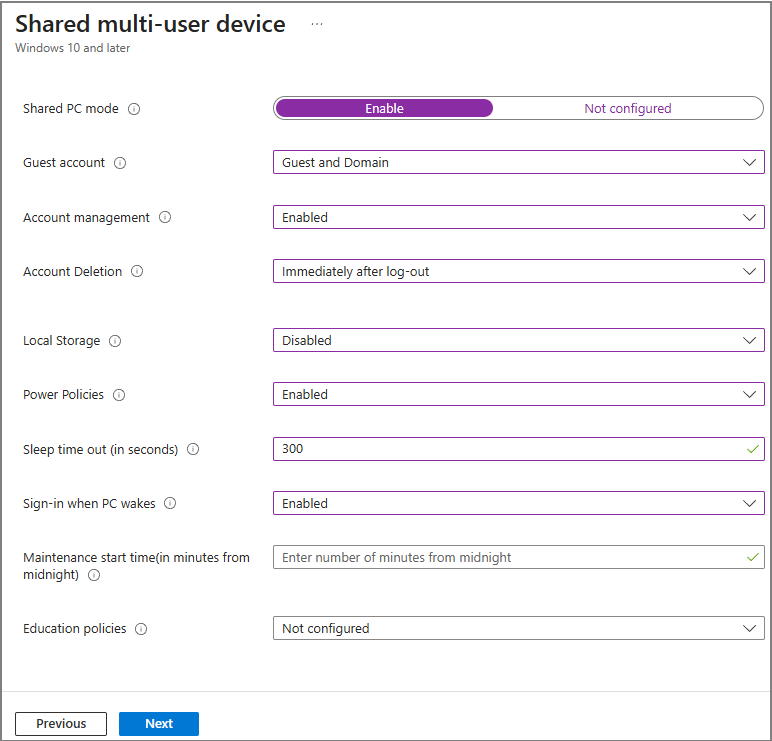
Below is an example configuration:
| Policy Setting | Value | Description | Meaning |
| Shared PC mode | Enable | Enables shared multi-user mode | Activates account cleanup and shared operations |
| Guest account | Guest and Domain | Allows Guest and Entra ID sign-in | Supports M365 and Guest login |
| Account management | Enabled | Enables automatic account management | Automatically manages user profiles |
| Account Deletion | Immediately after log-out | Deletes profile upon sign-out | Immediately removes user traces |
| Local Storage | Disabled | Controls local storage usage | Prevents persistent local data |
| Power Policies | Enabled | Applies power settings | Enables power management control |
| Sleep timeout | 300 seconds | Idle time before sleep | Enters sleep after 5 minutes |
| Sign-in when PC wakes | Enabled | Requires login after wake | Protects active sessions |
| Maintenance start time | Not set | Maintenance window | Uses default behavior |
| Education policies | Not configured | Education-specific settings | No impact in enterprise environments |
Key Design Intent of This Configuration
1️⃣ Immediate Profile Deletion Upon Sign-out
When a user signs out, their profile is immediately deleted.
→ Prevents residual data from remaining on the shared device.
Note: The contents of the Downloads folder are also removed after sign-out.
2️⃣ Local Storage Restriction
By disabling local storage, files are not permanently stored on the shared device.
3️⃣ Sign-in Required After Sleep
- Device enters sleep after inactivity
- User must sign in again when waking the device
→ Prevents session hijacking
4️⃣ When Entra ID Sign-in Is Allowed
If users sign in with their M365 (Entra ID) account:
- OneDrive integration is available
- Personal environment is maintained during the session
- Profile is deleted after sign-out
This enables temporary personalization while maintaining shared-device security.
Assigning the Policy
Assign the policy to the device group and create it.
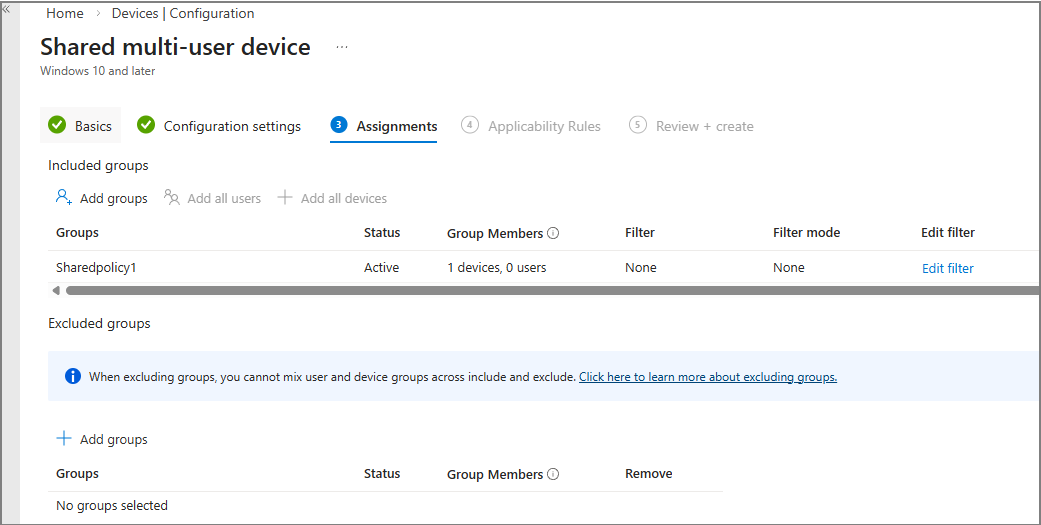
Once applied:
- Users can sign in using Guest or Domain accounts

- A new profile is created each time a user signs in
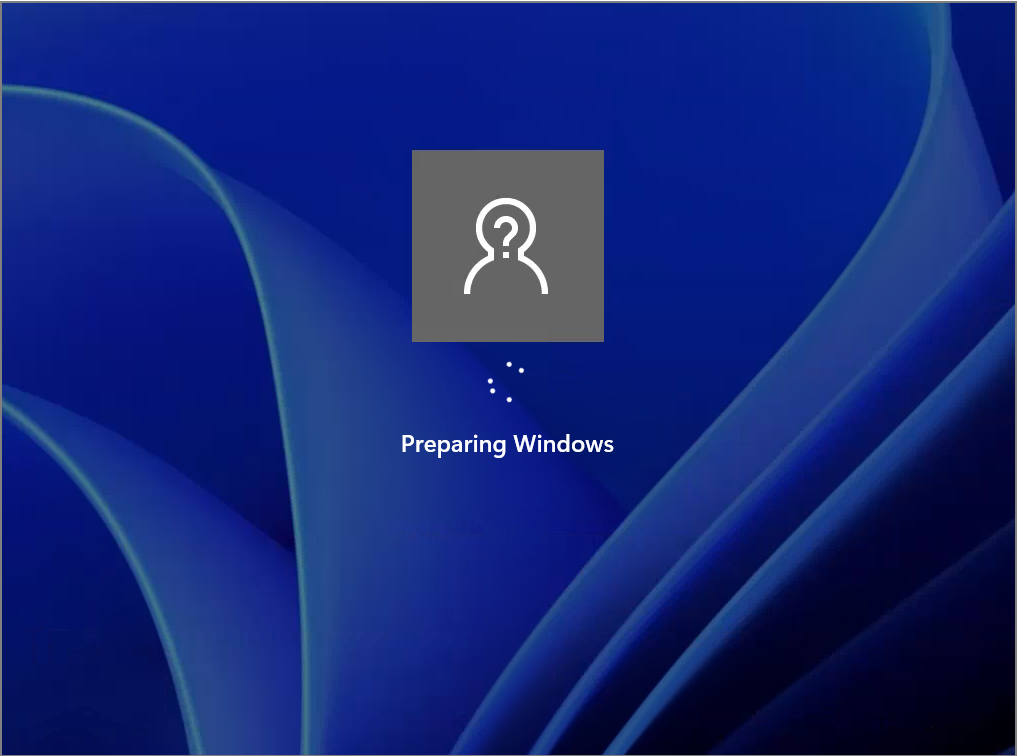
- Only the Downloads folder is accessible in File Explorer
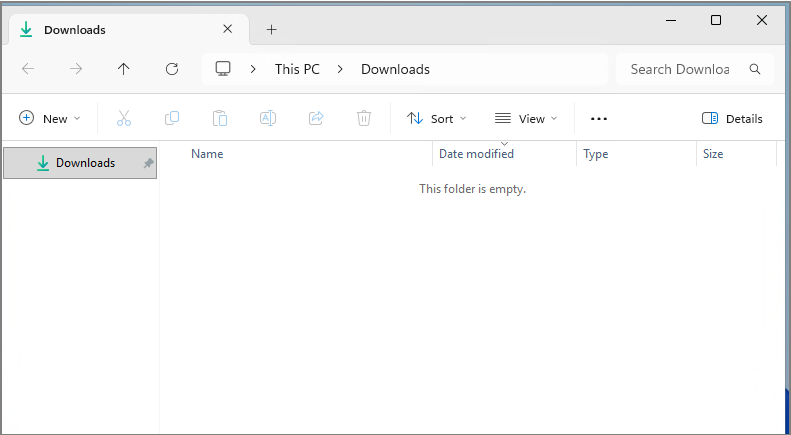
- Data inside Downloads is removed after sign-out
Considerations When Using Guest Accounts
Guest accounts do not require a password by default.
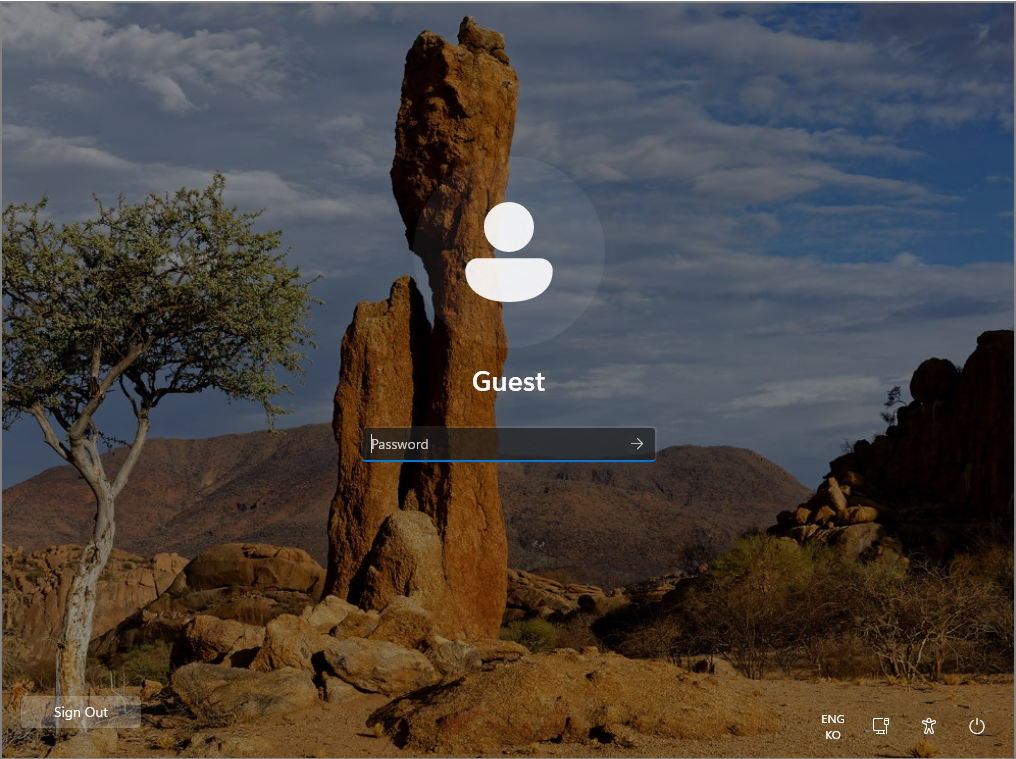
If a user leaves without signing out:
- The next user may access the active session
- Previous user activity may be visible
This can create a security vulnerability.
Advantages of Allowing Entra ID Sign-in
When Domain (Entra ID) sign-in is enabled:

- Re-authentication is required after screen lock
- Session protection is enhanced
- Overall security posture improves
Depending on the enterprise environment, Entra ID-based sign-in is generally recommended.
Additional Mitigation for Guest-Based Environments
If operating primarily with Guest accounts, consider implementing:
- Automatic forced sign-out after a defined idle time
- Screen lock enforcement
- Additional session protection policies
This can be achieved through PowerShell scripts or Intune remediation scripts.