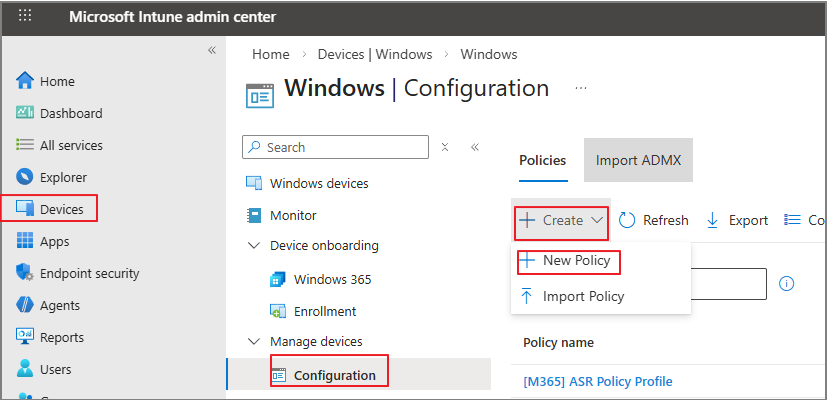
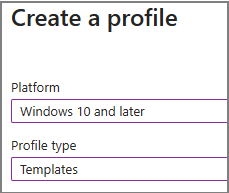
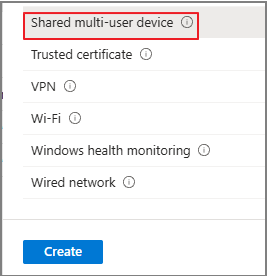
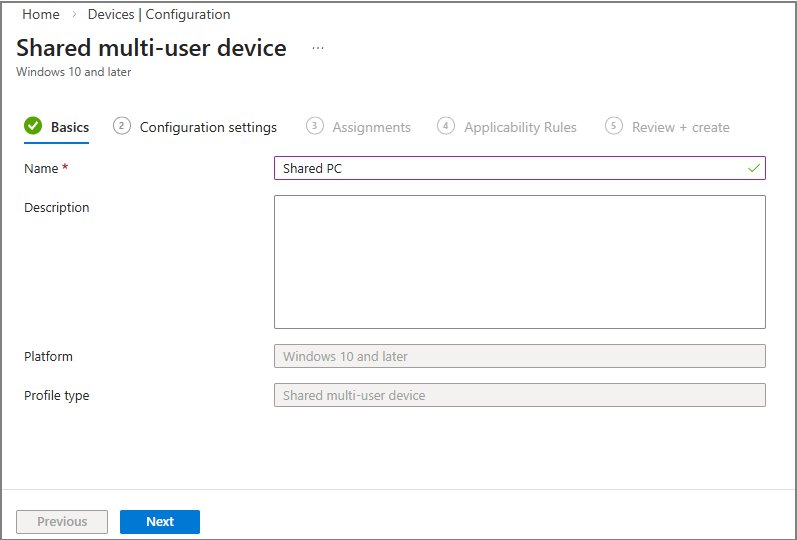
In this post, I’m going to walk through Device Onboarding.
Youtube: https://youtu.be/vQQRM6gqMzo
If you have worked with Microsoft Defender for Endpoint, commonly known as MDE, even a little bit, you have probably heard the term “onboarding” many times. MDE has been around for quite a while, and in the field, it is often described simply as MDE = EDR.
However, the reason I’m covering onboarding in this post is not only because of MDE.
The more important purpose is to organize device onboarding as a foundation for understanding Endpoint DLP.
Endpoint DLP is a feature in Microsoft Purview. However, for it to work on actual endpoints, the device must be onboarded based on Microsoft Defender for Endpoint. Therefore, to properly understand Endpoint DLP, we first need to understand the MDE onboarding structure.
1. Understanding Onboarding
1) Why does Endpoint DLP require device onboarding?
If you look at the Microsoft Learn documentation for Endpoint DLP, it states from the beginning that device onboarding is required.
To understand why, we first need to briefly look at the overall concept of Microsoft Defender.
In the Microsoft 365 E5 security area, Defender mainly protects the following areas:
- Cloud apps
- Devices
- Identity
The core concept of Defender XDR, as I understand it, is as follows.
A structure that collects signals from multiple security areas, gathers logs, analyzes correlations between those logs, and then responds.
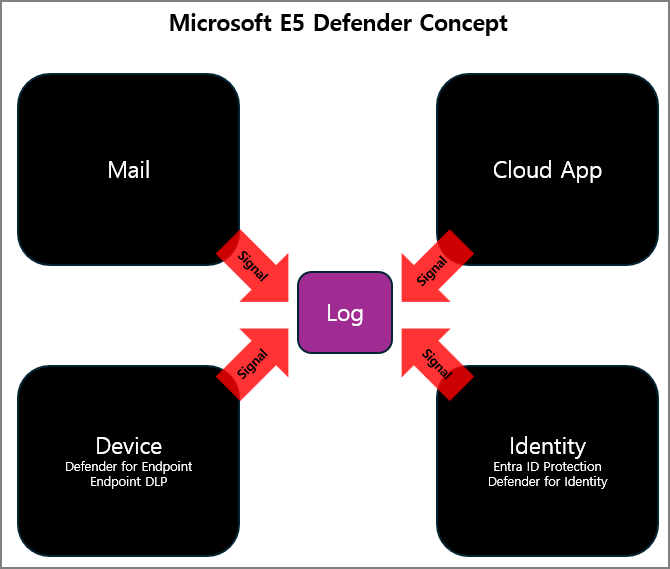
In other words, Defender XDR is not simply a collection of individual security products. It can be understood as a system that brings signals from multiple areas together, analyzes them as one flow, and supports response.
2) The difference between cloud resources and devices
Areas such as email, cloud apps, and Entra ID Protection are already resources that exist in the cloud.
For example, Exchange Online, SharePoint Online, and Microsoft Entra ID run inside the Microsoft 365 cloud. Therefore, logs and signals can be collected through service-to-service integration without installing a separate client.
Devices, however, are different.
Operating systems such as Windows 11 clients or Windows Server are not cloud resources. They are endpoints that exist in the actual user environment. To collect security signals from these devices, you need a process that connects the device to Microsoft Defender for Endpoint.
This process is called device onboarding.
The structure of Defender for Identity has also changed significantly over time, and it can also be understood as a model where the related environment is onboarded first, and then signals are collected.
To summarize, the core of Defender is as follows:
- Collect signals.
- Gather logs.
- Analyze correlations across multiple logs.
- Detect and respond.
Endpoint DLP is also a Purview feature, but it needs device-side signals because it must detect and control activities such as file usage, copying, uploads, and app usage on the endpoint.
Therefore, to understand Endpoint DLP, we first need to understand MDE onboarding.
3) The relationship between MDE onboarding and Endpoint DLP
Microsoft Defender for Endpoint and Endpoint DLP may appear to belong to different portals and management areas, but from an endpoint perspective, they are very closely connected.
In practice, it is easier to understand them as follows.
- MDE collects endpoint security signals and works as EDR.
- Endpoint DLP detects and controls data leakage activities on endpoints.
- Both features require device onboarding in order to work on endpoints.
- Endpoint DLP can be understood as operating on top of MDE onboarding.
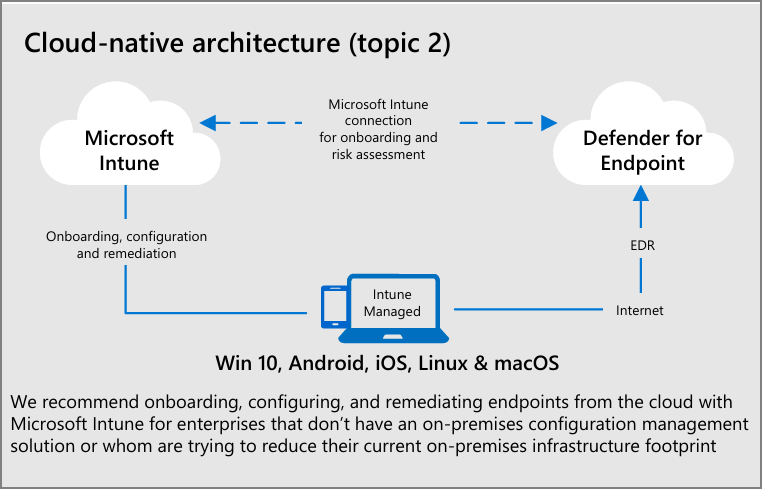
In other words, before configuring Endpoint DLP, the device must first be onboarded to Defender for Endpoint.
In this post, I will start by explaining the basic process of onboarding devices.
4) Major types of onboarding methods
If you look at the MDE onboarding documentation, it includes steps such as preparing for deployment, assigning roles, and checking the environment.
In practice, the first thing you need to check is what type of environment you currently have.
Typical environments can be categorized as follows.
| Category | Description |
| Cloud-native | An environment managed mainly with Microsoft Entra ID and Intune, without Active Directory |
| Co-management | An environment using Configuration Manager and Intune together |
| On-premises | An environment managed mainly with Active Directory and Group Policy |
In this post, I will explain the process based on two major flows.
| Method | Description |
| Intune-based enrollment | Registering the device in Intune first, then onboarding it to Defender |
| Group Policy-based onboarding | Applying the onboarding script or policy through AD GPO |
When I explain this in practice, I usually call the flow where devices are registered and managed through Intune Intune onboarding, and the Group Policy-based onboarding flow MDE onboarding.
I will use the same terminology in this post.
5) Basic test environment
The basic environment used in this post is as follows.
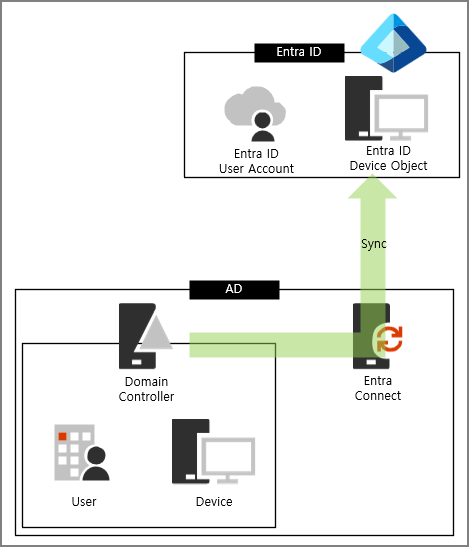
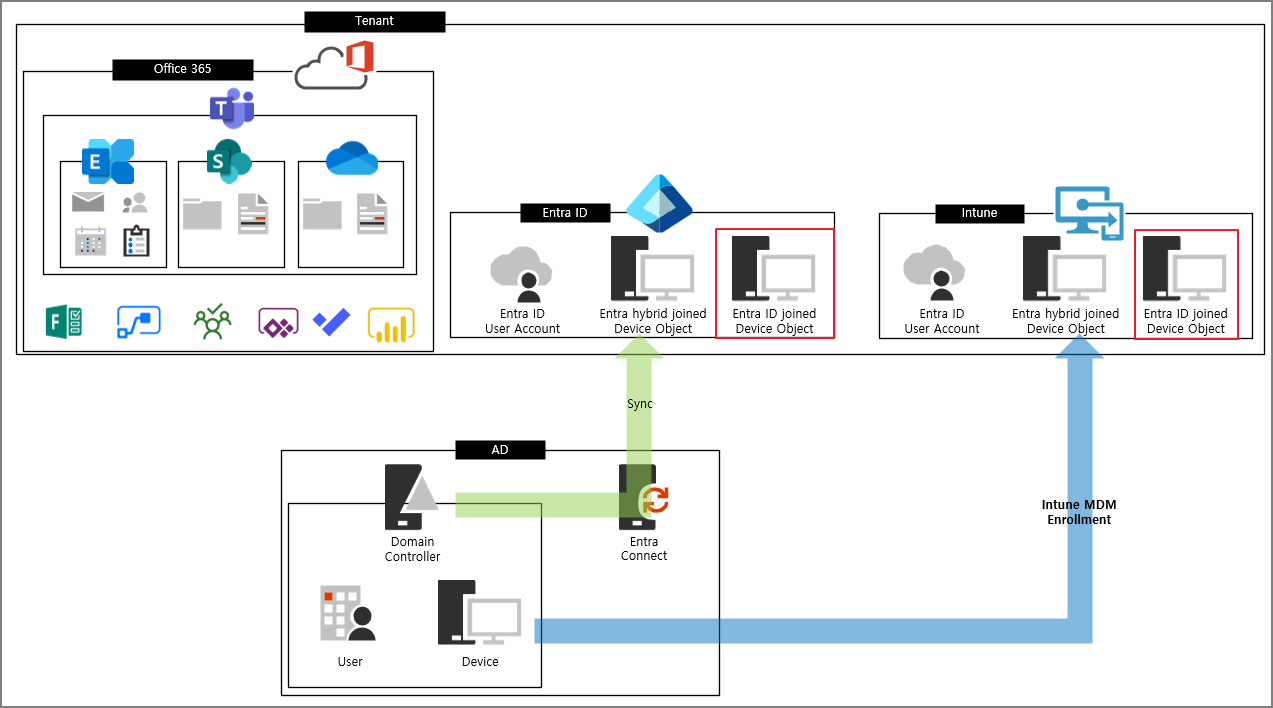
- Active Directory is configured.
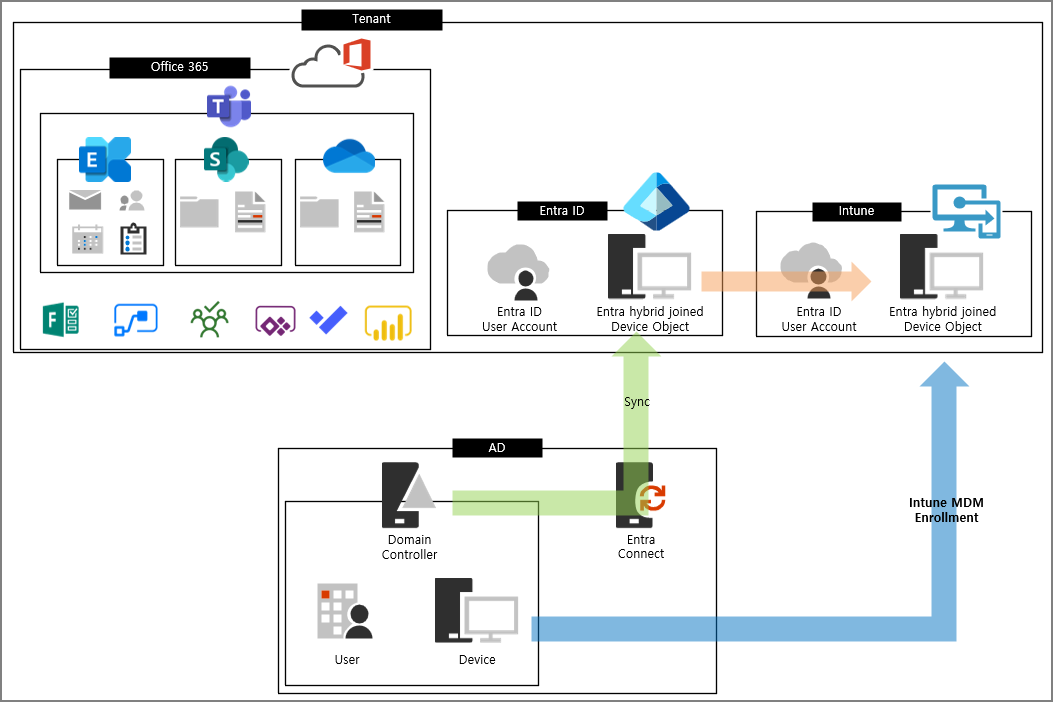
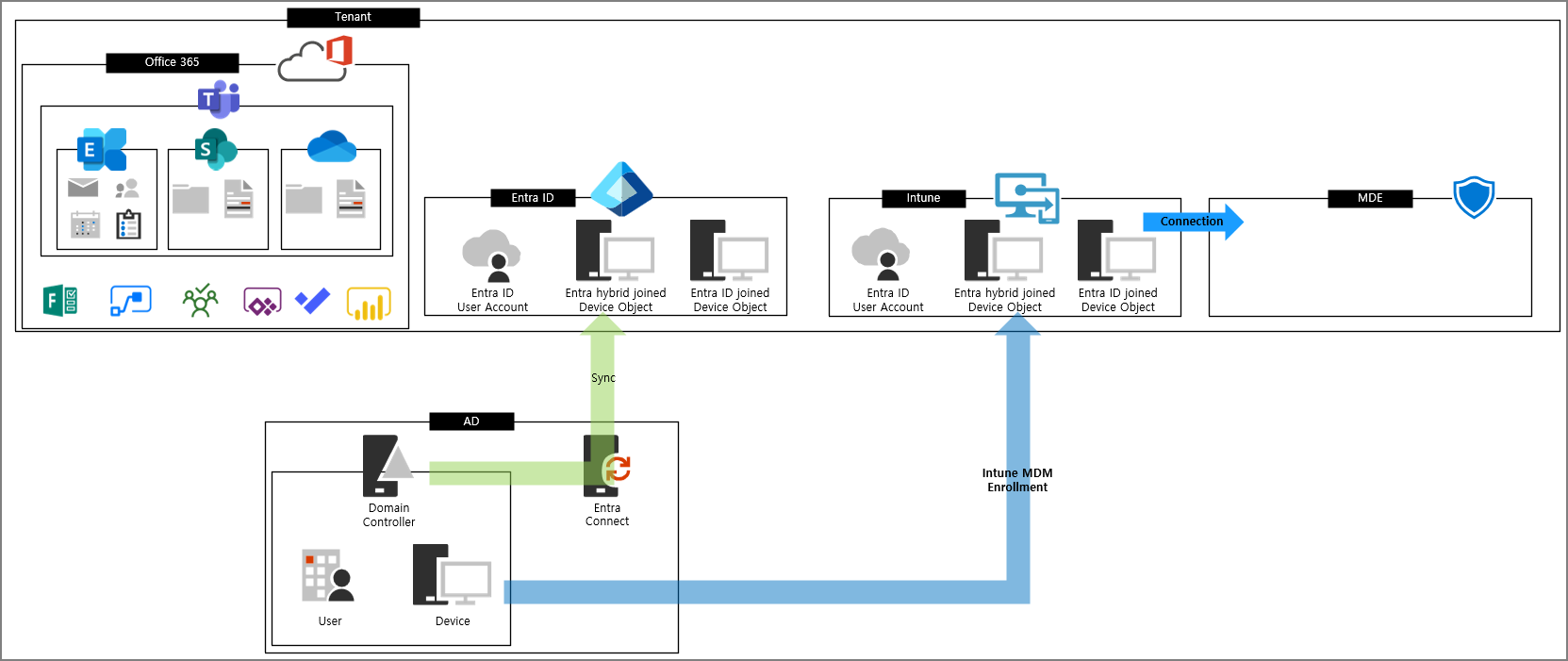
- AD objects are synchronized to Microsoft Entra ID through Entra ID Connect.
- Devices can be configured as Hybrid Joined devices.
- Intune is configured from scratch in a new test tenant.
- Intune onboarding and MDE onboarding will be performed afterward.
For reference:
Just because a device object is synchronized to Entra ID does not mean that the device is registered in Intune.

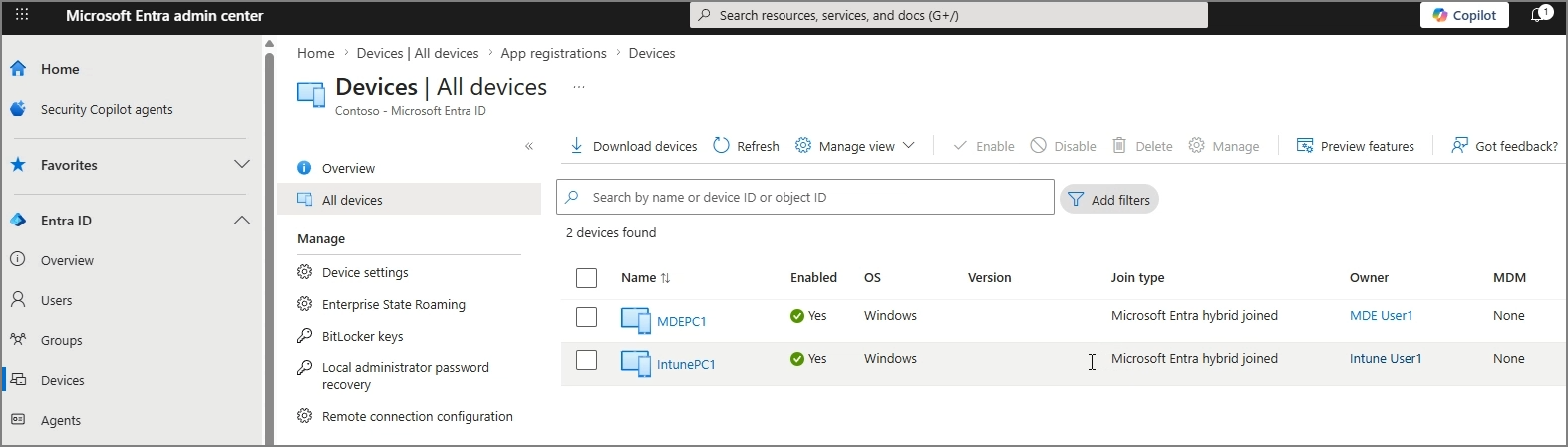
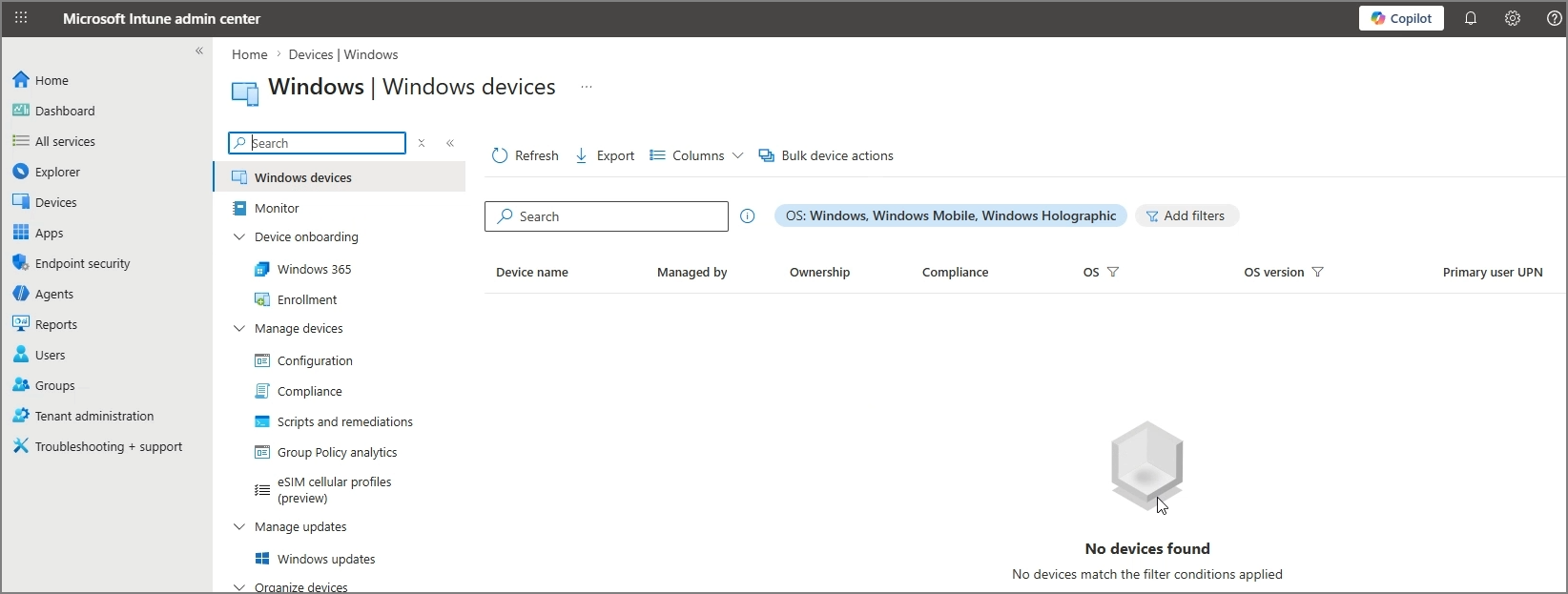
Entra ID Connect simply synchronizes objects. It can register a device object in Entra ID, but that does not mean the device is managed by Intune or that security signals are being collected.
Therefore, the following two concepts should be clearly separated.
| Category | Meaning |
| Device registration in Entra ID | The device object exists in Entra ID |
| Device enrollment in Intune | The device is registered as an MDM-managed device |
In real-world environments, there are cases where the device appears in Entra ID but does not appear in Intune.
In this case, the device has not yet completed Intune MDM enrollment.
2. Intune Enrollment
First, we configure the basic settings for Intune enrollment in the Microsoft Entra admin center.
2.1. Enabling Microsoft Intune
In the Entra admin center, go to the following location.
Microsoft Entra admin center
→ Mobility
→ Microsoft Intune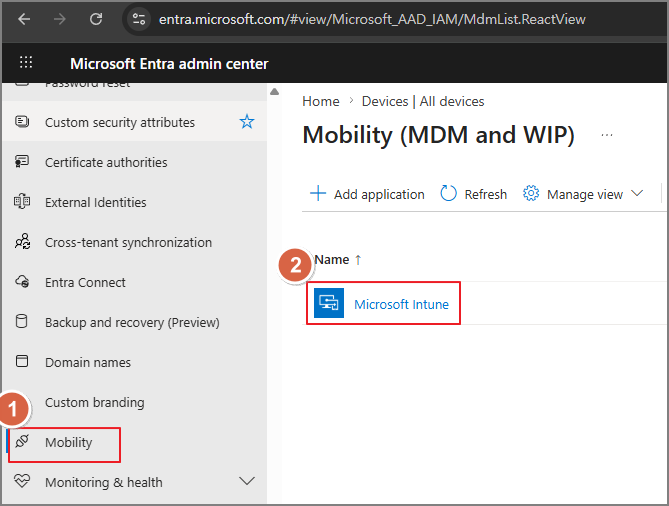
Here, configure the MDM user scope.
In this test environment, I configure it as follows.
MDM user scope: All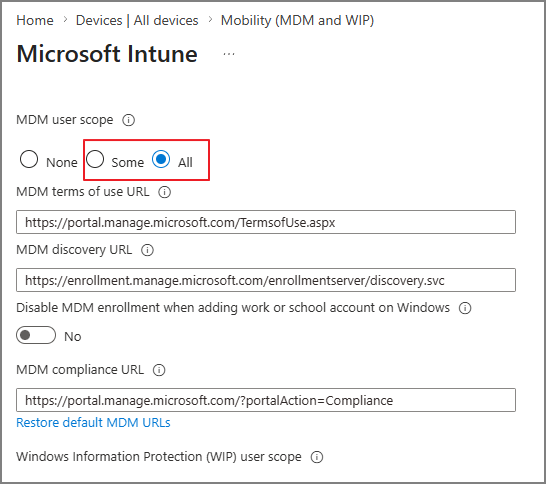
This setting defines which users are allowed to enroll devices through MDM.
In a production environment, you can limit this to a specific user group.
However, since the purpose of this post is to explain the onboarding concept, I will proceed with All.
After changing the setting, click Save.
Now Intune is ready to enroll devices.
2.2. Automatically enrolling AD Joined devices into Intune
To enroll Active Directory joined devices into Intune, you can use Group Policy.
A simple way to explain it is:
We are applying a policy to AD-joined Windows devices that says, “You also need to register with Intune.”
In this example, assume that the following OU exists in Active Directory.
Also assume that an AD-joined PC is registered inside this OU.
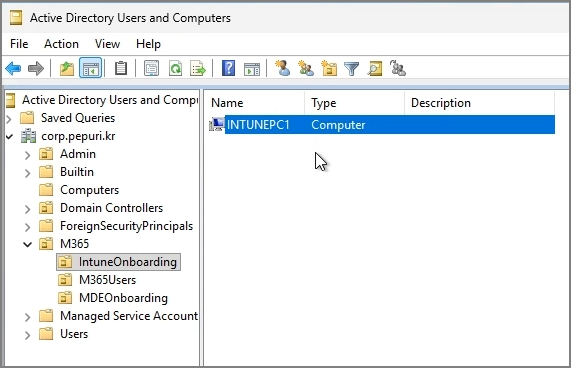
Now we will create a GPO so that this device is automatically enrolled into Intune.
2.3. Creating the GPO and configuring automatic MDM enrollment
Open Group Policy Management on the Domain Controller and create a new GPO on the target OU.
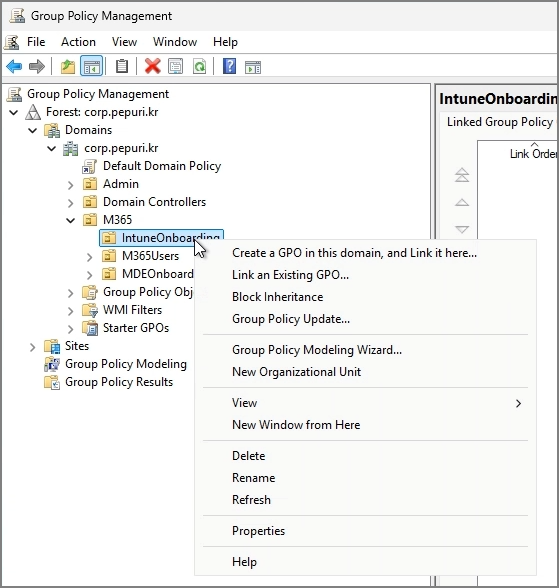
In the GPO editor, go to the following path.
Computer Configuration
→ Policies
→ Administrative Templates
→ Windows Components
→ MDM
Open the following setting.
Enable automatic MDM enrollment using default Azure AD credentials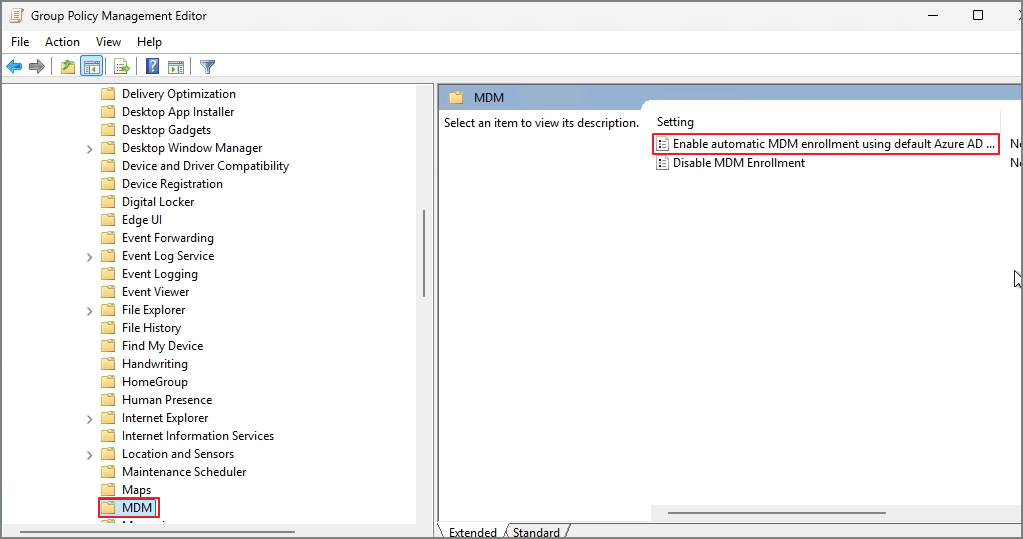
Change the setting as follows.
Enabled
Credential Type: User Credential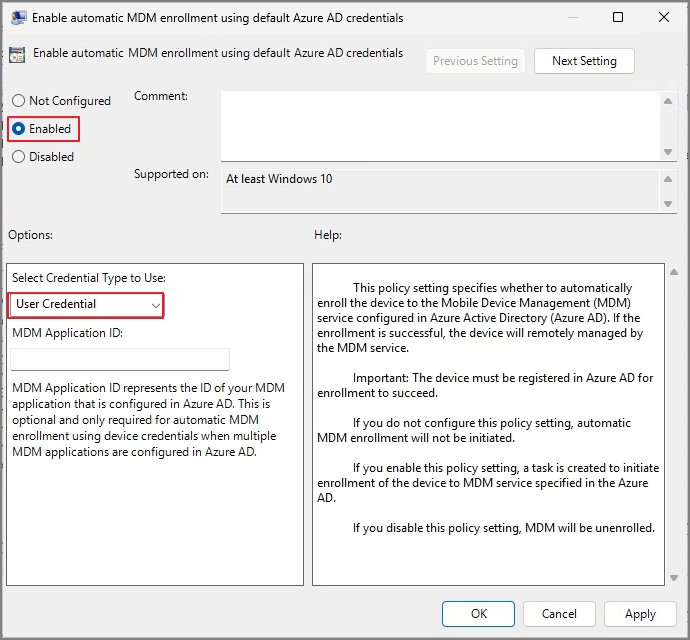
2.4. Applying the policy and verifying enrollment
When the policy is applied successfully, you can verify the registration status in Windows Settings.
Settings
→ Accounts
→ Access work or school
If the device is registered successfully, you will see information indicating that the device is managed by your company or organization.
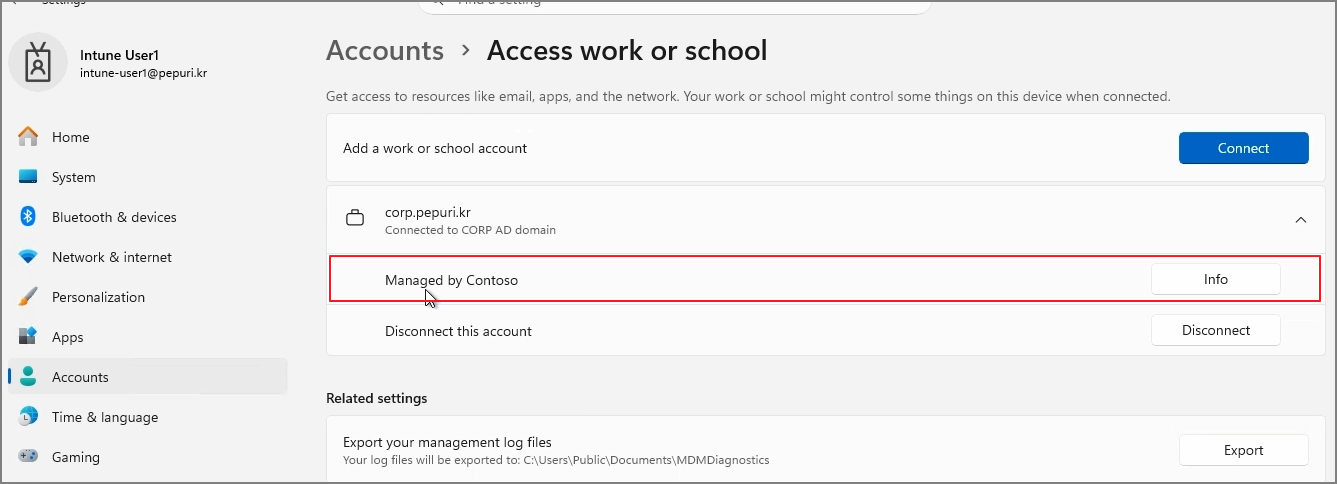
You can also verify it using the following command.
dsregcmd /status

In the output, you can check the following information.
Managed by Intune2.5. Checking the enrollment behavior through Task Scheduler
If device enrollment does not proceed correctly, you can check Task Scheduler.
In Windows, tasks related to MDM enrollment run through scheduled tasks.
The location is as follows.
Task Scheduler
→ Microsoft
→ Windows
→ EnterpriseMgmt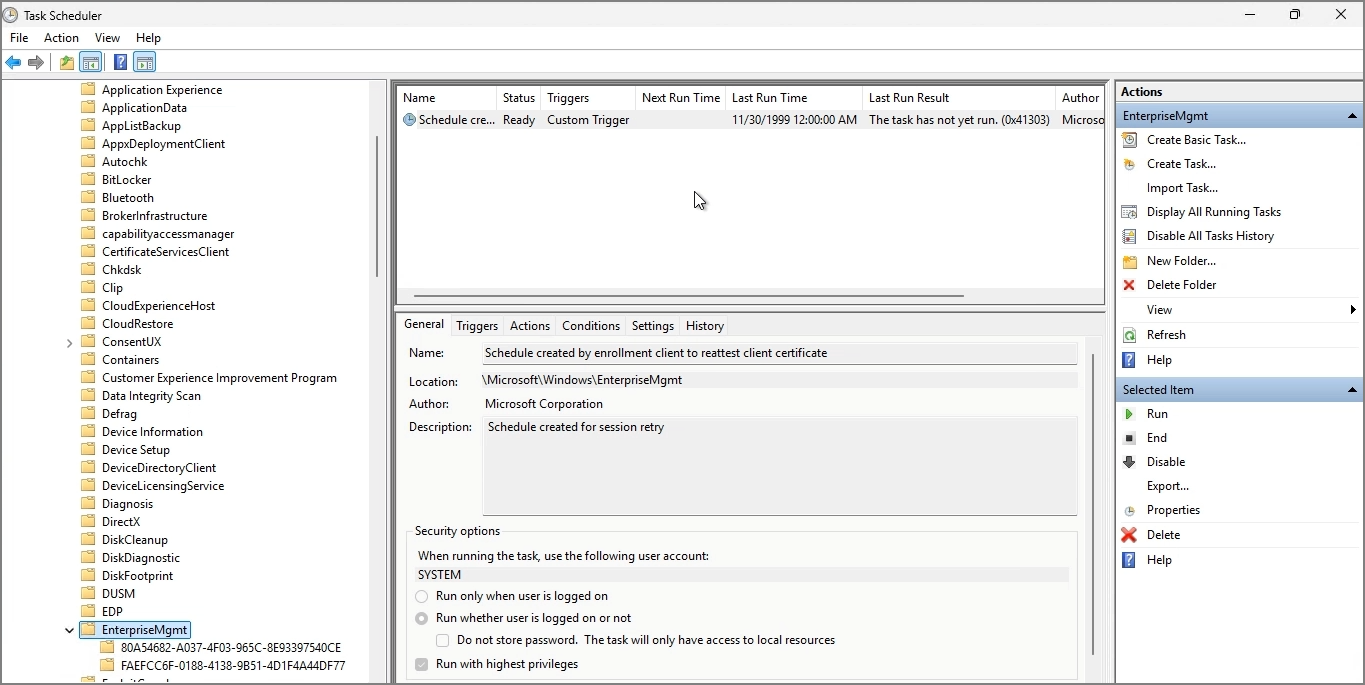
In this location, you can check triggers and tasks related to device enrollment.
Therefore, if Intune enrollment does not work as expected, this area can help you identify the cause.
2.6. Checking the enrollment status in Entra ID and Intune
Once MDM enrollment is completed through GPO, the registration status may appear first in the Entra admin center.
After some time, the device will also appear in the Intune admin center.
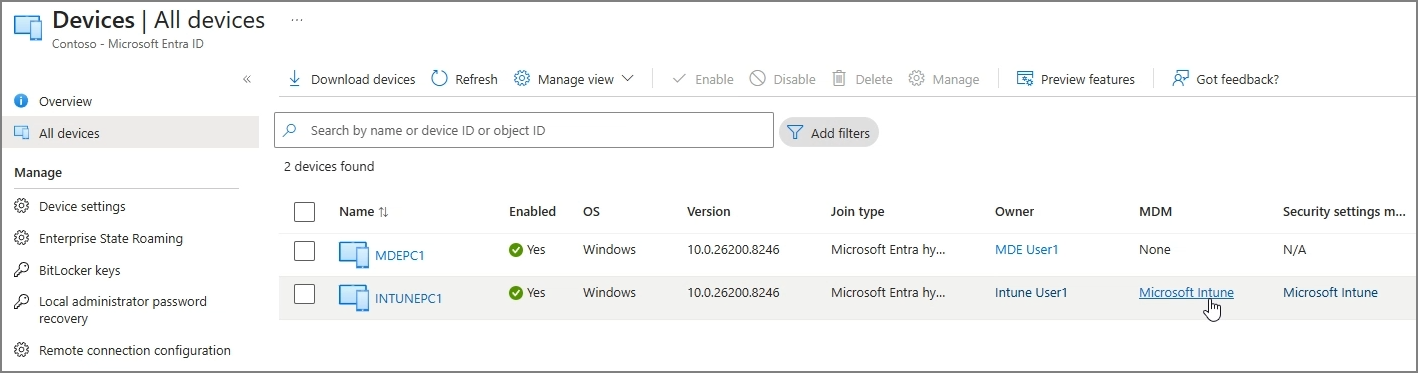
The registration status may be reflected in Entra ID first, while Intune may take a little longer.
Therefore, if the device does not appear in Intune immediately after registration, it does not necessarily mean that the process failed.
You should check again after some time.
2.7. Entra ID Joined device enrollment method
Now let’s assume an environment without Active Directory.
In an environment without AD, you can register a device through Entra ID Join.
You can perform Entra ID Join during the initial Windows setup, or if the PC is already being used as a workgroup device, you can connect it directly from Windows Settings.
The path is as follows.
Settings
→ Accounts
→ Access work or school
→ Connect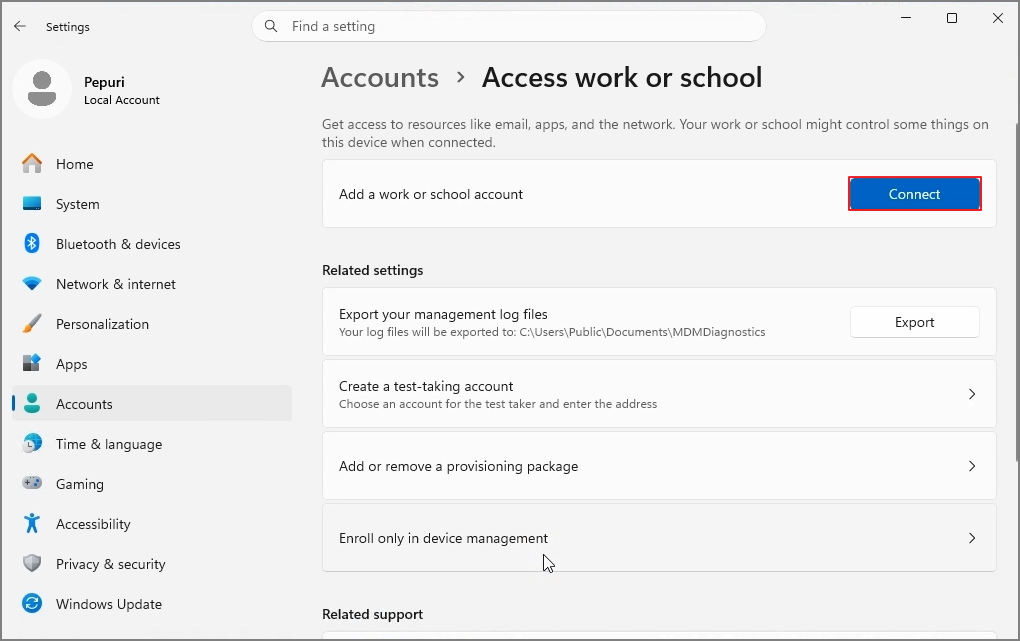
Select the following option.
Join this device to Microsoft Entra ID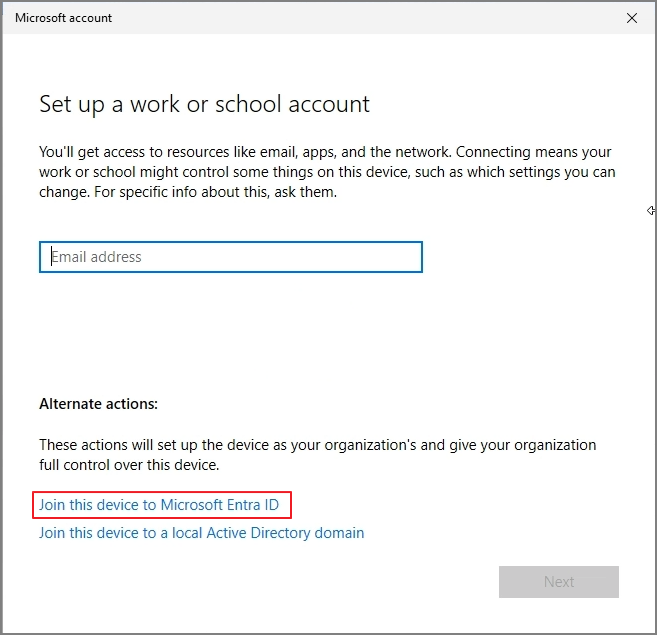
In the past, this was called Azure AD Join, but the current name is Microsoft Entra ID Join.
After entering the user account and completing the process, the device can be joined to Entra ID and enrolled into Intune as well.
3. Defender portal provisioning
3.1. Microsoft Defender portal provisioning
To configure Defender, go to the Microsoft Defender portal.
Microsoft Defender portal
→ System
→ Settings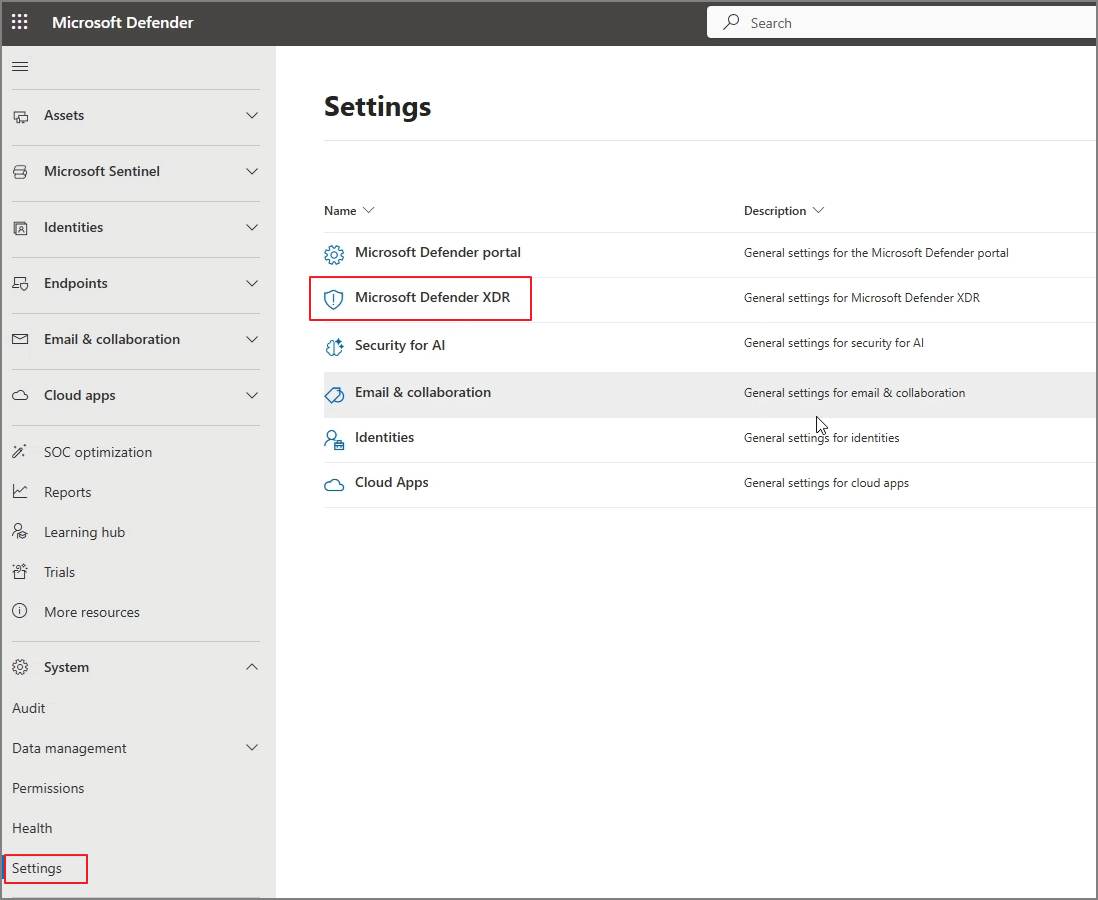
After a short while, provisioning proceeds as shown below.
In a new test tenant, the Defender XDR workspace may not yet be provisioned.
In this case, you need to provision the Defender environment first.
Provisioning is required only once, and it may take some time to complete.
You can understand this as preparing the Defender backend workspace, which is separate from the Entra ID or Intune admin center.
3.2. Enabling Microsoft Intune connection
Once Defender XDR provisioning is complete, you need to connect Intune with Microsoft Defender for Endpoint.
This step is commonly referred to as Intune connection.
In other words, up to this point, we registered devices into Intune. From now on, we configure the service-to-service connection between Intune and Defender for Endpoint.
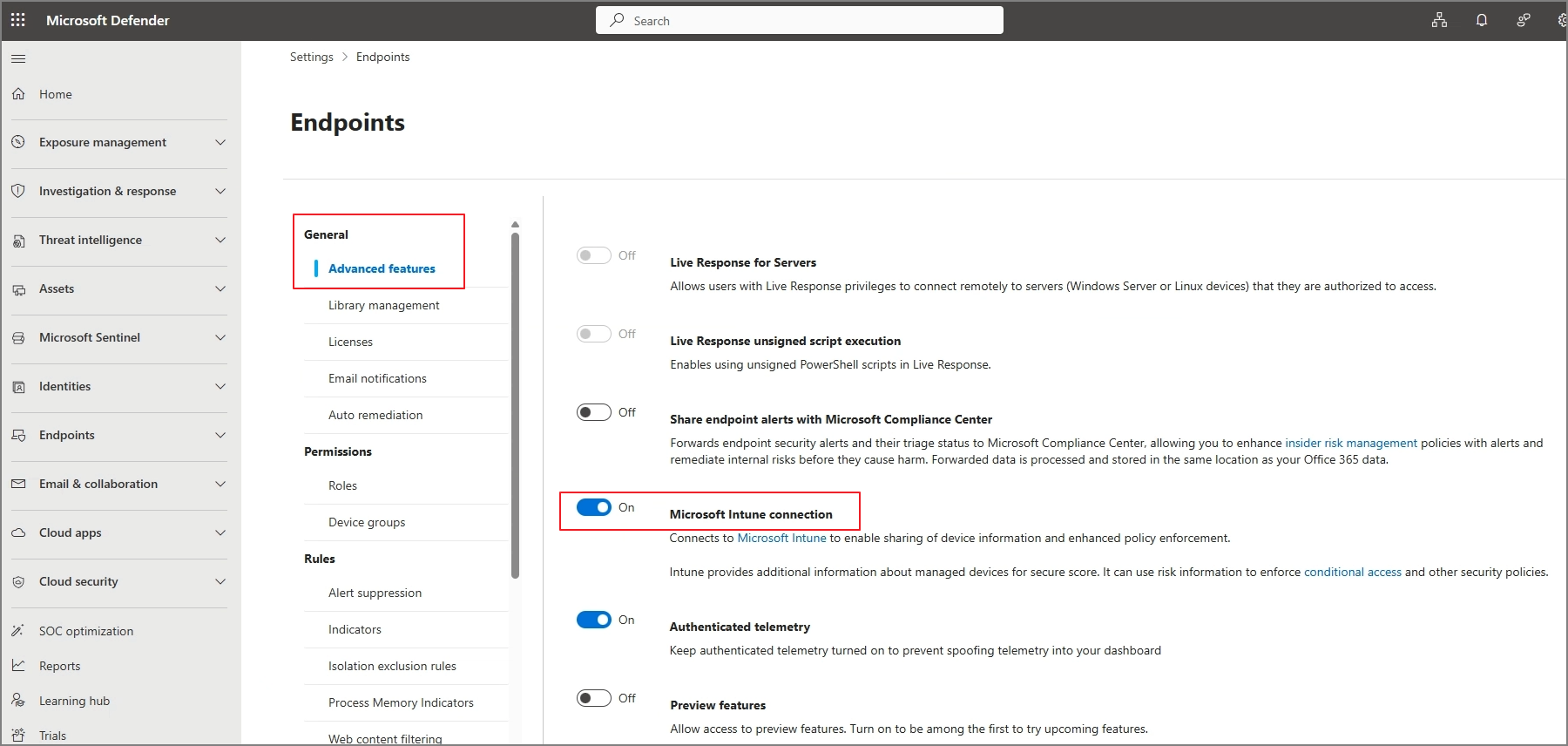
In the Microsoft Defender portal, go to the following path.
Microsoft Defender portal
→ Settings
→ Endpoints
→ General
→ Advanced features
Find the following item.
Microsoft Intune connectionChange the value to On and save it.
Microsoft Intune connection: OnWhen this setting is enabled, Intune and Defender for Endpoint are connected. After that, Intune can automatically retrieve Defender for Endpoint onboarding packages or deploy EDR policies.
3.3. Checking the connection status in the Intune admin center
After enabling Microsoft Intune connection in the Defender portal, check the connection status in the Intune admin center.
The path is as follows.
Microsoft Intune admin center
→ Endpoint security
→ Setup
→ Microsoft Defender for Endpoint

Once the connection is complete, you can configure which platforms should be integrated with Microsoft Defender for Endpoint in the Intune admin center.
The path is as follows.
Microsoft Intune admin center
→ Endpoint security
→ Microsoft Defender for Endpoint
Enable the Defender for Endpoint connection for the supported platforms.
For example, if you are targeting Windows devices, enable the following item.
Connect Windows devices to Microsoft Defender for Endpoint: OnThis connection setting is for the integration between Defender and Intune. It should be distinguished from EDR onboarding policy deployment, which actually makes Windows devices send signals to Defender for Endpoint.
3.4. Deploying the EDR onboarding policy
Now we need to onboard actual Windows devices to Microsoft Defender for Endpoint.

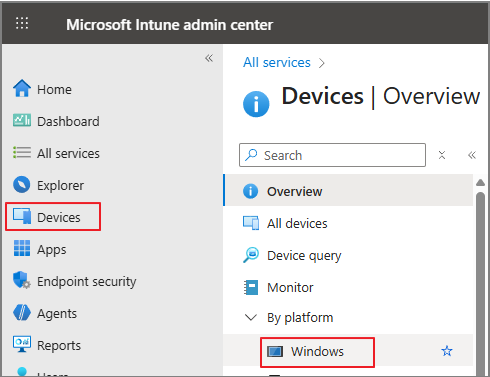
To create an EDR onboarding policy in Intune, go to the following path.
Microsoft Intune admin center
→ Endpoint security
→ Endpoint detection and response
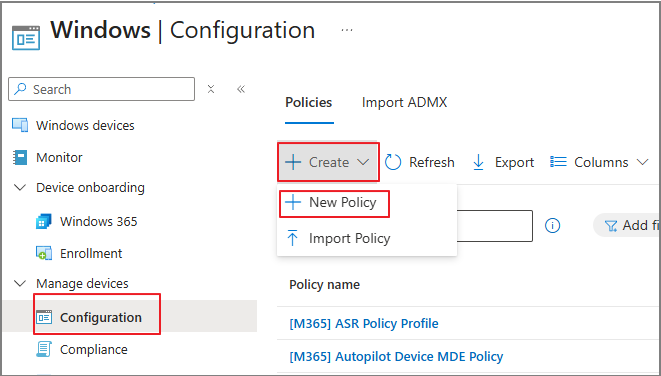
Create a new policy.
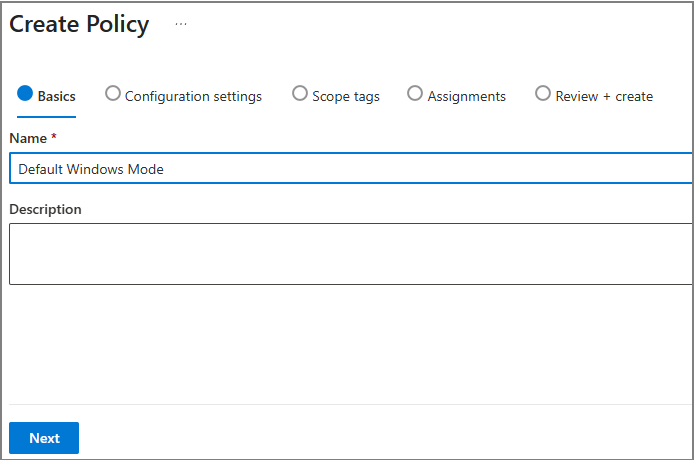
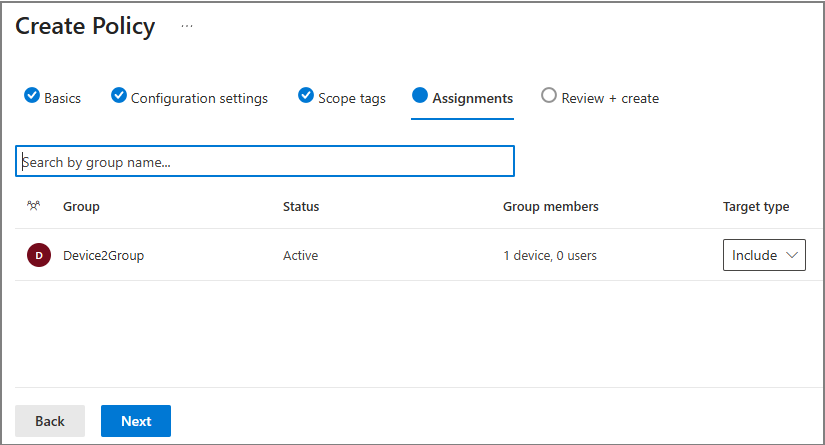
Create Policy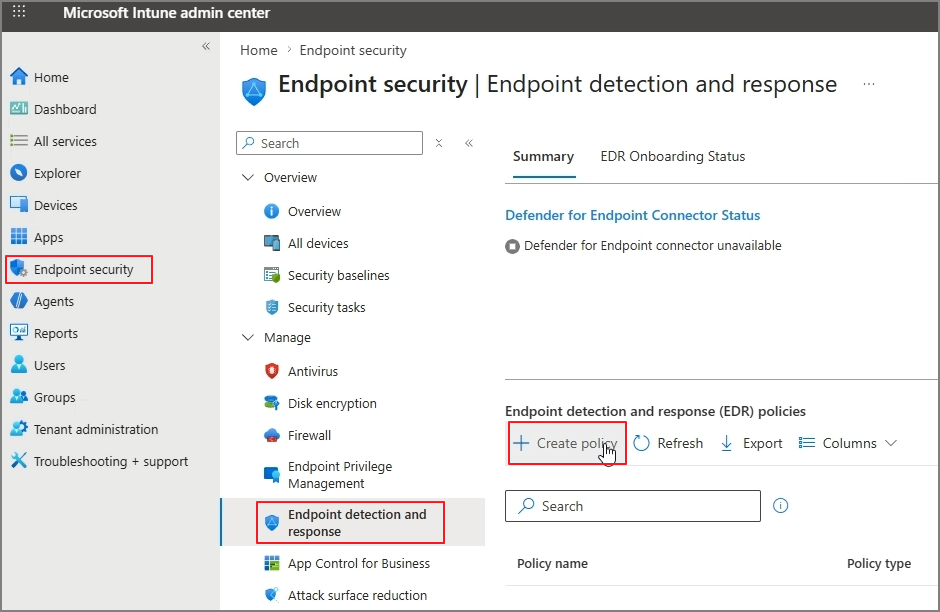
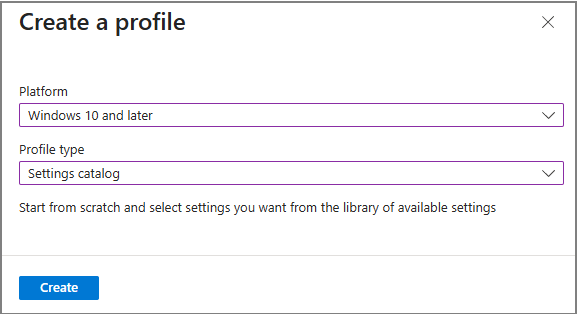
When creating the policy, select the platform and profile as follows.
Platform: Windows
Profile: Endpoint detection and response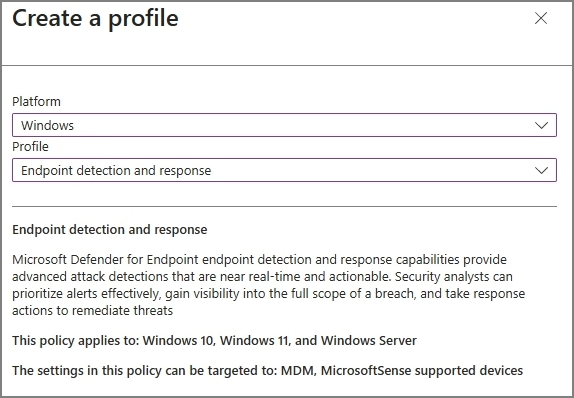
Specify the policy name.
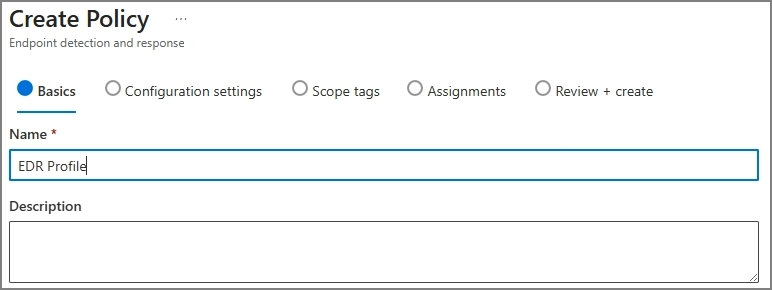
In Configuration settings, select the Microsoft Defender for Endpoint client configuration package type.
If the connection between Intune and Defender for Endpoint has been completed successfully, you can use the following option.
Microsoft Defender for Endpoint client configuration package type:
Auto from connector
Auto from connector means Intune automatically retrieves the latest onboarding package from Defender for Endpoint.

Specify the target group for onboarding.
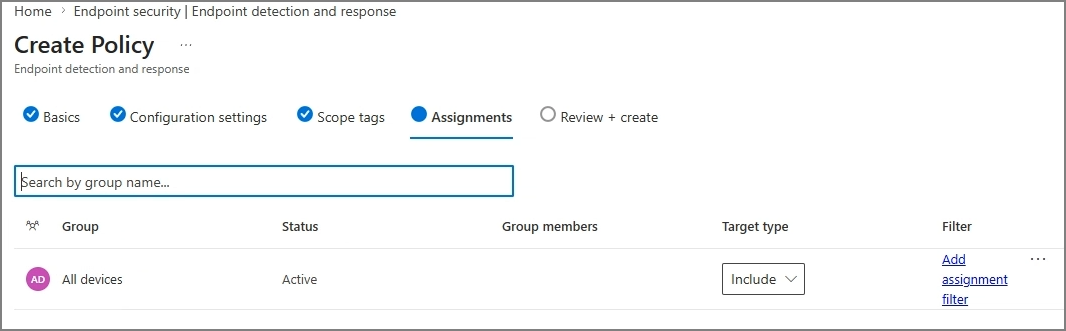
Therefore, you do not need to separately download and upload the onboarding package from the Defender portal.
3.5. What Auto from connector means
Auto from connector is the recommended option when Intune and Defender for Endpoint are properly connected.
The advantages of this method are as follows.
- Intune automatically retrieves the latest onboarding package from Defender for Endpoint.
- No manual package download is required.
- The latest onboarding configuration can be used when creating the EDR policy.
- The policy can be deployed to Intune-managed devices.
On the other hand, if Intune and Defender for Endpoint are not connected,
or if you are working in a special environment, you can use a manual onboarding package.
In the manual method, you download the onboarding package from the Microsoft Defender portal and manually enter it into the Intune policy.
However, for a typical Intune-based deployment, using Auto from connector is simpler.
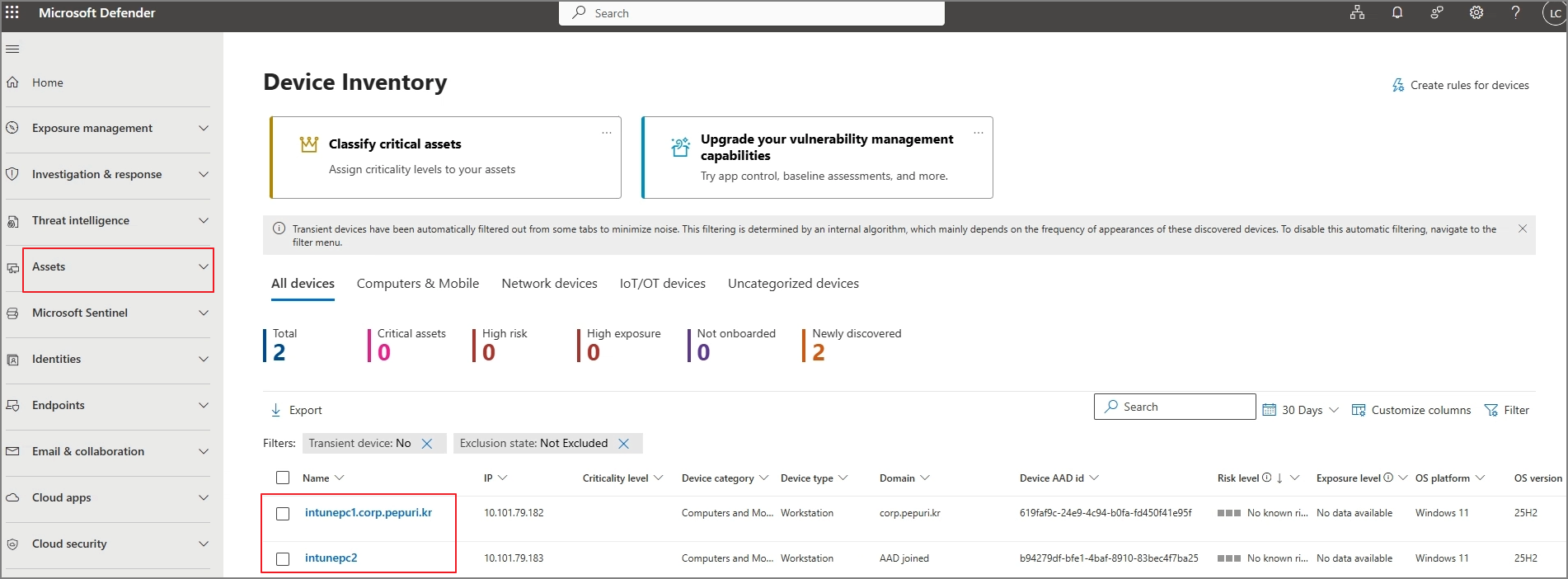
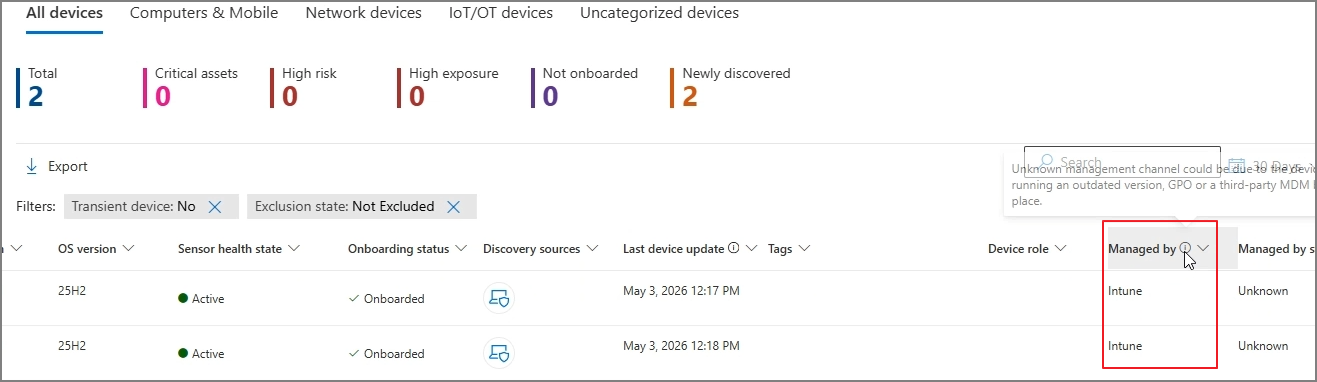
3.6. Checking the onboarding status
You can check the onboarding status as shown below.
4. MDE Onboarding
4.1. What MDE onboarding means
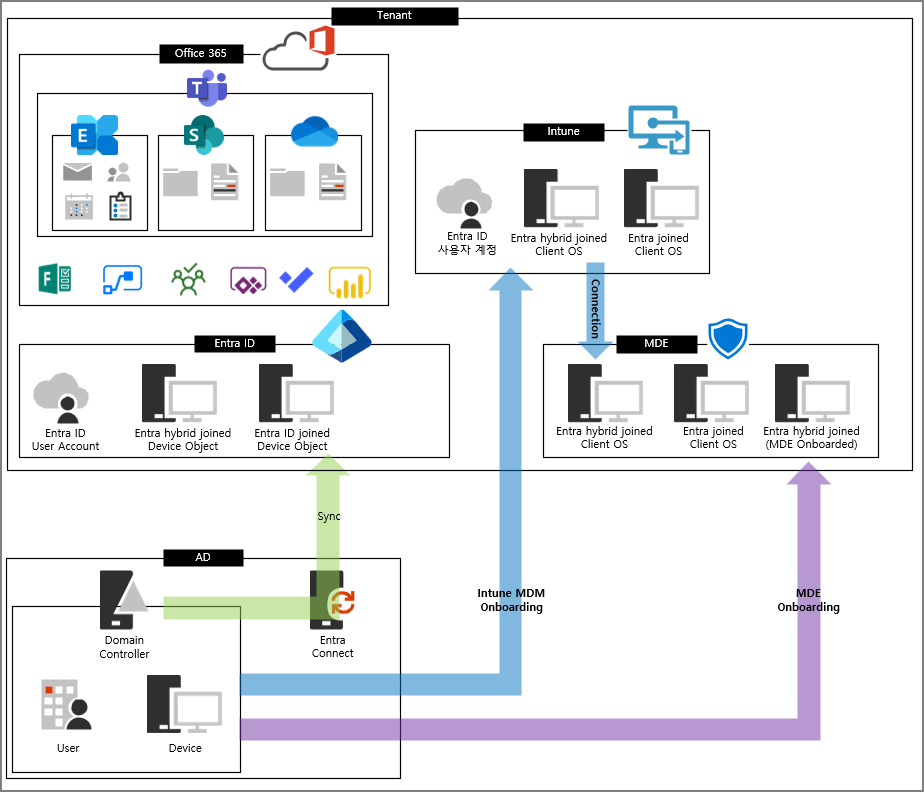
From this point on, we will move into what I distinguish as MDE onboarding.
The Intune registration described earlier was the process of making a device an Intune-managed device.
By contrast, what I mean by MDE onboarding here is a method where the device is not enrolled into Intune. Instead, the Microsoft Defender for Endpoint onboarding package is deployed through Group Policy, and the device is connected directly to Defender for Endpoint.
Because devices onboarded in this way are not MDM-enrolled into Intune, their management state should be understood as Managed by MDE, not Managed by Intune.
4.2. Why is Group Policy-based MDE onboarding needed?
Not every environment can immediately use Intune.
Some organizations still operate based on Active Directory, and due to various special circumstances, it may be difficult to deploy Intune enrollment policies.
The environments that may require MDE onboarding are as follows.
- Devices are AD Joined.
- Intune MDM enrollment has not been applied, or cannot be applied.
- The existing GPO-based management structure is still maintained.
- You want to onboard devices to Defender for Endpoint first and quickly.
- Servers or some business network devices are difficult to enroll into Intune.
In this case, even without configuring Intune first, you can deploy the Microsoft Defender for Endpoint onboarding package through Group Policy.
This is what I refer to as MDE onboarding.
The flow is as follows.
AD Joined Device
→ Group Policy
→ Run MDE Onboarding Script
→ Connect to Microsoft Defender for Endpoint service
→ Device appears in the Defender portal
→ Security settings can be managed in the Managed by MDE state
4.3. Downloading the Group Policy onboarding package from the Defender portal
First, download the onboarding package from the Microsoft Defender portal.
The path is as follows.
Microsoft Defender portal
→ Settings
→ Endpoints
→ Device management
→ Onboarding
Select the operating system.
Operating system: Windows 10 and Windows 11If you are targeting servers, select the relevant Windows Server operating system.
Select the deployment method as follows.
Deployment method: Group PolicyThen download the onboarding package.
Download onboarding package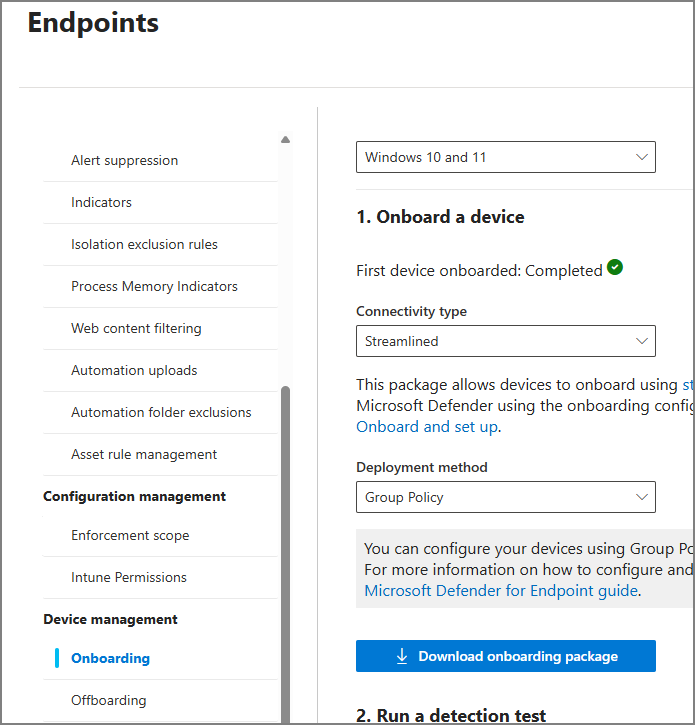
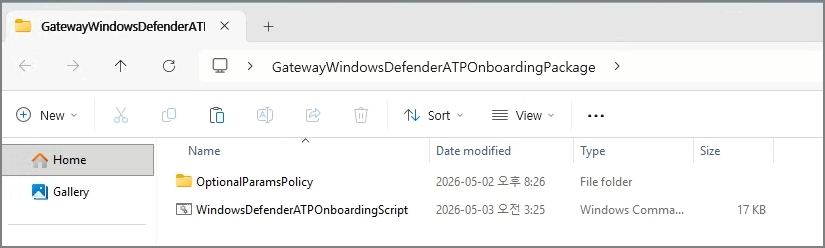
After extracting the package, you can find the following file.
WindowsDefenderATPOnboardingScript.cmdThis script is used to onboard the actual device to Microsoft Defender for Endpoint.
4.4. Preparing a shared path for the onboarding script
For the client to run the script through Group Policy, the target device must be able to access a shared path.
For example, you can create the following shared folder on a file server.
\\fileserver.contoso.com\MDEOnboarding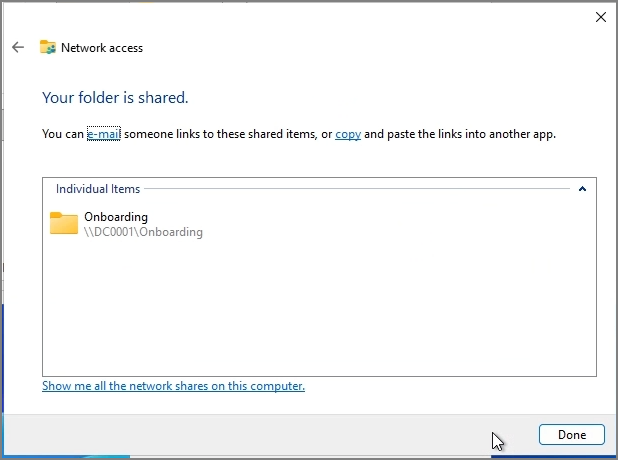
Copy the onboarding script to the shared folder.
\\fileserver.contoso.com\MDEOnboarding\WindowsDefenderATPOnboardingScript.cmdThe important point here is that the target computer accounts must be able to access this path.
For testing purposes, I configured Everyone with read permission.

In a production environment, you can configure permissions more strictly according to your security policy.
The key point is that the client device must be able to run the script through GPO.
4.5. Creating a Scheduled Task in Group Policy
Now create a new GPO in Group Policy Management Console.
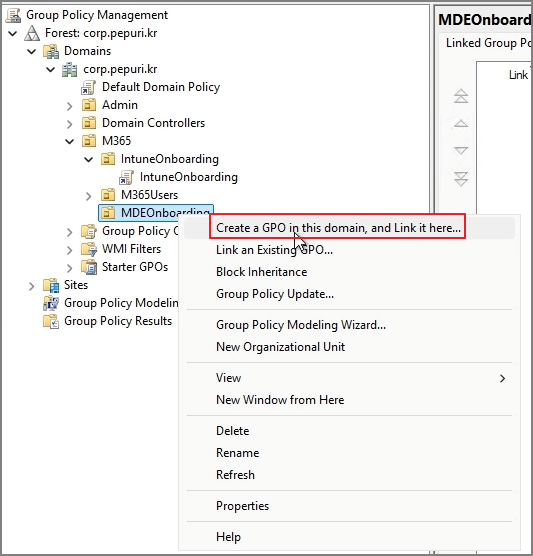
Edit the GPO and go to the following path.
Computer Configuration
→ Preferences
→ Control Panel Settings
→ Scheduled Tasks
Create a new task.
New
→ Immediate Task (At least Windows 7)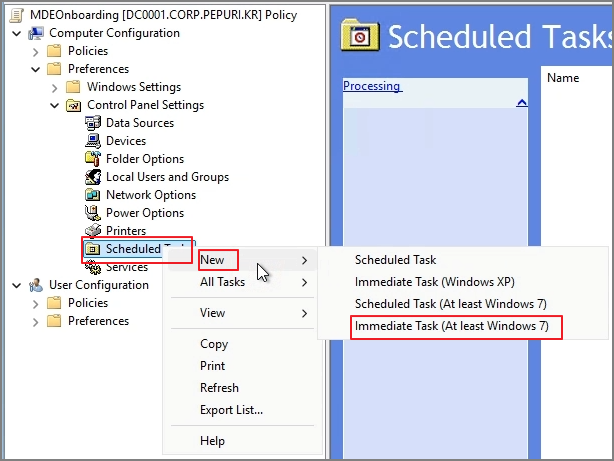
This method runs the task immediately on the target device when the GPO is applied.
4.6. General settings for the Scheduled Task
In the General tab of the Scheduled Task, configure the following.
Change User or Group
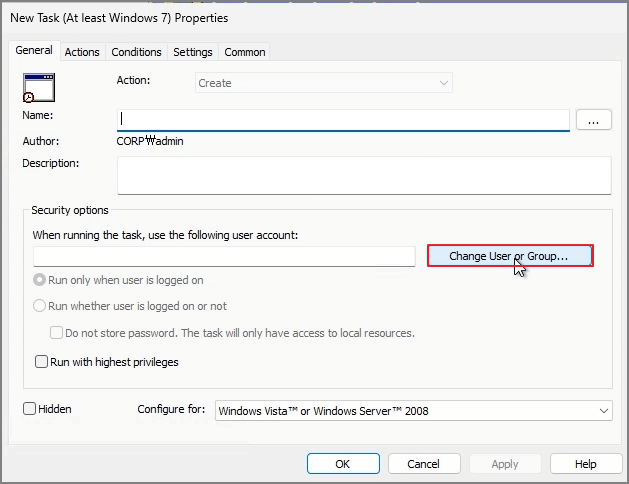
Alternatively, enter SYSTEM in the UI and click Check Names. It should be resolved as follows.
NT AUTHORITY\SYSTEM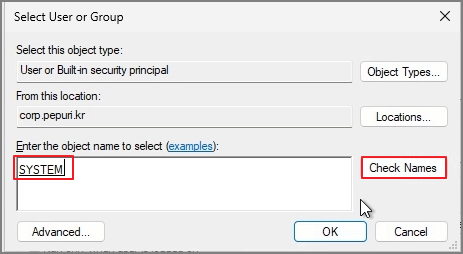
Configure the options as follows.
Run whether user is logged on or not
Run with highest privileges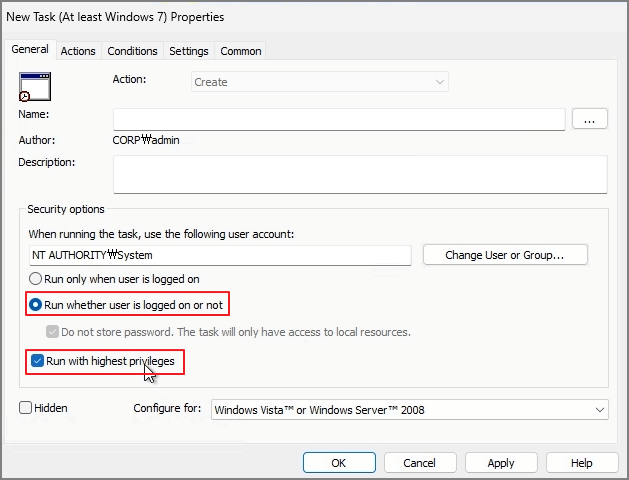
The reason for using these settings is that the onboarding script must run with system privileges, not user privileges.
Add a new action in the Actions tab.
Actions
→ New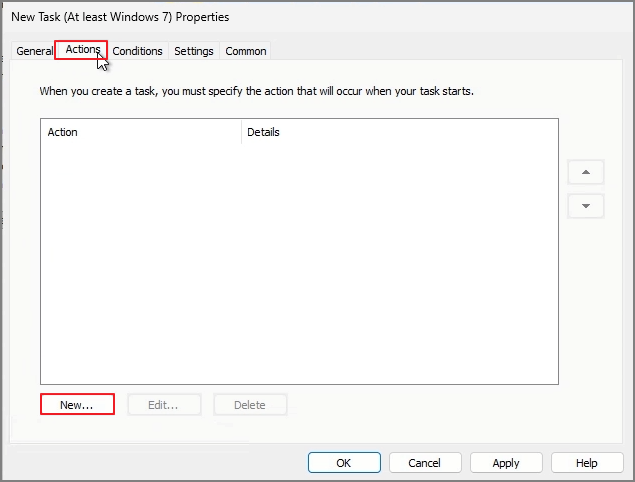
In Action, enter the path as follows.

For Program/script, enter the UNC path of the onboarding script.
\\fileserver.contoso.com\MDEOnboarding\WindowsDefenderATPOnboardingScript.cmdIt is better to use a UNC path here rather than a local path.
4.7. Checking the MDE onboarding status on the client
To check the onboarding status on the client, you can check the registry and the service status.
First, check whether the Sense service exists and is running.
Get-Service SenseIf it is running correctly, you should see a status similar to the following.
Status   Name    DisplayName
------   ----    -----------
Running  Sense   Windows Defender Advanced Threat Protection Service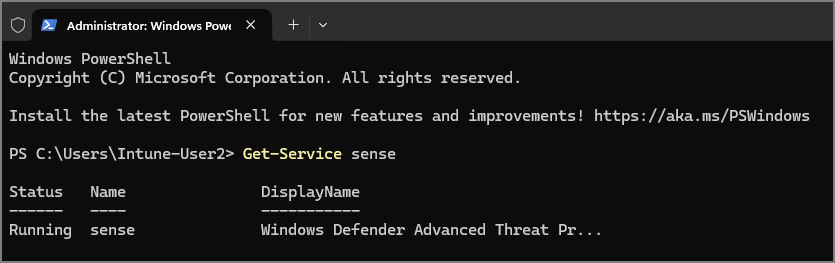
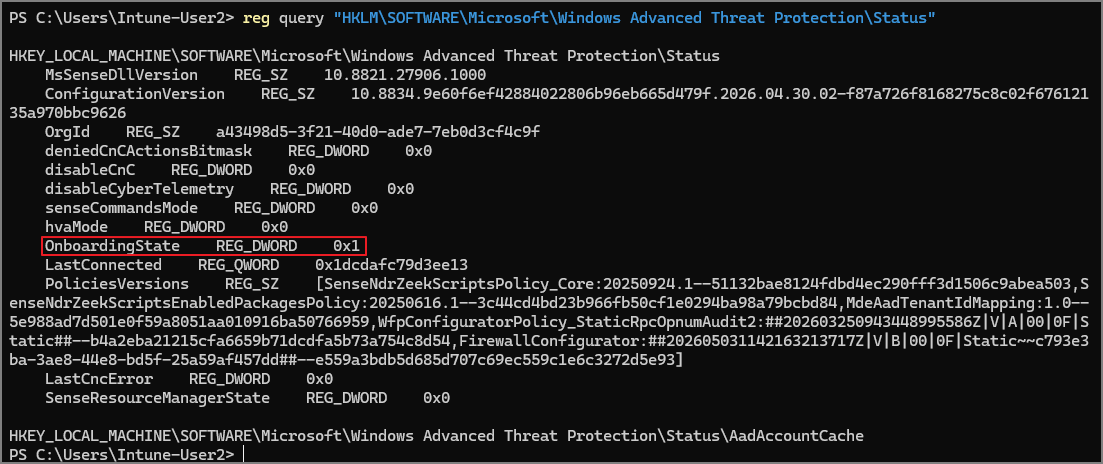
You can also check the onboarding status in the registry.
reg query "HKLM\SOFTWARE\Microsoft\Windows Advanced Threat Protection\Status"
For example, the following value can help you determine the onboarding status.
OnboardingState
In general, if the OnboardingState value is 1, the device can be considered onboarded.
Once onboarding is completed, check whether the device appears in the Microsoft Defender portal.
The path is as follows.
Microsoft Defender portal
→ Assets
→ Devices
A successfully onboarded device appears in the Devices list.

However, the device may not appear immediately.
In general, the following process may take some time.
GPO application
→ Scheduled Task execution
→ Onboarding script execution
→ Sense service initialization
→ Initial security signal transmission
→ Device appears in the Defender portal
Therefore, even if the device does not appear immediately after onboarding, check again after some time.
4.8. Integration

MDE-onboarded devices can receive some Endpoint Security policies through Microsoft Defender for Endpoint Security settings management, even if they are not MDM-enrolled into Intune, by using the Integration setting.
This method is useful in the following environments.
- Server devices
- Existing AD Joined devices that are difficult to enroll into Intune
- Environments operated mainly with GPO
- Environments where you want to onboard to Defender for Endpoint first and quickly
- Intermediate stages before transitioning to Intune MDM management
To apply Integration, you need to check the Enforcement Scope in the Defender portal.
The path is as follows.
Microsoft Defender portal
→ Settings
→ Endpoints
→ Configuration management
→ Enforcement scope
Here, you specify the scope of devices to which Microsoft Defender for Endpoint can apply security settings.
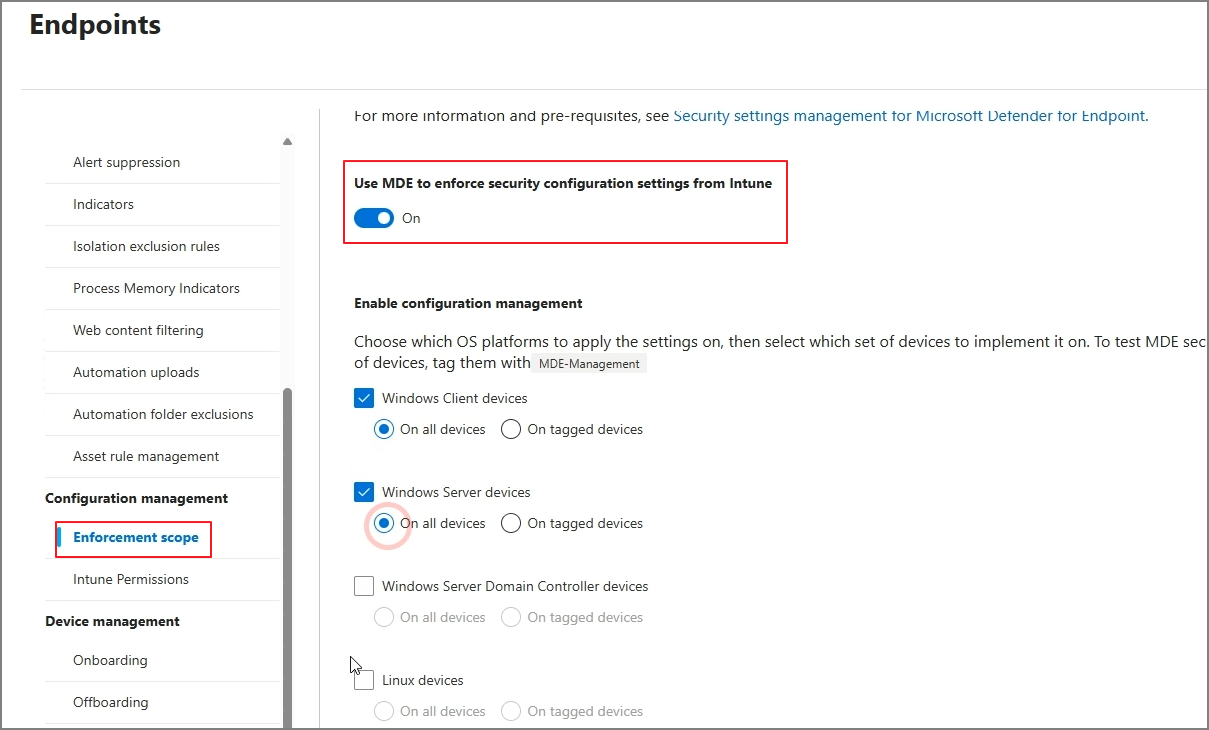
You can set the scope to all devices, or limit it to devices with specific tags.
In a production environment, rather than targeting all devices from the beginning, it is better to limit the scope using a test tag first.
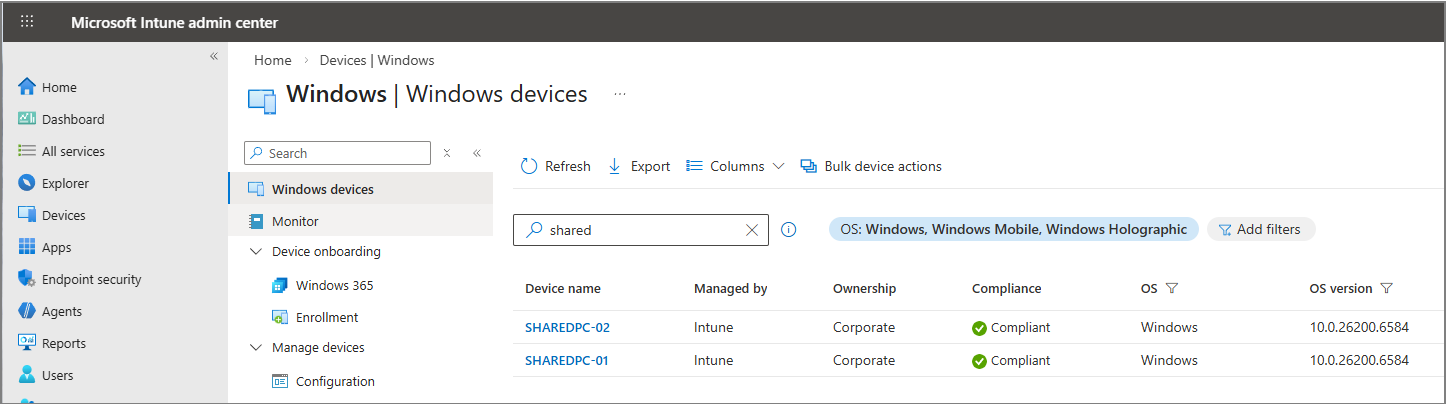
You can check the applied devices in the Intune admin center.
Microsoft Intune admin center
→ Devices
→ All devices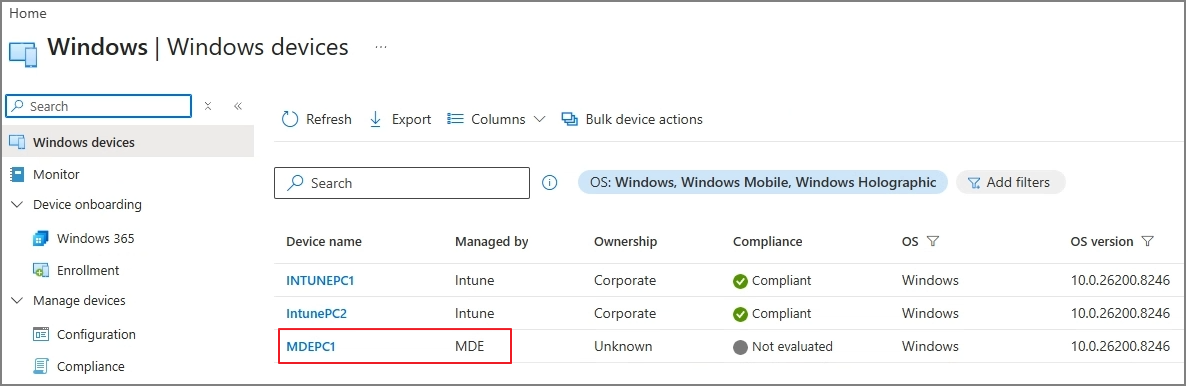
To summarize:
Intune Onboarding
= A method where the device is enrolled into Intune and managed as Managed by Intune

MDE Onboarding
= A method where the device is onboarded to Defender for Endpoint through Group Policy and managed as Managed by MDE
Therefore, when explaining Endpoint DLP or Defender for Endpoint in an existing AD-based environment, it is more natural to first explain that devices can be connected to Defender for Endpoint through Group Policy-based MDE onboarding, and then security settings can be managed in the Managed by MDE state.
The next post and video will cover the detailed settings of Endpoint DLP or MDE.