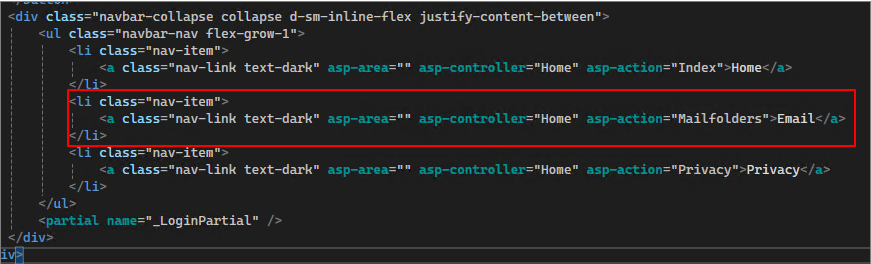
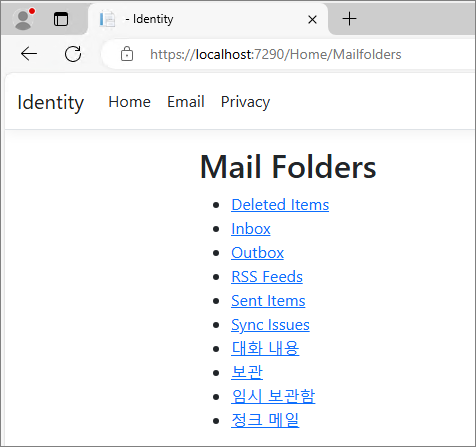
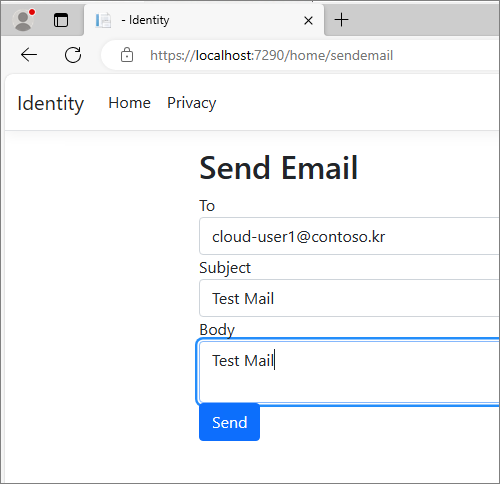
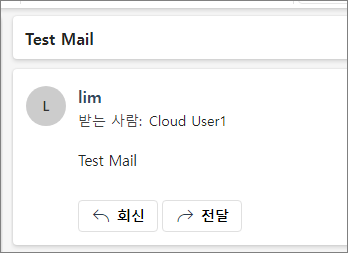
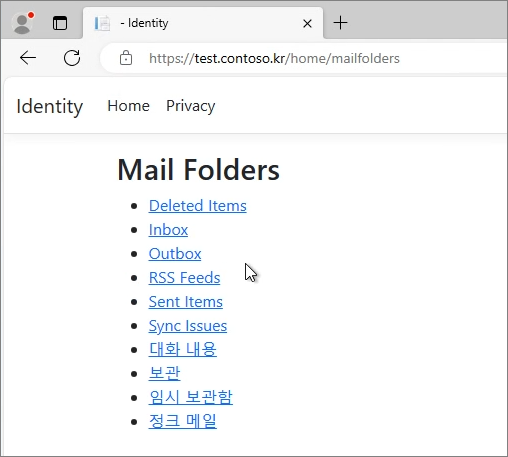
Continuing from the previous post, this time we will implement the functionality to compose and send emails using the Mail.Send permission of the Graph API.
We'll continue using the project created in the previous post.
The process pattern is somewhat established at this point:
Step 1: Add Mail.Send permission
Step 2: Create a ViewModel for sending emails
Step 3: Create a View for composing and sending emails
Step 4: Add the Action Method for sending emails
Step 1. Add Mail.Send permission
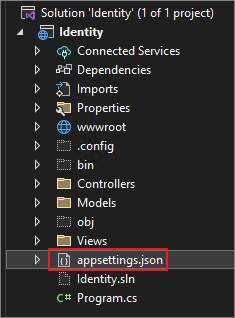
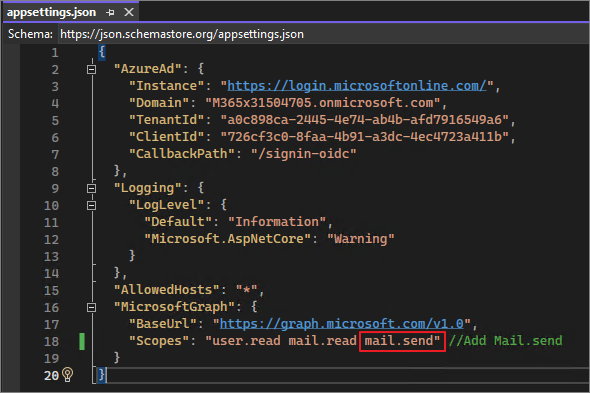
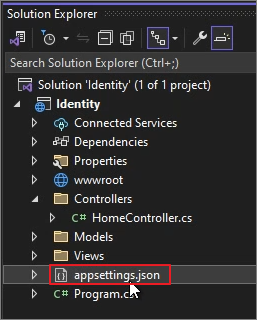
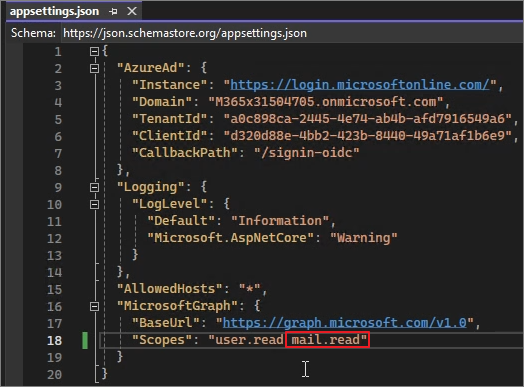
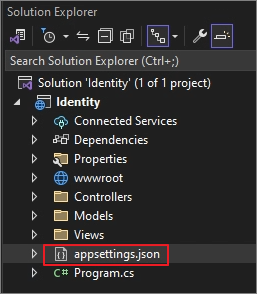
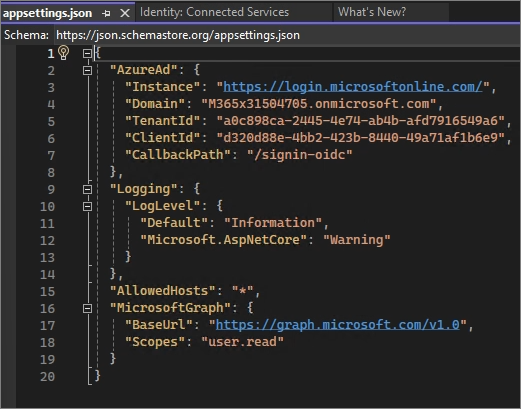
Appsettings.json
Add Mail.Send permission.
Step 2. Create a View Model for Sending Emails
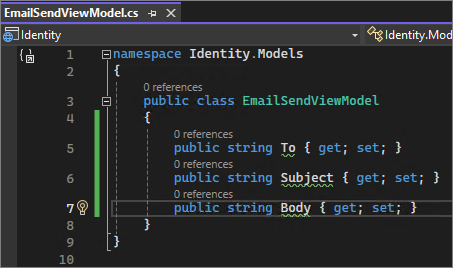
Create the EmailSendViewModel to hold the data needed for sending emails. This model will include fields like recipient address, email subject, and email body.
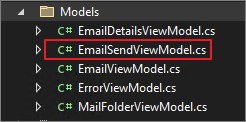
Create the EmailSendViewModel class
public class EmailSendViewModel
{
public string To { get; set; } = string.Empty;
public string Subject { get; set; } = string.Empty;
public string Body { get; set; } = string.Empty;
}
Step 3. Create a View for Sending Emails
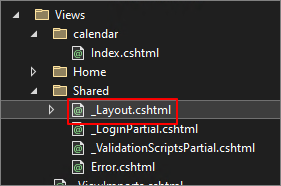
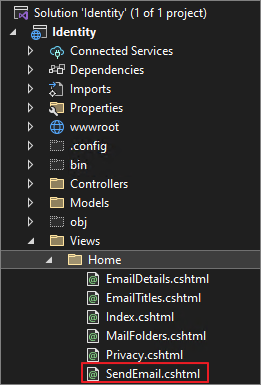
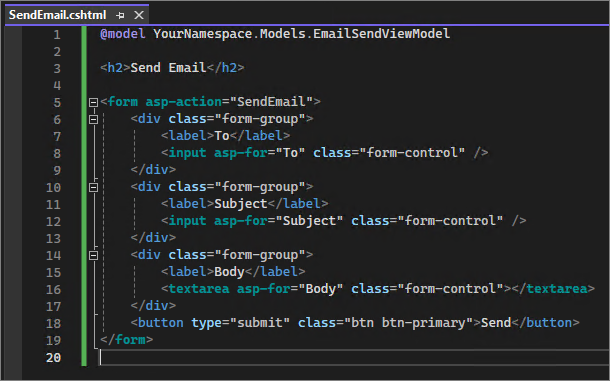
Create a view (SendEmail.cshtml) in the Views/Home directory, where users can compose and send emails. This view will use the EmailSendViewModel as its model.
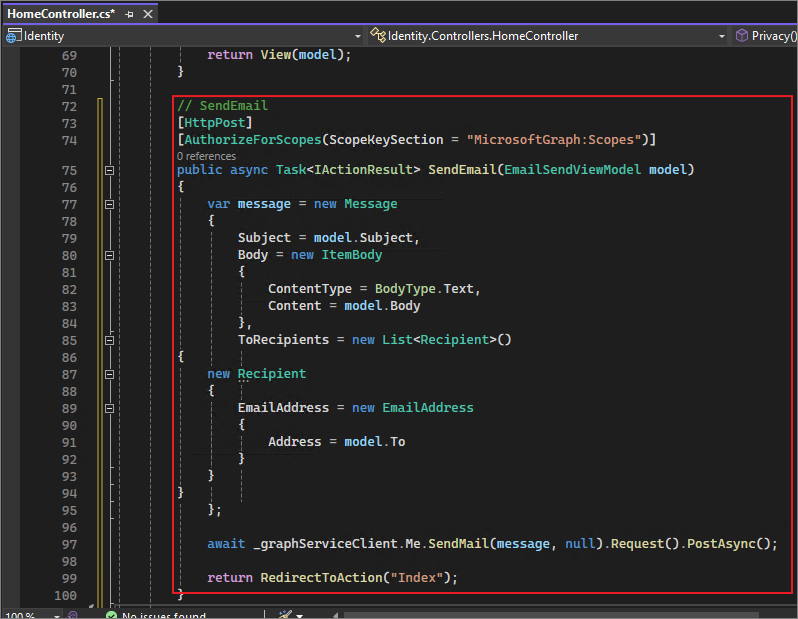
Add the SendEmail action method to the HomeController. This method accepts EmailSendViewModel as a parameter and sends an email using the Microsoft Graph API.
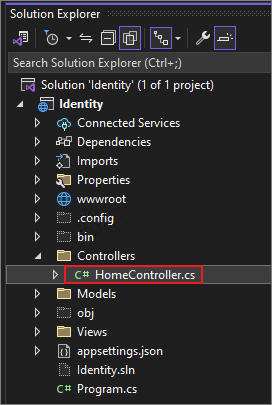
Modify HomeController.cs.
Add the following content.
// GET action method to display the email sending form
[HttpGet]
public IActionResult SendEmail()
{
return View(new EmailSendViewModel()); // Pass an empty model to the view
}
// Sendemail
[HttpPost]
[AuthorizeForScopes(ScopeKeySection = "MicrosoftGraph:Scopes")]
public async Task<IActionResult> SendEmail(EmailSendViewModel model)
{
var message = new Message
{
Subject = model.Subject,
Body = new ItemBody
{
ContentType = BodyType.Text,
Content = model.Body
},
ToRecipients = new List<Recipient>()
{
new Recipient
{
EmailAddress = new EmailAddress
{
Address = model.To
}
}
}
};
await _graphServiceClient.Me.SendMail(message, null).Request().PostAsync();
return RedirectToAction("Index");
}
Continuing from the previous post, this time we will use the Mail.Read permission in the Graph API to retrieve mail folders, subject lines, and content, and publish them on IIS.
We will continue using the project created in the previous post.
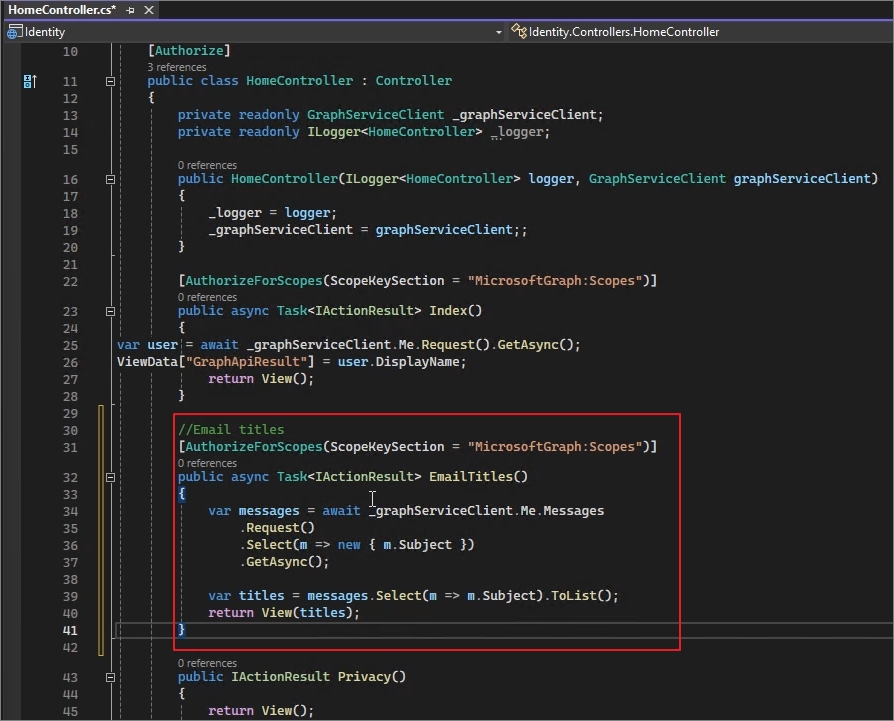
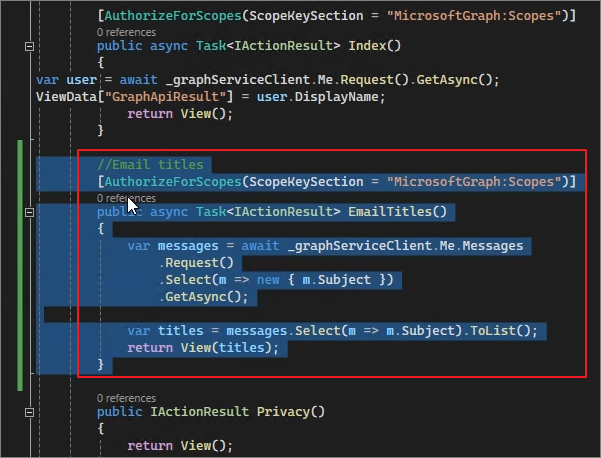
Add the //Email Titles section to the existing code as shown below.
using Identity.Models;
using Microsoft.AspNetCore.Authorization;
using Microsoft.AspNetCore.Mvc;
using System.Diagnostics;
using Microsoft.Graph;
using Microsoft.Identity.Web;
namespace Identity.Controllers
{
[Authorize]
public class HomeController : Controller
{
private readonly GraphServiceClient _graphServiceClient;
private readonly ILogger<HomeController> _logger;
public HomeController(ILogger<HomeController> logger, GraphServiceClient graphServiceClient)
{
_logger = logger;
_graphServiceClient = graphServiceClient;
}
[AuthorizeForScopes(ScopeKeySection = "MicrosoftGraph:Scopes")]
public async Task<IActionResult> Index()
{
var user = await _graphServiceClient.Me.Request().GetAsync();
ViewData["GraphApiResult"] = user.DisplayName;
return View();
}
// Email Titles
[AuthorizeForScopes(ScopeKeySection = "MicrosoftGraph:Scopes")]
public async Task<IActionResult> EmailTitles()
{
var messages = await _graphServiceClient.Me.Messages
.Request()
.Select(m => new { m.Subject })
.GetAsync();
var titles = messages.Select(m => m.Subject).ToList();
return View(titles);
}
public IActionResult Privacy()
{
return View();
}
[AllowAnonymous]
[ResponseCache(Duration = 0, Location = ResponseCacheLocation.None, NoStore = true)]
public IActionResult Error()
{
return View(new ErrorViewModel { RequestId = Activity.Current?.Id ?? HttpContext.TraceIdentifier });
}
}
}
Create the View.
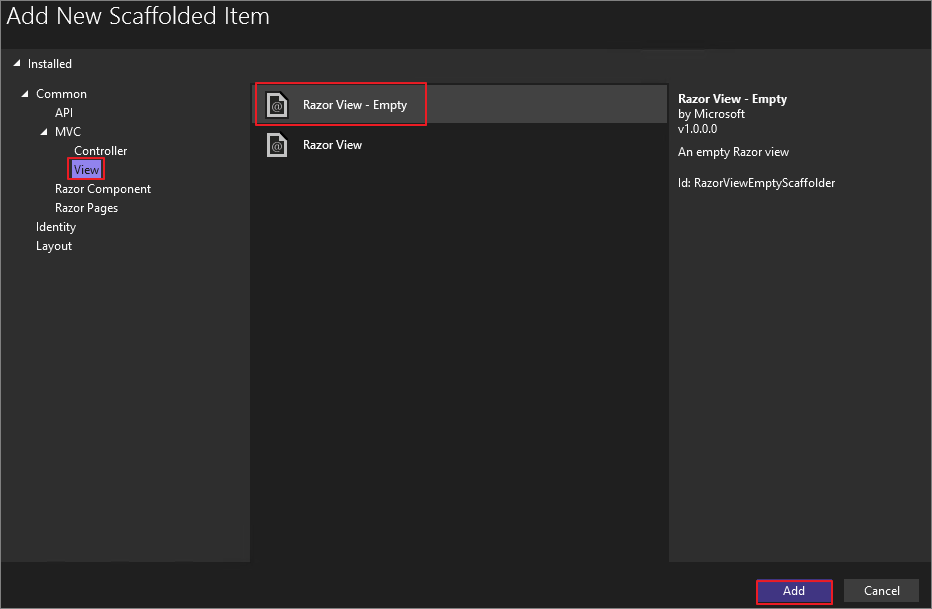
Views -> Home -> Add -> View
Razor View -> Empty -> Add
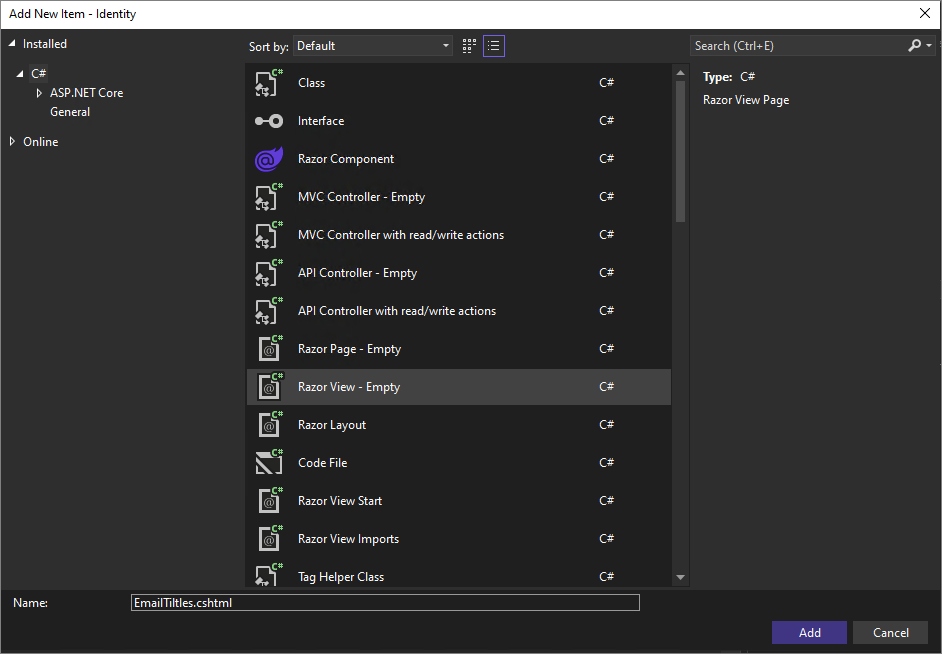
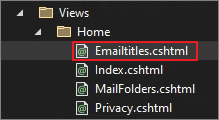
EmailTitles.cshtml -> Add
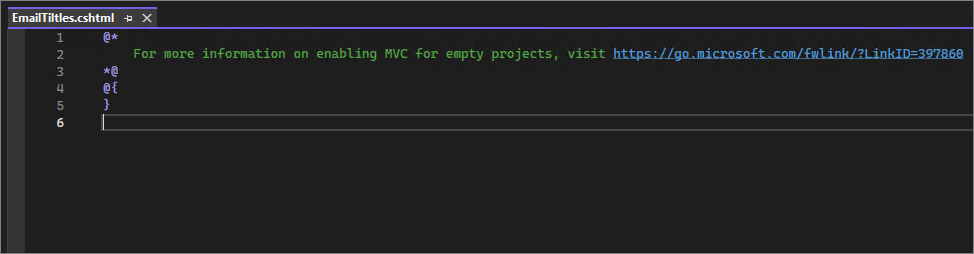
It will be generated as shown below.
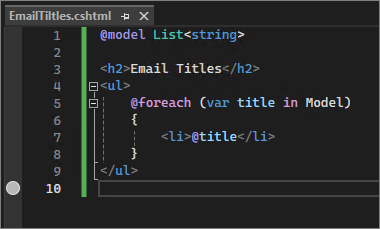
Modify the content as follows.
@model List<string>
<h2>Email Titles</h2>
<ul>
@foreach (var title in Model)
{
<li>@title</li>
}
</ul>
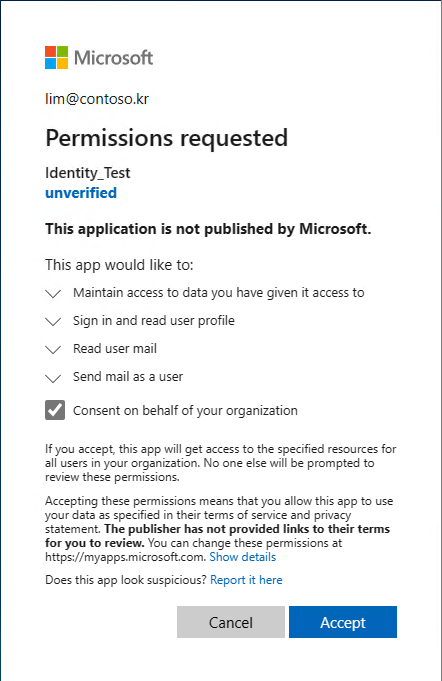
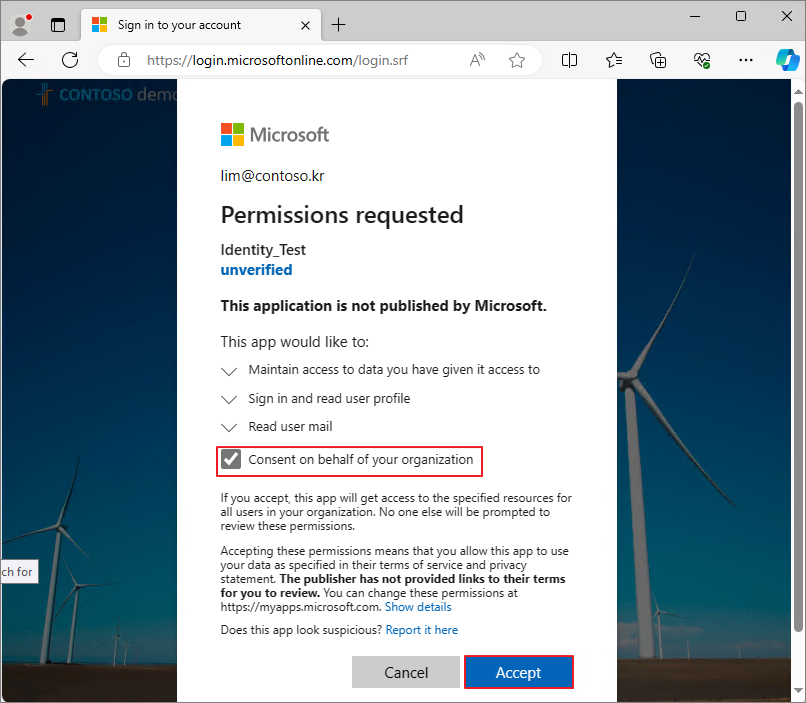
Start Debuging -> Log in -> Verify permissions and click Accept.
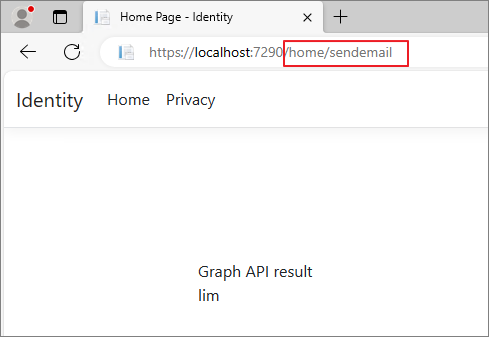
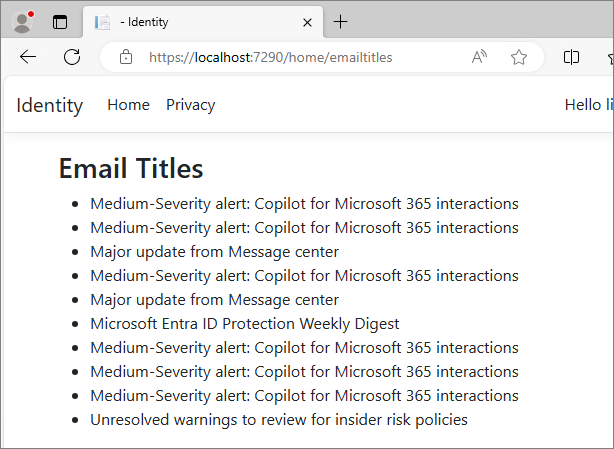
When you navigate to the Home/emailtitles URL, it will be displayed as shown below.
When compared with OWA (Outlook Web App), you can see that only the email subjects have been retrieved.
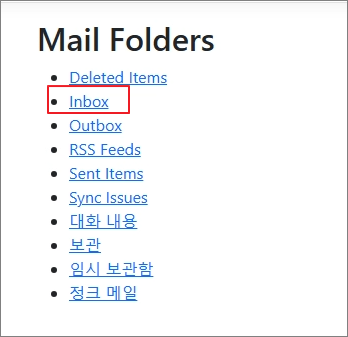
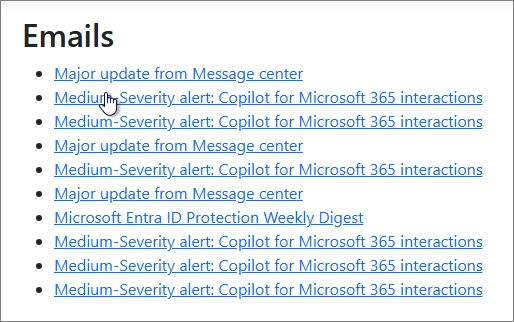
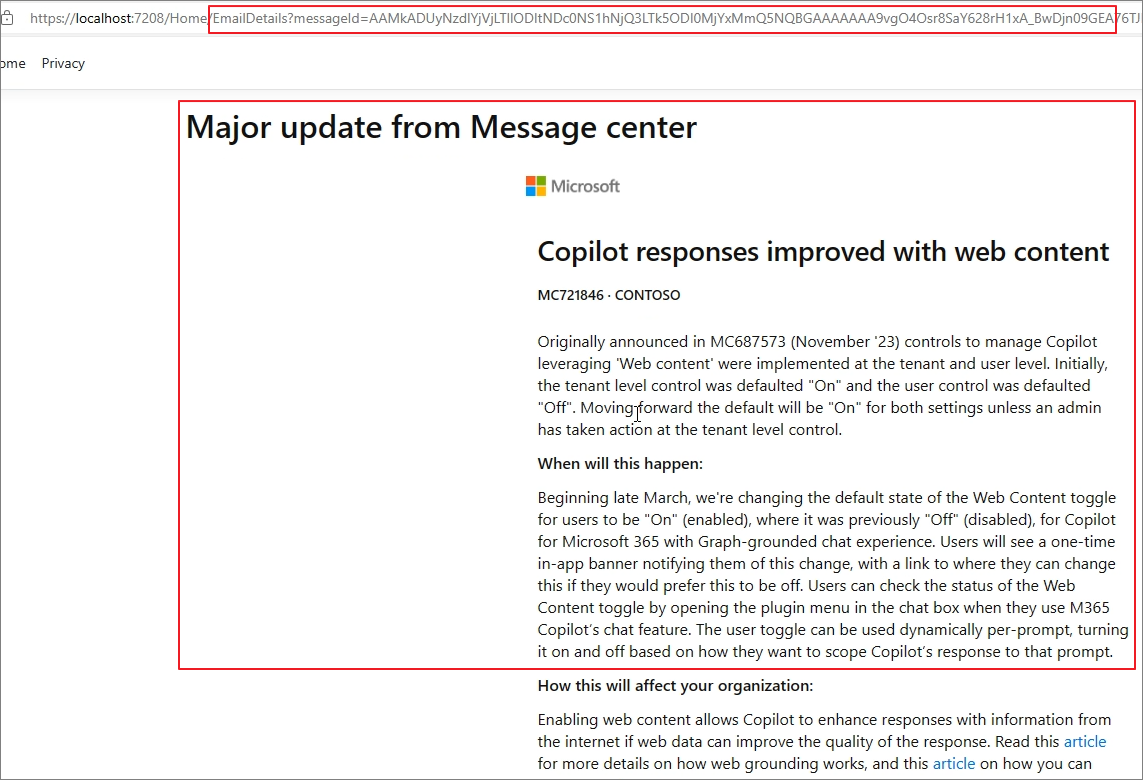
This time, let's create a page that retrieves and displays emails in the following structure: Folder -> Subject -> Body.
Step2. Action Method
Action Methods in the controller handle HTTP requests and retrieve data by calling the Microsoft Graph API. We will implement Action Methods such as MailFolders, EmailTitles, and EmailDetails to fetch the list of mail folders, the list of emails in a specific folder, and the detailed content of an email, respectively.
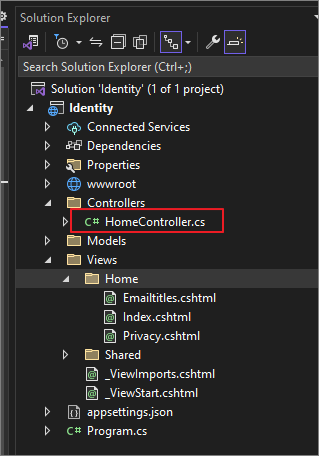
Modify the HomeController.cs file
Remove the existing Email Titles code.
Insert the code for Mail Folders, Titles, and Details respectively.
//MailFolders
public async Task<IActionResult> MailFolders()
{
var mailFolders = await _graphServiceClient.Me.MailFolders
.Request()
.GetAsync();
return View(mailFolders.CurrentPage.Select(f => new MailFolderViewModel { Id = f.Id, DisplayName = f.DisplayName }).ToList());
}
//EmailTitles
public async Task<IActionResult> EmailTitles(string folderId)
{
var messages = await _graphServiceClient.Me.MailFolders[folderId].Messages
.Request()
.Select(m => new { m.Subject, m.Id })
.GetAsync();
var titles = messages.CurrentPage.Select(m => new EmailViewModel { Id = m.Id, Subject = m.Subject }).ToList();
return View(titles);
}
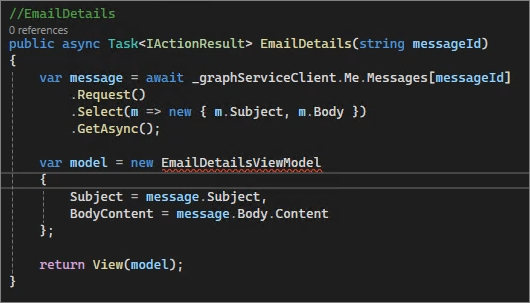
//EmailDetails
public async Task<IActionResult> EmailDetails(string messageId)
{
var message = await _graphServiceClient.Me.Messages[messageId]
.Request()
.Select(m => new { m.Subject, m.Body })
.GetAsync();
var model = new EmailDetailsViewModel
{
Subject = message.Subject,
BodyContent = message.Body.Content
};
return View(model);
}
Step3. View model
A View Model is a model used to pass data to the View and is used to define the data retrieved from the Action Method. For example, the EmailViewModel includes the email's ID and subject. This allows the data needed in the view to be structured and managed efficiently.
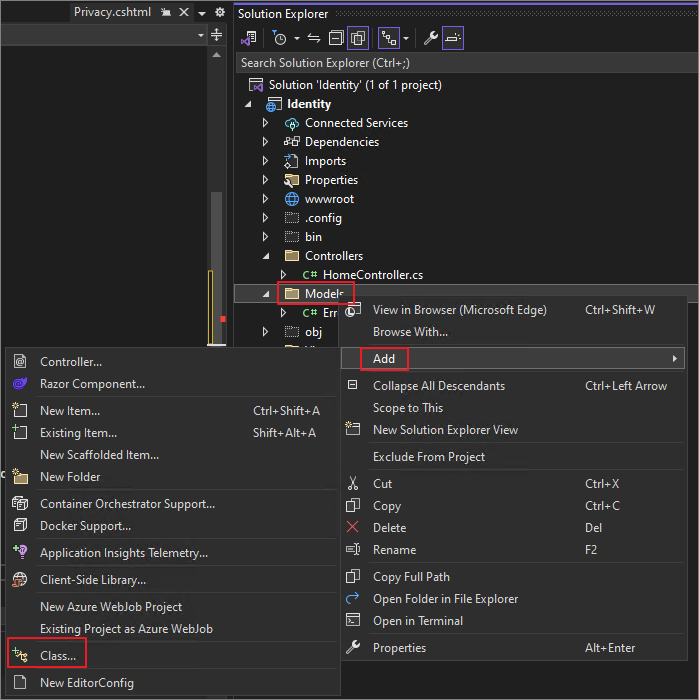
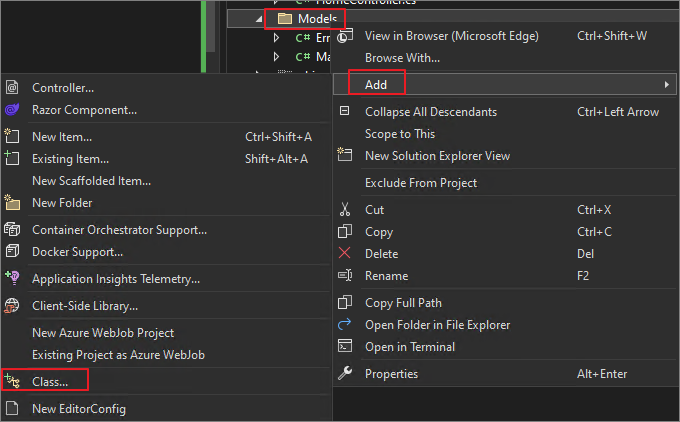
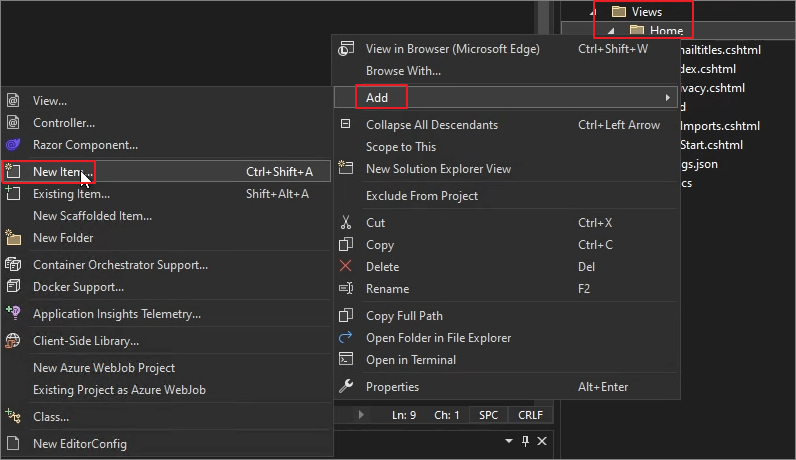
Right-Click on the Models folder -> Add -> Class
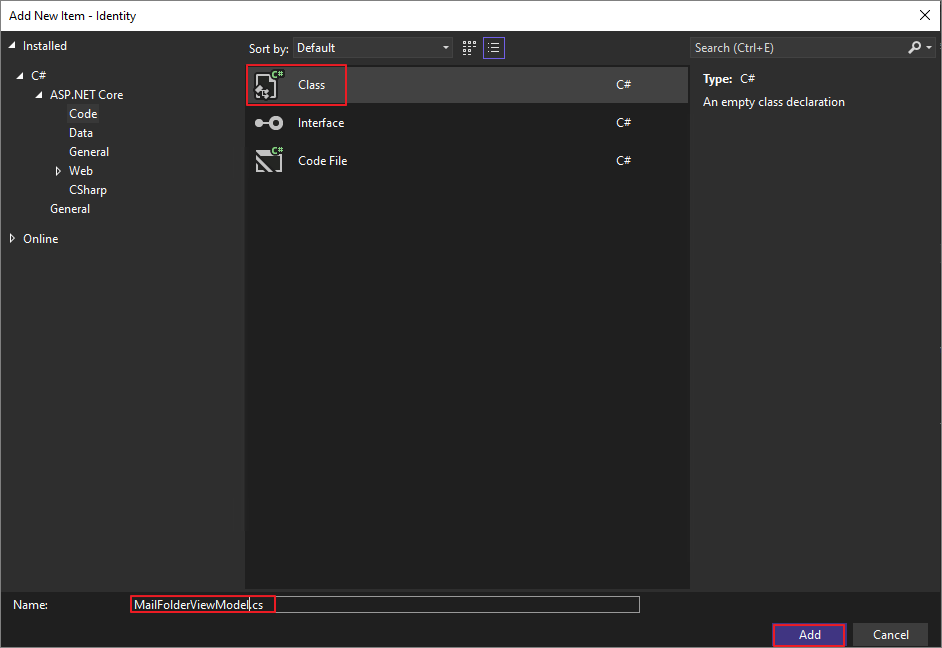
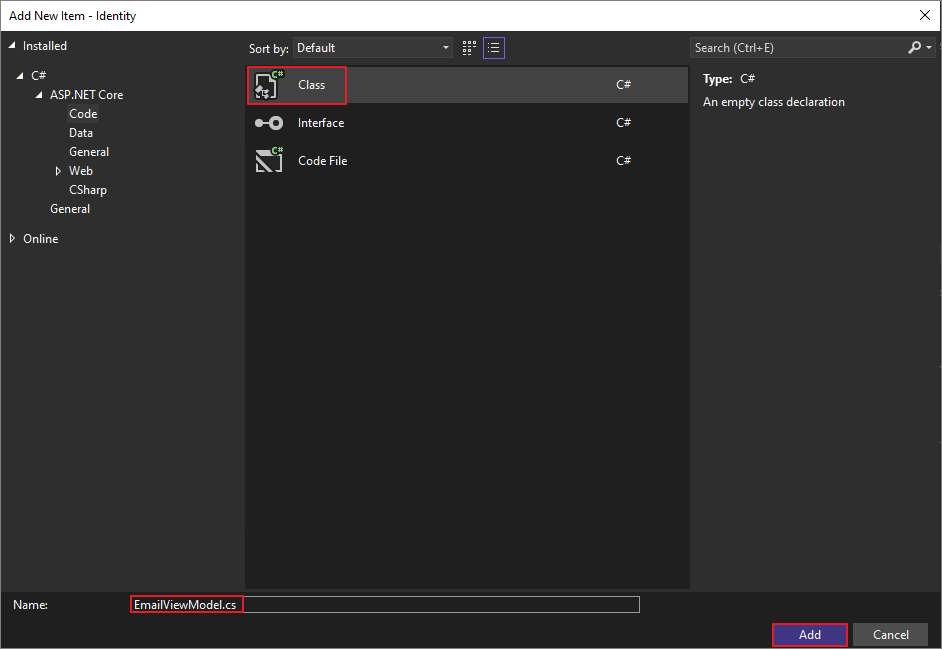
MailFolderViewModel.cs -> Add
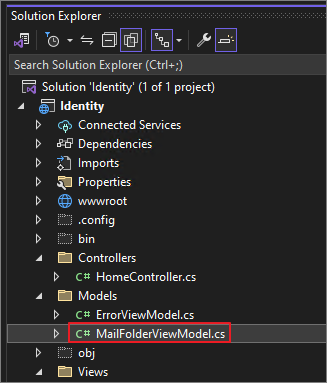
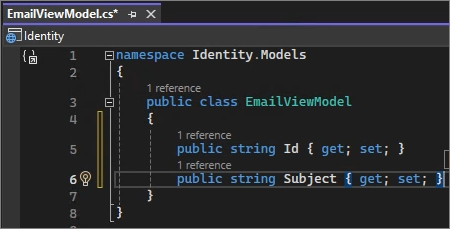
It will be generated as shown below.
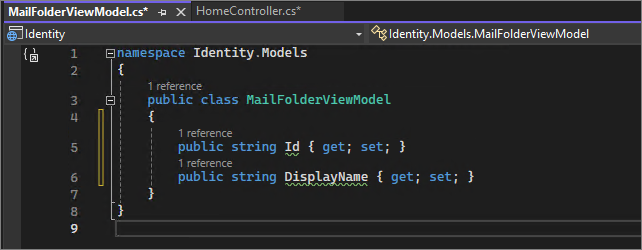
Modify it as shown below.
namespace Identity.Models
{
public class MailFolderViewModel
{
public string Id { get; set; }
public string DisplayName { get; set; }
}
}
Similarly, go to Models -> Add -> Class.
EmailViewModel.cs -> Next
Modify it as shown below -> Save.
namespace Identity.Models
{
public class EmailViewModel
{
public string Id { get; set; }
public string Subject { get; set; }
}
}
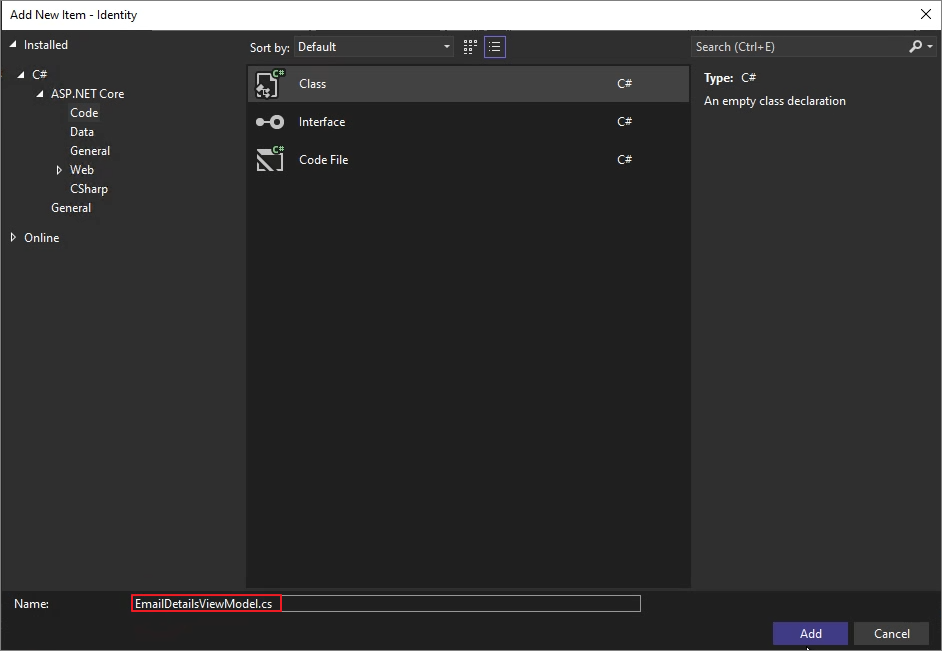
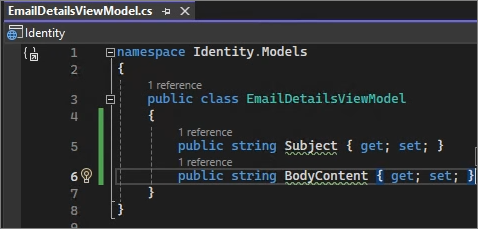
Add EmailDetailsViewModel.cs in the same way.
Modify it as shown below -> Save.
public class EmailDetailsViewModel
{
public string Subject { get; set; }
public string BodyContent { get; set; }
}
Step 4. View
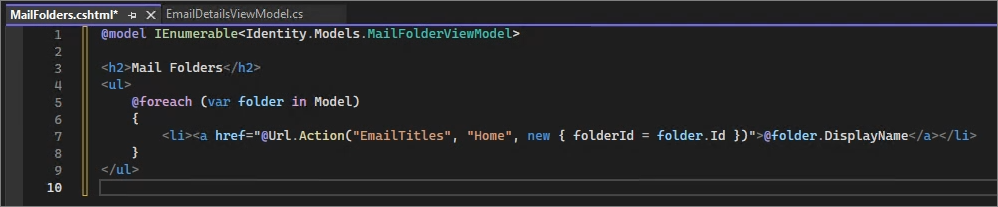
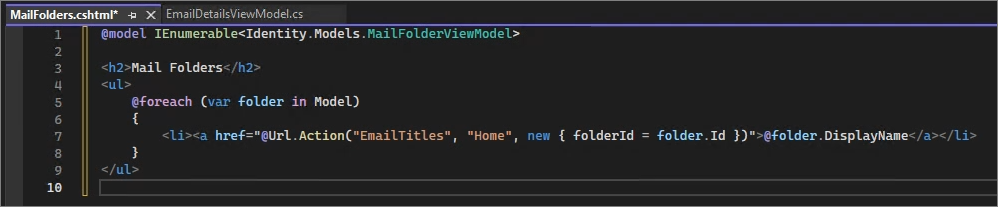
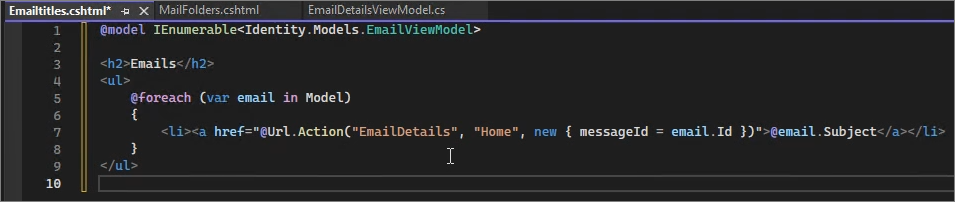
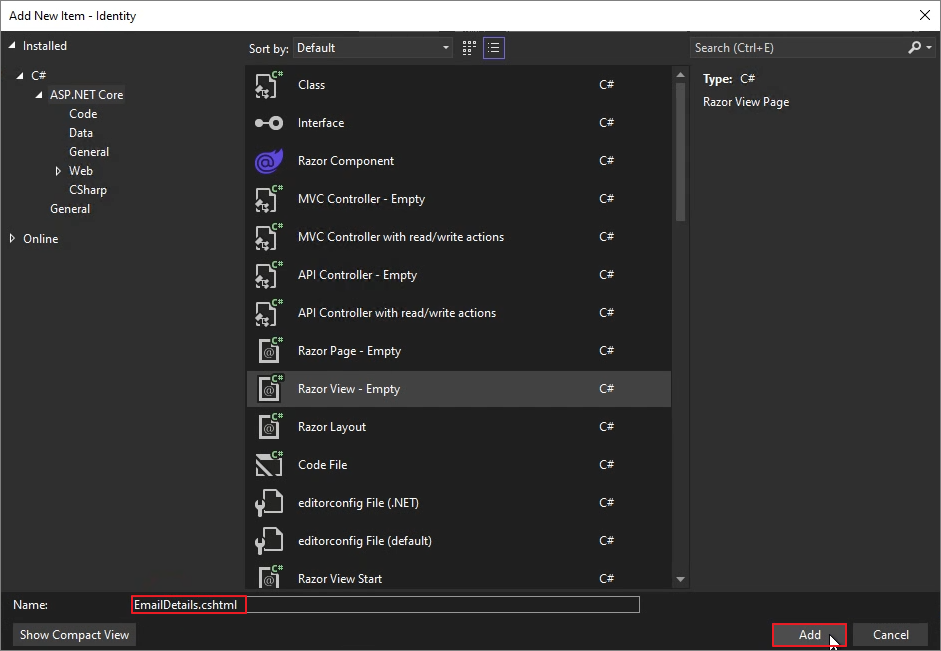
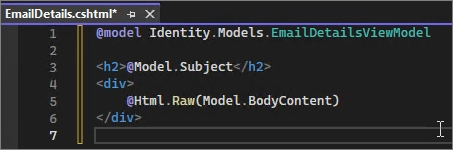
Finally, the View constructs the user interface and displays the data received from the View Model. Create corresponding view files for each action in the Views/Home directory.
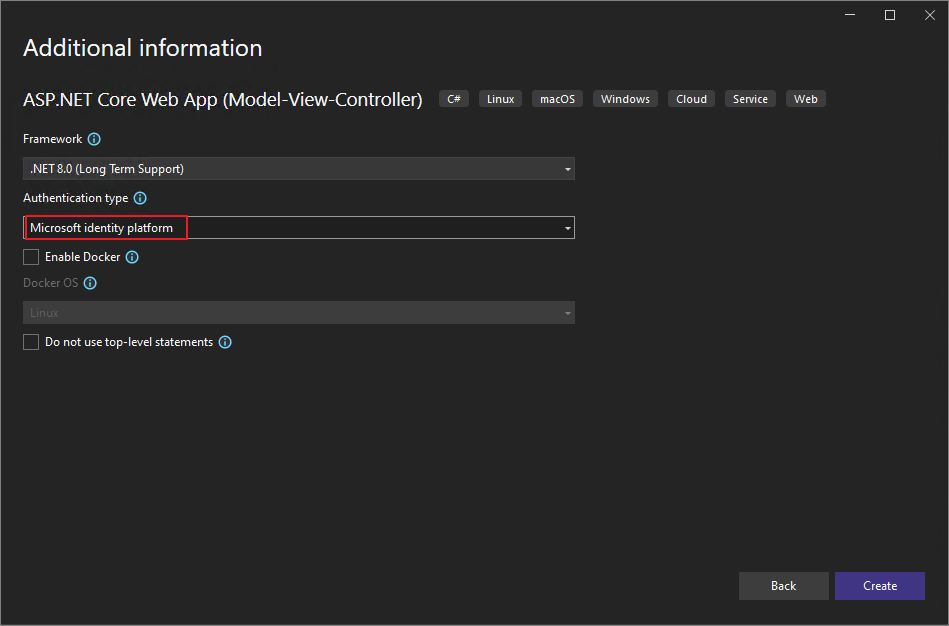
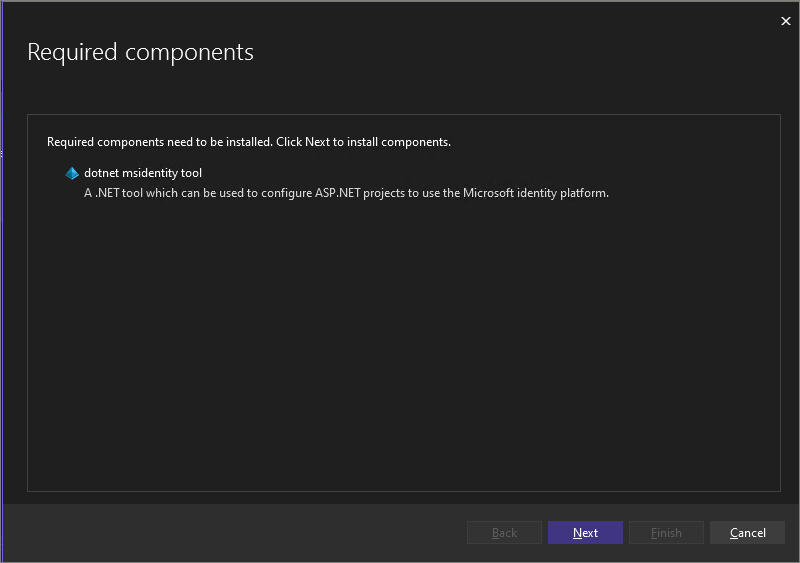
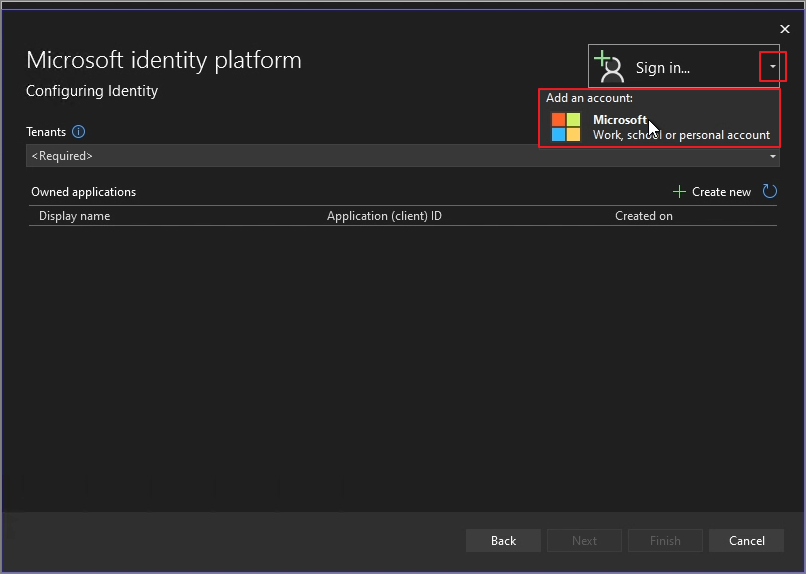
Authentication type -> Microsoft identity platform -> Create
Next
Sign in -> Microsoft
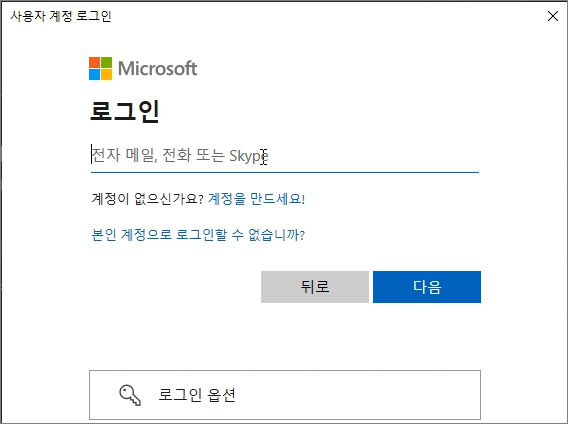
Log in with the administrator account.
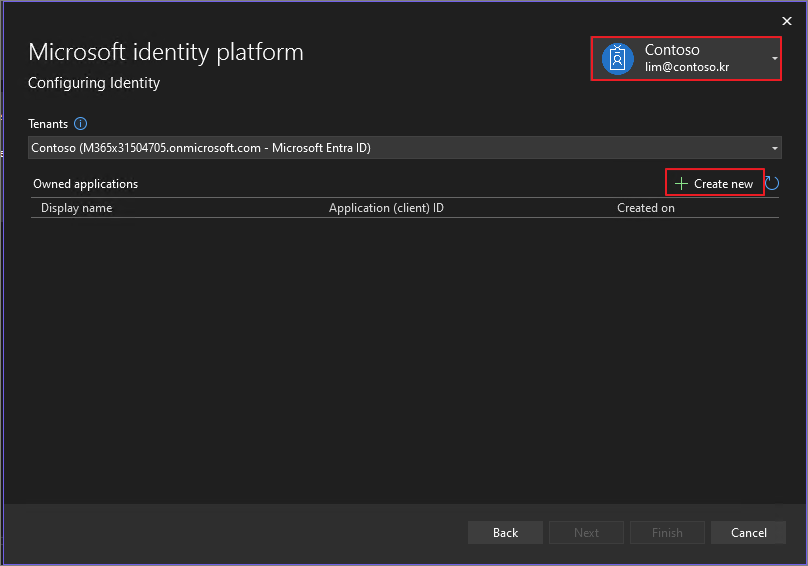
Create new
A browser window pops up. Log in with the administrator account.
Authentication complete.
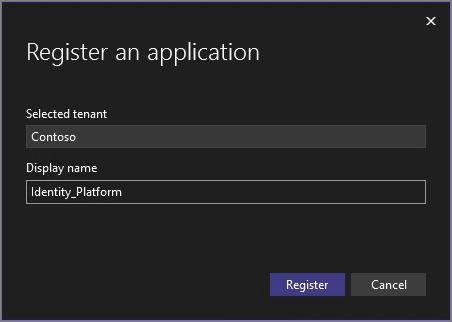
Specify the Display name. -> Register
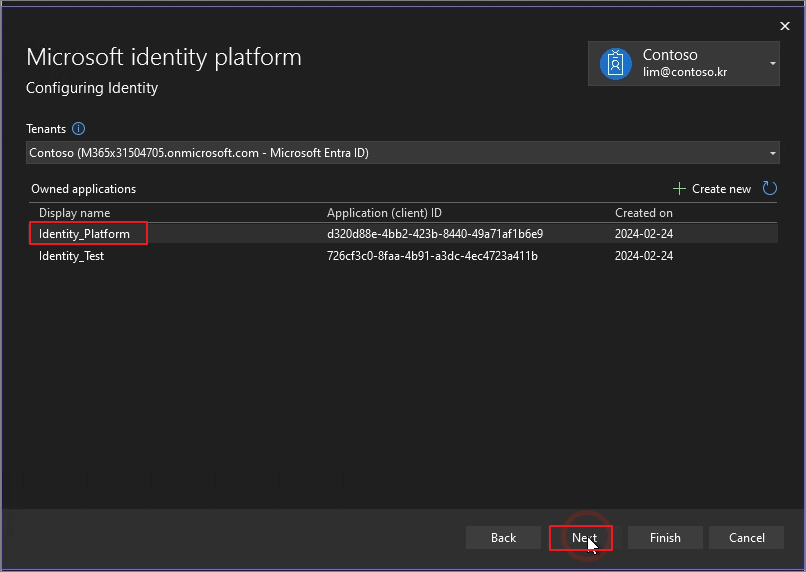
Confirm that the creation is successful.-> Next
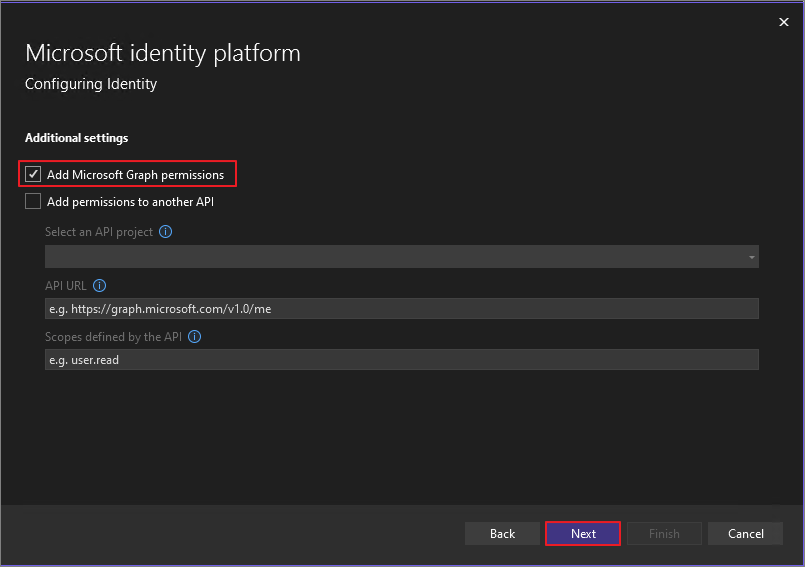
Add Microsoft Graph permissions -> Next
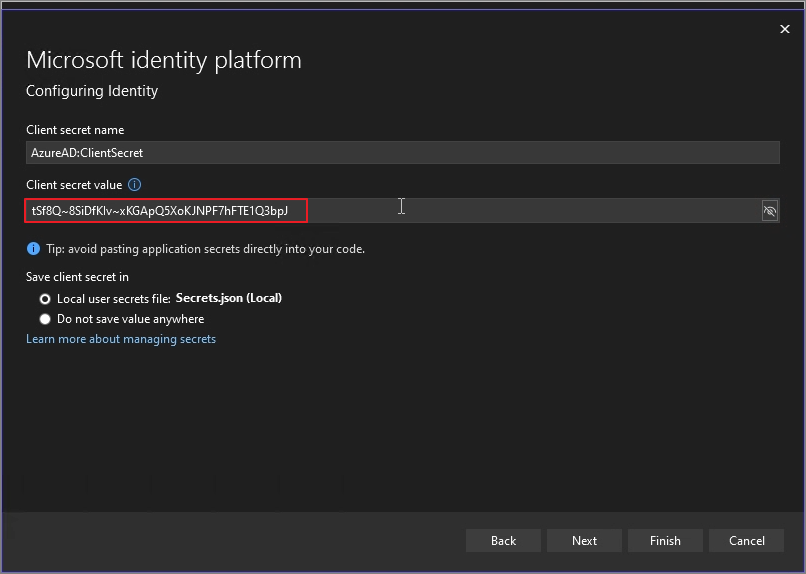
Save the Client secret value in a notepad.-> Next
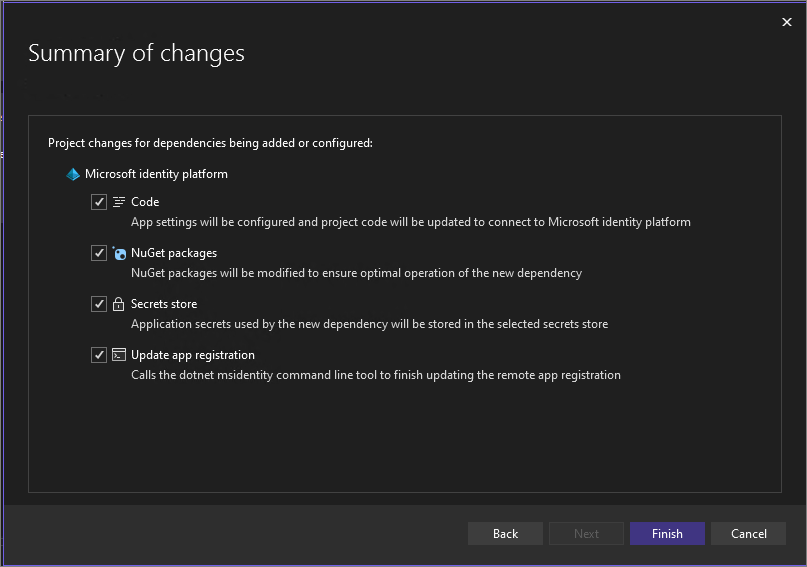
Finish
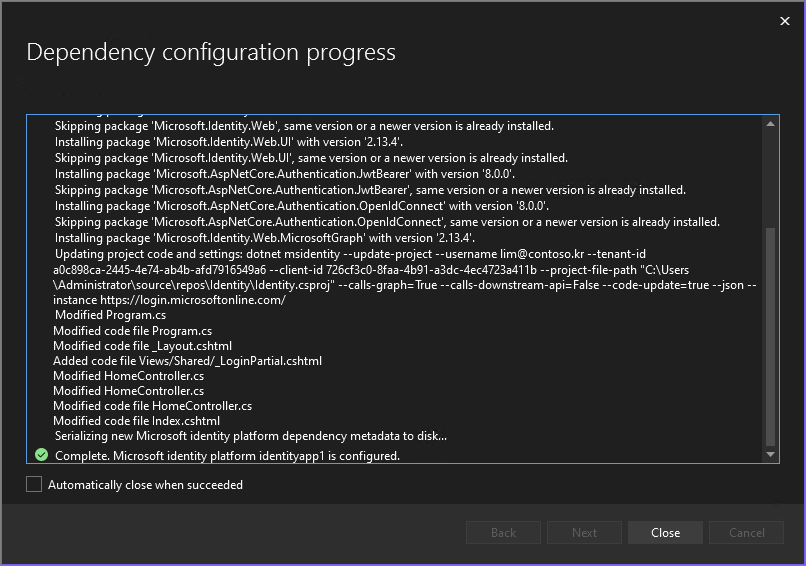
Close
Close
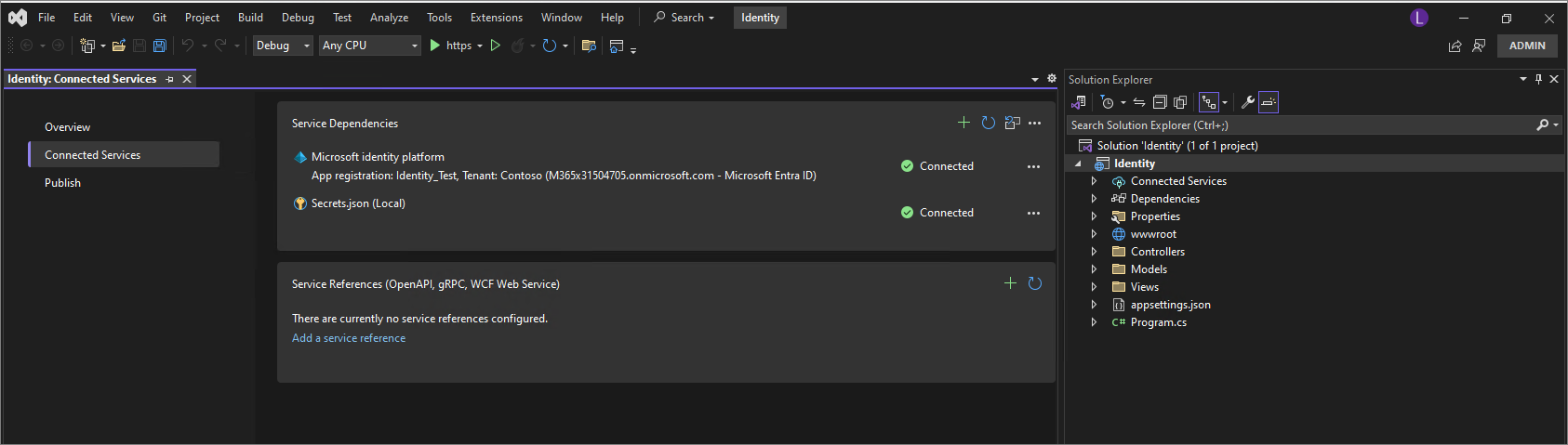
Service is registered, and verify that Secrets.json (Local) has been created.
Double-click on the Appsettings.json file.
The information for the created app is displayed.
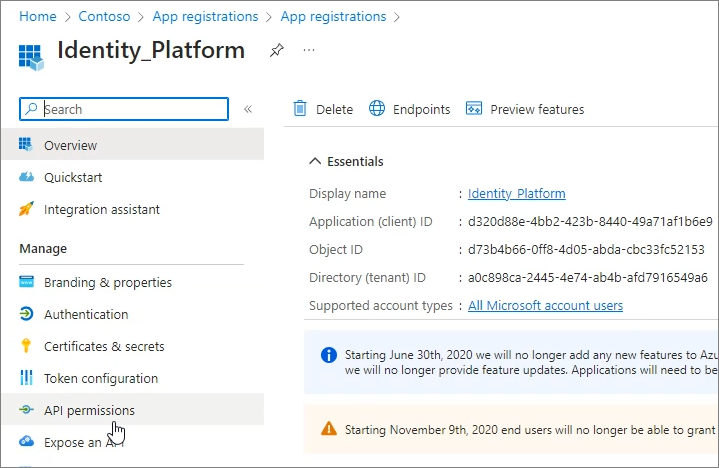
The same information is confirmed in Entra ID.
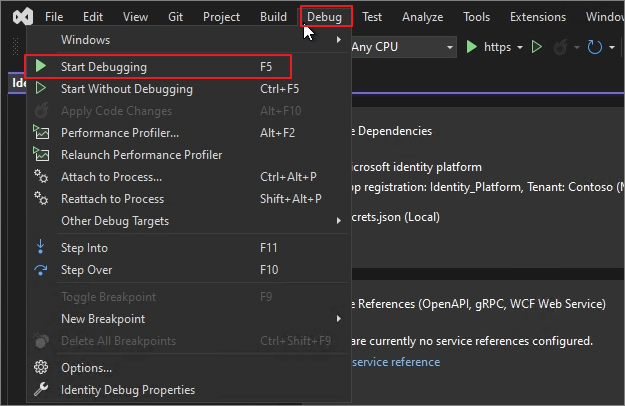
Start Debugging
After accessing localhost, you're redirected directly to the login page -> Log in with the administrator account.
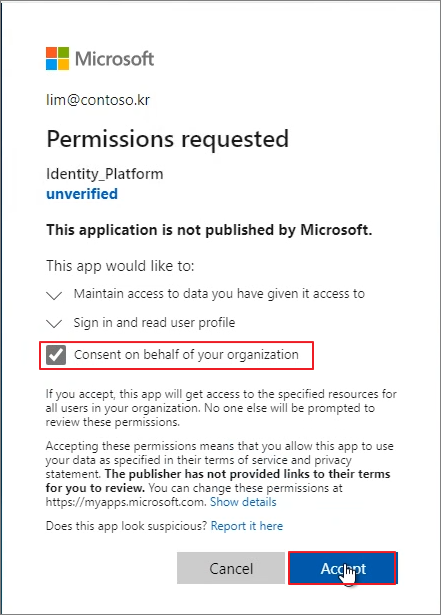
Upon first access, the permissions are displayed as shown below -> Click Accept. -> Accept
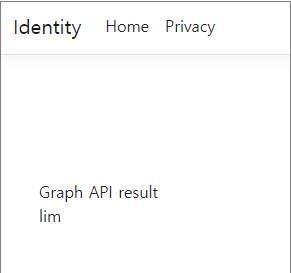
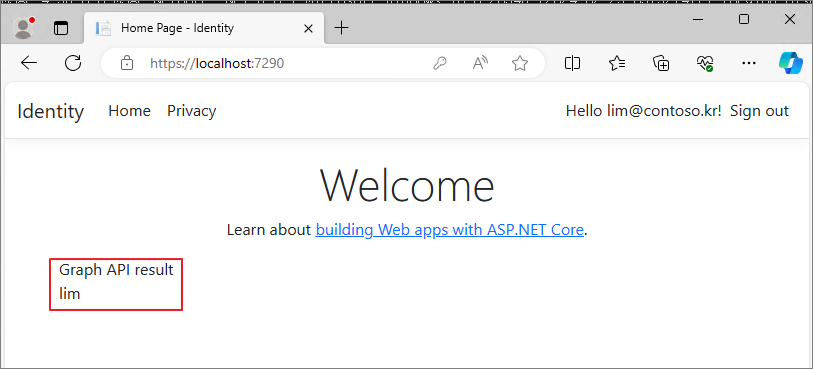
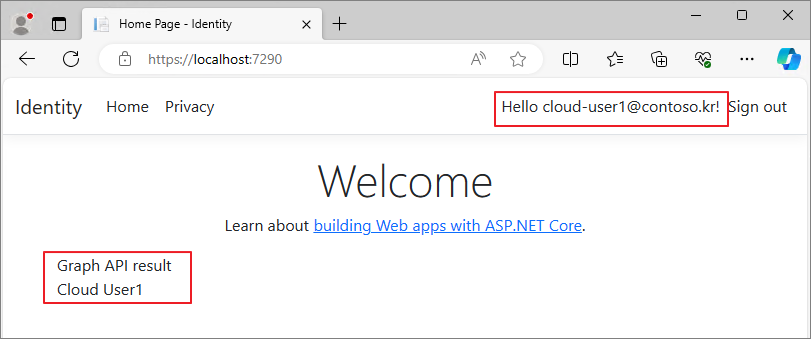
Display the logged-in account information.
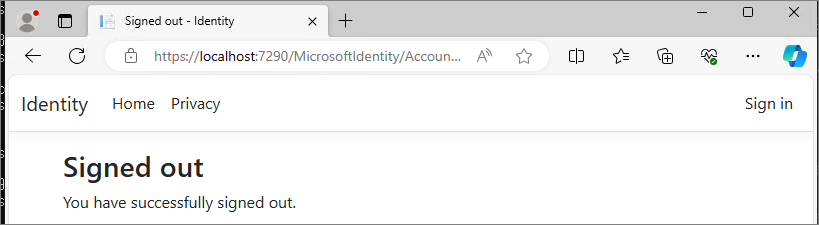
When you sign out, the following message is displayed.
When you log in with a different account, it displays the information of that account.
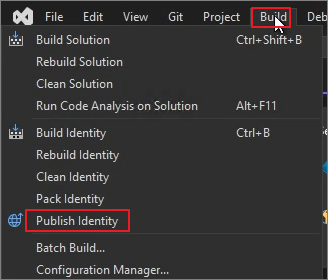
Build -> Identity
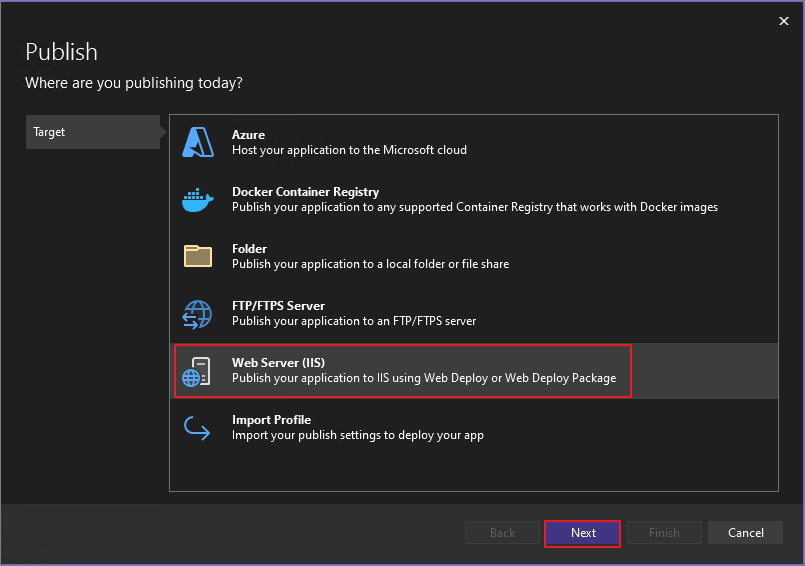
Web Server (IIS) -> Next
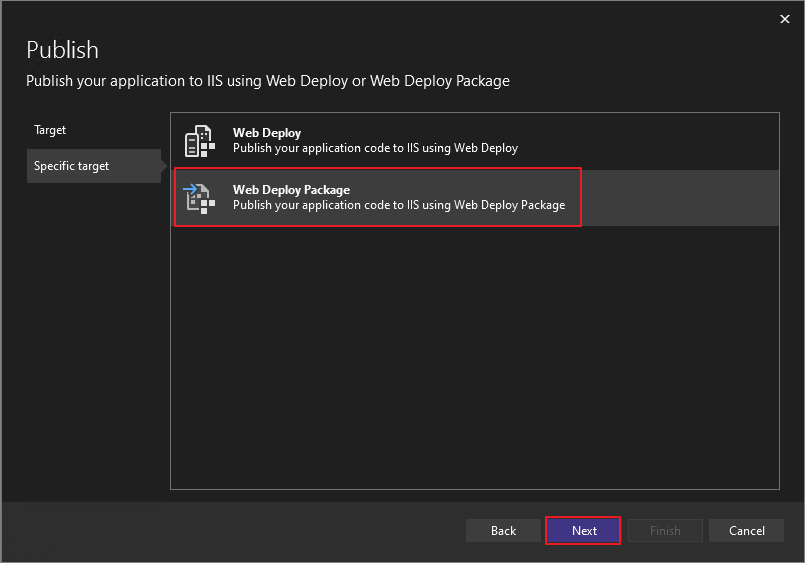
Web Deploy Package -> Next
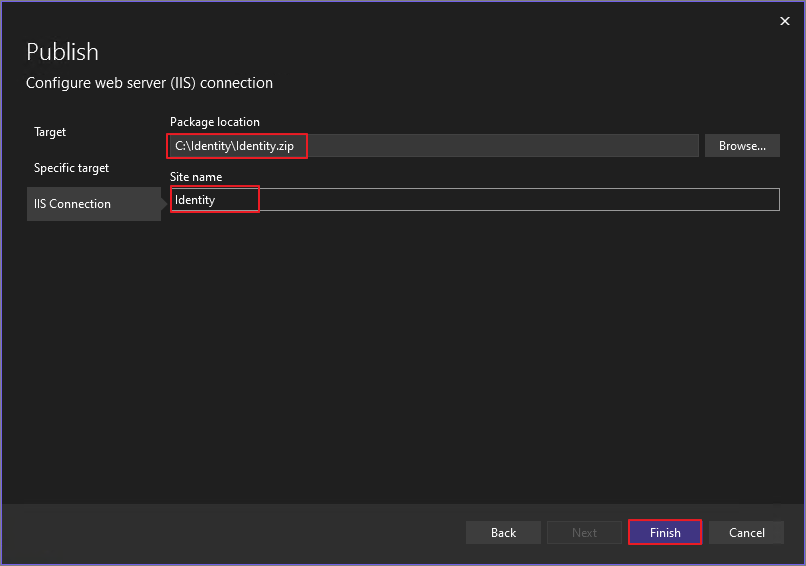
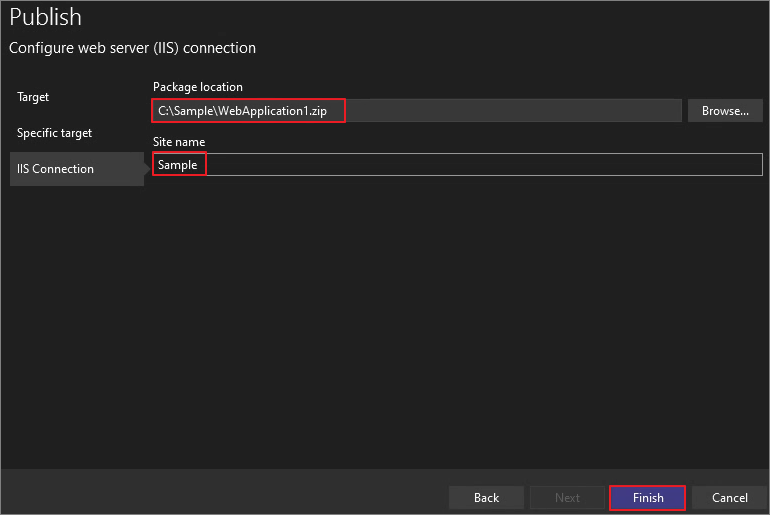
Specify the location to export the package -> Set the Site Name -> Click Finish.
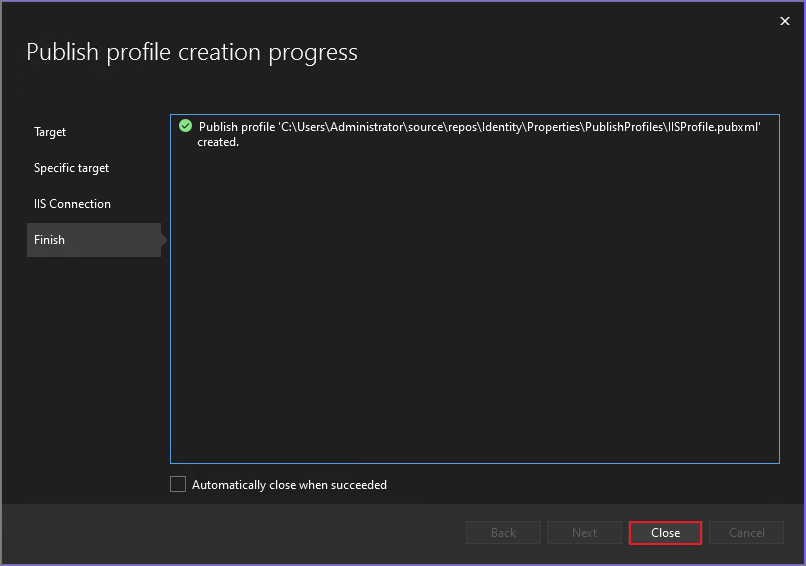
Close
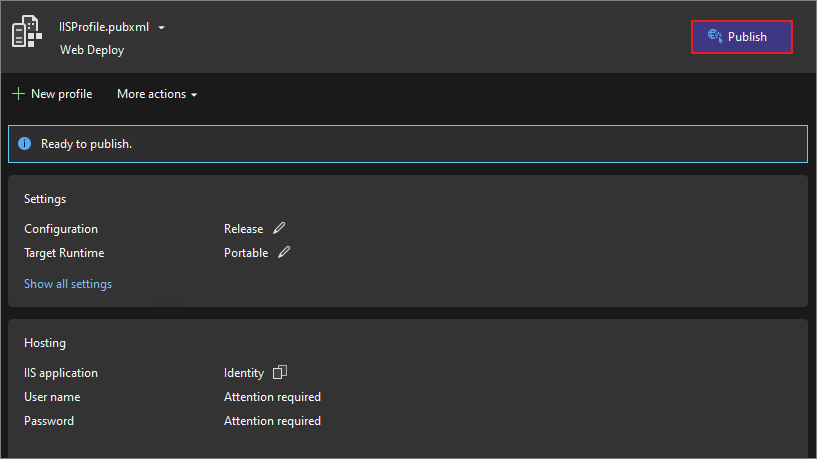
Publish
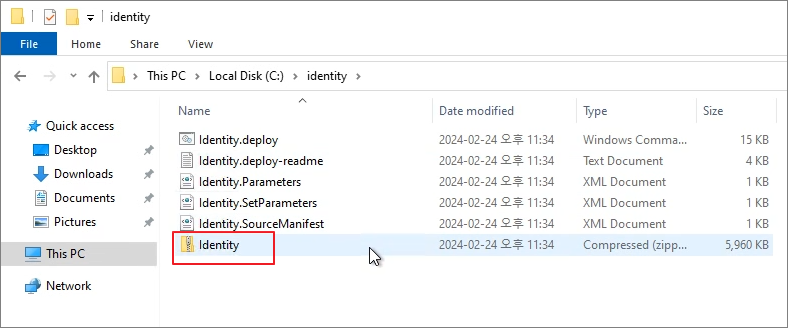
Once completed, copy the package file to the IIS Server.
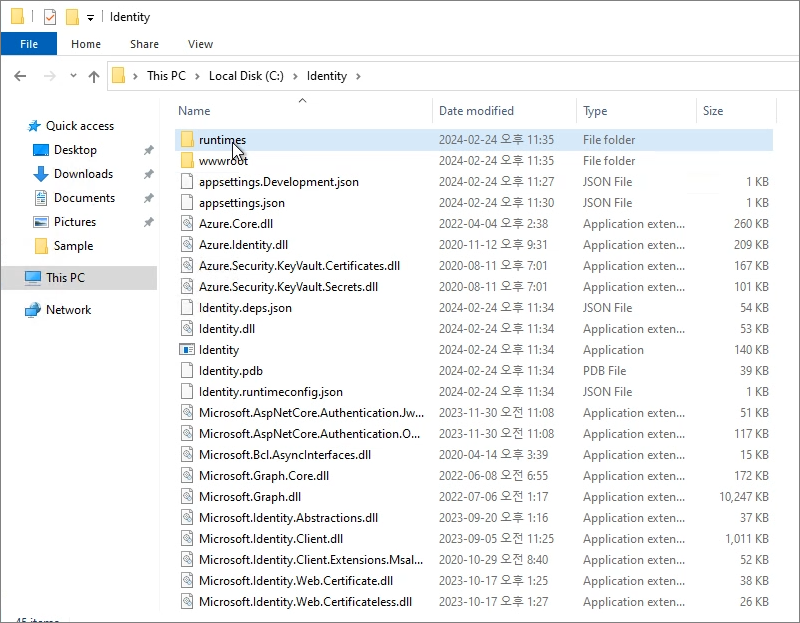
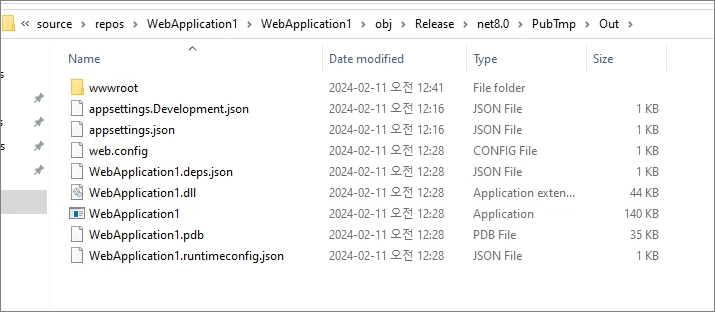
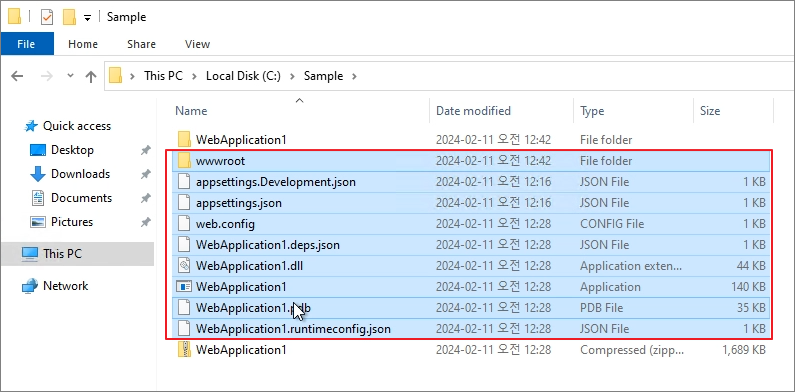
As done in the previous post, after extracting the files, copy the essential folders and files, such as wwwroot, to the root directory as shown below.
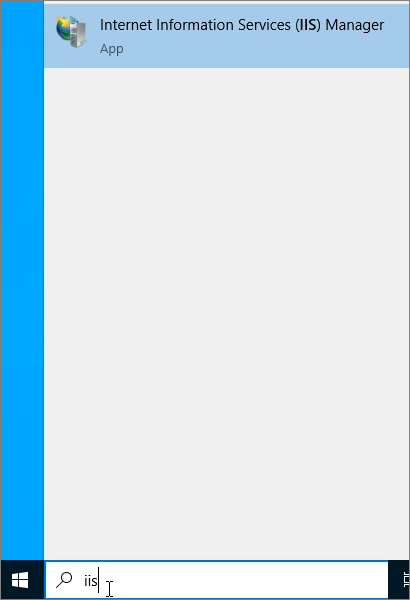
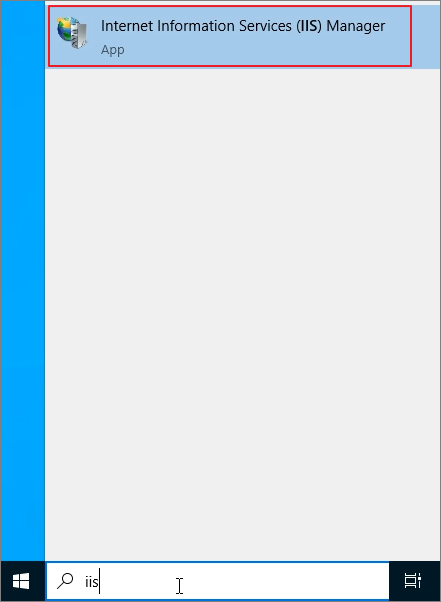
Launch IIS Manager
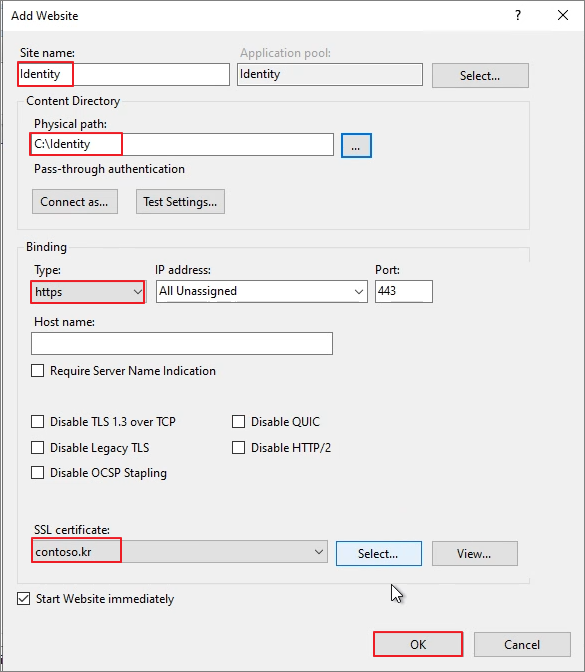
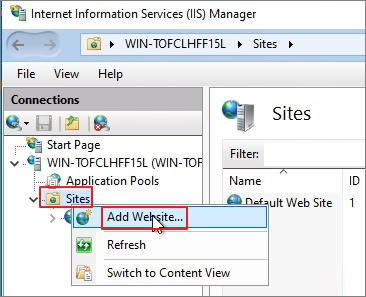
Righ-Click on Sites -> Add Website
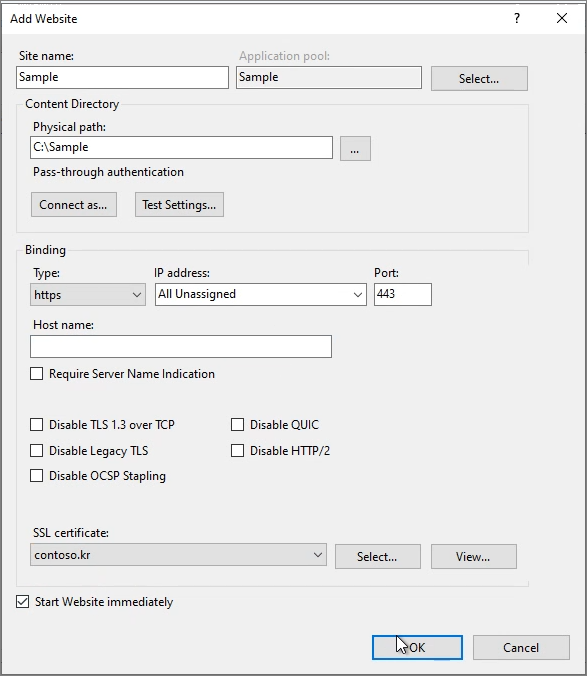
Specify the settings as shown below.
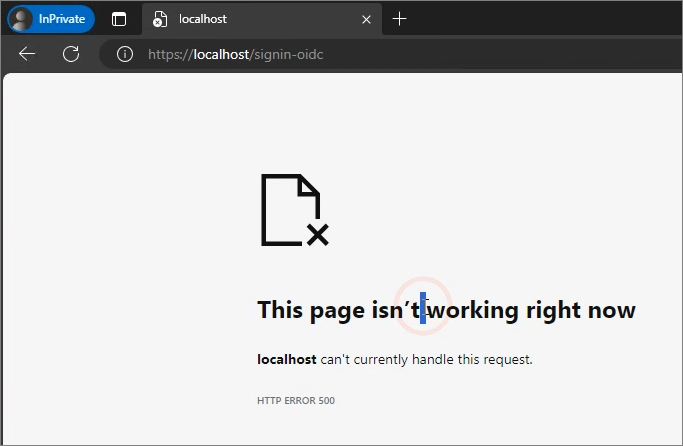
When testing on localhost, an Error 500 occurs as shown below. The cause is that the ClientSecret value is not included during publishing, which leads to this issue.
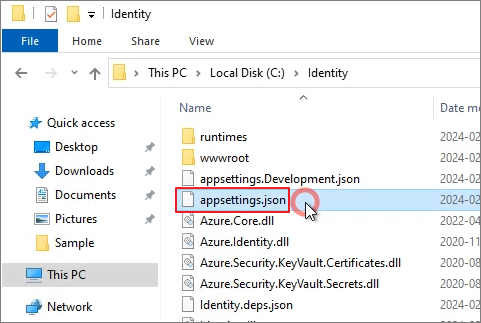
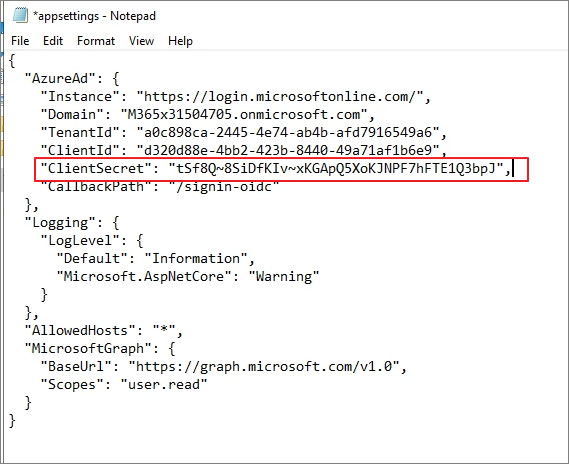
Open the Appsettings.json file using Notepad.
Add the previously saved Secret Value in the following format -> Save the file:
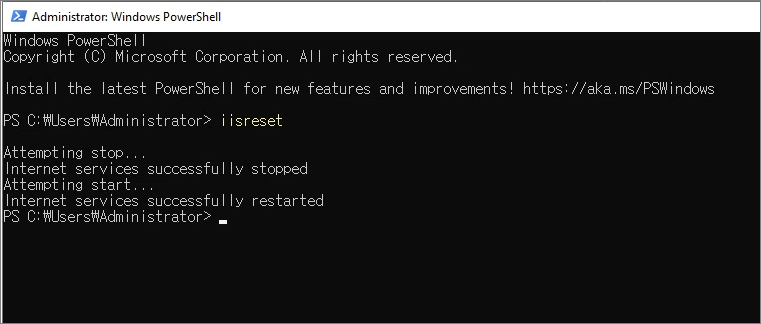
IISRESET
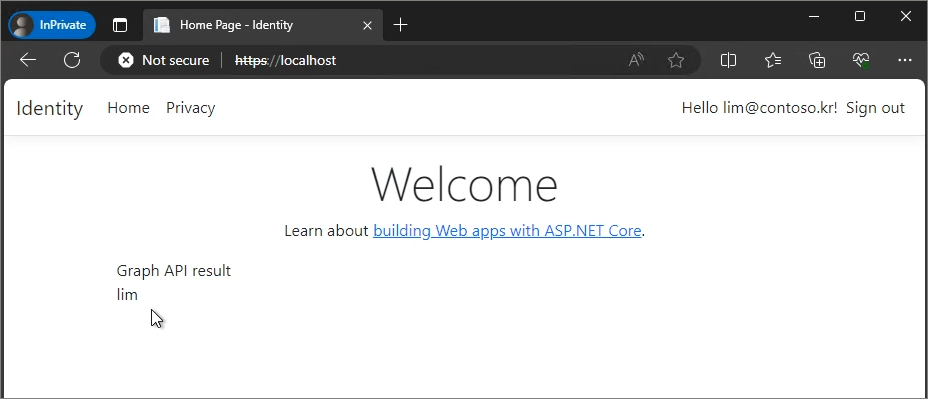
Confirm the login process.
Proceed with testing by accessing the published URL.
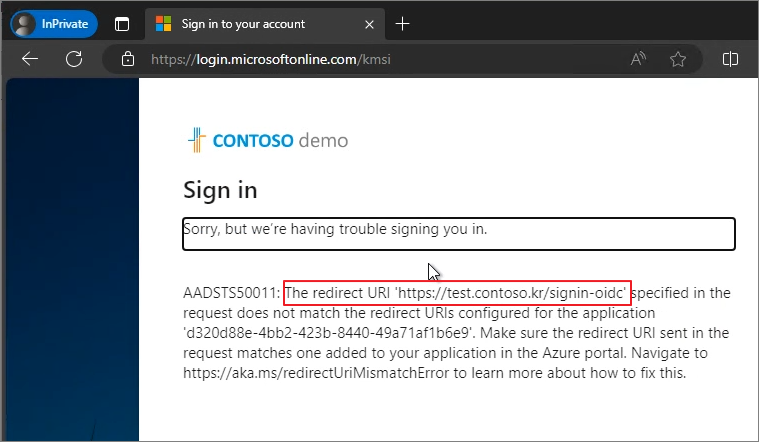
A Redirect URI error has occurred.
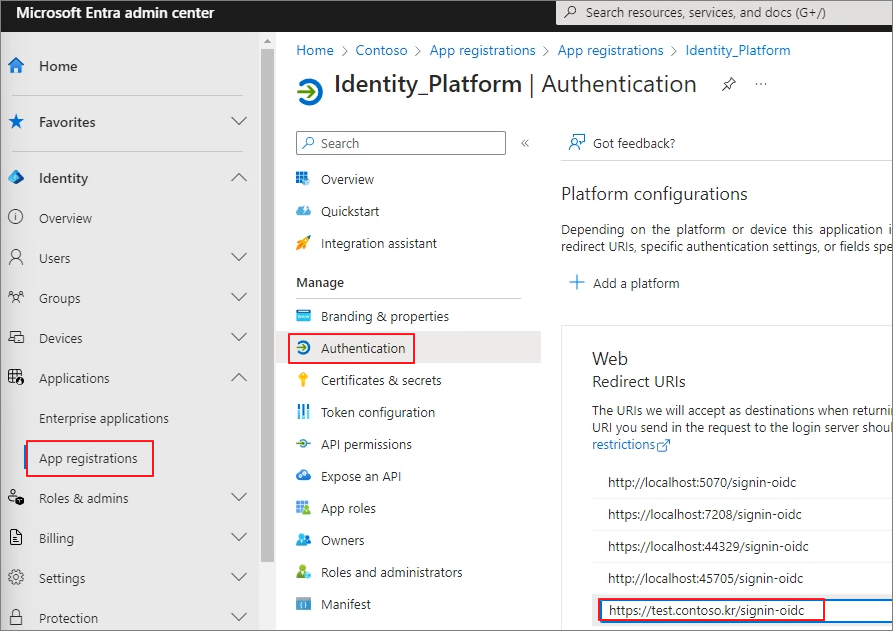
Entra ID Admin center -> Applications -> App registration -> Authentication -> Add the following to Redirect URIs as shown below.
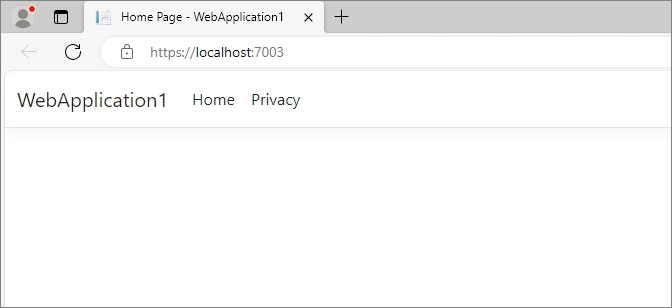
In this post, we will cover the process of publishing an ASP.NET Sample Page to IIS. Since most Microsoft solutions are based on ASP.NET, I thought this would be a necessary step before testing Graph.
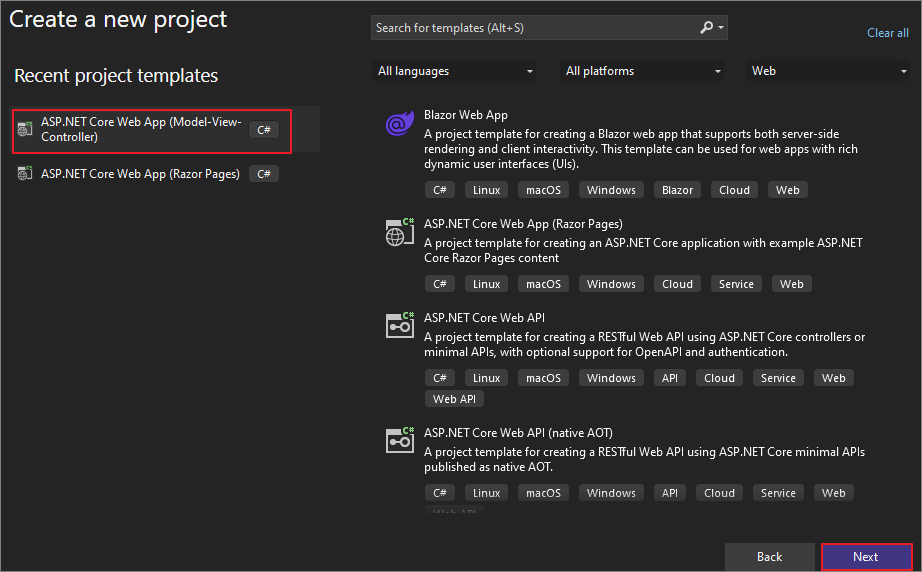
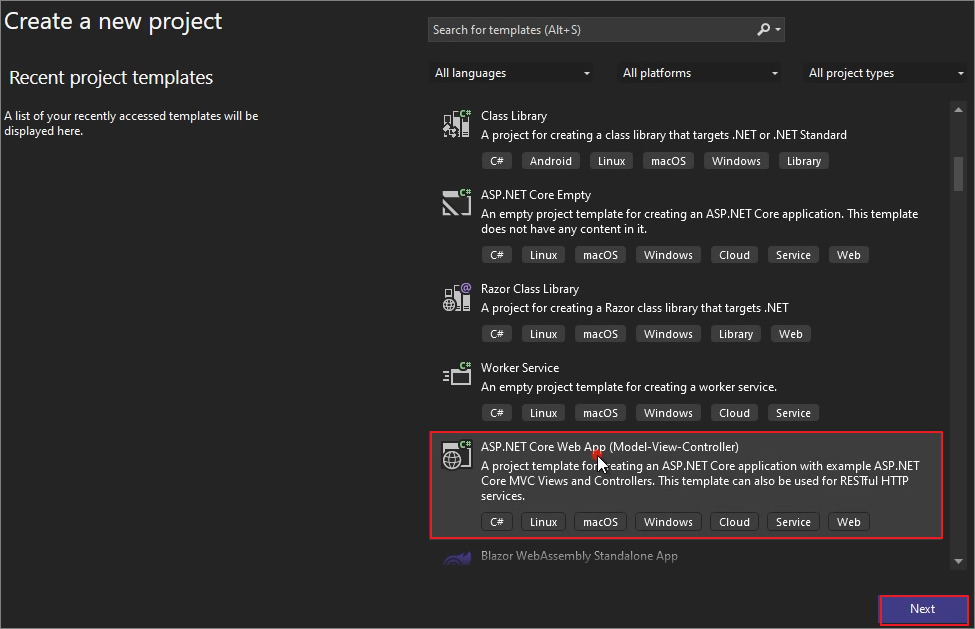
ASP.NET Core Web App (Model-View-Controller) -> Next
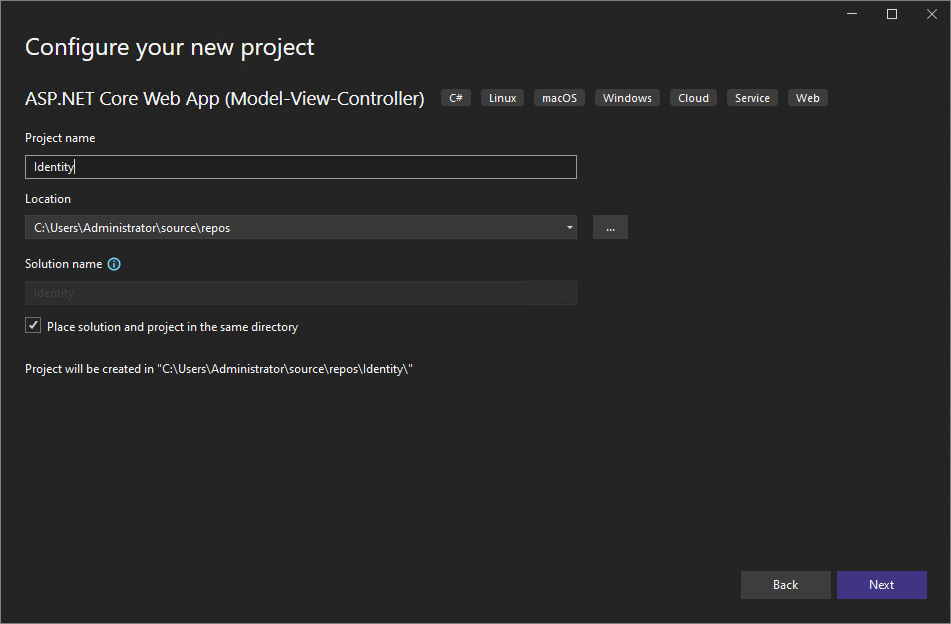
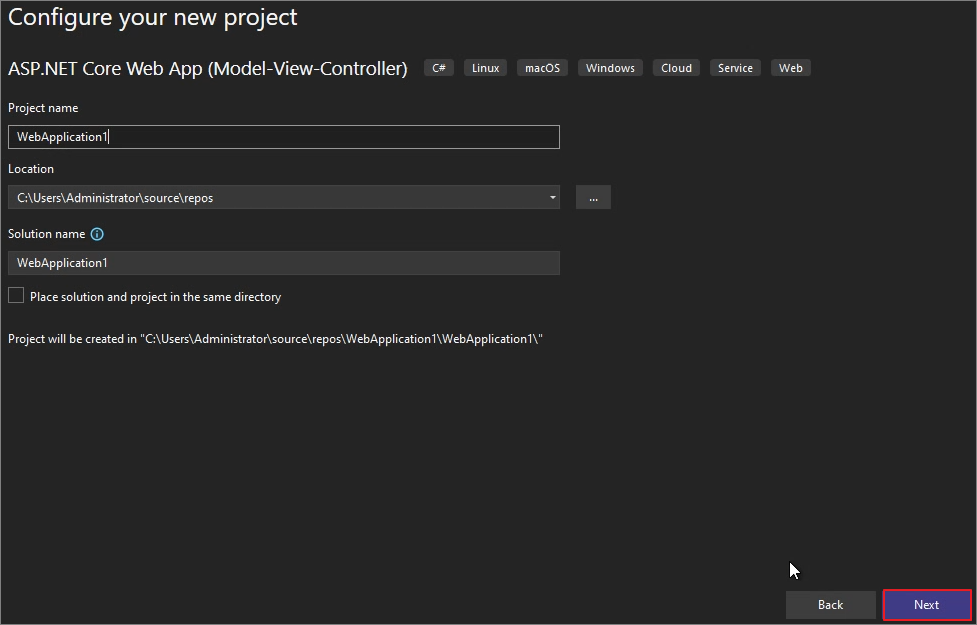
Next
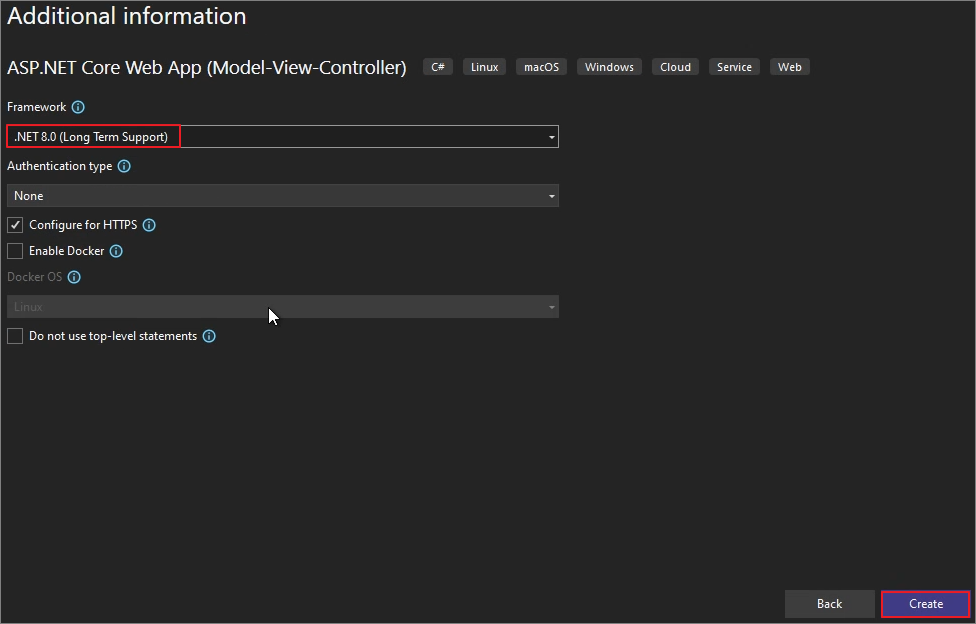
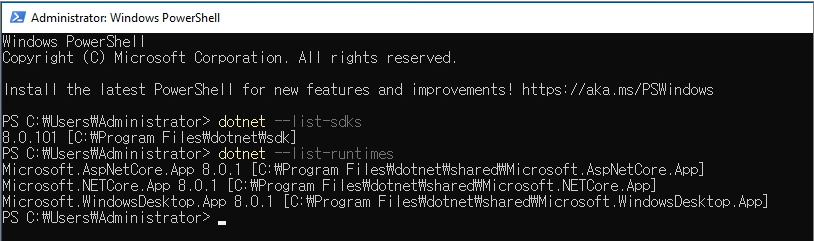
Verify that the Framework is set to .NET 8.0 -> Click "Create" (You will need to install the Runtime and SDK version 8.0 on IIS to match this setting.)
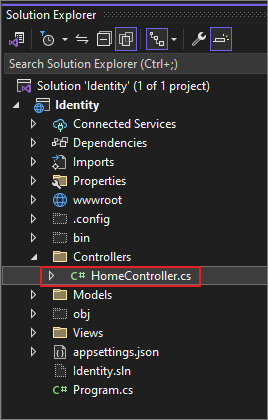
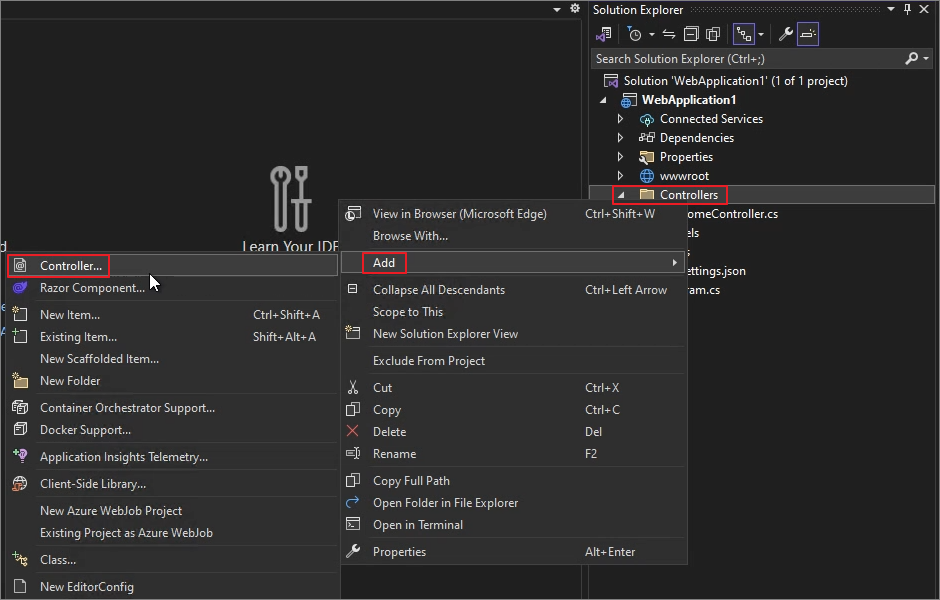
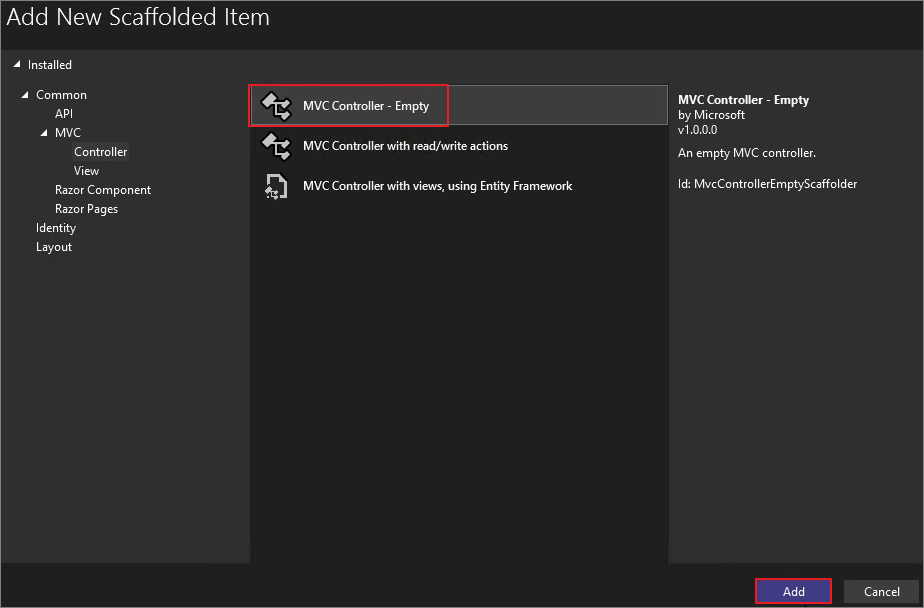
Solution Explorer -> Controllers -> Add -> Controller
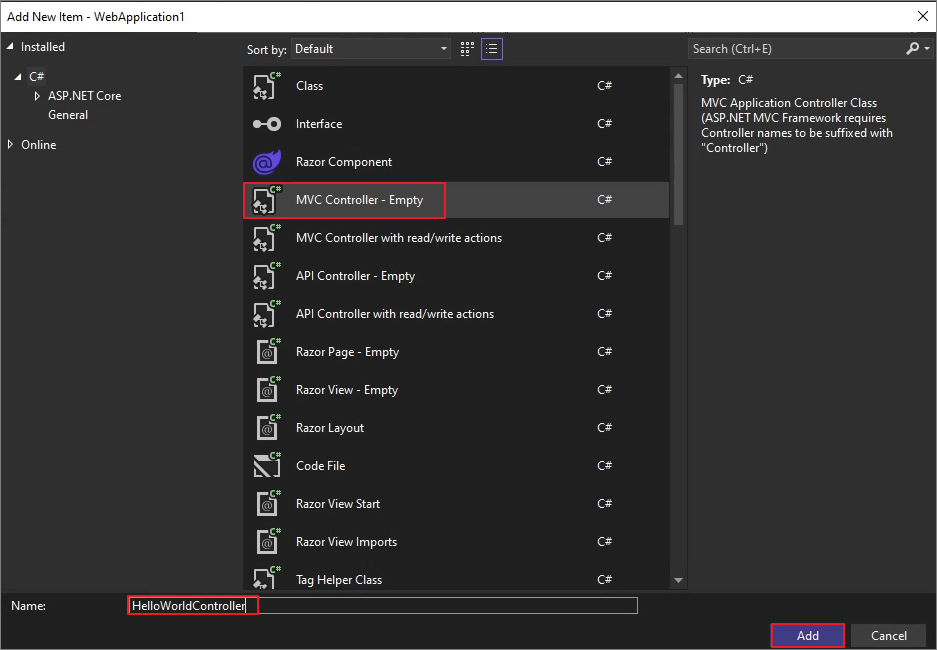
MVC Controller - Empty -> Add
Name the controller as HelloWorldController. -> Add
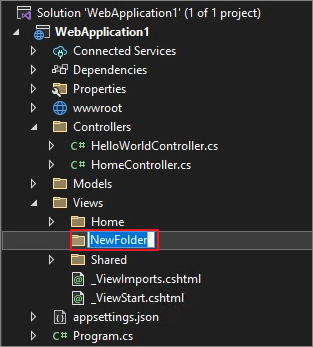
Right-Click on Views -> Add -> New Folder
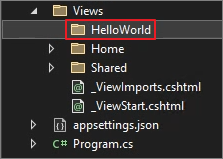
Name it HelloWorld.
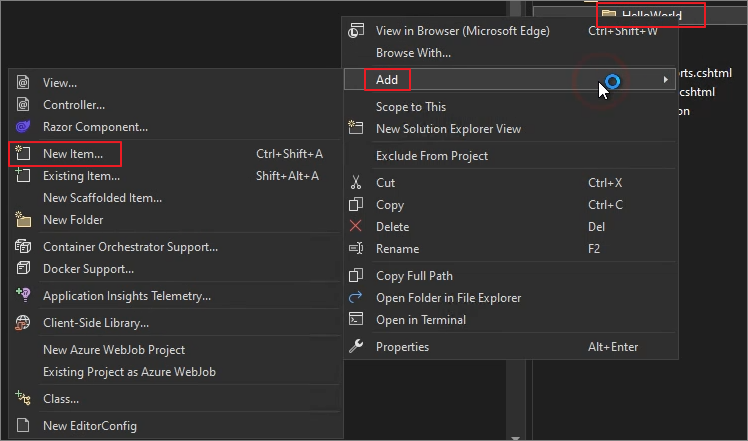
Right-click on HelloWorld.-> Add -> New Item
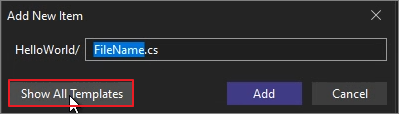
If the following options appear, select Show All Templates.
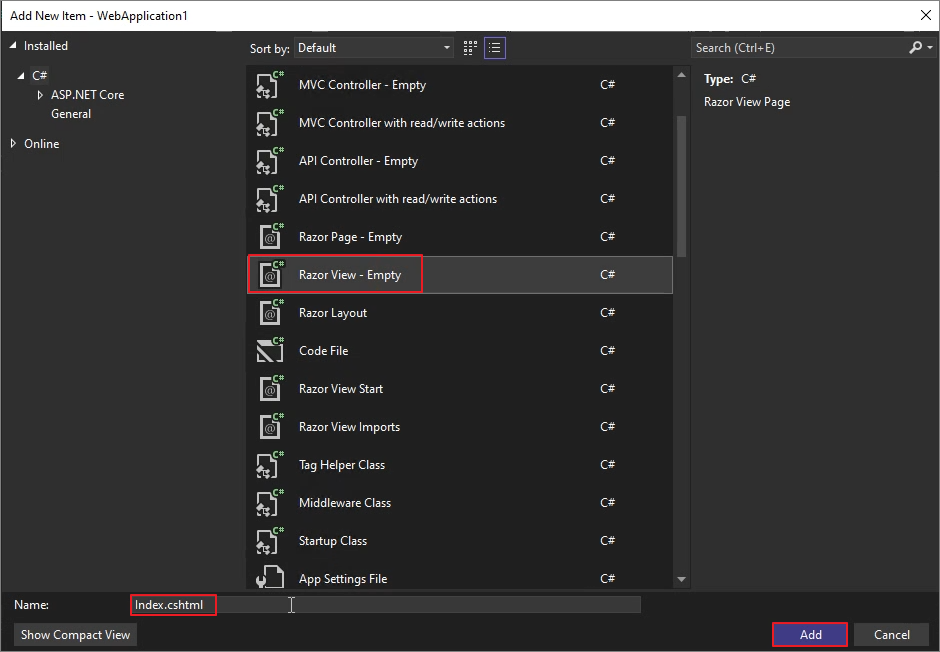
Razor View - Empty -> Confirm the name as Index.cshtml. -> Add
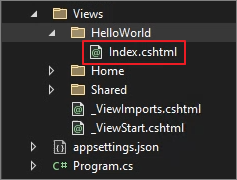
Verify that it has been created under the HelloWorld folder.
다음과같이입력합니다.
ViewData["Title"] = "Index";
<h2>Index</h2>
<p>Hello from the HelloWorld view!</p>
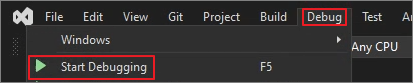
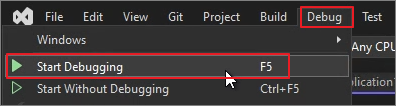
Debug -> Start Debugging
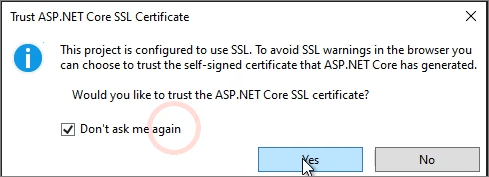
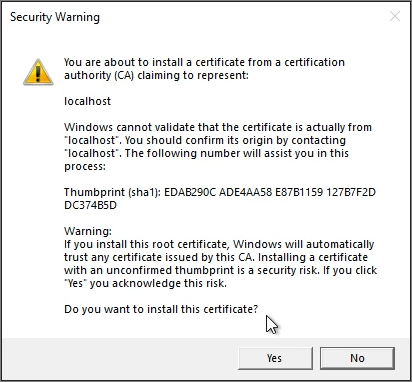
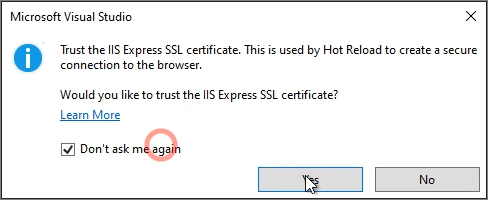
If any messages related to SSL certificates appear, click "Yes" for all of them.
Yes
Yes
Yes
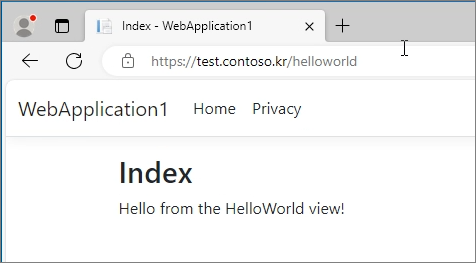
The sample page is now accessible in Edge.
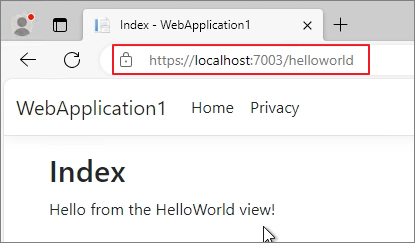
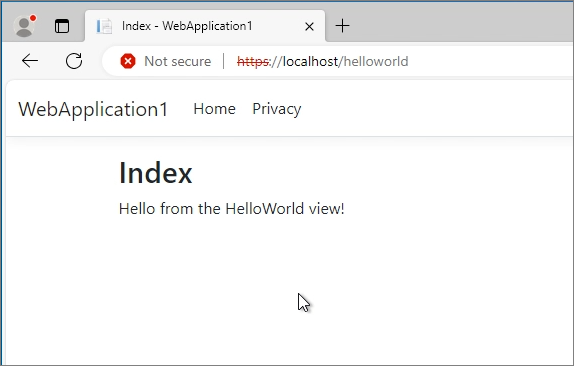
When you access /HelloWorld, it is displayed as follows:
Now, let's proceed with creating the sample page as a site in IIS.
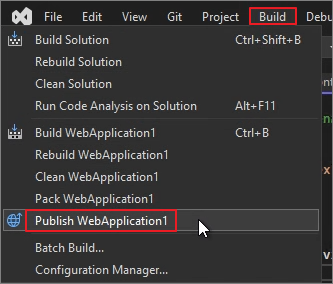
Build -> Publish [Project Name]
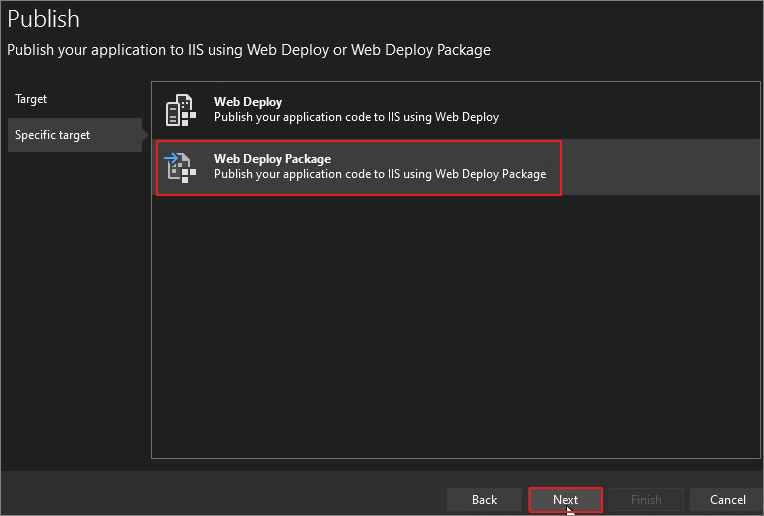
Web Server (IIS) -> Next
Web Deploy Package -> Next
Specify the location. -> Site name 지정 -> Finish
Click Publish.
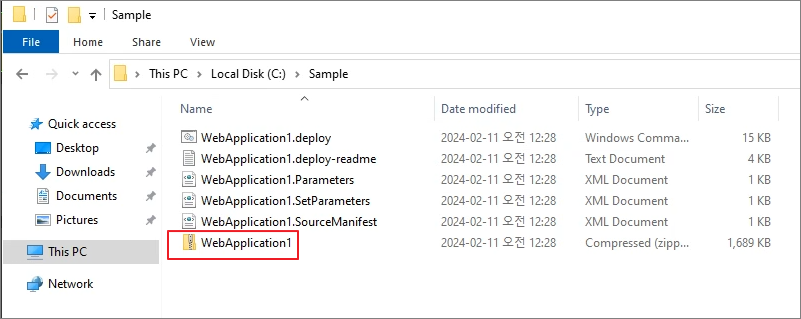
It will be generated as shown below. Now, copy the files to the IIS server.
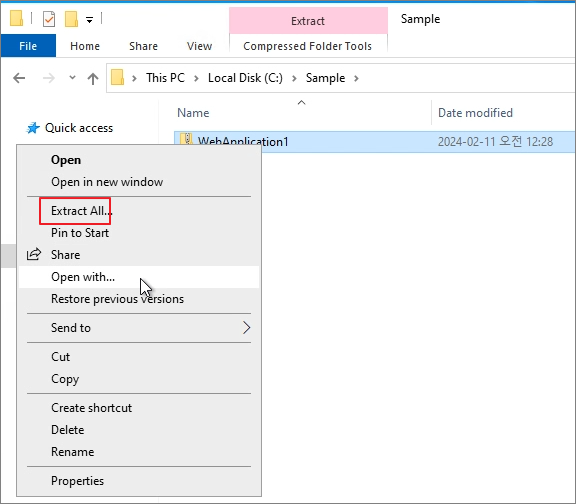
After copying, extract the files.
After extracting, move the files to a subfolder as shown below -> Copy the folder and files to the root directory (C:\Sample).
Copy completed.
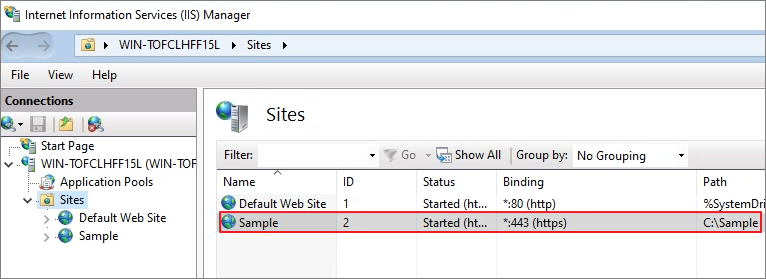
Launch IIS Manager.
Sites -> Add Website
Proceed with the creation process as shown below. (For the certificate, specify the one that was previously created.)
Confirm that the creation is successful.
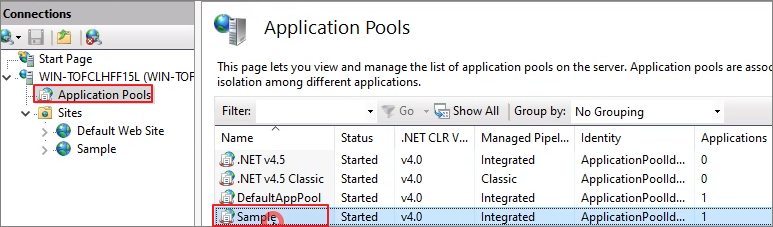
Application Pools -> Double-click on **Sample**.
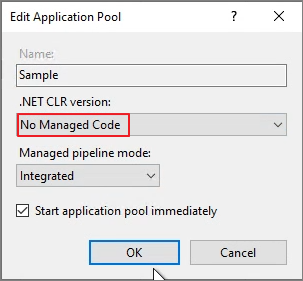
.NET CLR version -> Change the setting to **No Managed Code**.
IISRESET
Access localhost to verify the setup.
Once DNS registration and certificate binding are completed, test the published URL.
When testing Exchange Online and M365, there are times when an environment related to Graph API is needed. In the past, I would have skipped anything related to development, but now ChatGPT can generate sample pages to some extent.
Without any prior development knowledge, I will build a test environment using the knowledge gained from ChatGPT, based on IIS. The ultimate goal is to integrate Microsoft Graph, and I will post about the necessary components along the way.
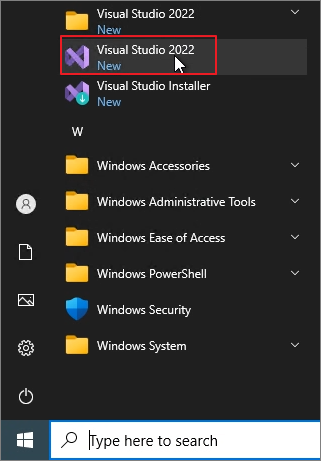
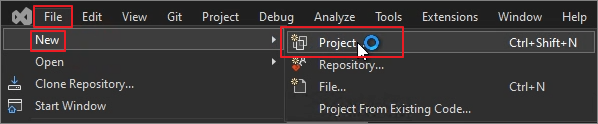
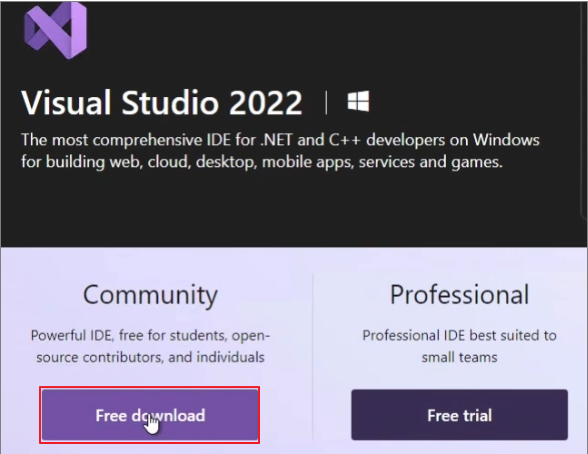
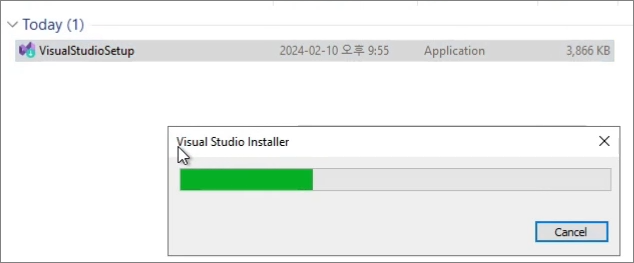
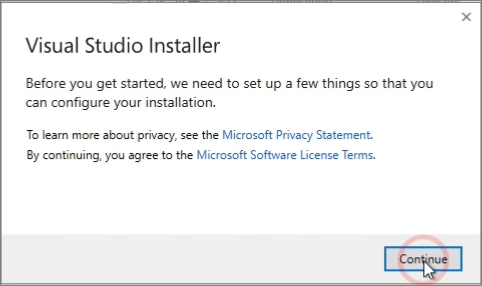
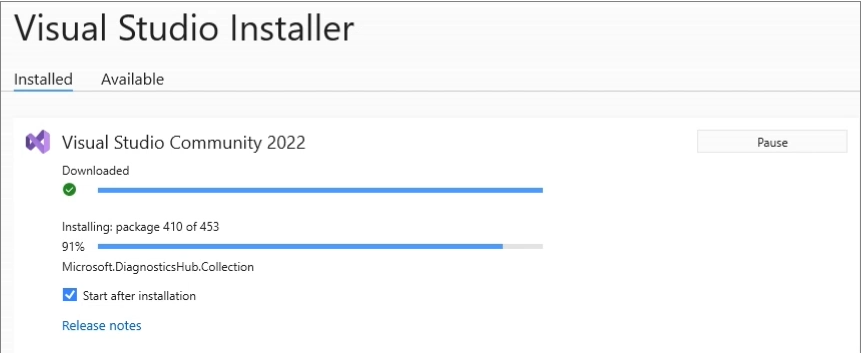
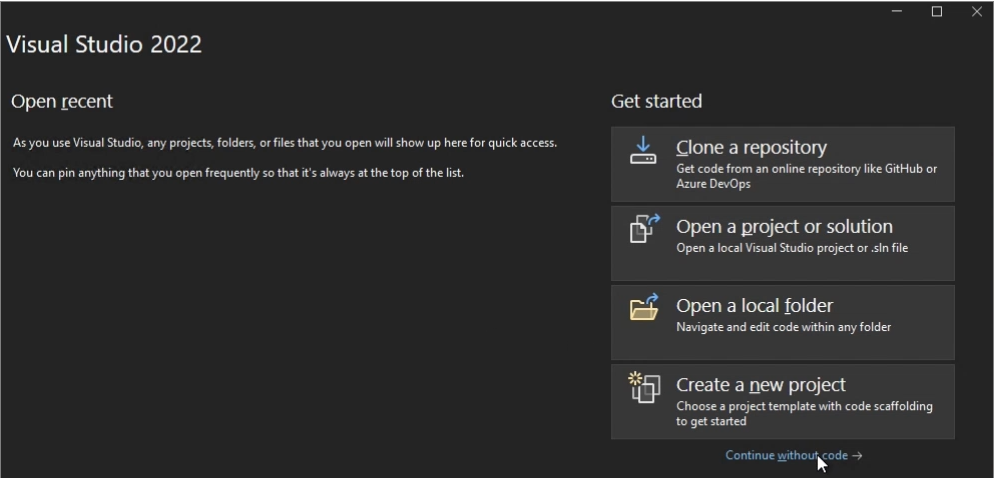
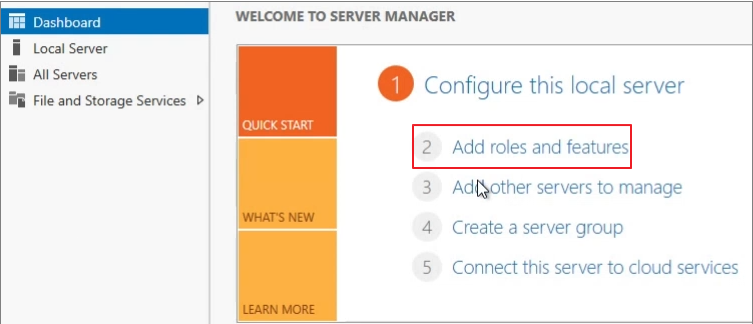
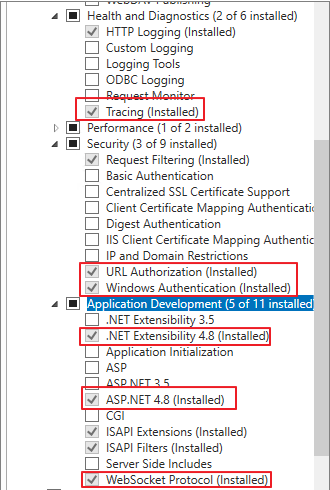
In this post, I will cover installing Visual Studio 2022 and configuring the IIS Server.
As I continue to research prompts, it seems that a request like "Create a column" is more appropriate than simply asking for calculations, so I plan to focus on that aspect.
Prompt 1. Create a "X" column
I started with the following prompt.
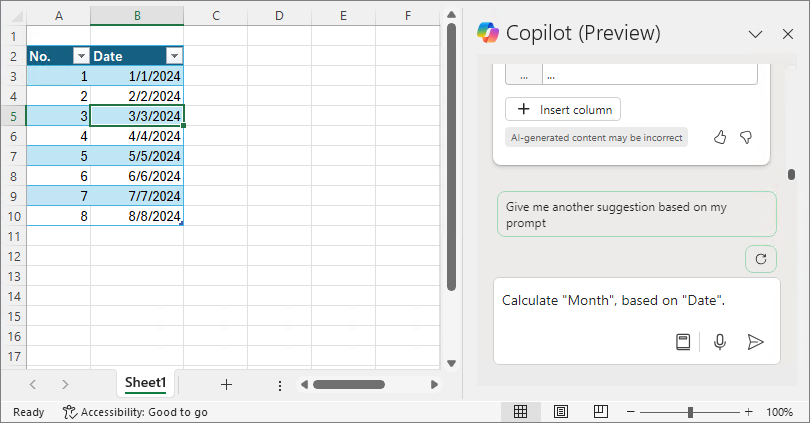
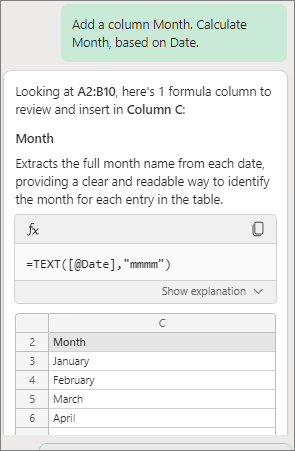
Calculate "Month", based on "Date".
I believe this has transformed into the following form.
Add a column Month. Calculate Month, based on Date.
= Add a Column Month based on Date
= Calculate "Month", based on "Date".
= Create a 'Month' column
Calculate "Month", based on "Date".
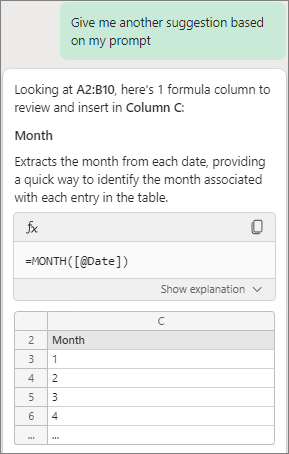
The first is presented as follows.
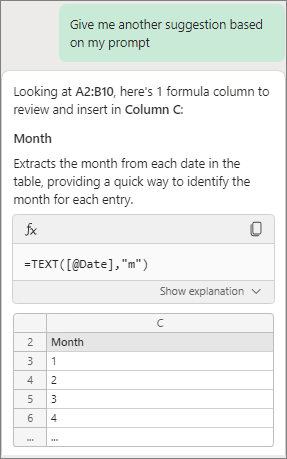
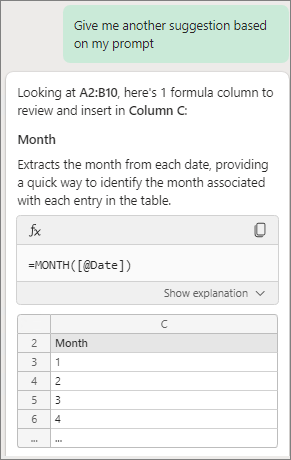
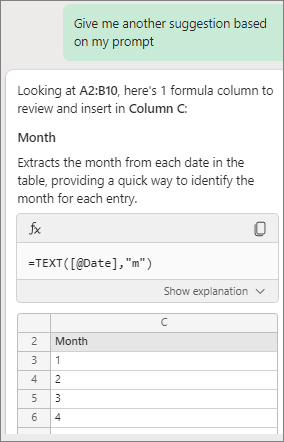
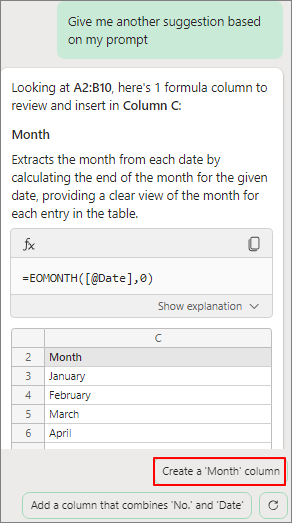
Give me another suggestion based on my prompt
I think it might be a form where the beginning is omitted, as shown below.
Add a column Month. Calculate Month, based on Date.
The previous prompt execution history might have an influence, but the prompt below produces almost the same result.
Add a column Month. Calculate Month, based on Date.
= Add a Column Month based on Date
= Calculate "Month", based on "Date".
= Create a 'Month' column
Prompt 2. Create columns "Title: A, B, C, D". Calculate Condition, Matching Month based on Table1.
As I input many prompts, there were many cases where the following prompt from a previous entry did not function as intended.
In particular, the following prompt did not produce the desired results in many cases.
Calculate Method W, X, Y, Z.Matching Name, Quarter based on Table1
This time, I will proceed with a slight change. It has been confirmed that using the "Create Columns" prompt results in higher accuracy.
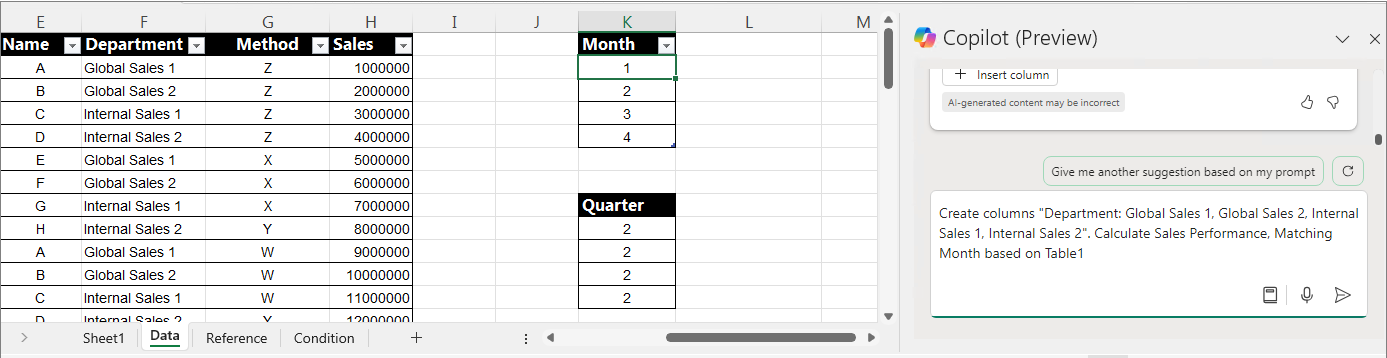
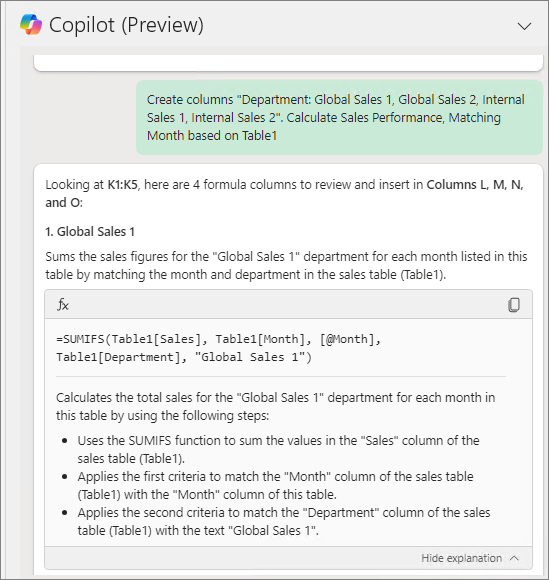
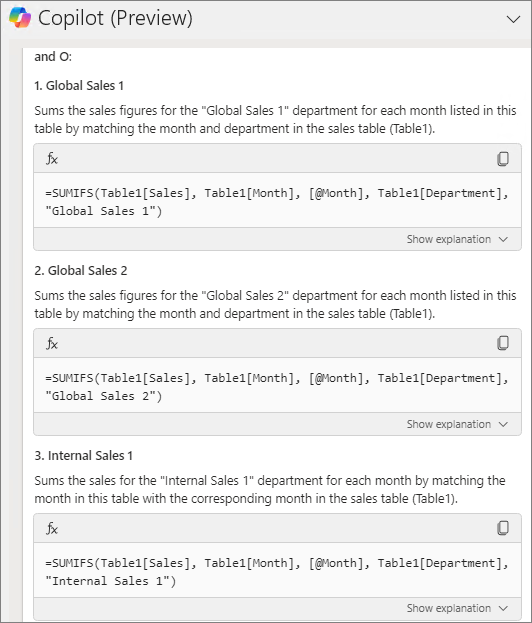
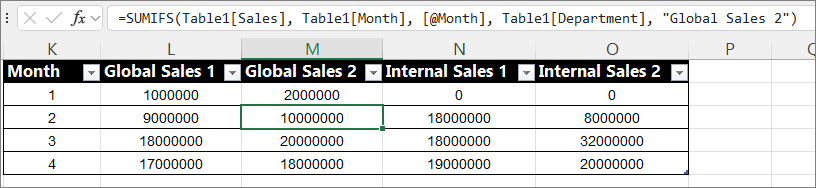
Create columns "Department: Global Sales 1, Global Sales 2, Internal Sales 1, Internal Sales 2". Calculate Sales Performance, Matching Month based on Table1.
Requesting to add the desired columns (up to a maximum of 4), along with additional explanations or examples, increases the accuracy.
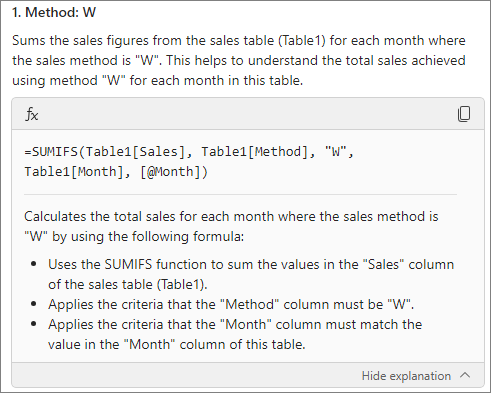
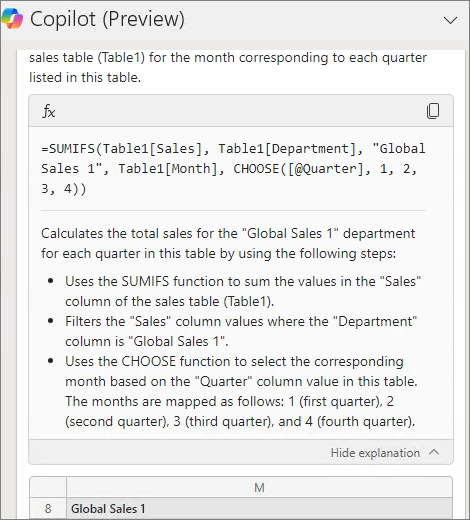
Clicking "Hide explanation" allows you to check the explanation of the formula.
Check the results.
Let's proceed in the same pattern as follows.
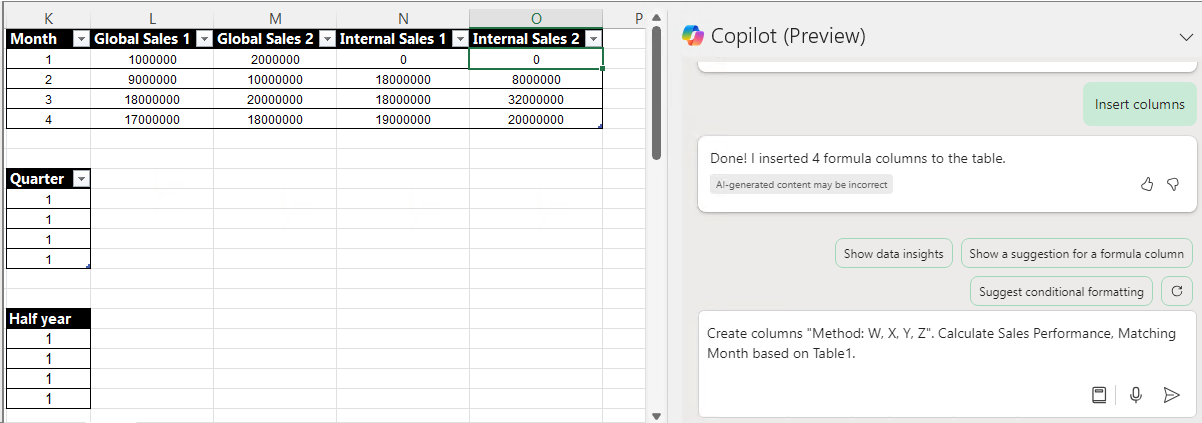
Create columns "Method: W, X, Y, Z". Calculate Sales Performance, Matching Month based on Table1.
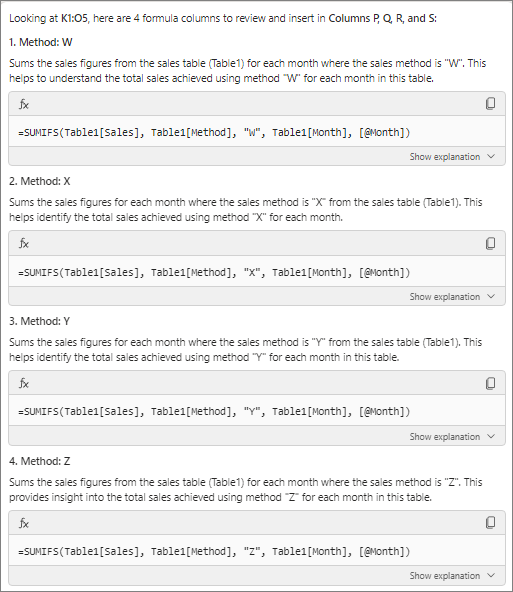
Check the formula explanation to ensure it matches the intended content.
It is confirmed that the 4 columns are added as intended.
Proceed with the addition and verify the results.
Prompt 3. Create 4 columns "A, B, C, D". Provide the basis, location, and definition regarding the requested matter.
There is no correct answer in prompts. The only solution is how well you present it for Copilot to understand. This time, I will try entering the prompt in a different way.
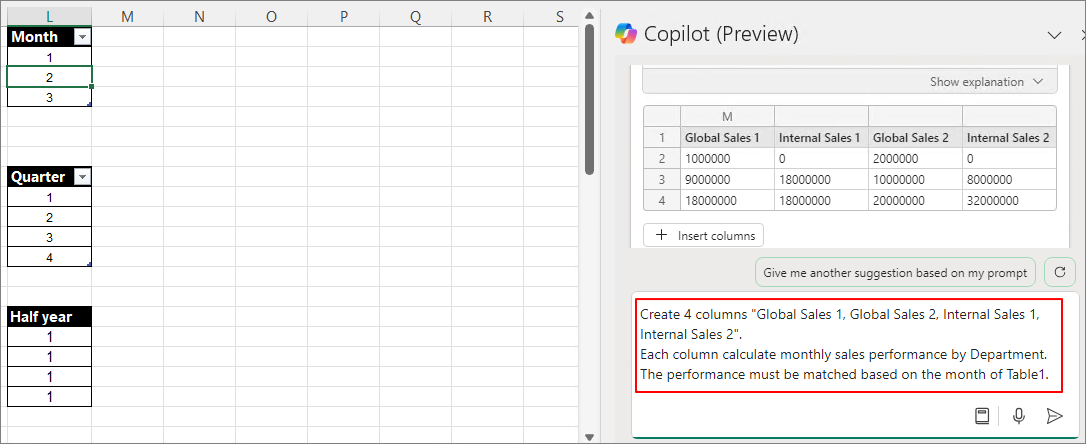
Each column calculate monthly sales performance by Department.
The performance must be matched based on the month of Table1.
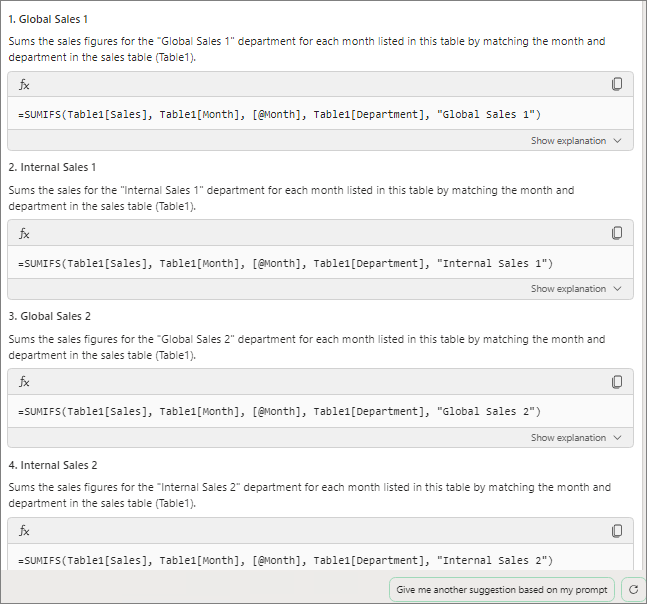
I will generate 4 columns.
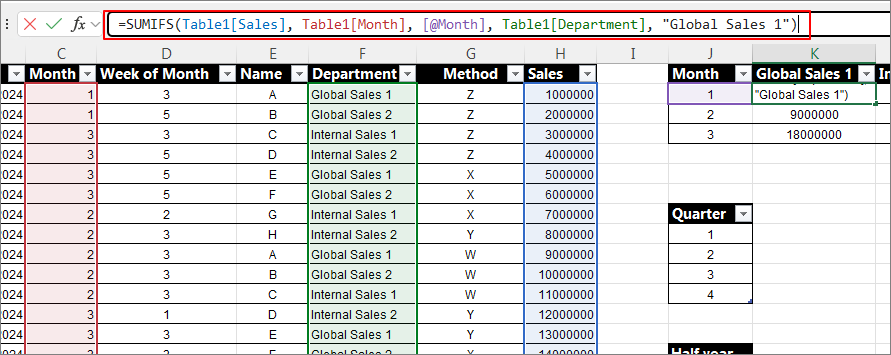
Check if it aligns with my intended purpose.
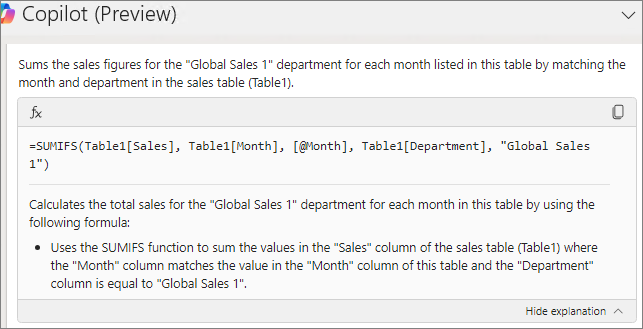
Click on the formula to review it once more for confirmation.
Let's calculate the monthly sales performance by method using the same approach.
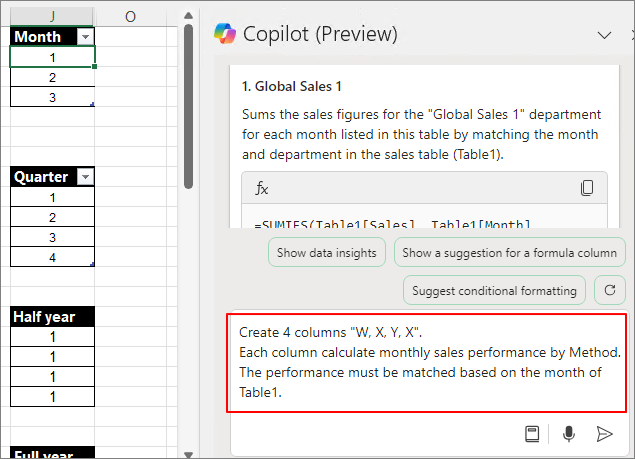
Create 4 columns "W, X, Y, X".
Each column calculate monthly sales performance by Method.
The performance must be matched based on the month of Table1.
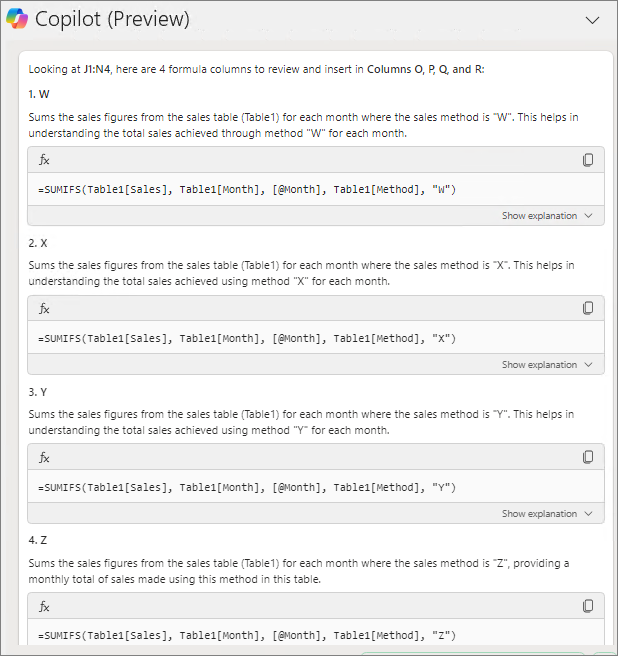
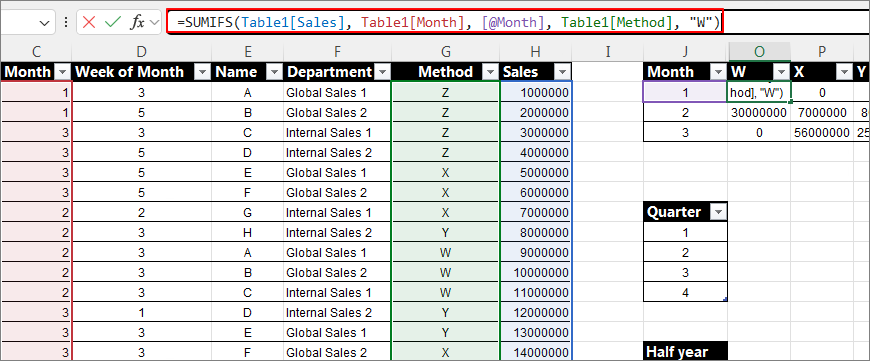
It can be confirmed that the columns were generated following the same pattern.
Click on the formula to verify it.
It seems that calculating the quarter isn't working well. Pre-inserting the quarter into Table1 lowers the difficulty. Therefore, the structure of the Source Table is crucial when using Copilot.
Let's see what happens when we simply change "Monthly" to "Quarterly."
Each column calculates quarterly sales performance by Department.
The performance must be matched based on the month of Table1.
Looking at the results, there is no part where the month is calculated as a quarter.
This time, I added more detailed explanations.
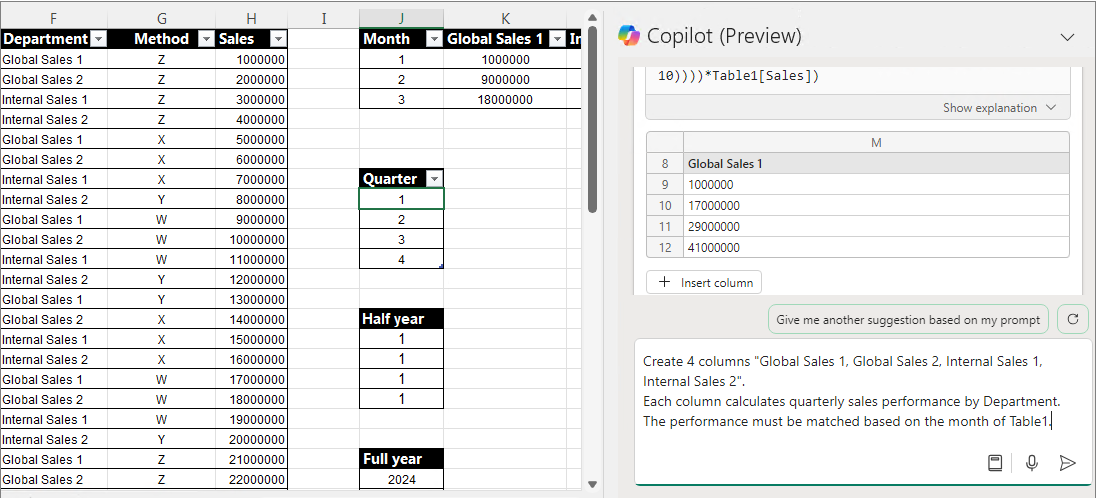
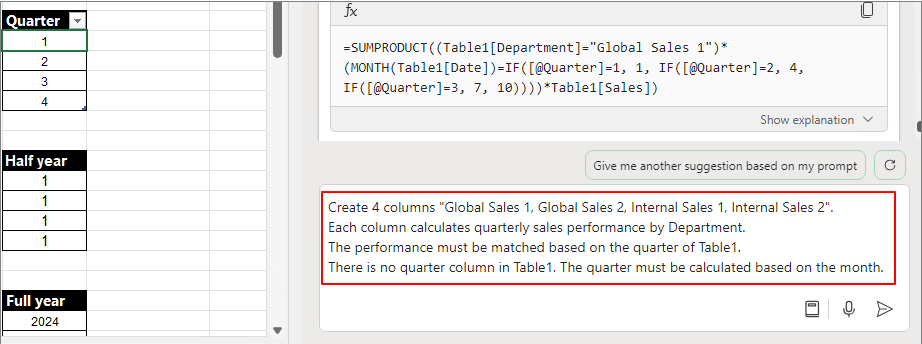
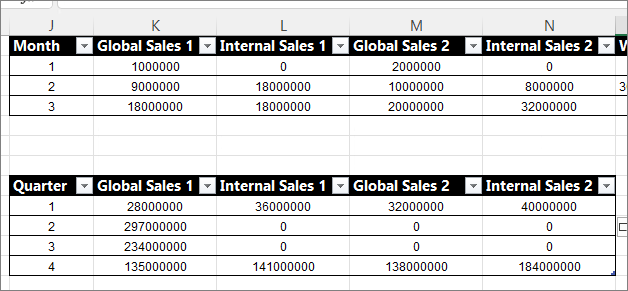
Create 4 columns "Global Sales 1, Global Sales 2, Internal Sales 1, Internal Sales 2". Each column calculates quarterly sales performance by Department. The performance must be matched based on the quarter of Table1. There is no quarter column in Table1. The quarter must be calculated based on the month.
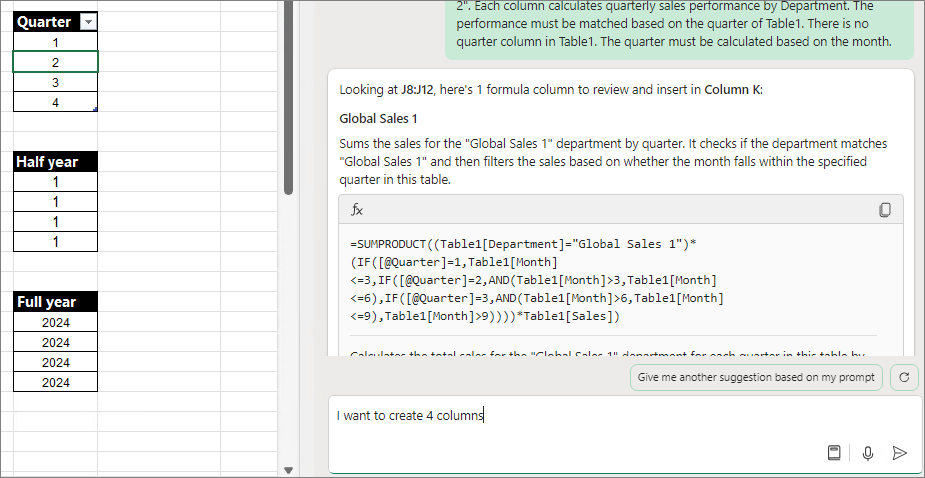
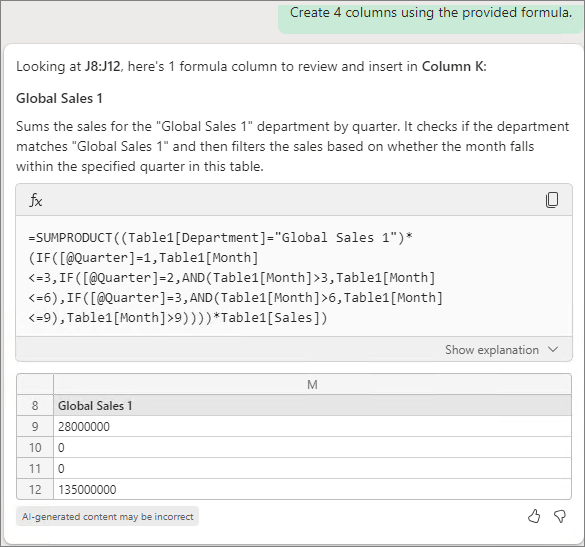
It can be observed that the quarter definition was added and calculated correctly. However, only one column was added.
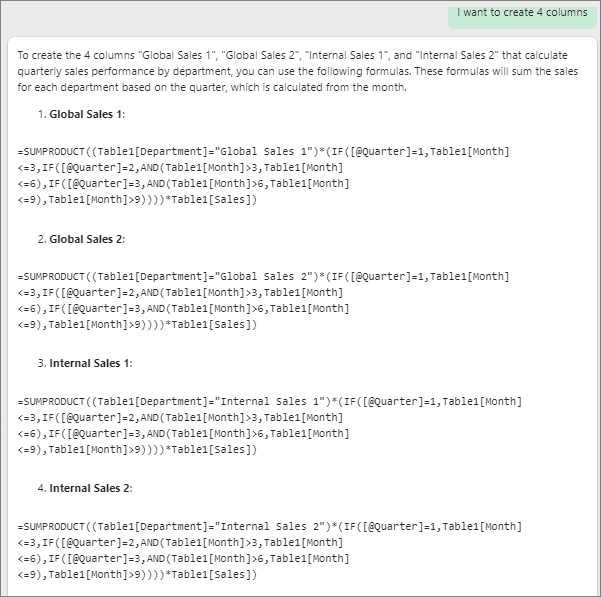
I want to create 4 columns
It only generates the formula.
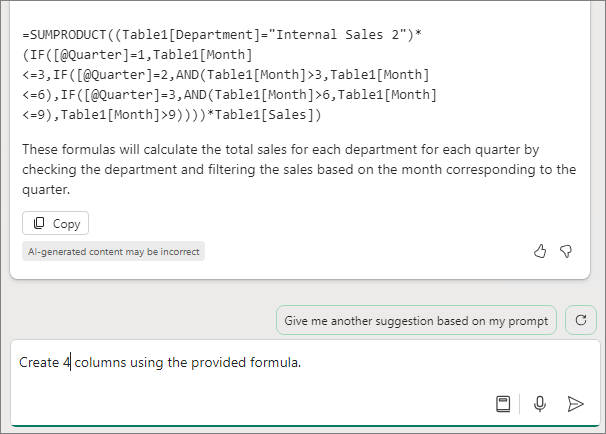
Create 4 columns using the provided formula.
Still, the result was just one.
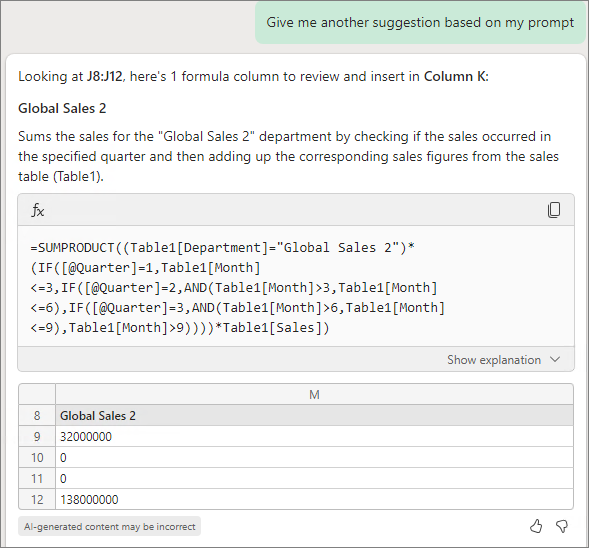
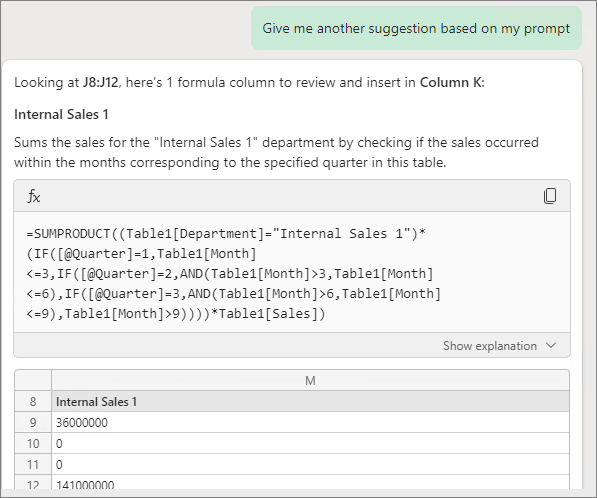
When proceeding as below, it suggests other columns. Calculating multiple rows felt quite challenging. Perhaps it's because this is still in the preview stage
Give me another suggestion based on my prompt
By adding one at a time, I was able to complete it as shown below.
It would be great if things were clearer, but for now, offering various directions seems to be the best approach.
In the following post, when calculating some functions, I was able to include detailed conditions by using 'If'. This time, let's check to what extent the conditions are being met by using 'If'.
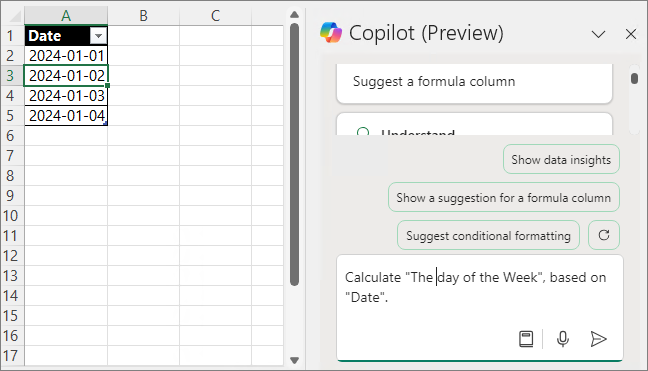
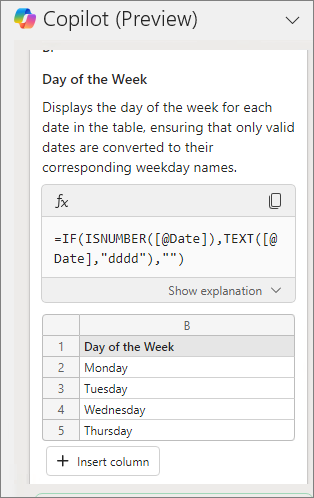
If you want to find the day of the week based on a date, you can input the prompt as follows.
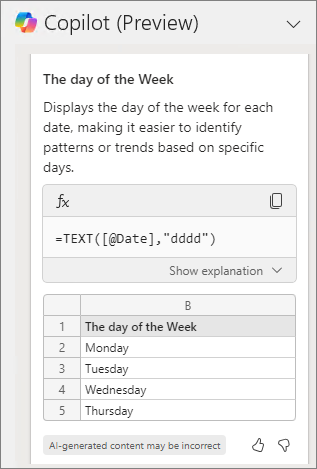
Calculate "The day of the Week", based on "Date".
Formulate the equation as shown below.
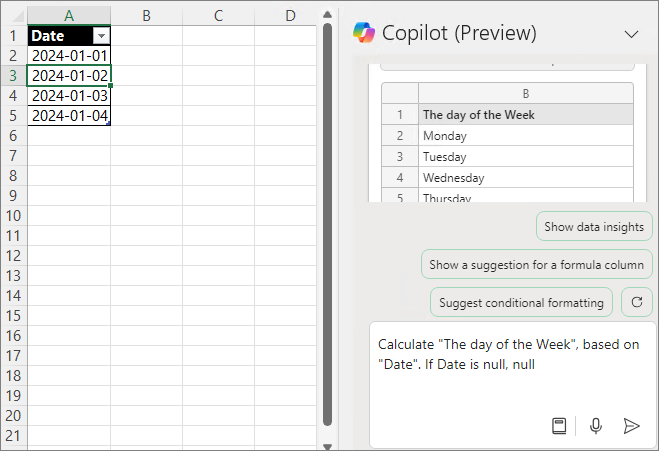
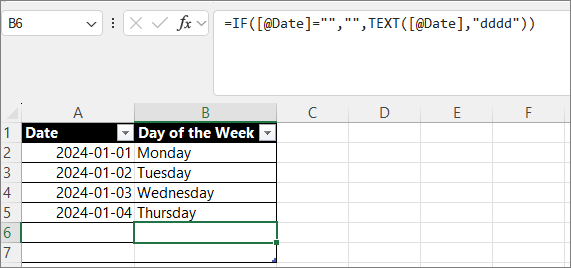
If A is null, adding null results in the following:
Create it in the following format:
Null values are satisfied and calculated.
You can create various conditions with this pattern, such as for errors or incorrect formats.
Prompt 2. If A >= X, apply discount of Table (Apply the discount rate)
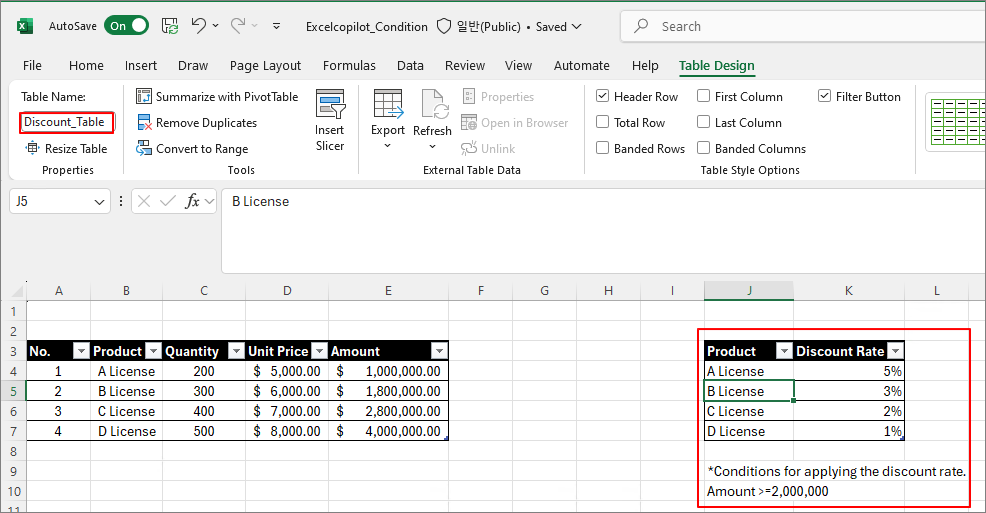
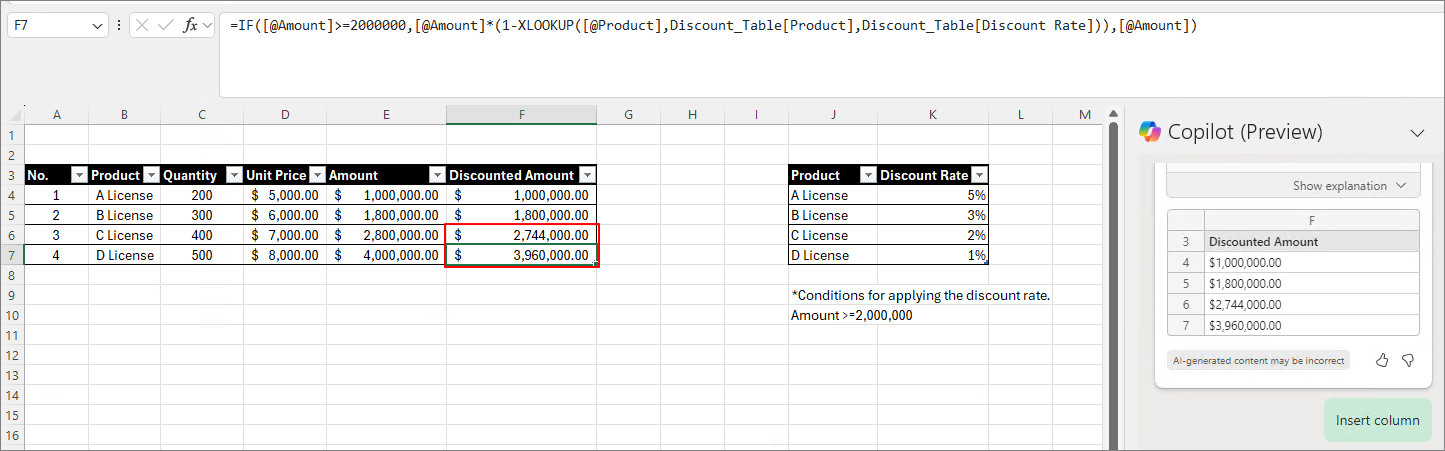
There is a sales invoice as shown below, and on the right, there is a discount rate table by product. Let's create the Amount by applying the conditions from the Discount_Table.
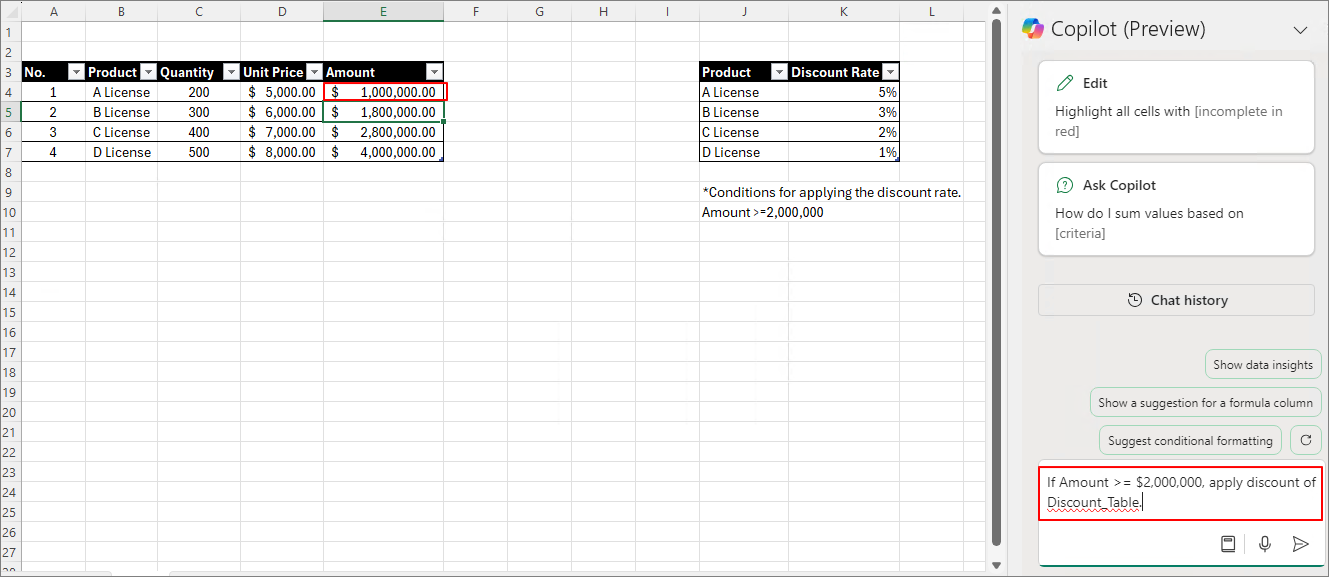
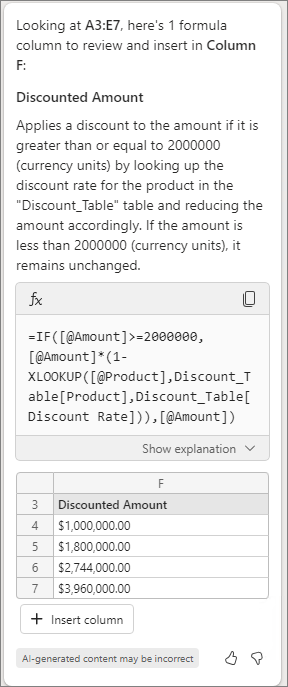
If Amount >= $2,000,000, apply discount of Discount_Table
Generate the formula as shown below.
You can see that the Discounted Amount is calculated as follows.
By applying this, it is expected that various invoices can be created more easily than before.
Prompt 3. Calculate "Target Achievement status". If Total Sales >= Target, "Success" or "Fail".
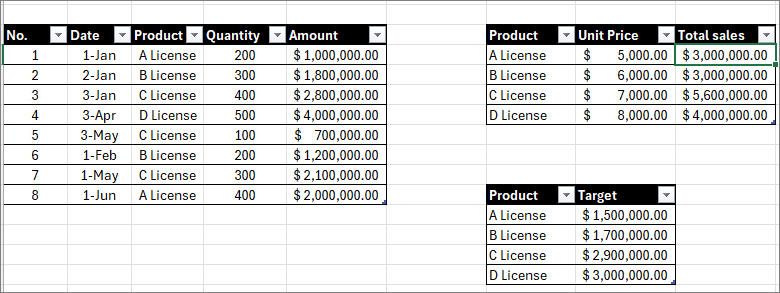
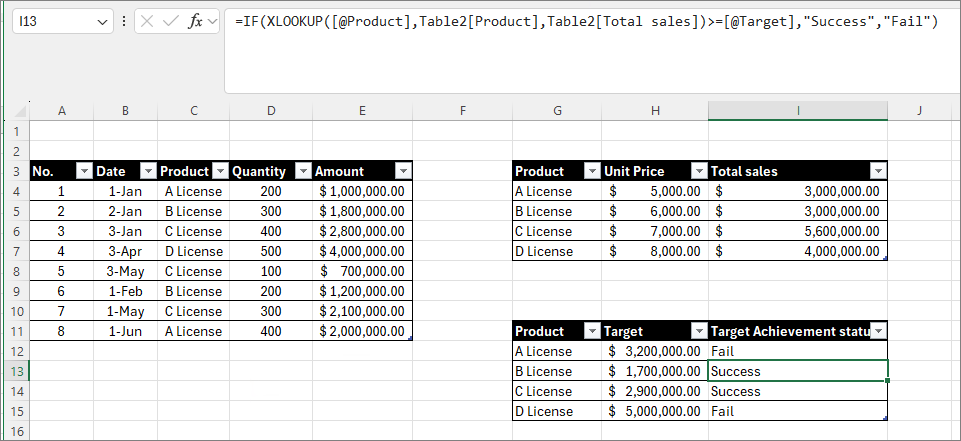
This time, as shown below, Table 1 contains sales records, Table 2 contains product performance, and Table 3 contains product targets
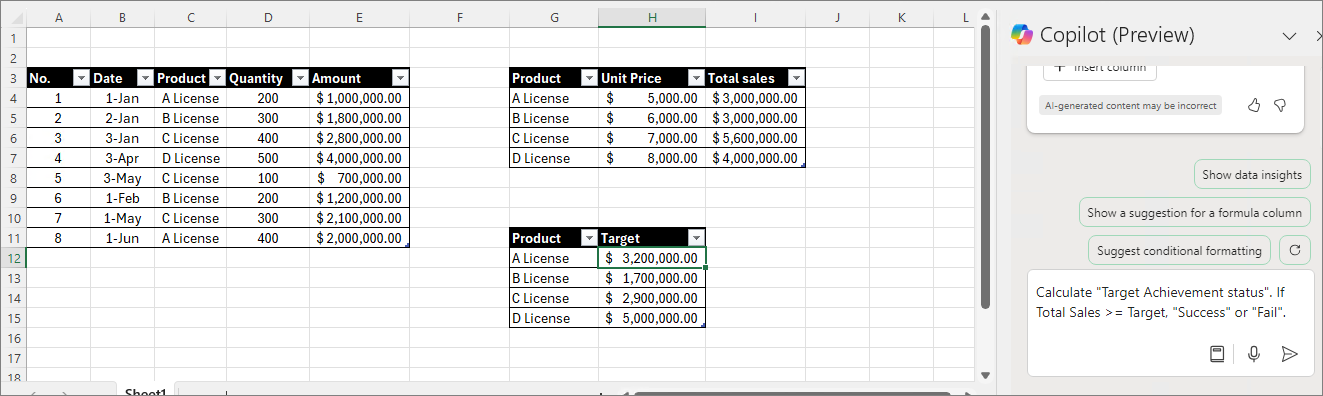
Calculate "Target Achievement status". If Total Sales >= Target, "Success" or "Fail".
Although Table 2 wasn't mentioned, it found the target from Table 2 and performed the calculation. It seems that the recent Excel Copilot remembers the prompts I gave earlier and uses them to generate formulas.
Result
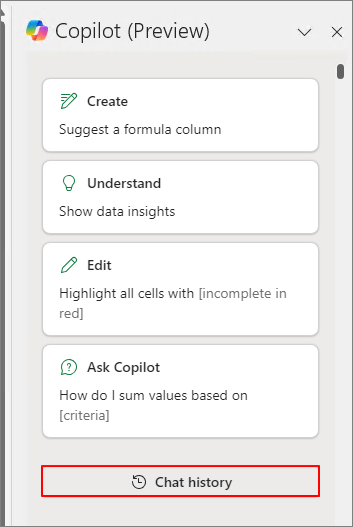
As with other products, it appears that Copilot in Excel is significantly influenced by the Chat History.
Therefore, there are times when even a simple input is enough for it to reference and retrieve data, while other times, even with detailed instructions, it fails to generate the formula. I believe that the more you work with Copilot, the easier it becomes to create formulas efficiently.
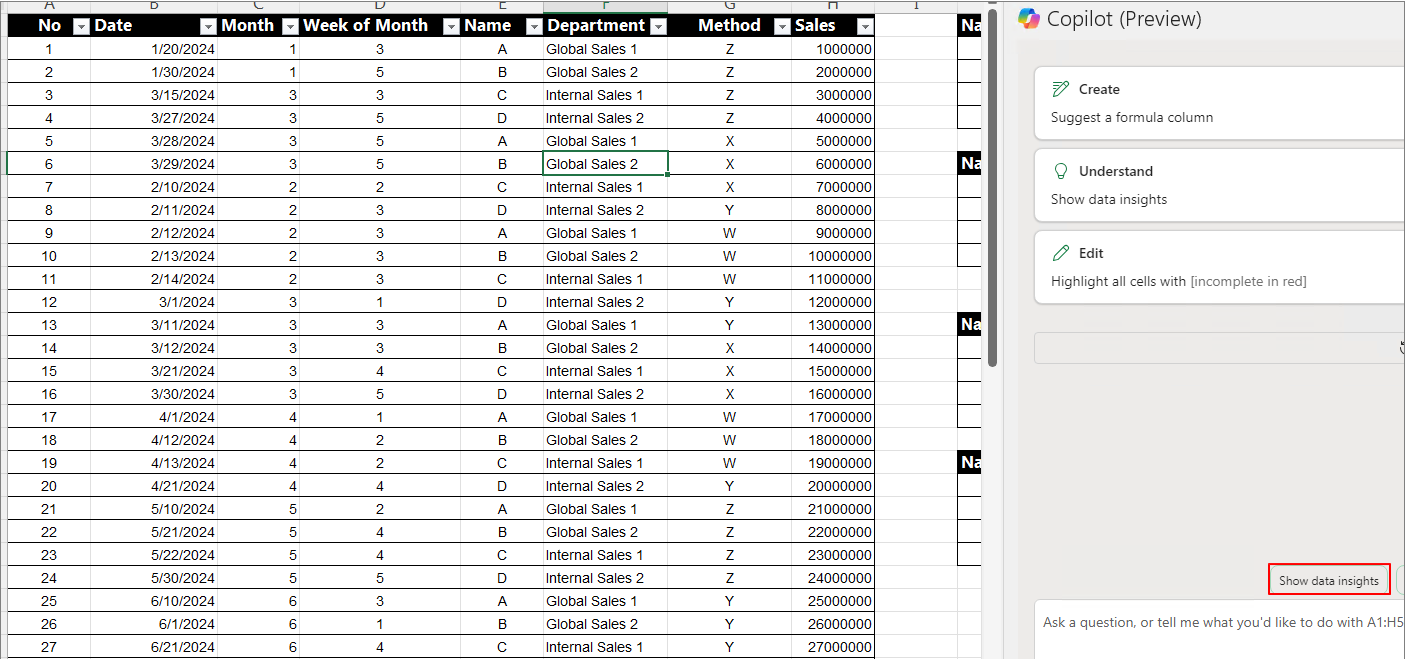
Let me introduce two useful prompts for creating pivot charts and pivot tables: "Show data insights" and "Add all insights to grid." These prompts are already quite well-known, but they are so helpful that I decided to include them in the "Useful Prompt" series. As this series grows longer, I believe that some people might eventually use it as a resource to organize their work.
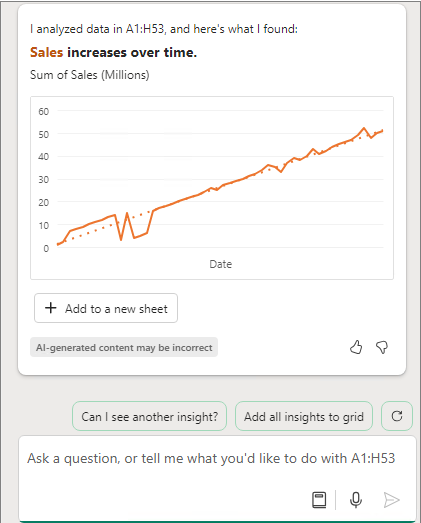
After selecting the table you want to analyze, click or input "Show data insights."
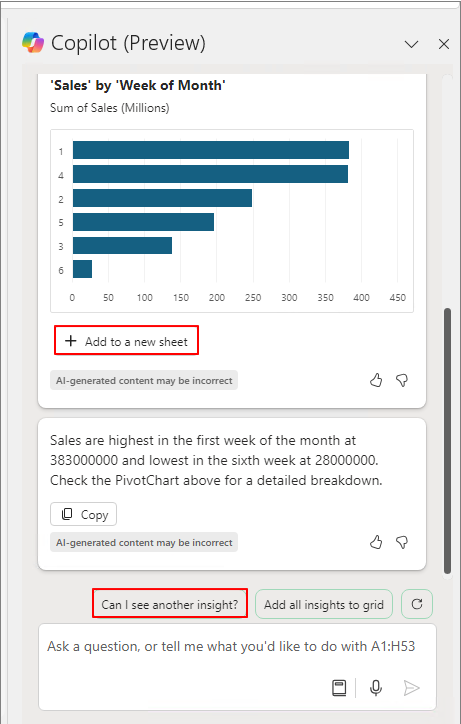
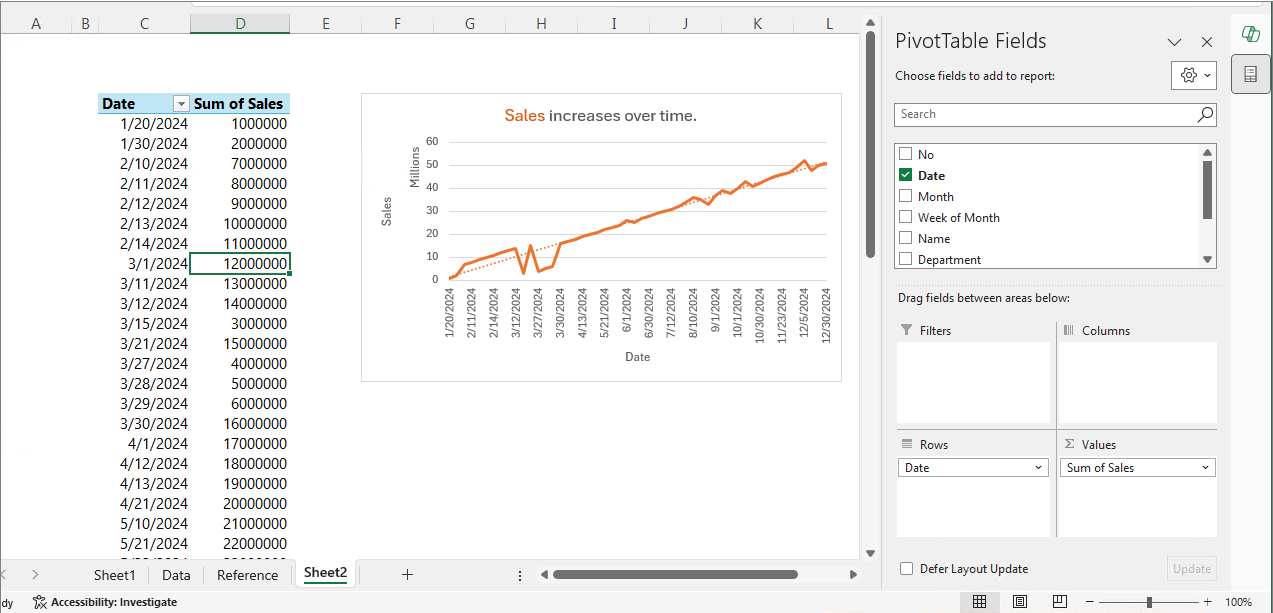
When you click "Add to a new sheet," the corresponding pivot chart and table will be generated on a new sheet. If you want to receive different data insights, click "Can I see another insight?"
When you click "Add to a new sheet," a simple prompt will generate the pivot chart and pivot table.
Prompt 2. Add all insights to grid
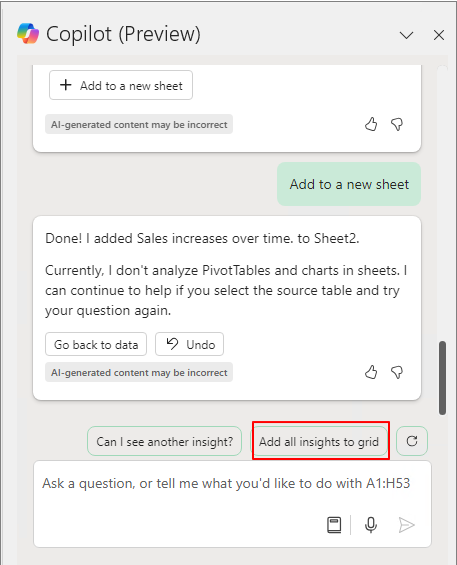
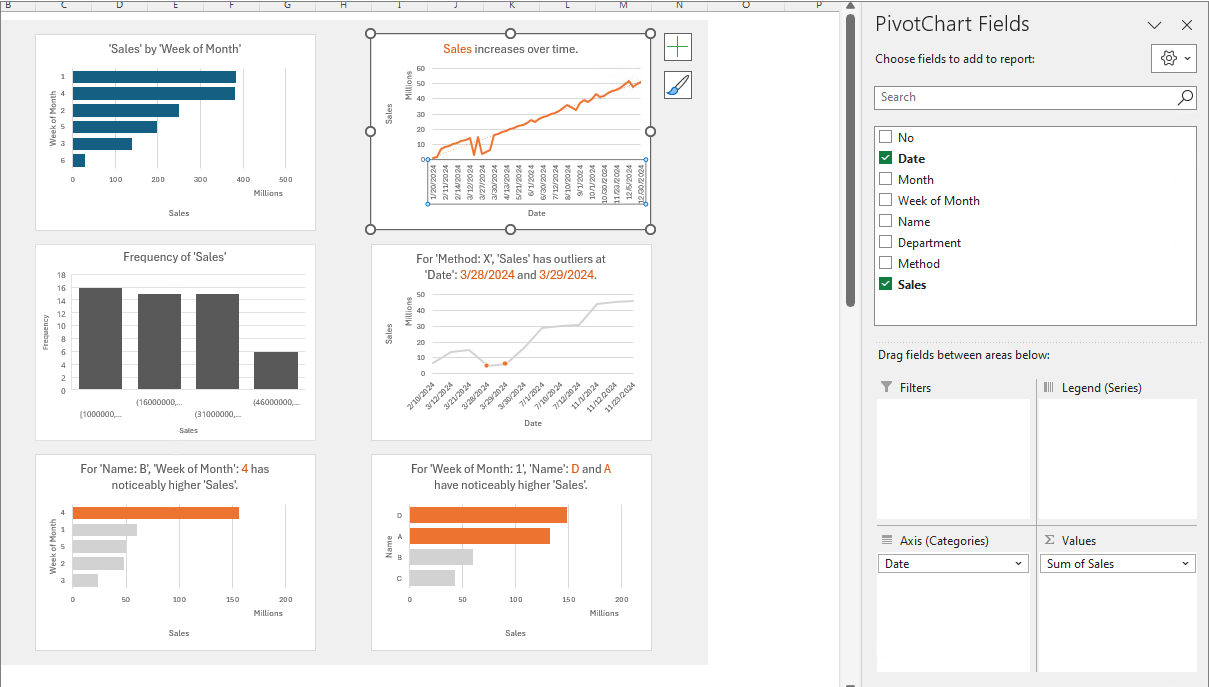
When you click "Add all insights to grid,"
various pivot charts and
pivot tables will be generated simultaneously.
Users who have struggled with creating pivot charts and pivot tables can now easily do so using simple prompts.
Expanded data structure support and comprehensive answers in Copilot in Excel
Users are no longer limited to using Copilot in Excel only in Excel tables, because Copilot in Excel now works on data ranges resembling tables with a single row of headers on top. This saves time by eliminating the need to format data. so users can start analyzing with Copilot right away. This feature started rolling out this month.
In addition, the edit box is now available on any Excel worksheet, regardless of the selected cell. Copilot will reason over the nearest table, or data range resembling a table, to the user’s selected grid area on the same worksheet. This enables users to interact with Copilot immediately, regardless of their position in the worksheet, saving time and increasing productivity. This feature started rolling out this month.
Copilot in Excel now also provides more conversational and comprehensive answers to a wide array of Excel-related questions. When prompted, users can now receive step-by-step instructions including formula examples, or can see corrections and explanations of formula errors. This feature started rolling out this month.
In my personal opinion, I think it has now... become somewhat useful. I’ll show you how you can utilize it to some extent with a specific prompt pattern.
To use Copilot in Excel, the file needs to be saved on OneDrive or SharePoint, and auto-save must be activated. For collaborative editing, auto-save must be enabled. In a way, this is similar to the concept of how Copilot works in conjunction with Pilot for collaborative editing.
Inserting Tables
Copilot operates based on tables. Initially, it only worked within a table, but now it can reference and operate using other tables like a database.
Insert - Table
OK
Prompt 1. Calculate A based on B
Let's calculate the year based on the date.
Calculate Year Based on Date.
Insert column
Confirm result
Prompt 2. Calculate A based on B. If A is null, null
It's similar to prompt 1, but with an additional condition. If A is null, it should be displayed as null.
If this condition is not met, and the date is null, it will be displayed in the following format:
This time, we'll calculate the month based on the date.
Calculate Month based on Date. If Date is null, null
Insert column
The month is calculated as shown below. You can see that if the date is null, it is displayed as null.
If you click on "Give me another column suggestion" instead of "Insert column," it will provide an alternative approach using a different formula.
It suggests a different formula as shown below.
Using the same approach, let’s calculate the week number.
Calculate Week of Month based on Date. If Date is null, null.
Insert column
Confirm result
Prompt 3. Calculate A, Matching B based on C
This time, let's retrieve the department corresponding to the name based on Table2, as shown below.
(This can be done even if it’s not on the same sheet.)
After selecting the first table, enter the following prompt:
Calculate Department, Matching Name based on Table2
Insert column
You can see that the department corresponding to the name is retrieved using the XLOOKUP function.
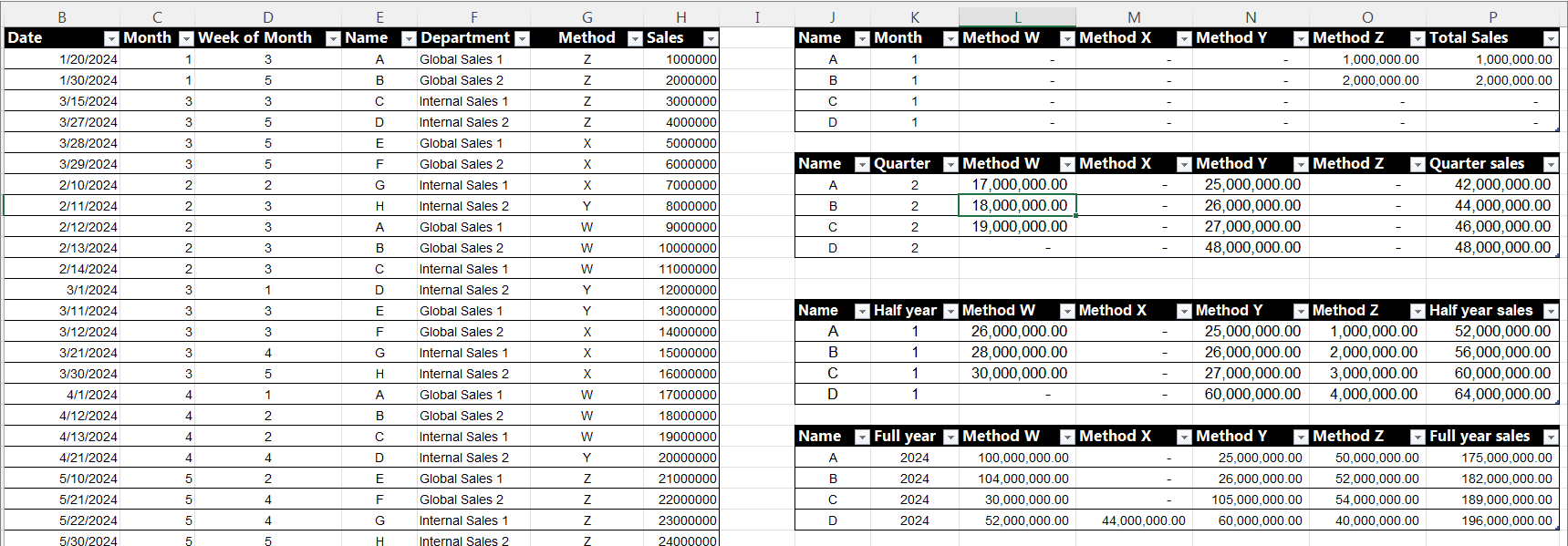
Prompt 4. Calculate Method Z, X, Q, Y Matching Name, Month based on Table1
Table1 is a performance table by sales representatives.
Let’s use a prompt in Table3 to retrieve the relevant performance data.
By entering the prompt below, you can calculate the monthly performance of sales representatives by method.
Calculate Method W, X, Y, Z. Matching Name, Month based on Table1
It suggests four formulas at once, as shown below.
As of July 27, 2024, you can add formula-based aggregation by up to four different attributes.
You can calculate the total monthly sales performance using the following prompt.
Calculate "Total Sales" Matching Name, Month based on Table1
Insert column
Table1의정보를기준으로 Month의값을참고하여각각의실적을계산합니다.
Based on the information in Table1, calculate the performance for each month by referencing the values in the Month column.
Calculate Method W, X, Y, Z. Matching Name, Quarter based on Table1
Insert column
A complex formula is completed to calculate the quarter.
Using the same approach, let’s calculate the total sales by quarter.
Calculate "Quarter sales". Matching Name, Quarter based on Table1
Insert column
Confirm the result
Using the same approach, let’s calculate the semi-annual performance.
Calculate Method W, X, Y, Z. Matching Name, Half year based on Table1
Insert column
Confirm the result
Calculate "Half year sales". Matching Name, Half year based on Table1
Insert column
Calculate Method W, X, Y, Z. Matching Name, Full year based on Table1
Insert column
Calculate "Full year sales". Matching Name, Full year based on Table1.
Insert column
Confirm the result
With a simple prompt, you can see that complex formulas are completed.
It seems that the barrier to using Excel functions has been lowered compared to before.
I will continue to post about effective ways to utilize these features in the future.